
Have you ever turned on your Windows 11 PC, entered your password, and then suddenly seen a black screen after login?
This is one of the most frustrating Windows problems because the computer may appear to be running, but you cannot access your desktop.
Common symptoms include:
- Black screen after entering password
- Mouse cursor visible but nothing else appears
- Desktop does not load
- Taskbar and icons disappear
- Screen goes black after Windows update
In this guide, I will share the best solutions to fix the Windows 11 black screen after login problem without reinstalling Windows.
Why Does Windows 11 Show a Black Screen After Login?
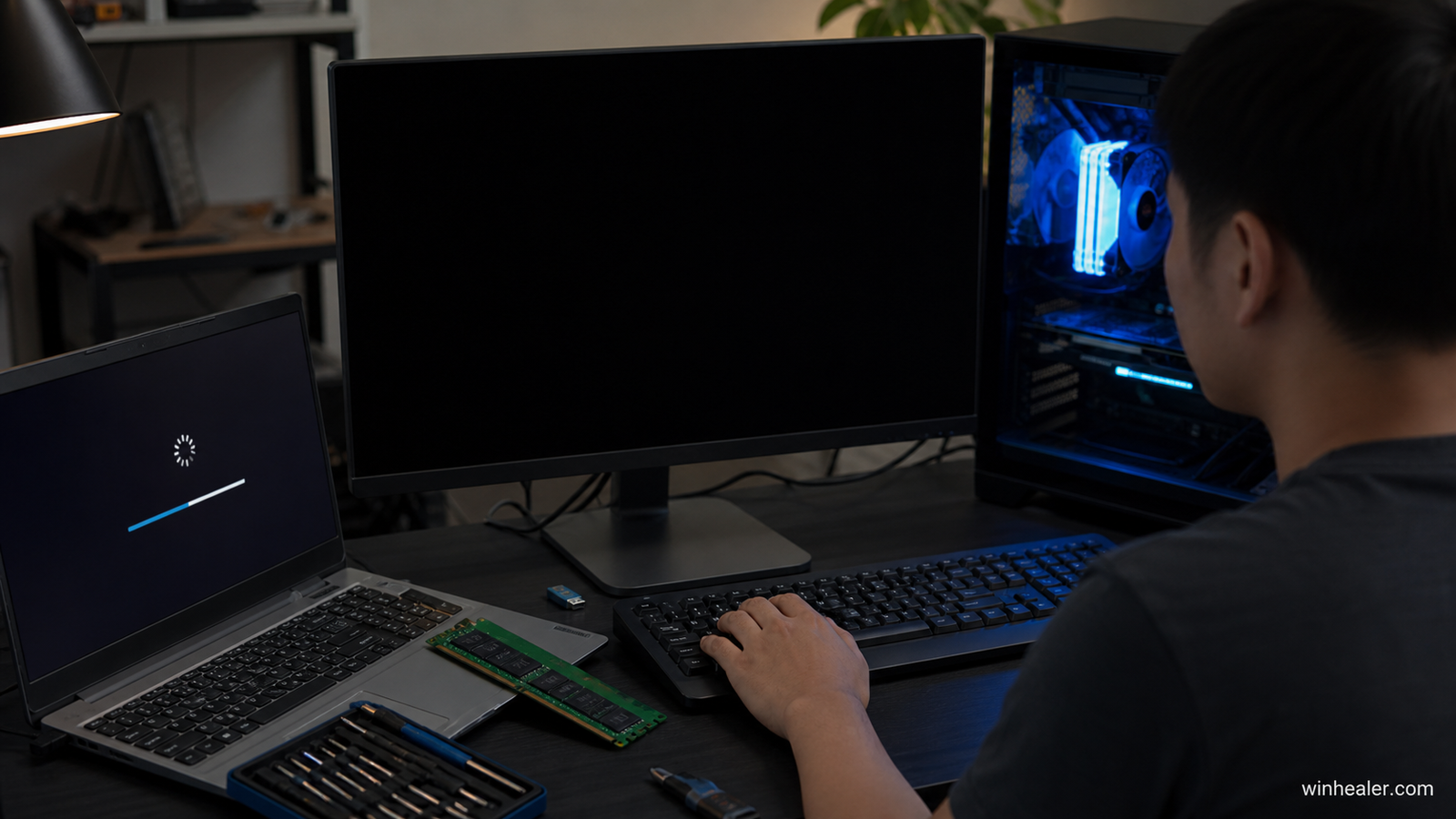
There are several possible reasons behind this issue:
- Graphics driver problems
- Windows Explorer not starting
- Failed Windows updates
- Corrupted system files
- Display connection problems
- Startup application conflicts
- Incorrect display settings
- Malware or software conflicts
Method 1: Restart Windows Explorer
Sometimes Windows logs in successfully, but the Explorer process fails to start.
Steps:
- Press:
Ctrl + Shift + Esc
- Open:
Task Manager
- Click:
File → Run New Task
- Type:
explorer.exe- Press Enter
If your desktop appears, the problem was caused by Windows Explorer.
Method 2: Restart Your Graphics Driver
Windows includes a shortcut to restart the display driver.
Press:
Windows Key + Ctrl + Shift + B
Your screen may blink for a moment.
This can fix temporary graphics driver problems.
Method 3: Check Your Monitor Connection
Sometimes the problem is not Windows.
Check:
- HDMI cable
- DisplayPort cable
- Monitor input source
- GPU connection
For desktop PCs:
- Make sure the cable is connected to the graphics card, not the motherboard port (if using a dedicated GPU).
Method 4: Boot Into Safe Mode
Safe Mode starts Windows with only essential drivers.
It helps identify whether a driver or software is causing the black screen.
Steps:
- Hold the power button to turn off your PC
- Start the PC and interrupt startup 2–3 times
- Windows Recovery Mode will open
- Select:
Troubleshoot → Advanced Options → Startup Settings
- Restart
- Press:
4 for Safe Mode
Method 5: Update or Roll Back Graphics Drivers
Graphics drivers are one of the most common causes of black screens.
Update:
- NVIDIA GeForce drivers
- AMD Radeon drivers
- Intel graphics drivers
If the problem started after a driver update:
Go to:
Device Manager → Display Adapters → Properties → Driver
Choose:
Roll Back Driver
Method 6: Disable Fast Startup
Fast Startup can sometimes create boot problems.
Steps:
- Open:
Control Panel
- Go to:
Power Options
- Select:
Choose what the power buttons do
- Disable:
Turn on Fast Startup
- Save changes
Restart your PC.
Method 7: Repair Windows System Files
Corrupted Windows files can prevent the desktop from loading.
Open:
Command Prompt as Administrator
Run:
sfc /scannowThen:
DISM /Online /Cleanup-Image /RestoreHealthRestart your PC after completion.
Method 8: Remove Problematic Startup Programs
Some applications may prevent Windows from loading correctly.
Open:
Task Manager → Startup Apps
Disable unnecessary programs.
Common problem programs:
- Old utilities
- RGB control software
- System optimization tools
- Third-party antivirus
Method 9: Uninstall Recent Windows Updates
If the black screen started after a Windows update:
Go to:
Recovery Environment → Troubleshoot → Advanced Options
Select:
Uninstall Updates
Remove the latest quality update.
Method 10: Check Windows Display Settings
Sometimes Windows sends the display output to the wrong screen.
Press:
Windows Key + P
Select:
PC Screen Only
or
Duplicate
Check if your display returns.
Method 11: Perform System Restore
If your PC worked correctly before:
- Open Windows Recovery
- Select:
Troubleshoot → Advanced Options → System Restore
- Choose a restore point
Your personal files will remain safe.
My Personal Recommendation
From my experience, the most common causes of Windows 11 black screen after login are:
- Graphics driver issues
- Explorer process not starting
- Failed Windows updates
- Startup software conflicts
Before reinstalling Windows, always try restarting Explorer, Safe Mode, and repairing system files.
Final Thoughts
A black screen after login can look like a serious Windows failure, but in many cases, it is caused by a simple software or driver problem.
Follow these steps:
✔ Restart Explorer
✔ Reset graphics driver
✔ Update GPU drivers
✔ Repair Windows files
✔ Remove problematic updates
Most users can fix this problem without losing their files.
For more Windows troubleshooting guides, PC fixes, gaming optimization tips, and hardware updates, keep following WinHealer.

