
USB devices are an important part of our daily PC usage. We connect keyboards, mice, external hard drives, USB drives, webcams, printers, and many other accessories through USB ports.
However, sometimes Windows 11 users face problems where USB devices stop working suddenly.
Common problems include:
- USB device not detected
- USB ports not working
- Keyboard or mouse not responding
- External hard drive not appearing
- USB device keeps disconnecting
- “USB device not recognized” error
In this guide, I will share the best solutions to fix USB problems in Windows 11 without reinstalling Windows.
Why Are USB Devices Not Working in Windows 11?
There are many reasons why USB devices may stop working:
- Damaged USB drivers
- Windows update problems
- Faulty USB ports
- Power management settings
- Corrupted system files
- Outdated motherboard chipset drivers
- Hardware problems
- USB device failure
Finding the cause helps you apply the correct fix.
Method 1: Restart Your PC
Sometimes Windows USB services can stop working correctly.
A simple restart can refresh:
- USB controllers
- System services
- Device detection
Restart your PC and reconnect your USB device.
Method 2: Try a Different USB Port
Before changing Windows settings, check the hardware.
Try:
- Another USB port
- Another USB cable
- Another computer
For desktop PCs:
- Use rear motherboard USB ports instead of front case ports
- Avoid damaged or loose USB connections
Method 3: Check Device Manager
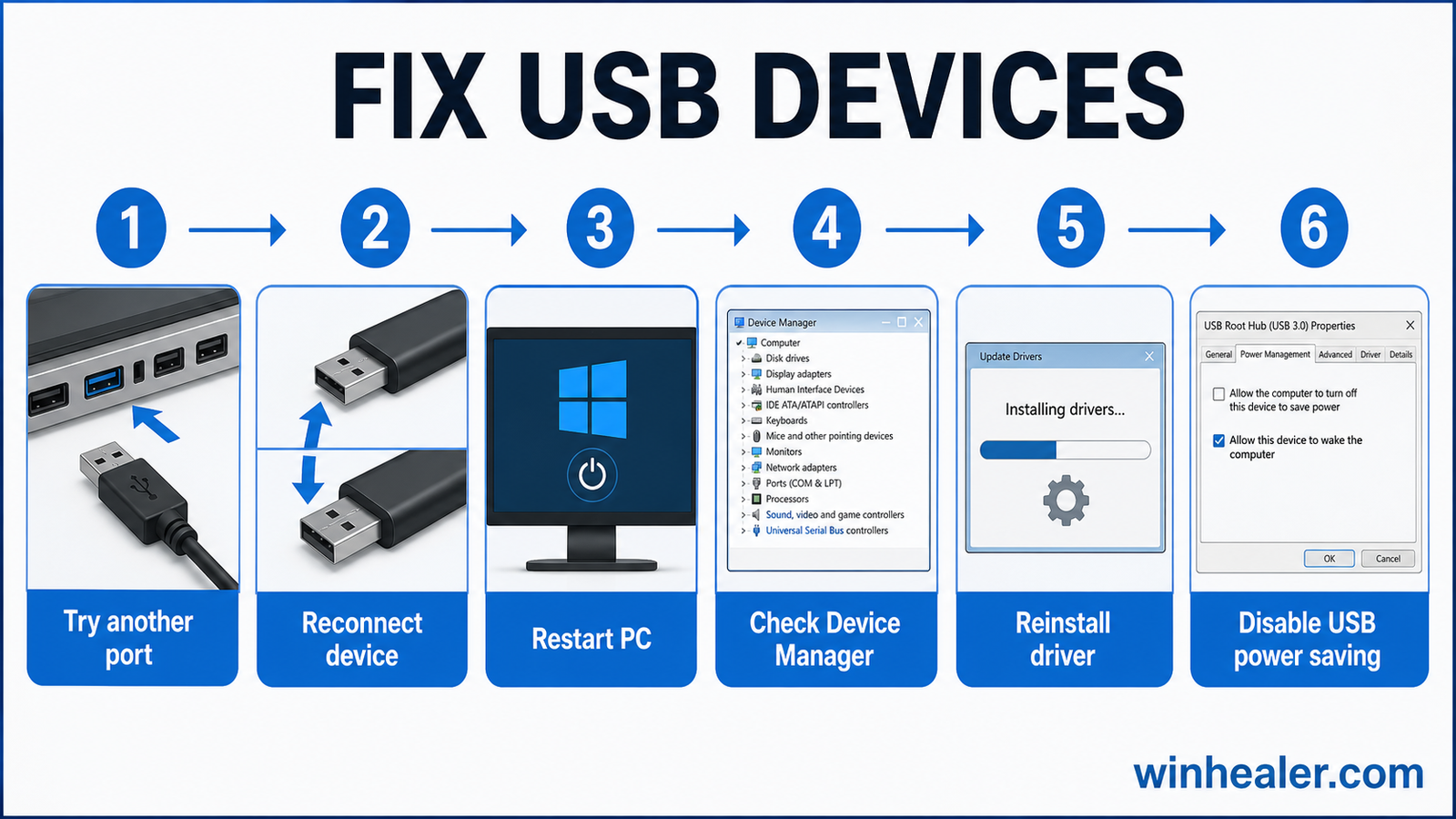
Windows Device Manager can show USB problems.
Steps:
- Right-click Start Menu
- Open:
Device Manager
- Expand:
Universal Serial Bus Controllers
Look for:
- Yellow warning symbols
- Unknown devices
- USB controller errors
Method 4: Update USB Drivers
Old drivers are one of the most common reasons USB devices fail.
Steps:
- Open:
Device Manager
- Expand:
Universal Serial Bus Controllers
- Right-click USB controller
- Select:
Update Driver
Restart your PC after updating.
Method 5: Reinstall USB Drivers
If updating does not work, reinstall the drivers.
Steps:
- Open Device Manager
- Right-click USB controller
- Select:
Uninstall Device
- Restart your PC
Windows will automatically reinstall the drivers.
Method 6: Disable USB Power Saving
Windows can turn off USB ports to save power.
Steps:
- Open:
Device Manager
- Expand:
Universal Serial Bus Controllers
- Open:
USB Root Hub Properties
- Go to:
Power Management
- Disable:
“Allow the computer to turn off this device to save power”
Restart your PC.
Method 7: Run Windows Hardware Troubleshooter
Windows includes built-in repair tools.
Go to:
Settings → System → Troubleshoot → Other Troubleshooters
Run available hardware troubleshooters.
Method 8: Update Chipset Drivers
USB controllers are connected to your motherboard chipset.
Update:
- Intel chipset drivers
- AMD chipset drivers
- Laptop motherboard drivers
Download drivers from your PC or motherboard manufacturer’s official website.
Method 9: Check Windows System Files
Corrupted Windows files can affect USB functionality.
Open:
Command Prompt as Administrator
Run:
sfc /scannowThen:
DISM /Online /Cleanup-Image /RestoreHealthRestart your PC after completion.
Method 10: Disable Fast Startup
Fast Startup can sometimes cause hardware detection problems.
Steps:
- Open:
Control Panel
- Go to:
Power Options
- Select:
Choose what the power buttons do
- Disable:
Turn on Fast Startup
Restart your PC.
Method 11: Check External USB Storage Problems
If your USB drive or external hard drive is not detected:
Check:
Disk Management
Steps:
- Press:
Windows Key + X
- Select:
Disk Management
Check if the drive appears.
If it appears without a drive letter:
- Right-click
- Assign a drive letter
Method 12: Check for Windows Updates
Microsoft regularly releases fixes for hardware compatibility issues.
Go to:
Settings → Windows Update
Install available updates and restart.
My Personal Recommendation
From my experience, most USB problems are caused by:
- Outdated USB/chipset drivers
- Power-saving settings
- Faulty cables or ports
- Windows system file problems
Before replacing your hardware, always test another port and update your drivers first.
Final Thoughts
USB problems in Windows 11 can be frustrating, especially when important devices stop working. Fortunately, most issues are software-related and can be fixed with simple troubleshooting.
Try these solutions:
✔ Restart your PC
✔ Test another USB port
✔ Update USB drivers
✔ Disable power saving
✔ Repair Windows files
✔ Update chipset drivers
With proper maintenance, your USB devices should work smoothly on Windows 11.
For more Windows troubleshooting guides, PC optimization tips, gaming fixes, and hardware updates, keep following WinHealer.

