Every Windows PC user faces problems at some point. Your computer may become slow, show errors, crash unexpectedly, or develop issues after a Windows update.
The good news is that you don’t always need to visit a repair shop. Many common PC problems can be diagnosed and fixed using free tools.
In this guide, I will share the best free PC repair tools every Windows user should keep for troubleshooting, optimization, security, and system maintenance.
1. Windows Security (Built-In Antivirus)
Best for: Virus protection and malware scanning
Windows already includes a powerful security tool called Windows Security.
It helps protect your PC from:
- Viruses
- Malware
- Spyware
- Ransomware
- Suspicious applications
Useful features:
✔ Quick Scan
✔ Full Scan
✔ Offline Scan
✔ Real-time protection
How to Open:
Go to:
Settings → Privacy & Security → Windows Security
My recommendation: Keep Windows Security enabled even if you use other repair tools.
2. Microsoft PC Manager
Best for: Easy Windows optimization
Microsoft PC Manager is a free tool designed to help users maintain their PCs.
Features include:
- Junk file cleaning
- Startup management
- Health check
- Storage cleanup
- Performance boost
It is simple enough for beginners.
3. Malwarebytes Free
Best for: Removing malware and unwanted programs
Sometimes Windows antivirus may miss certain threats.
Malwarebytes can detect:
- Adware
- Browser hijackers
- Potentially unwanted programs
- Malware
I recommend using it as an additional scanner when your PC behaves strangely.
4. CrystalDiskInfo
Best for: Checking SSD and HDD health
Storage problems can cause:
- Slow PC performance
- File errors
- Crashes
- Data loss
CrystalDiskInfo helps check:
- Drive health
- Temperature
- Power-on hours
- SMART information
It is especially useful for older hard drives.
5. HWiNFO
Best for: Complete hardware monitoring
HWiNFO is one of my favorite tools for checking PC hardware.
It shows:
- CPU temperature
- GPU temperature
- RAM information
- Fan speeds
- Voltage readings
- Hardware details
Useful for:
- Gaming PCs
- Overclocking
- Troubleshooting overheating
6. Revo Uninstaller Free
Best for: Completely removing programs
Sometimes Windows uninstall does not remove everything.
Revo Uninstaller helps remove:
- Leftover files
- Registry entries
- Unwanted applications
Useful when your PC is full of old software.
7. Autoruns by Microsoft
Best for: Managing startup programs
Many applications start automatically with Windows and slow down boot time.
Autoruns shows:
- Startup programs
- Background services
- Scheduled tasks
It is more advanced than normal Task Manager startup settings.
8. CCleaner Free
Best for: Basic cleaning
CCleaner can help remove:
- Temporary files
- Browser cache
- Unnecessary data
Use cleaning tools carefully and avoid deleting important system files.
9. Rufus
Best for: Creating Windows installation USB drives
Rufus is extremely useful when you need to:
- Install Windows
- Repair Windows
- Create bootable USB drives
Features:
- Fast USB creation
- Multiple Windows options
- Support for modern PCs
10. Windows Media Creation Tool
Best for: Official Windows repair and installation
Microsoft’s own tool helps you create Windows installation media.
Useful for:
- Windows reinstall
- Repair installation
- Upgrade problems
11. Driver Booster Alternatives / Official Driver Tools
Best for: Driver management
Drivers are a common cause of:
- Blue screen errors
- Hardware problems
- Performance issues
The safest approach is usually downloading drivers from:
- Laptop manufacturer websites
- Motherboard manufacturer websites
- GPU manufacturer websites
12. Process Explorer
Best for: Advanced Task Manager replacement
Process Explorer from Microsoft provides deeper information about:
- Running processes
- Background activity
- System resource usage
It is useful for finding suspicious or heavy programs.
My Personal PC Repair Toolkit
If I had to choose only a few tools, I would keep:
For Every User:
✔ Windows Security
✔ Microsoft PC Manager
✔ Malwarebytes
✔ CrystalDiskInfo
For Gamers:
✔ HWiNFO
✔ GPU monitoring tools
✔ CrystalDiskInfo
For Advanced Users:
✔ Autoruns
✔ Process Explorer
✔ Rufus
Important Tips Before Using Repair Tools
Always remember:
✔ Create a restore point before major changes
✔ Download tools from official websites
✔ Avoid unknown “one-click PC booster” programs
✔ Do not clean Windows registry unnecessarily
✔ Keep Windows and drivers updated
My Personal Recommendation
From my experience, most PC problems can be solved with proper diagnosis instead of randomly installing many repair programs.
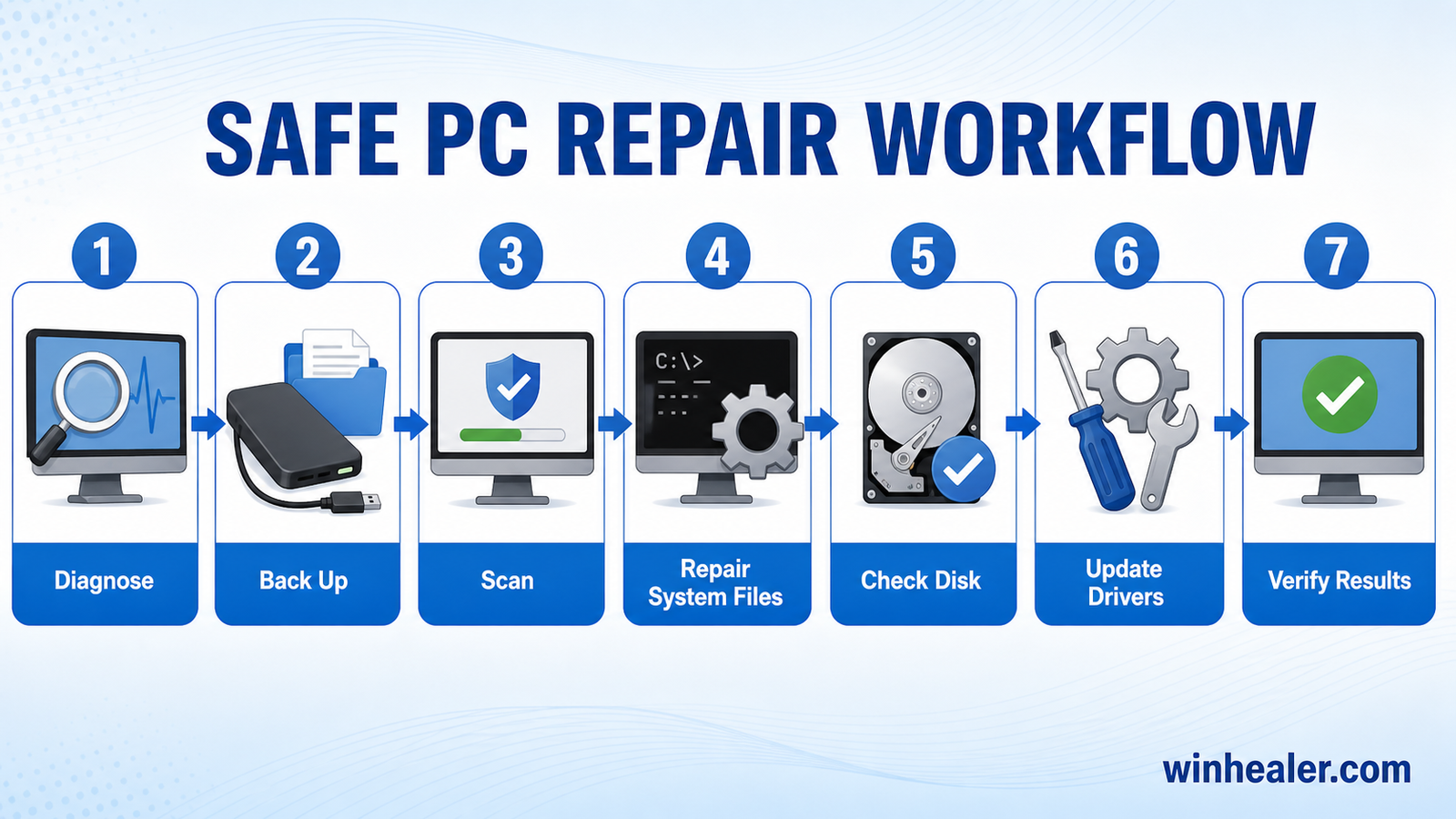
A good maintenance routine is:
- Check malware
- Check storage health
- Monitor temperatures
- Manage startup apps
- Keep drivers updated
These simple steps can keep your PC running smoothly for years.
Final Thoughts
A slow or problematic PC does not always mean you need new hardware. The right repair tools can help you find the real problem and fix many Windows issues yourself.
Every Windows user should have a small collection of trusted tools for:
✔ Security
✔ Performance optimization
✔ Hardware monitoring
✔ System recovery
Keep these tools ready, and you will be prepared for most common PC problems.
For more Windows fixes, PC optimization guides, gaming tips, and hardware updates, keep following WinHealer.