
Windows 11 Xbox Mode is Microsoft’s controller-first, full-screen gaming experience for PCs. It grew from the Full Screen Experience first developed for handheld gaming devices and is designed to make Windows feel more like a console without removing the flexibility of a normal desktop.
The important detail is availability. Microsoft rolls features through supported devices and Windows Insider channels in stages. Your PC may show Full screen experience, Xbox Mode, or no option yet. Do not install unofficial system files to force an unavailable preview.
What Xbox Mode changes
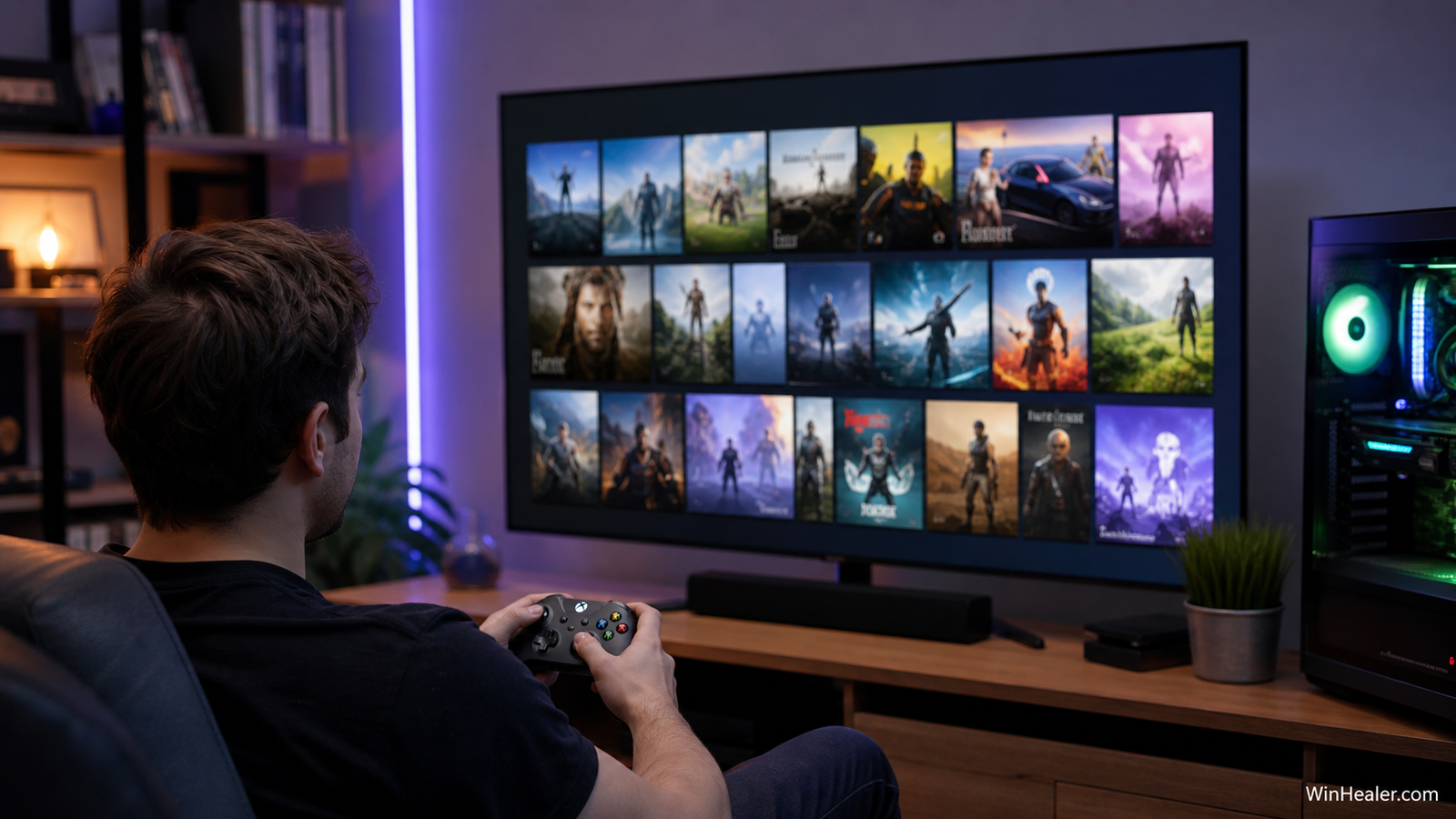
Xbox Mode opens a full-screen interface designed for controller navigation, game discovery and launching. Microsoft says the experience reduces distracting background activity and provides a cleaner gaming-focused environment. It does not turn the PC into an Xbox console, and it does not make console-only games compatible with Windows.
Requirements
- A supported Windows 11 build and device.
- The current Xbox app from Microsoft Store.
- A Microsoft account for services that require it.
- A compatible controller for the intended console-style experience.
- Updated graphics and chipset drivers.
Some features may initially be limited to handheld devices, Insider builds or selected form factors. Check Windows Update and the official Xbox app rather than assuming every Windows 11 PC has the same controls.
How to check for Xbox Mode
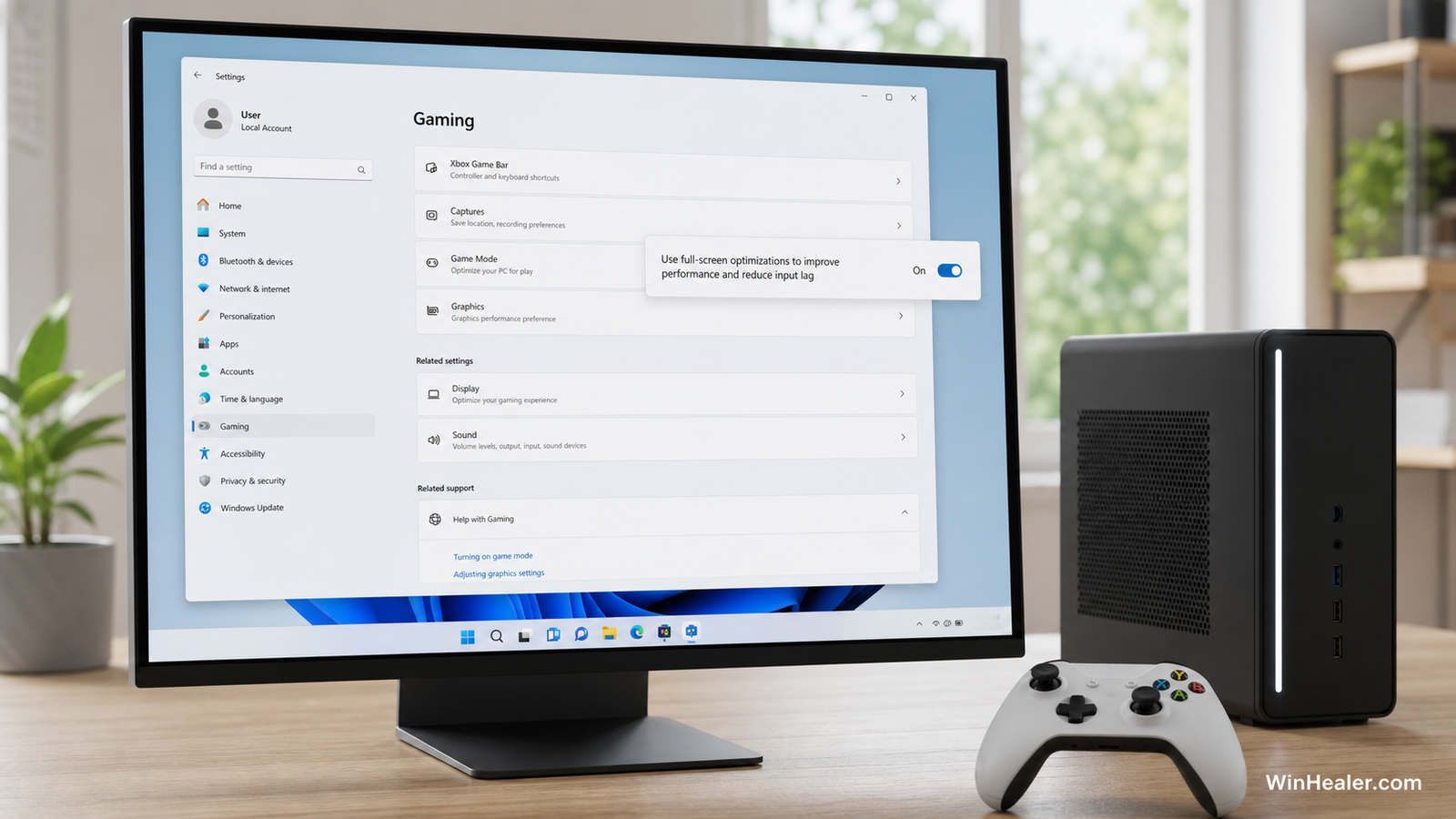
- Open Settings.
- Select Gaming.
- Look for Full screen experience or Xbox Mode.
- If present, open it and review the startup and home-app options.
- Update the Xbox app through Microsoft Store before enabling it.
If the option is missing, confirm the Windows build under Settings > System > About. A normal supported build is preferable to joining an experimental channel on your main gaming PC just for one feature.
How it differs from Game Mode
Game Mode is an established Windows setting that prioritizes the gaming workload and reduces some background update activity. Xbox Mode is a broader interface and session experience intended for controller use. Depending on the current build, Xbox Mode may incorporate gaming-focused resource behavior, but it should not be described as a guaranteed FPS booster.
How it differs from the Xbox app
The Xbox app is a Windows application for a game library, Game Pass, cloud features and social services. Xbox Mode uses a full-screen shell-like experience and may set the Xbox app as its home interface. You can use the Xbox app without running Xbox Mode.
Expected performance
Microsoft has described the full-screen experience as minimizing background tasks to keep play smooth and responsive. Actual results depend on the processor, memory, graphics card, drivers and game. Compare the same game, settings and scene before and after enabling it. One benchmark run is not enough to claim a performance gain.
Useful setup choices
- Connect the controller before starting the experience.
- Enable automatic sign-in only on a private device.
- Keep display resolution and refresh rate correctly configured.
- Use wired Ethernet or strong Wi-Fi for cloud gaming.
- Set Windows audio output before sitting away from the keyboard.
What still needs the desktop
Driver installation, mod management, advanced graphics configuration, file repair and many third-party launchers may still require the desktop and a mouse. Xbox Mode is a convenient front end, not a replacement for every Windows administration task.
Troubleshooting Xbox Mode
The option is missing
Install Windows and Microsoft Store updates, restart, and verify device eligibility. If Microsoft lists the feature as an Insider preview, wait for broader rollout unless you accept preview-build risks.
The controller does not navigate
Test the controller in Settings > Bluetooth & devices and update its firmware using the manufacturer’s supported tool. Disconnect duplicate virtual-controller utilities while testing.
Games open on the wrong display
Set the intended gaming screen as the main display, then configure the game’s monitor and full-screen settings. Different launchers may remember their own display selection.
Performance becomes worse
Disable overlays and recording, restart the PC and compare at identical settings. Update the graphics driver. If the feature is in preview on your build, report reproducible problems through Feedback Hub.
Should desktop gamers enable it?
It makes sense for a living-room PC, handheld, compact gaming system or anyone who prefers a controller-first interface. Traditional desktop users who frequently switch between games, browser windows, Discord and productivity tools may prefer the normal Windows desktop.
Privacy and accounts
Review Xbox privacy, sign-in and purchase settings before sharing the PC. Avoid password-free purchases on a family machine. The experience does not change which account owns a game or subscription.
Final verdict
Xbox Mode is most valuable as an interface improvement, not a magical performance switch. It can make a Windows gaming PC easier to use from a sofa and reduce desktop friction, while the normal Windows environment remains available for maintenance and unsupported applications. Check official rollout information because availability and names can change.
Official references
- Microsoft: Full screen experience expands to more PC form factors
- Microsoft: Xbox Mode changes in Windows Insider
- Xbox Support: Game Mode on PC
Editorial note: Xbox Mode is still evolving. This guide distinguishes confirmed Microsoft behavior from performance expectations that require testing on each PC.

