
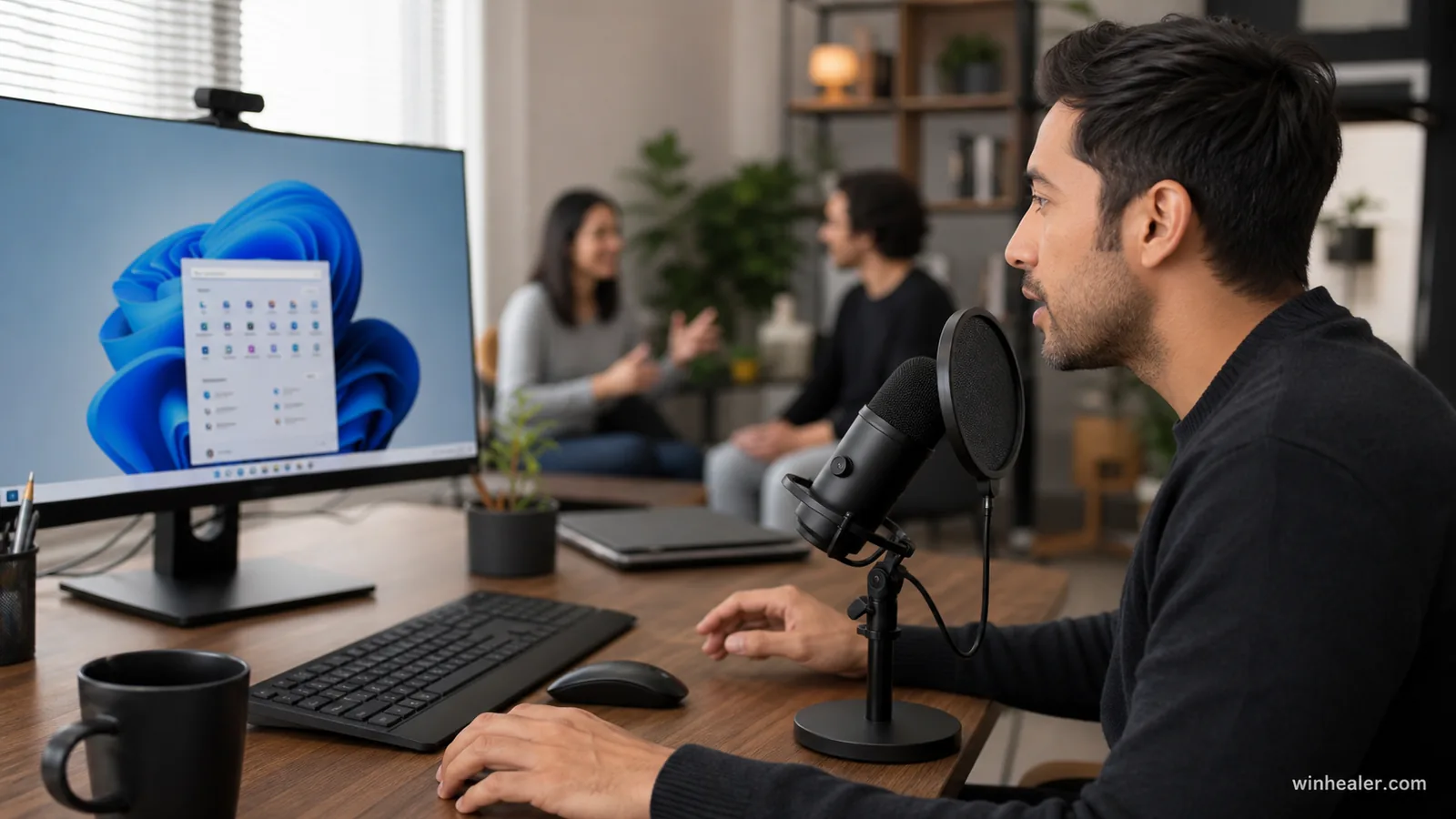
Imagine trying to control a PC by voice in a shared room. You say “open Settings,” but a nearby conversation, television or colleague keeps being picked up by the microphone. Windows Voice Access already processes commands on the device, yet separating the intended speaker from other voices has remained a practical problem. Microsoft is now testing a feature called Voice Isolation to address exactly that situation.
Voice Isolation appeared in Windows 11 Insider Preview Build 29634.1000 for the Experimental (Future Platforms) channel on July 27, 2026. It is a preview feature, not a setting every Windows 11 user has today. This walkthrough separates the new option from the Voice Access tools already available and shows how to set up the feature without confusing it with Voice Typing, microphone noise suppression or cloud transcription.
First, what Voice Access does
Voice Access lets you operate Windows and supported apps with spoken commands. You can open and switch apps, click numbered screen elements, scroll, position the pointer with a grid and dictate text. Microsoft says the core speech recognition works without an internet connection after the required language files are installed.
Voice Typing is a different feature. It opens with Windows + H when the cursor is in a text field and uses online speech recognition to enter text. Voice Access is the broader hands-free control layer. Knowing which one is running prevents a lot of troubleshooting in the wrong menu.
What Voice Isolation changes
In the preview, Voice Access offers three recognition modes under its Improve speech recognition settings. Voice Isolation is designed to focus on the enrolled speaker while filtering other voices and background noise. Microsoft says the processing happens privately on the device and that a one-time voice setup is required.
This is more specific than ordinary microphone noise cancellation. A headset may reduce fans or keyboard sound, but another person speaking is still speech. Voice Isolation aims to distinguish the user’s voice from competing speakers so commands are less likely to be triggered or misheard in a busy room.
Before looking for the new setting
Check the Windows build and Insider channel under Settings > System > About and Settings > Windows Update > Windows Insider Program. Build 29634.1000 was released to Experimental (Future Platforms), and Microsoft describes the feature as gradually rolling out. A matching build number does not guarantee immediate availability.
Do not move a primary PC into a future-platform preview just to obtain Voice Isolation. Experimental builds are intended for testing and can introduce unfinished behavior. If Voice Access is essential for daily accessibility, stability and a dependable fallback input method matter more than receiving one feature early.
Set up Voice Access on a supported PC
- Open Settings > Accessibility > Speech.
- Turn on Voice access. If Windows requests a speech model, allow the supported language download to finish.
- Select the microphone you intend to use and complete the initial guide.
- Practice basic commands such as “Open Start,” “Show numbers,” “Scroll down” and “What can I say.”
- Keep a keyboard, mouse, switch device or other reliable input method available while testing.
The Voice Access bar shows whether the microphone is listening, sleeping or off. Alt + Shift + B switches between listening and sleep, while Alt + Shift + C controls the microphone-off state. Learn these states before evaluating recognition quality; a sleeping microphone is not a failed speech model.
Enable Voice Isolation when it appears
Open the settings menu from the Voice Access bar and look for Improve speech recognition. Choose Voice Isolation, then follow the one-time voice setup. Use your normal speaking volume and the microphone you will use most often. Changing to a distant webcam mic later may produce a different result.
Microsoft’s preview notes describe Voice Isolation as one of three recognition modes, but labels and placement can change before broad release. If the menu is absent, update through the channel already assigned to the device, restart once and wait for the controlled rollout. Avoid third-party scripts that force hidden feature identifiers.
A practical test, not a staged demo
Test in three short rounds. Begin in a quiet room and run ten commands you use regularly. Note missed words, wrong actions and how long the system takes to respond. Next, repeat the same commands with steady non-speech noise such as a fan. Finally, ask another person to speak naturally several feet away while you repeat the list.
Keep the microphone position and Windows volume unchanged between rounds. The goal is not to prove the feature perfect; it is to see whether it reduces errors in your real environment. Include commands that could have consequences, such as closing a window, only after you are comfortable with safer actions.
If recognition is still unreliable
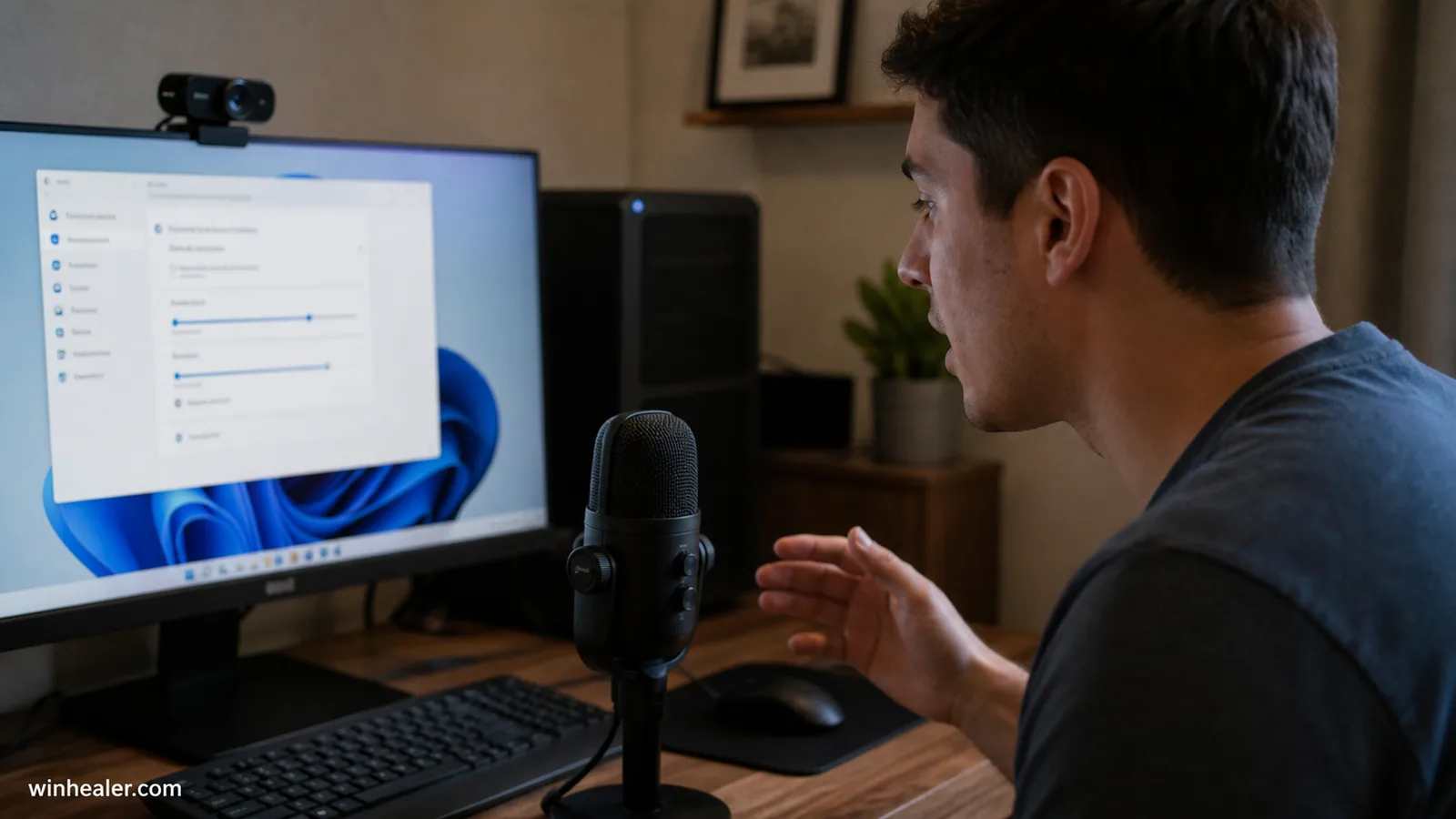
Start with the physical setup. Move a laptop away from a loud fan, position a directional microphone closer to the speaker and confirm that Windows is using the intended input under Settings > System > Sound. Excessive input gain can make background sound harder to separate, while very low gain can clip quiet words.
In Voice Access settings, check the language and default microphone. Add names, technical terms and other difficult words to the vocabulary. Increase the wait time before acting if commands are being cut off before you finish speaking. These adjustments can help regardless of whether Voice Isolation is available.
If a Bluetooth headset behaves differently in calls, remember that Windows may switch between higher-quality playback and a hands-free profile when the headset microphone is active. Test a USB microphone or the built-in array to isolate whether the issue belongs to Voice Access or the audio device.
Security and accessibility boundaries
On-device processing is a useful privacy property, but it does not make every spoken action private. People nearby can still hear what you say, and commands can reveal filenames, messages or account information. Use headphones for sensitive audio feedback and avoid dictating secrets in a shared space.
Voice Isolation should also be treated as an aid, not an authentication control. It is intended to improve recognition of the enrolled speaker, not to replace Windows Hello, a password or confirmation prompts. Review the screen before approving an administrative or financial action.
Who benefits most?
The obvious audience is anyone who relies on hands-free control in an office, classroom or family room. It can also help a person with limited mobility use a PC without requiring everyone else to remain silent. Streamers and creators may appreciate fewer accidental commands, although dedicated audio software can still be better for cleaning a recorded microphone feed.
For a quiet home office with a close headset mic, the improvement may be modest. That is why a repeatable test matters more than the feature name. Keep the mode that produces fewer mistakes in your own setup.
Bottom line
Voice Isolation addresses a real weakness in hands-free computing: other people’s speech is much harder to reject than a constant fan. Microsoft’s on-device approach is promising, but as of August 2026 it belongs to an Experimental future-platform build and a gradual rollout.
Set up standard Voice Access first, learn its microphone states and commands, then test Voice Isolation with a consistent command list when the option reaches your PC. A stable workflow with a dependable backup input method is more valuable than forcing an unfinished feature onto a machine that must work every day.

