
Quick verdict: Choose Reset This PC if Windows still works well enough to launch recovery and you want a chance to keep personal files. Choose Cloud Rebuild only when you need a genuinely clean, cloud-delivered installation that also downloads device drivers—and you accept that it will reformat the system disk.
The names are confusing because Reset This PC already includes an option called Cloud download. That is not the same feature as Cloud Rebuild. Microsoft has apparently decided that Windows recovery needed both a cloud and a larger cloud. Let us separate them before anyone clicks the destructive one by accident.
Cloud Rebuild and Reset This PC at a glance
| Feature | Cloud Rebuild | Reset This PC |
|---|---|---|
| Current status | Preview for evaluation on non-production devices | Established Windows recovery feature |
| Personal files | All local files are removed | Keep my files or Remove everything |
| Windows source | Downloads target Windows image from Windows Update | Cloud download or Local reinstall |
| Drivers | Downloads device drivers from Windows Update | Uses the normal reset and setup path |
| Depends on installed OS files | No | Local reinstall does; Cloud download reduces that dependency |
| Where it starts | WinRE or elevated command prompt in the preview | Settings or WinRE |
| After completion | Starts Windows out-of-box experience | Reinstalls Windows using the selected reset choices |
What is Windows 11 Cloud Rebuild?
Cloud Rebuild is a new recovery option that restores a Windows 11 PC to a clean, known-good state. It downloads the target Windows image and compatible drivers from Windows Update, then performs a full operating-system installation. It does not require USB installation media, a custom recovery image, or healthy files inside the installed copy of Windows.
That makes Cloud Rebuild attractive when a machine is badly damaged, cannot boot normally, or needs to return to a clean state with the correct basic drivers. Managed computers can proceed through Windows Autopilot, Intune, Backup for Organizations, and OneDrive after installation.
However, Microsoft currently labels Cloud Rebuild as a preview and recommends evaluating it only on non-production devices. The interface, features, and commands may change before general availability.

The warning that matters: Cloud Rebuild erases the system disk
Cloud Rebuild reformats the system disk. Microsoft states that it removes all locally stored files, accounts, applications, and settings. Files already synchronized to services such as OneDrive are not deleted from the cloud, but anything that exists only on the PC is at risk.
This is the biggest difference from Reset This PC. If your photographs, documents, saved games, browser profiles, project folders, or encryption keys are stored locally, back them up before continuing. Do not treat the word “cloud” as shorthand for “automatic backup.” In this feature, it describes where Windows and drivers come from—not where your forgotten Downloads folder goes.
What is Reset This PC?
Reset This PC reinstalls Windows while offering several choices. Keep my files preserves personal documents, photos, and similar data but removes installed applications and resets settings. Remove everything deletes personal files, apps, and settings.
You then choose how Windows obtains installation files:
- Cloud download downloads a fresh copy of Windows. It is useful when local recovery files are missing or corrupted.
- Local reinstall uses files already on the PC. It can be quicker and avoids a large download, but damaged local components can make it a poor choice.
Reset This PC can start from Settings > System > Recovery or from Windows Recovery Environment. An encrypted device may require its BitLocker recovery key.
Cloud Rebuild is not Reset This PC with Cloud download
Both retrieve Windows from Microsoft, but they serve different recovery levels. Reset This PC with Cloud download still follows the reset workflow and can offer Keep my files. Cloud Rebuild creates a clean target state, downloads device drivers, reformats the system disk, and returns the machine to the initial Windows setup experience.
If preserving local files is important, Cloud Rebuild is the wrong first choice. If the installed operating system and its recovery resources cannot be trusted, Cloud Rebuild is the more thorough option—provided the device satisfies its requirements.
Cloud Rebuild requirements
Microsoft lists several prerequisites:
- The device must run Windows 11 and meet its minimum hardware requirements.
- Windows Recovery Environment must be healthy and enabled. An administrator can check with reagentc /info.
- WinRE must contain a compatible network driver.
- The PC needs internet access through Ethernet or a supported personal Wi-Fi network.
- The device should remain connected to power for the entire rebuild.
Microsoft’s current preview documentation specifies WPA-Personal networking and notes WPA2 Personal during troubleshooting. Enterprise authentication, captive portals, and missing network drivers can prevent WinRE from reaching Windows Update. Ethernet is the simplest option when available.
How to start Cloud Rebuild from WinRE
- Back up every local file you want to keep and obtain the BitLocker recovery key.
- Open Settings > System > Recovery.
- Next to Advanced startup, select Restart now. WinRE may also open automatically after repeated boot failures.
- Select Troubleshoot > Cloud rebuild.
- Connect to Ethernet or select a supported Wi-Fi network.
- Review the proposed Windows build, edition, and language.
- Read and acknowledge the data-loss warning.
- Select Continue and leave the computer connected to power.
The PC may restart several times. Do not switch it off during preparation, download, or installation. Interrupting the process can leave Windows unable to boot.
When Reset This PC is the better option
Choose Reset This PC first when Windows is slow, unstable, infected with unwanted software, or suffering from damaged system files—but the drive remains accessible and you need to preserve personal data. The Keep my files plus Cloud download combination gives many home users a useful middle ground.
Reset is also the safer choice for a primary computer while Cloud Rebuild remains preview-only. You still need a backup because no recovery operation deserves blind trust, but Reset offers less destructive choices.
When Cloud Rebuild makes more sense
Cloud Rebuild is designed for cases where a clean rebuild is the objective rather than a gentle repair. Consider it when:
- The PC cannot boot normally but WinRE still works.
- The installed operating system or local recovery files may be badly corrupted.
- You want a fresh Windows image plus drivers without preparing a USB drive.
- The device is managed and can automatically reprovision after setup.
- All important local data is already backed up or can be erased.
Prepare before choosing either option
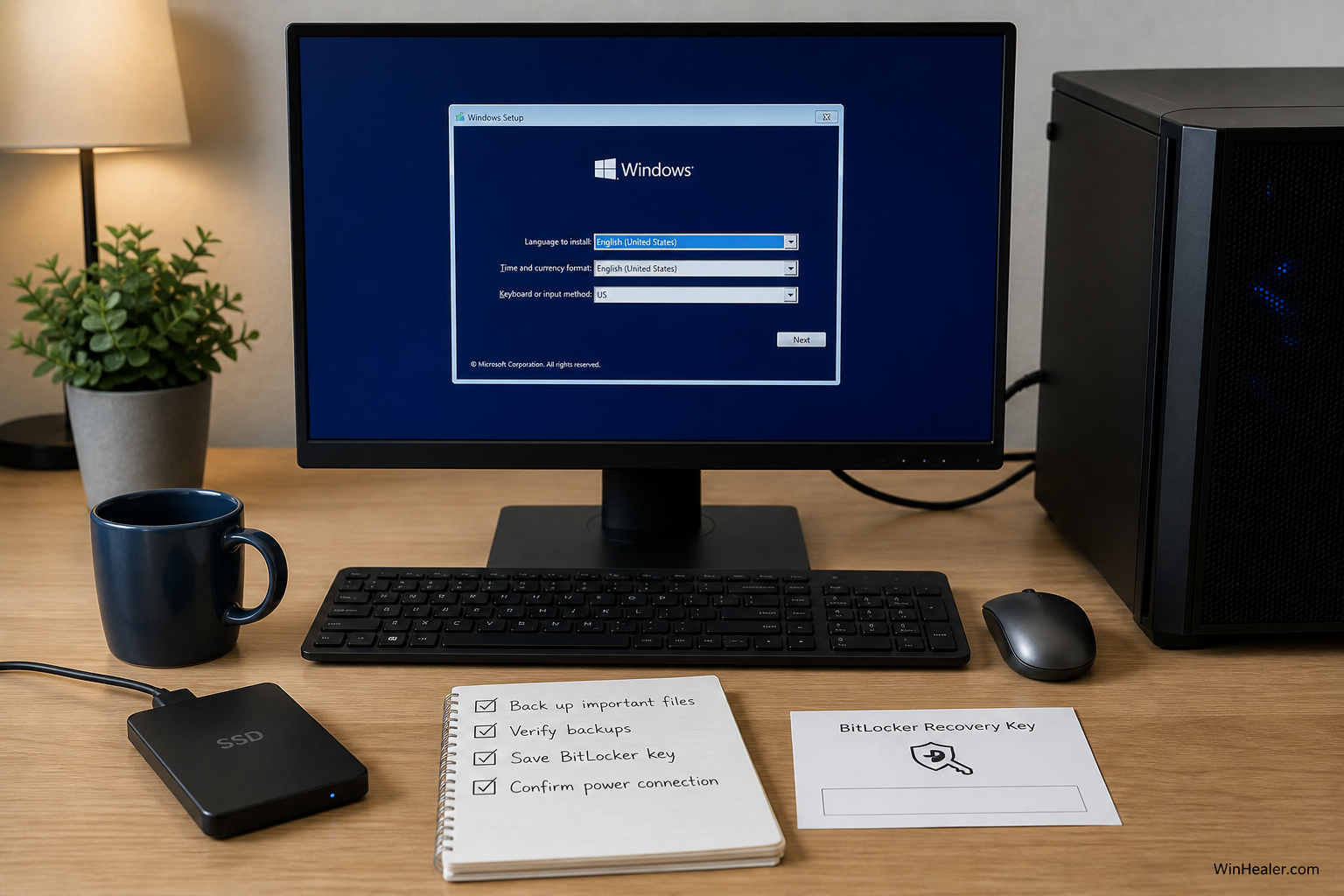
- Copy important files to an external drive or verified cloud storage.
- Confirm that synchronized files are actually available online.
- Save the BitLocker recovery key somewhere outside the PC.
- Record essential application licences and account details.
- Connect the device to reliable power and internet.
- Disconnect unnecessary external drives to reduce the chance of selecting or confusing the wrong disk.
Common Cloud Rebuild failures
Error 0x800704C6 indicates that WinRE has no network connection. Retry with Ethernet or a supported personal Wi-Fi network. Error 0xc1900200 can mean that the machine fails Windows 11 hardware requirements or a required driver is unavailable through Windows Update. Microsoft identifies disabled TPM and missing networking or storage drivers as common causes.
If a failed rebuild leaves the PC unable to start, Microsoft recommends a Recovery Drive, Windows installation media, or recovery media supplied by the manufacturer.
Final recommendation
For most home PCs, begin with Reset This PC and choose Keep my files with Cloud download when local installation files are suspect. It is familiar, generally available, and less destructive.
Use Cloud Rebuild when you specifically need a full wipe and clean Windows-plus-drivers deployment, especially for an unbootable or managed machine. While it remains a preview feature, test it on non-production hardware and treat the data-loss warning literally.
Official sources
- Microsoft Learn: Cloud Rebuild preview
- Microsoft Support: Reset your PC
- Microsoft Support: Windows Recovery Environment
WinHealer editorial note: Cloud Rebuild is a preview feature. This comparison was verified against Microsoft documentation on August 12, 2026 and will be updated as availability or requirements change.

