
Quick answer: Game stutter is usually a frame-time problem, not simply “low FPS.” Establish a repeatable test, record CPU, GPU, RAM, VRAM, clocks and temperatures, then change one variable at a time. A stable 90 FPS can feel better than an average of 140 FPS that repeatedly drops.
Reviewed July 27, 2026. This diagnostic guide avoids universal “best settings” because the correct fix depends on where each frame is delayed.
Average FPS, 1% lows, and frame time
Average FPS describes throughput over a period. A 1% low summarizes the slowest one percent of frames and is useful for comparing consistency, but it can hide individual spikes. Frame time—milliseconds required to produce each frame—shows the hitch directly. At 60 FPS the budget is about 16.7 ms; at 120 FPS it is about 8.3 ms. A sudden 80 ms frame is visible even when the average remains high.
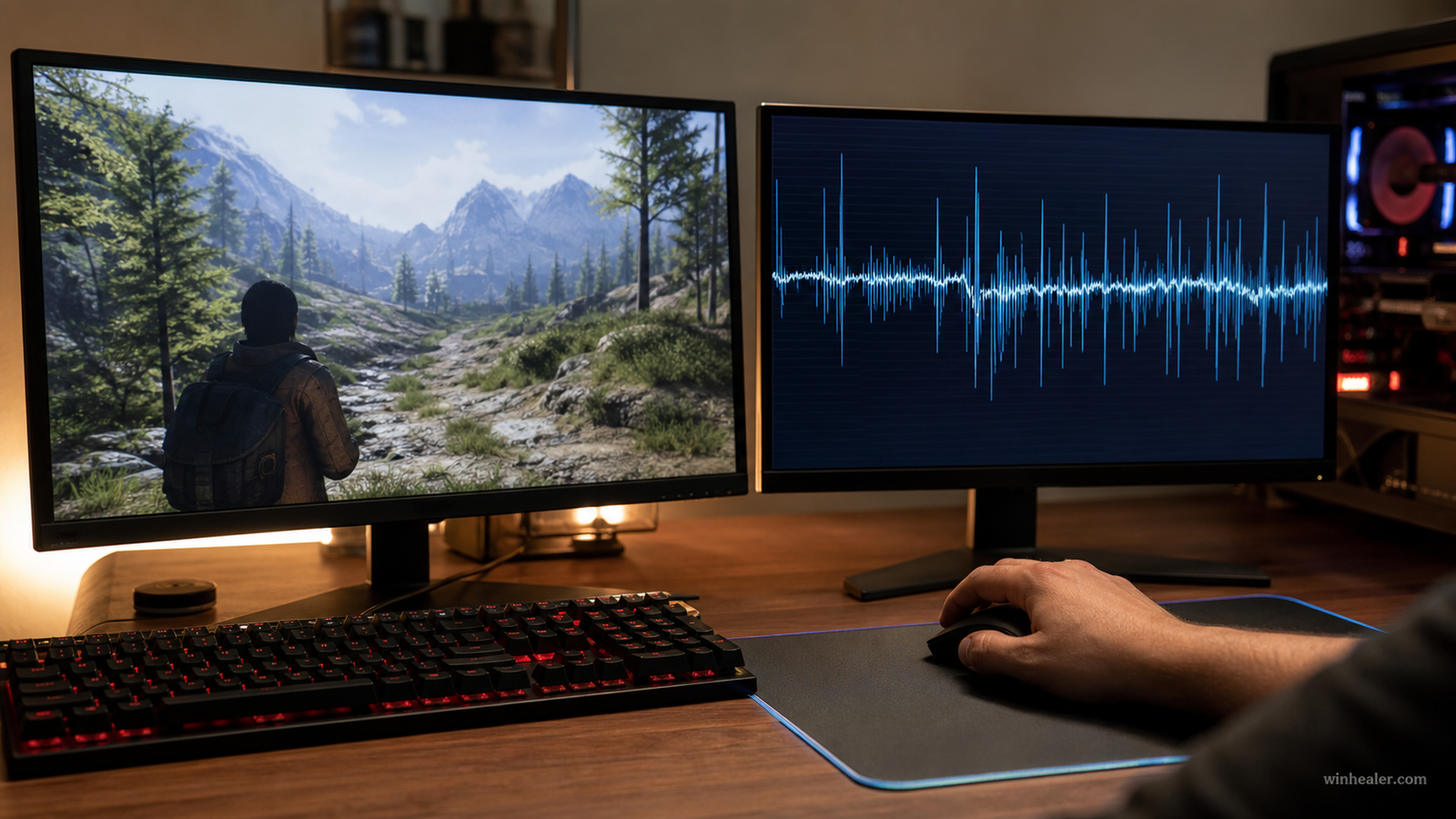
1. Build a clean baseline
- Restart the PC and close downloads, browsers, launchers, RGB suites, recording tools, and unnecessary overlays.
- Use the same save, route, weather, opponents, and graphics settings for every test.
- Run the test more than once; the first run may compile shaders or populate caches.
- Record average FPS, 1% low, frame-time graph, GPU utilization, per-core CPU load, RAM/VRAM use, temperature, and clock speed.
If stutter occurs only during the first visit to a new area and then disappears, shader compilation or asset streaming is a stronger suspect than raw hardware speed. If it appears at fixed intervals, look for background polling, autosaves, network spikes, or temperature/power cycling.
2. Decide whether the GPU or CPU is limiting
A GPU near full utilization with stable clocks usually means graphics settings or resolution are the primary limit. Lower ray tracing, shadows, volumetrics, resolution scale, or texture settings when VRAM is overcommitted. If GPU use repeatedly falls while one or more CPU threads are saturated, the CPU, game engine, driver overhead, or a background process may be delaying work.
Do not add all CPU-core percentages together and assume a low total means the processor has room. A game can be limited by one busy main thread while other cores remain available.
3. Use a sensible frame cap and VRR
With a variable-refresh-rate display, cap FPS slightly below the monitor’s maximum refresh rate when the game repeatedly hits the ceiling. This can keep the system inside the VRR range and reduce oscillation. Use one limiter at a time—the game’s limiter is a good starting point, followed by a driver limiter if the in-game option produces uneven pacing.
V-Sync, VRR, low-latency modes, and frame generation interact differently by game. Change one control, retest, and keep the combination that improves the frame-time graph without introducing tearing or unacceptable latency.
4. Check memory, storage, and VRAM
- Confirm memory modules are installed in the motherboard-recommended slots and operating in dual-channel mode.
- Enable XMP or EXPO only if the system remains stable; an aggressive profile can cause crashes or corrected memory errors.
- Keep the game on a healthy SSD with free working space.
- Reduce texture quality when VRAM is full and the game begins moving assets through system memory.
- Allow the game to finish shader compilation after a driver update.
5. Check drivers without creating more variables
Install the current stable GPU and chipset drivers from the hardware vendor. If stutter began immediately after an update, read that release’s known issues and consider a supported rollback. A “clean install” is not automatically better; use it when profiles or driver components are plausibly damaged. Avoid driver-pack websites.
6. Watch temperature, power, and clocks
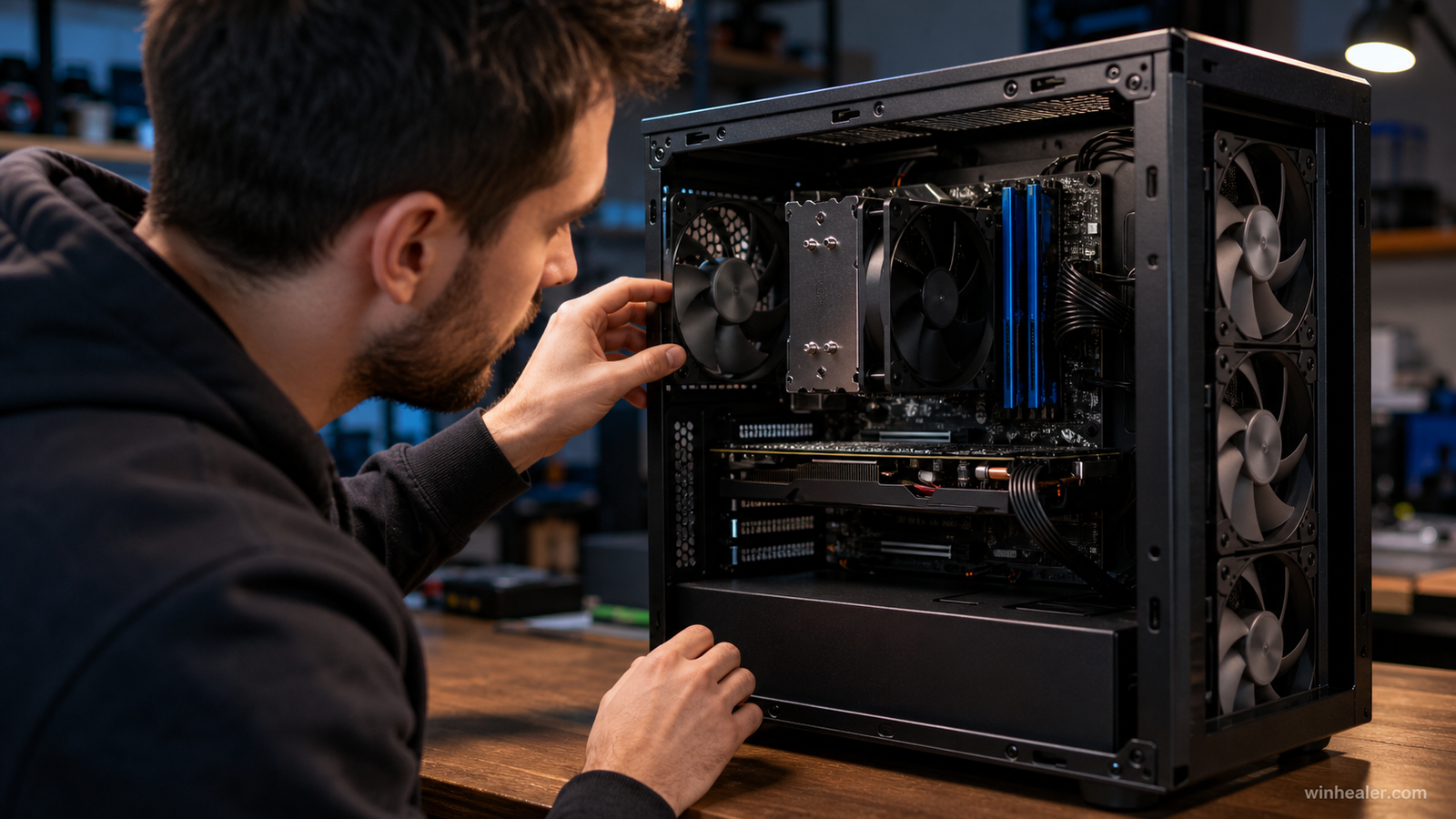
Log CPU and GPU temperature, frequency, power and utilization through the hitch. A clock that falls at the same moment as temperature or power hits a limit is actionable evidence. Clean filters, confirm fan direction, check cooler mounting, and restore stock CPU/GPU settings before blaming the game.
7. Separate local rendering from network lag
Online rubber-banding, delayed hit registration, or players teleporting can be network symptoms even when local FPS is stable. Monitor latency and packet loss, test Ethernet, stop background uploads, and select an appropriate server region. Network problems do not normally create a spike in GPU render time, although an overloaded game thread can make the symptoms overlap.
A fix order that saves time
- Reproduce and record.
- Close overlays and background work.
- Confirm shaders have compiled.
- Check GPU/CPU limit and VRAM/RAM use.
- Cap frames and configure VRR.
- Test stable drivers and stock clocks.
- Inspect storage health, temperatures, power and memory stability.
- Check game-specific patch notes and known issues.
Frequently asked questions
Does more RAM fix 1% lows?
Only when capacity, channel configuration, stability, or memory performance is the constraint. Going from a sufficient capacity to more unused capacity will not automatically improve pacing.
Should I disable every Windows security feature?
No. Disabling security controls for small benchmark gains creates risk and often hides the real cause. Test supported game and driver settings first.
Can frame generation fix stutter?
Frame generation can raise displayed frame rate, but it needs a reasonably stable base frame rate. It does not repair CPU stalls, shader-compilation hitches, or asset-streaming pauses.
Useful primary references
- Microsoft: Tips to improve PC performance
- NVIDIA Reflex technology overview
- AMD graphics troubleshooting and performance guidance
Editorial note: Performance results vary by game build, driver, hardware, settings, and test route. Keep notes so each conclusion can be repeated.
When this is not a general performance problem
This article focuses on repeatable frame-pacing problems across games and hardware. If the stutter started on the same day as a Windows update, treat that timing as evidence and begin with our narrower post-update gaming stutter checklist. That route checks driver replacement, power settings and update-specific changes first, so you do not waste time tuning hardware that was already stable.

