
Windows 11 gives you useful taskbar controls, but it does not offer every option people remember from Windows 10. You can change alignment, pinned apps, Search, Widgets, system-tray icons, badges, auto-hide behavior and multi-monitor behavior. A universal “small taskbar” switch is not available on every Windows 11 build, so this guide separates supported settings from workarounds that can break after an update.
Quick answer
Right-click an empty area of the taskbar and choose Taskbar settings. Remove items you do not use, switch alignment to Left if preferred, enable auto-hide for more screen space, and reduce Windows display scaling only if all interface elements are too large. Avoid registry tweaks that promise unsupported taskbar sizes unless you are prepared to undo them after an update.
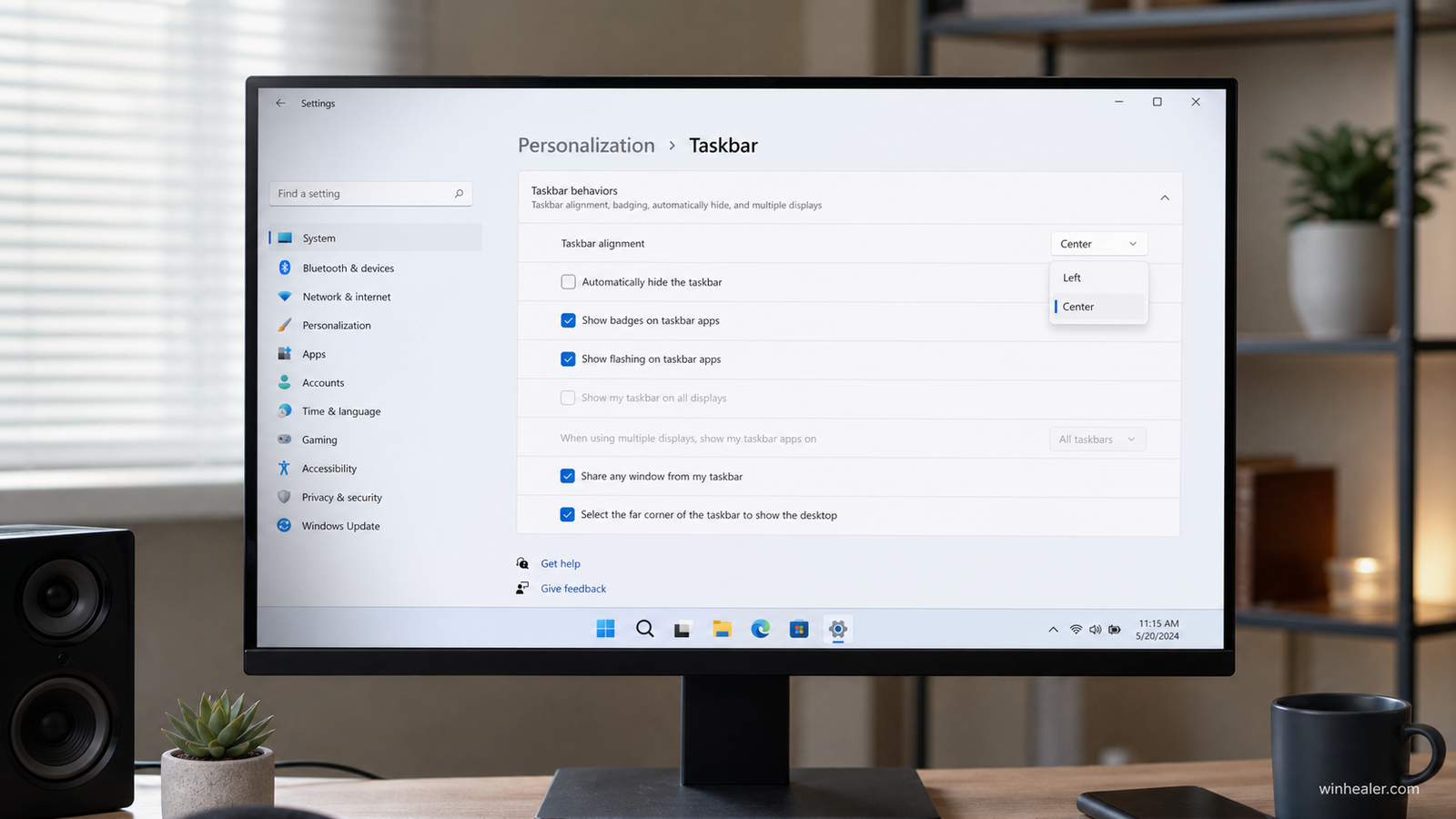
Open Taskbar settings
- Right-click an empty section of the taskbar.
- Select Taskbar settings.
- Alternatively, open Settings > Personalization > Taskbar.
Remove clutter from Taskbar items
Turn off items you rarely use, such as Widgets, Task view or the Search box. Hiding a taskbar button does not uninstall its feature. You can still open Search with Windows + S, Task view with Windows + Tab, and Widgets with Windows + W.
The available switches vary by Windows edition and update level. Work or school policies can also lock some controls.
Change the icon alignment
- Expand Taskbar behaviors.
- Open Taskbar alignment.
- Choose Left or Center.
Left alignment often feels more familiar and can make the Start button easier to target on a wide monitor. Center alignment keeps active icons near the middle as applications are opened.
Pin only the apps you actually use
Right-click an unwanted icon and choose Unpin from taskbar. To add an app, open Start, search for it, right-click it and choose Pin to taskbar. You can drag pinned icons into a useful order.
A practical arrangement is daily work apps first, communication tools next, and occasional utilities last. Fewer pins make running applications easier to recognize.
Automatically hide the taskbar
- Open Taskbar settings.
- Expand Taskbar behaviors.
- Enable Automatically hide the taskbar.
Move the pointer to the lower edge to reveal it. Auto-hide provides more usable height on small laptop screens without changing icon size. If it stops appearing, press the Windows key, restart Windows Explorer from Task Manager, or disable and re-enable the option.
Turn off badges and flashing
Badges show activity such as unread messages. Flashing asks for attention when an app opens behind another window. Both controls appear under Taskbar behaviors. Disabling them produces a calmer desktop, but you may miss alerts, so leave notifications enabled inside important applications.
Choose which system-tray icons remain visible
Open the taskbar’s system-tray section and decide which background-app icons appear beside the clock. Keep security, backup, battery or connection tools visible when their state matters. Hiding an icon does not stop the program; it only moves the icon into the overflow area.
Can you make the Windows 11 taskbar smaller?
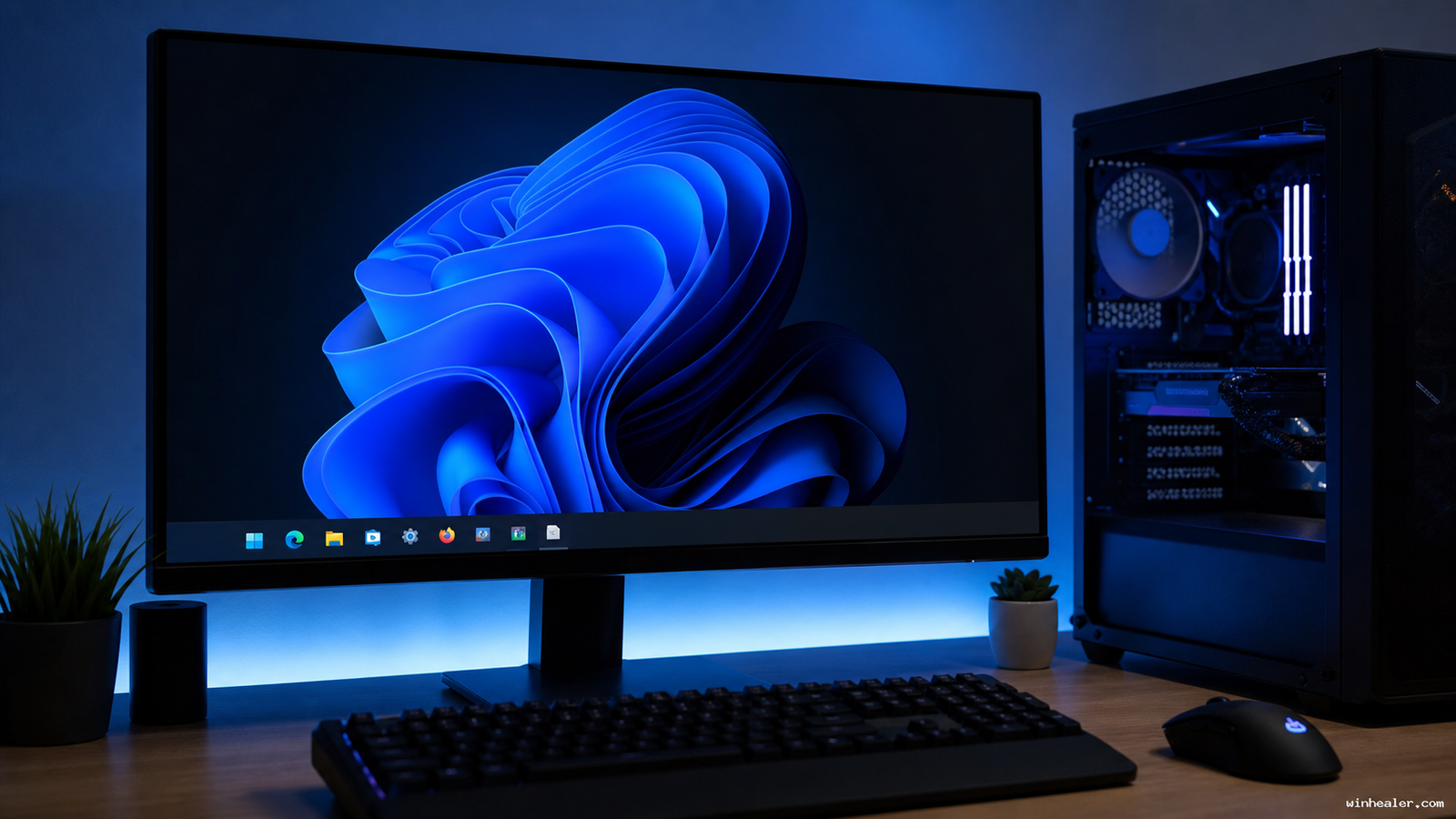
On many current Windows 11 desktop builds, Settings does not provide a general Small, Medium and Large taskbar selector. Screenshots or instructions showing a size menu may refer to an Insider build, a tablet state, a third-party utility, or a registry behavior that Microsoft does not guarantee.
If the entire interface looks oversized, open Settings > System > Display > Scale and select the recommended scaling value. Lower scaling makes text, icons and windows smaller across Windows—not just the taskbar—and can reduce readability.
About registry-based taskbar size tweaks
Old guides often recommend values such as TaskbarSi. Results vary between Windows 11 versions, and an update may ignore or reverse them. A malformed registry edit can also affect Explorer. WinHealer does not recommend presenting that method as a normal supported setting.
If you need much deeper customization, use a reputable utility only after creating a restore point and confirming that its current release supports your exact Windows build. Third-party shell tools can stop working after cumulative or feature updates.
Taskbar options for multiple monitors
Under Taskbar behaviors, choose whether the taskbar appears on every display and where open-window buttons are shown. Showing each app only on the monitor where its window is open reduces clutter. Showing all apps everywhere is faster when you move between screens frequently.
Touch and 2-in-1 computers
Supported 2-in-1 devices may show a tablet-optimized taskbar when the keyboard is folded or detached. Microsoft describes collapsed and expanded states designed for touch. This behavior is device-dependent and is not the same as a desktop taskbar size switch.
A balanced setup
- Use Left or Center alignment according to muscle memory.
- Keep five to ten important apps pinned.
- Hide Search, Widgets or Task view if keyboard shortcuts are enough.
- Disable badges only for apps that do not carry urgent information.
- Use auto-hide on small screens.
- Keep recommended display scaling for comfortable reading.
Bottom line
Windows 11’s built-in settings are enough to create a cleaner taskbar: remove unused buttons, organize pins, control attention signals and use auto-hide when space is limited. Treat “small taskbar” registry tricks as unsupported experiments, not guaranteed Windows features.

