
Windows 11 Search can fail in several different ways: the panel may not open, typing may produce no results, recently created files may be missing, or web results may appear when you expected a local app. The correct repair depends on which part is broken, so this guide starts with quick checks and moves gradually toward rebuilding the search index.
Do not begin by downloading a registry cleaner or deleting Windows Search folders. Microsoft provides safer diagnostic and reset methods, and most search problems can be solved without touching personal files.
Quick repair order
- Restart the SearchHost process or restart Windows.
- Install pending Windows updates.
- Run the Search and Indexing troubleshooter.
- Check indexed locations and search permissions.
- Rebuild the search index only if results remain incomplete or incorrect.
- Use Microsoft’s official Windows Search reset procedure for persistent failures.
1. Identify the exact symptom
Try searching for three different things: an installed app such as Calculator, a file you know exists in Documents, and a Windows setting. If apps appear but files do not, indexing or folder permissions are the likely issue. If the search panel freezes or stays blank, restart its process first.
2. Restart Windows Search
- Press Ctrl + Shift + Esc to open Task Manager.
- Select Details.
- Find SearchHost.exe.
- Right-click it and choose End task.
- Open Search again. Windows starts the process automatically.
This does not remove your index or files. If SearchHost immediately fails again, restart the PC and install any pending cumulative update from Settings > Windows Update.
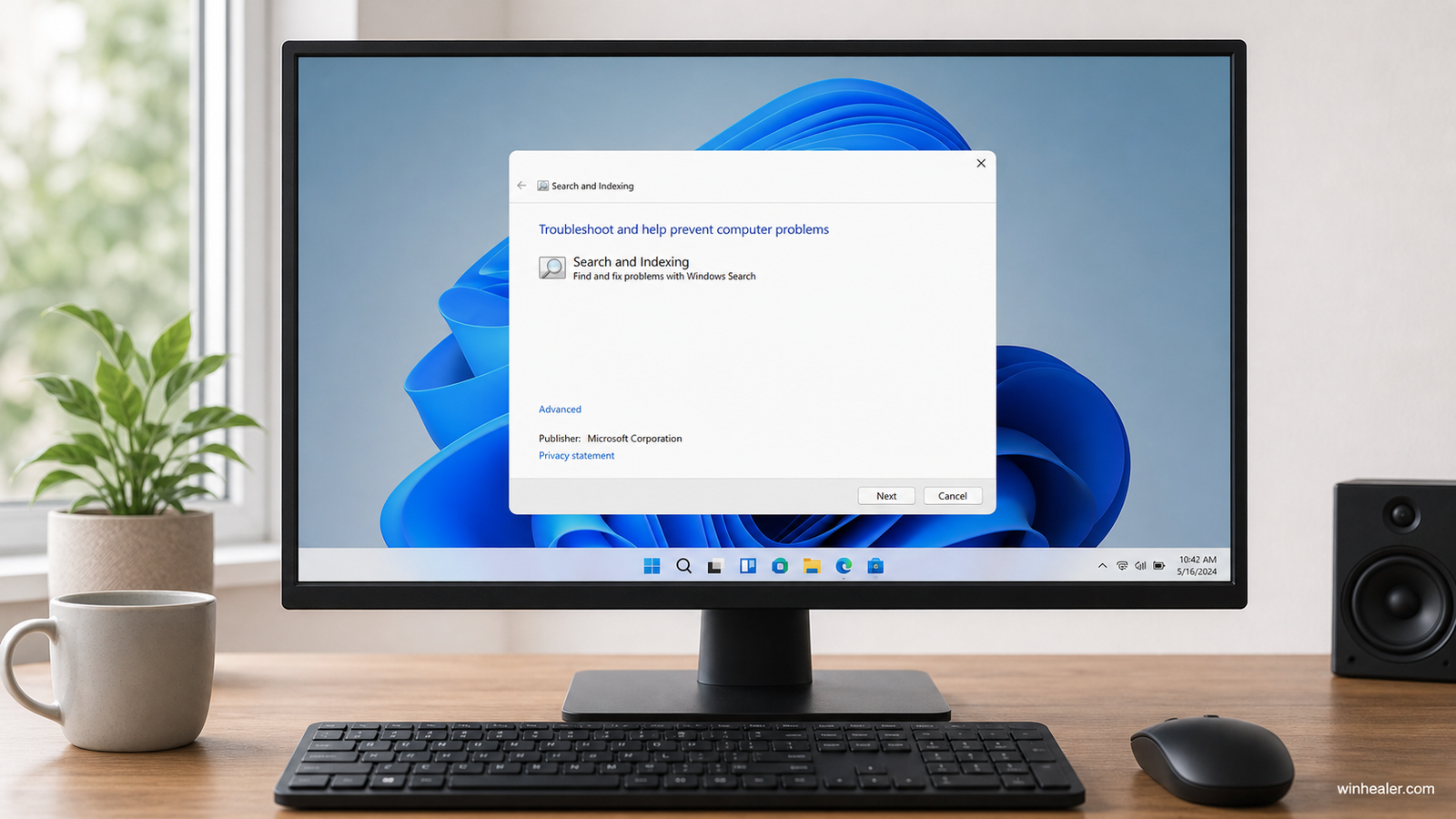
3. Run the Search and Indexing troubleshooter
Microsoft’s current support procedure provides the Search and Indexing diagnostic. On supported Windows installations, open an administrative Command Prompt and run:
msdt.exe -ep WindowsHelp id SearchDiagnosticSelect the symptoms that match your PC, such as files not appearing or Search not starting, and allow Windows to apply supported corrections. Some Windows builds may surface automated troubleshooters through the Get Help app instead; follow the Windows Update or Get Help link presented by Settings.
4. Check what Windows is indexing
Open Settings > Privacy & security > Searching Windows. Confirm whether the PC uses Classic or Enhanced search. Classic focuses on common user folders. Enhanced searches the entire PC but can take longer and use more resources while building the index.
Select Advanced indexing options, then Modify. Ensure the folder containing the missing files is included. Avoid indexing enormous backup, virtual-machine, or development-cache folders unless you genuinely need them in search results.
5. Check file and content settings
If filenames appear but document contents do not, open Advanced indexing options, choose Advanced > File Types, select the relevant extension, and check whether Windows indexes properties only or properties and file contents. Content indexing can require a compatible filter supplied by Windows or the application that owns the format.
Encrypted files, disconnected drives, cloud placeholders, and files excluded by policy may behave differently. Confirm the file is available locally before assuming the index is damaged.
6. Rebuild the Windows Search index
Rebuilding is appropriate when the index reports completion but consistently returns missing, stale, or incorrect results.
- Open Settings > Privacy & security > Searching Windows.
- Select Advanced indexing options.
- Choose Advanced.
- Under Troubleshooting, select Rebuild.
- Confirm and leave the PC connected to power.
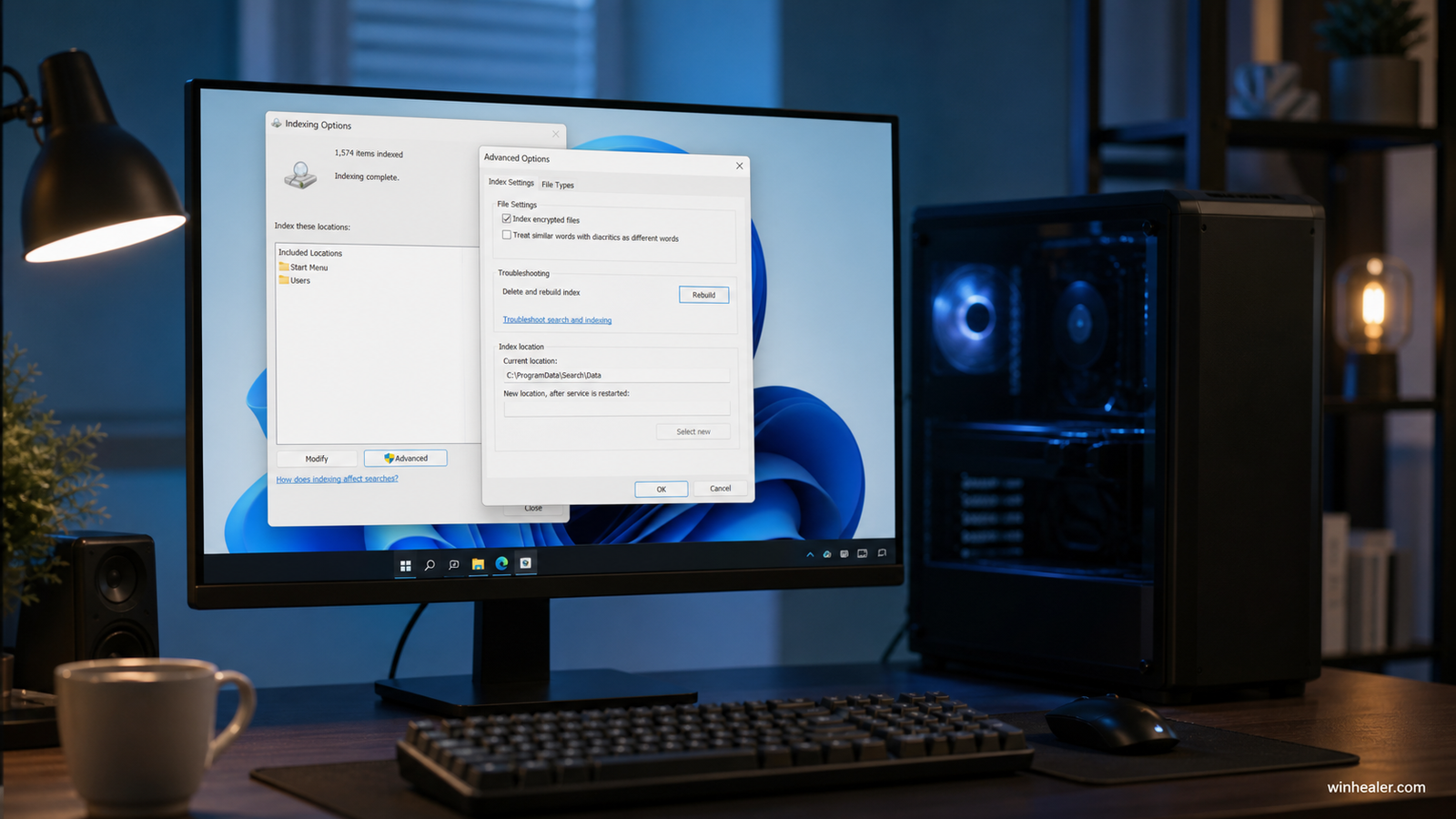
The process does not delete personal documents, but Search may temporarily miss files while the catalog is recreated. Large collections can take hours. Avoid repeatedly rebuilding; that only restarts the work.
7. Check the Windows Search service
Press Windows + R, enter services.msc, and locate Windows Search. On a normal personal PC it should not remain disabled. If it is running, a single restart can clear a stalled session. Do not repeatedly change unrelated services or copy service settings from old Windows versions.
8. Reset Windows Search only when simpler fixes fail
Microsoft supplies an official ResetWindowsSearchBox PowerShell script for Windows 11 and newer Windows 10 releases. Use the script from Microsoft’s support article and follow its signing instructions rather than copying an unknown script from a forum. Microsoft notes that resetting Search does not affect personal files, although result relevance can be temporarily affected.
Wrong results versus missing results
If Search works but prioritizes web suggestions or the wrong item, type a more specific query and choose the Apps, Documents, or Settings filter. Check Searching Windows privacy and cloud-search options as well. Index rebuilding helps a corrupt catalog; it cannot make an excluded cloud file local or change every ranking decision.
When the problem is only File Explorer
Test Start-menu Search. If Start finds the file but File Explorer does not, restart File Explorer from Task Manager and test the exact folder. A damaged Explorer window or an unsupported search expression is different from a system-wide indexing failure.
Bottom line
Restart SearchHost, update Windows, run the supported troubleshooter, and verify indexed locations before rebuilding. Rebuild only for persistent missing or stale results, and reserve the official reset script for cases that survive every simpler step.

