
If you’re reading this, chances are your Windows update failed with Error 0x800F0922. I know how frustrating it is to wait for an update only to see it fail at the last moment. I recently spent time researching and testing different solutions, and in this blog I’ll share everything I learned.
Whether you’re using a gaming PC, a work laptop, or a low-end computer, these methods can help you get Windows Update working again.
What Is Windows Update Error 0x800F0922?
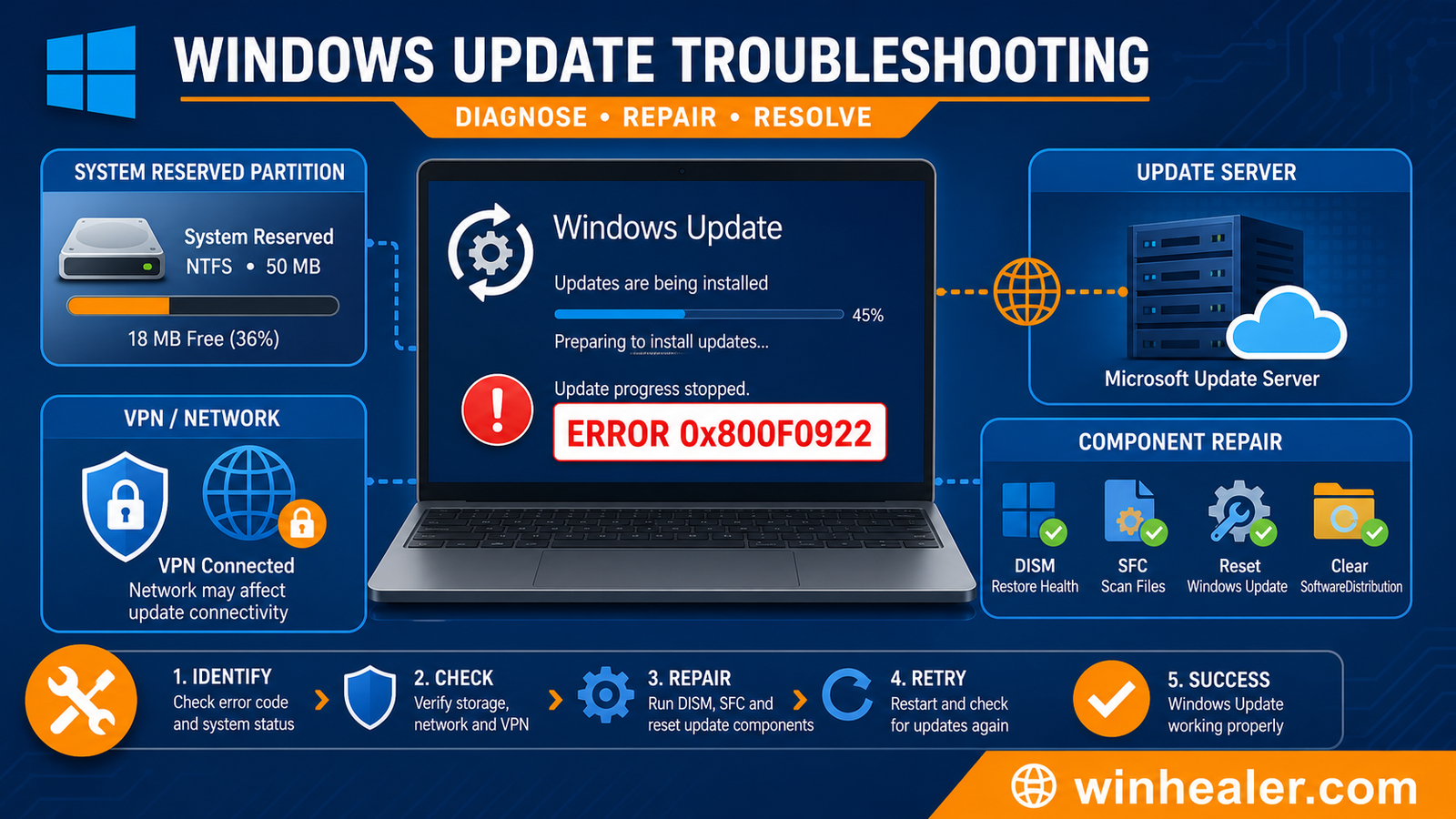
Windows Update Error 0x800F0922 usually appears when Windows cannot complete the installation of an update. The download may reach 100%, but the installation fails and Windows rolls back the changes.
You may see messages like:
- Something didn’t go as planned.
- We couldn’t complete the updates.
- Undoing changes made to your computer.
- Windows Update Error 0x800F0922.
Why Does This Error Happen?
From my experience, the most common causes are:
- Corrupted Windows system files.
- Damaged Windows Update components.
- Low free space on the system or recovery partition.
- VPN or firewall blocking Microsoft’s update servers.
- Internet connection interruptions.
- Outdated device drivers.
- Corrupted .NET Framework installation.
- Third-party antivirus software interfering with updates.
Solution 1: Restart Your PC
It sounds simple, but a restart can clear temporary update issues.
- Save your work.
- Restart your computer.
- Open Settings > Windows Update.
- Click Check for updates.
Solution 2: Check Your Internet Connection
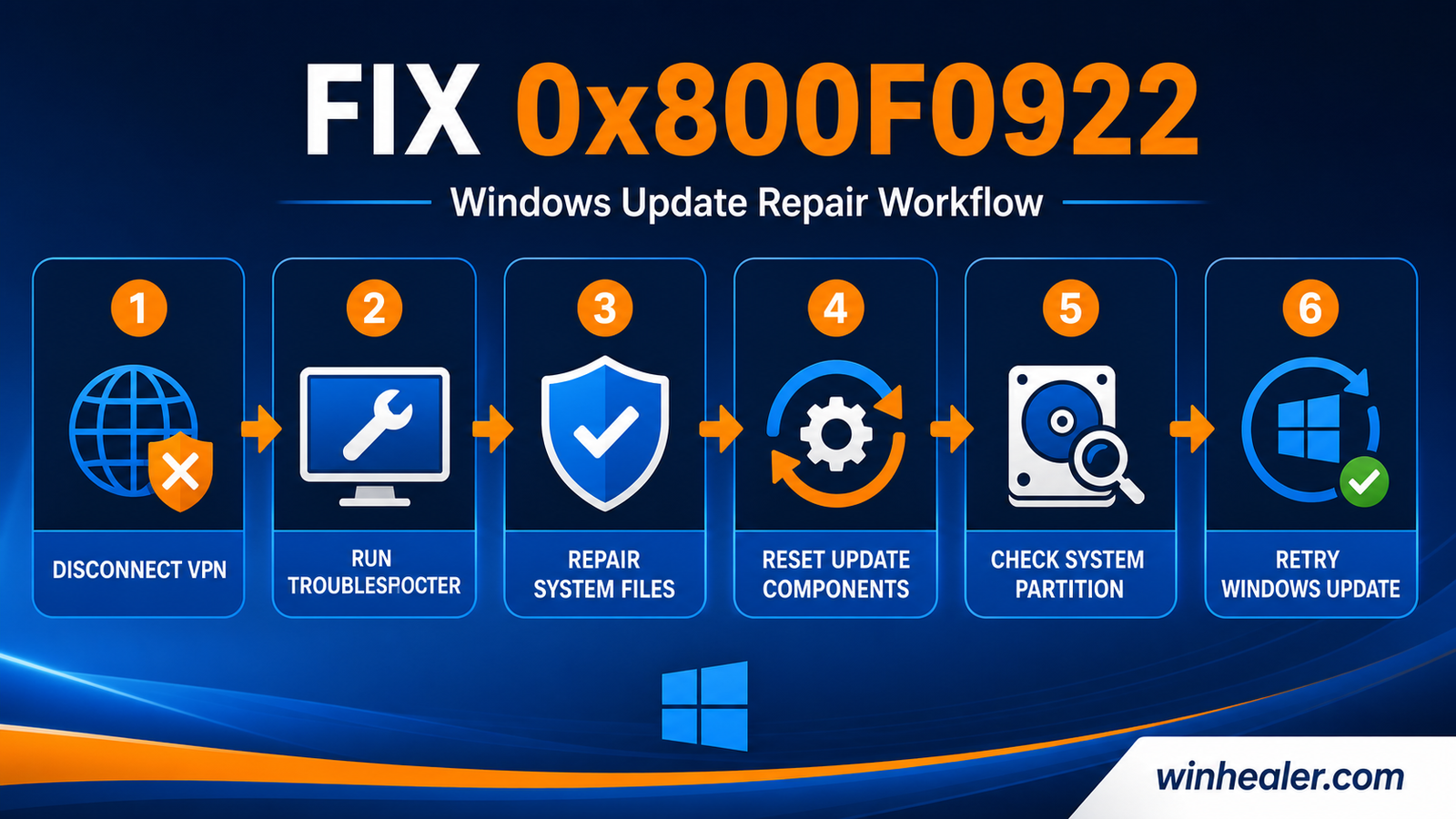
A weak or unstable connection may interrupt Windows Update.
I recommend:
- Restarting your router.
- Switching from Wi-Fi to Ethernet if possible.
- Disabling VPN software temporarily.
- Trying the update again.
Solution 3: Run the Windows Update Troubleshooter
Windows includes a built-in tool that can automatically detect common update problems.
- Open Settings.
- Go to System > Troubleshoot > Other troubleshooters.
- Find Windows Update.
- Click Run.
- Restart your PC after it finishes.
Solution 4: Free Up Disk Space
Large updates require sufficient free storage.
Try to keep at least 20 GB of free space on your system drive by:
- Deleting temporary files.
- Emptying the Recycle Bin.
- Removing unused applications.
- Using Storage Sense.
Solution 5: Repair Corrupted Windows Files
Open Command Prompt as Administrator and run:
sfc /scannow
After it finishes, run:
DISM /Online /Cleanup-Image /RestoreHealth
Restart your computer once both scans complete.
Solution 6: Reset Windows Update Components
Sometimes the Windows Update cache becomes corrupted.
Open Command Prompt as Administrator and stop the update services:
net stop wuauserv
net stop bits
net stop cryptsvc
Rename the update folders:
ren C:\Windows\SoftwareDistribution SoftwareDistribution.old
ren C:\Windows\System32\catroot2 catroot2.old
Restart the services:
net start wuauserv
net start bits
net start cryptsvc
Restart your PC and check for updates again.
Solution 7: Disable Third-Party Antivirus Temporarily
Some antivirus programs can interfere with Windows Update.
Temporarily disable your antivirus, install the update, then enable your protection again.
Solution 8: Update Device Drivers
Outdated drivers can sometimes prevent updates from installing.
I recommend updating:
- Graphics driver.
- Network adapter.
- Chipset driver.
- Storage controller.
- BIOS (only if recommended by your PC or motherboard manufacturer).
Solution 9: Install the Update Manually
If Windows Update keeps failing:
- Open Settings > Windows Update > Update history.
- Note the update’s KB number.
- Visit the Microsoft Update Catalog.
- Download the matching update for your system.
- Install it manually.
- Restart your computer.
Solution 10: Repair Windows Without Losing Files
If none of the above solutions work, you can perform an in-place repair using the latest Windows installation media. This reinstalls Windows system files while keeping your personal files, installed apps, and most settings intact.
Tips to Prevent Error 0x800F0922
Here are a few habits that help reduce update issues:
- Keep at least 20–30 GB of free storage.
- Install Windows updates regularly instead of delaying them for months.
- Keep device drivers up to date.
- Avoid shutting down your PC while updates are installing.
- Restart your computer occasionally instead of leaving it running continuously.
Final Thoughts
Windows Update Error 0x800F0922 can look intimidating, but in most cases it can be resolved without reinstalling Windows. I recommend starting with the built-in troubleshooter, checking your storage space, repairing system files, and resetting Windows Update components. If the update still won’t install, downloading it manually from Microsoft’s Update Catalog is often the quickest solution.
I hope this guide helped you get your PC updated successfully. If you found it useful, feel free to explore more Windows troubleshooting guides here on WinHealer. I regularly share practical fixes, optimization tips, and PC tutorials based on real-world experience.
Tags: Windows 11, Windows Update Error 0x800F0922, Windows Update Failed, Fix Windows 11, Windows Troubleshooting
Official Microsoft references
These Microsoft pages are the best starting point when the steps in this guide do not resolve the error.

