
One of the most frustrating Windows problems is when the Microsoft Store refuses to open. You click the Store icon, but nothing happens. Sometimes it flashes for a second and closes immediately, while in other cases it gets stuck on the loading screen forever.
I recently researched this issue because many Windows 11 users have been reporting it after system updates. In this guide, I’ll walk you through the methods I recommend to get the Microsoft Store working again without reinstalling Windows.
Whether you’re trying to download apps, update games, or install software, these fixes can help.
Why Is Microsoft Store Not Opening?
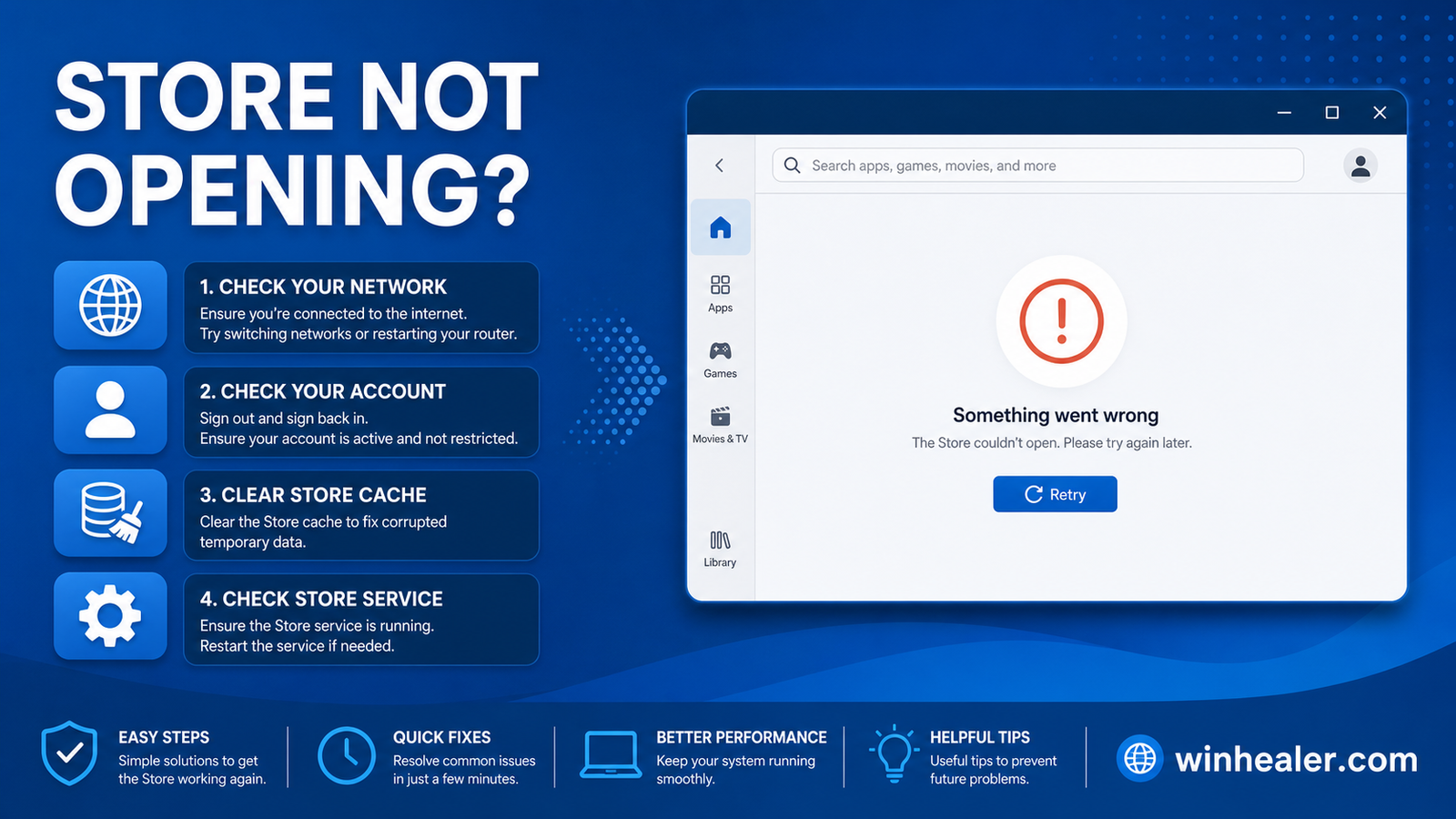
There are several reasons why the Microsoft Store may stop working:
- Corrupted Microsoft Store cache
- Damaged Windows system files
- Windows Update problems
- Incorrect date and time settings
- Microsoft account synchronization issues
- Disabled Windows services
- Network or DNS problems
- Corrupted Store application files
Fortunately, most of these problems can be fixed in just a few minutes.
Method 1: Restart Your PC
Before trying advanced fixes:
- Save your work.
- Restart your computer.
- Try opening Microsoft Store again.
A simple restart often clears temporary Windows issues.
Method 2: Check Your Internet Connection
Microsoft Store requires a stable internet connection.
Try these steps:
- Restart your router.
- Disconnect any VPN.
- Disable proxy settings temporarily.
- Test another website to confirm internet access.
Method 3: Sign Out and Sign Back In
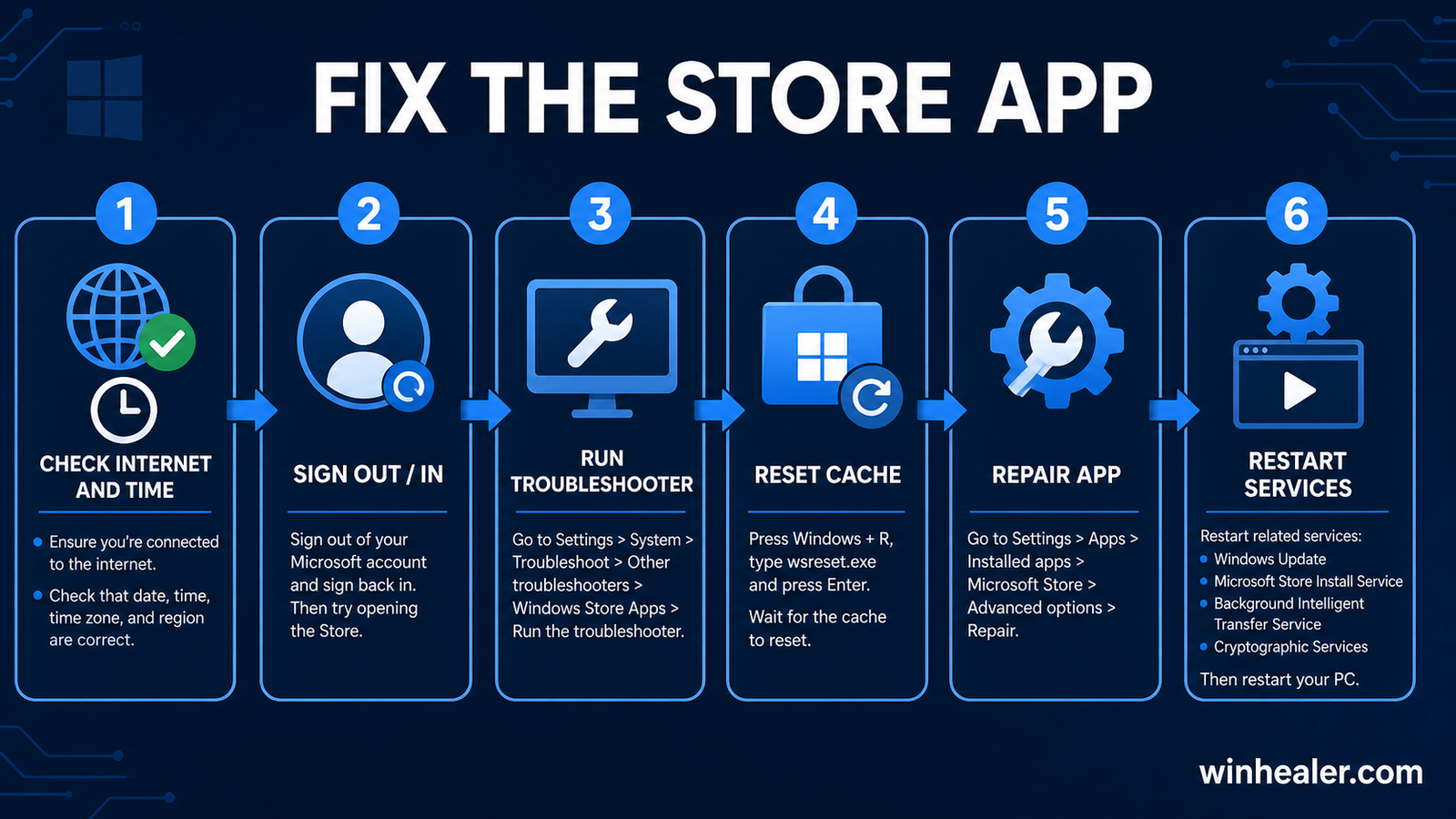
Sometimes your Microsoft account session becomes corrupted.
- Open Microsoft Store (if it opens).
- Click your profile picture.
- Sign out.
- Restart your PC.
- Sign back in.
Method 4: Clear Microsoft Store Cache
Windows includes a built-in tool for this.
- Press Windows + R.
- Type:
wsreset.exe
- Press Enter.
- Wait for the process to finish.
- Microsoft Store should open automatically.
This is one of the quickest and most effective fixes.
Method 5: Repair the Microsoft Store
- Open Settings.
- Go to Apps → Installed Apps.
- Find Microsoft Store.
- Click Advanced options.
- Select Repair.
Try opening the Store after the repair completes.
Method 6: Reset Microsoft Store
If repairing doesn’t help:
- Open Settings.
- Go to Apps → Installed Apps.
- Select Microsoft Store.
- Open Advanced options.
- Click Reset.
This clears corrupted Store data while keeping Windows intact.
Method 7: Run Windows Store Apps Troubleshooter
Windows can automatically detect common Store issues.
Go to:
Settings → System → Troubleshoot → Other troubleshooters
Run the Windows Store Apps troubleshooter and follow the on-screen instructions.
Method 8: Repair Windows System Files
Open Command Prompt as Administrator.
Run:
sfc /scannow
After it finishes:
DISM /Online /Cleanup-Image /RestoreHealth
Restart your computer.
These commands repair damaged Windows files that can affect Microsoft Store.
Method 9: Install Windows Updates
Microsoft frequently releases fixes for Store-related issues.
Go to:
Settings → Windows Update
Click:
- Check for updates
- Install every available update
- Restart your PC
Method 10: Re-register Microsoft Store
Open Windows PowerShell (Administrator).
Run:
Get-AppxPackage -allusers Microsoft.WindowsStore | Foreach {
Add-AppxPackage -DisableDevelopmentMode -Register "$($_.InstallLocation)\AppxManifest.xml"
}
Restart your computer.
This reinstalls the Store registration without affecting your personal files.
Method 11: Check Date and Time
Incorrect system time can prevent Microsoft services from working.
Go to:
Settings → Time & Language → Date & Time
Enable:
- Set time automatically
- Set time zone automatically
Restart the computer.
Method 12: Create a New Windows User Account
If Microsoft Store works in another Windows account, your current profile may be corrupted.
Create a new local or Microsoft account and test the Store there.
Frequently Asked Questions
Why does Microsoft Store open and immediately close?
This usually happens because of a corrupted Store cache, damaged system files, or an incomplete Windows update.
Will resetting Microsoft Store delete my installed apps?
No. Resetting the Store only clears its cache and settings. Apps you’ve already installed remain on your PC.
Is Microsoft Store required for Windows?
Even if you don’t use it often, the Microsoft Store is important because it delivers updates for many built-in Windows apps.
Final Thoughts
When Microsoft Store won’t open, it’s often caused by a damaged cache, corrupted Windows files, or an issue with the Store itself. In my experience, running wsreset.exe, repairing or resetting the Store, using SFC and DISM, and re-registering the Microsoft Store solve the problem in most cases.
If none of these methods work, make sure Windows is fully updated and consider creating a new user profile before performing a repair installation.
I hope this guide helps you get Microsoft Store working again. I’ll continue sharing practical Windows troubleshooting tips and PC repair guides here on WinHealer to help you solve common Windows problems quickly.
Official Microsoft reference
Microsoft maintains a current Microsoft Store does not open troubleshooting page. It confirms the cache reset, Windows update, and time/region checks covered above.

