
An application closes and Windows reports that an instruction referenced memory that “could not be read” or “could not be written.” The wording sounds like failed RAM, but that is only one possibility. More often, a program used an invalid memory address because of a damaged file, incompatible add-on, unstable driver, or aggressive hardware setting.
The useful clue is not the long hexadecimal address. It is when the error appears: only in one program, after a driver update, during several unrelated games, or even while Windows is idle. Use that pattern to avoid replacing good parts.
Start with the smallest test
Restart the PC, then reproduce the problem once with unnecessary background utilities closed. If the message belongs to one application, update that application from its official source. Temporarily disable its overlays, plug-ins, mods, and third-party injectors. A game that works after removing an overlay does not need a Windows reinstall.
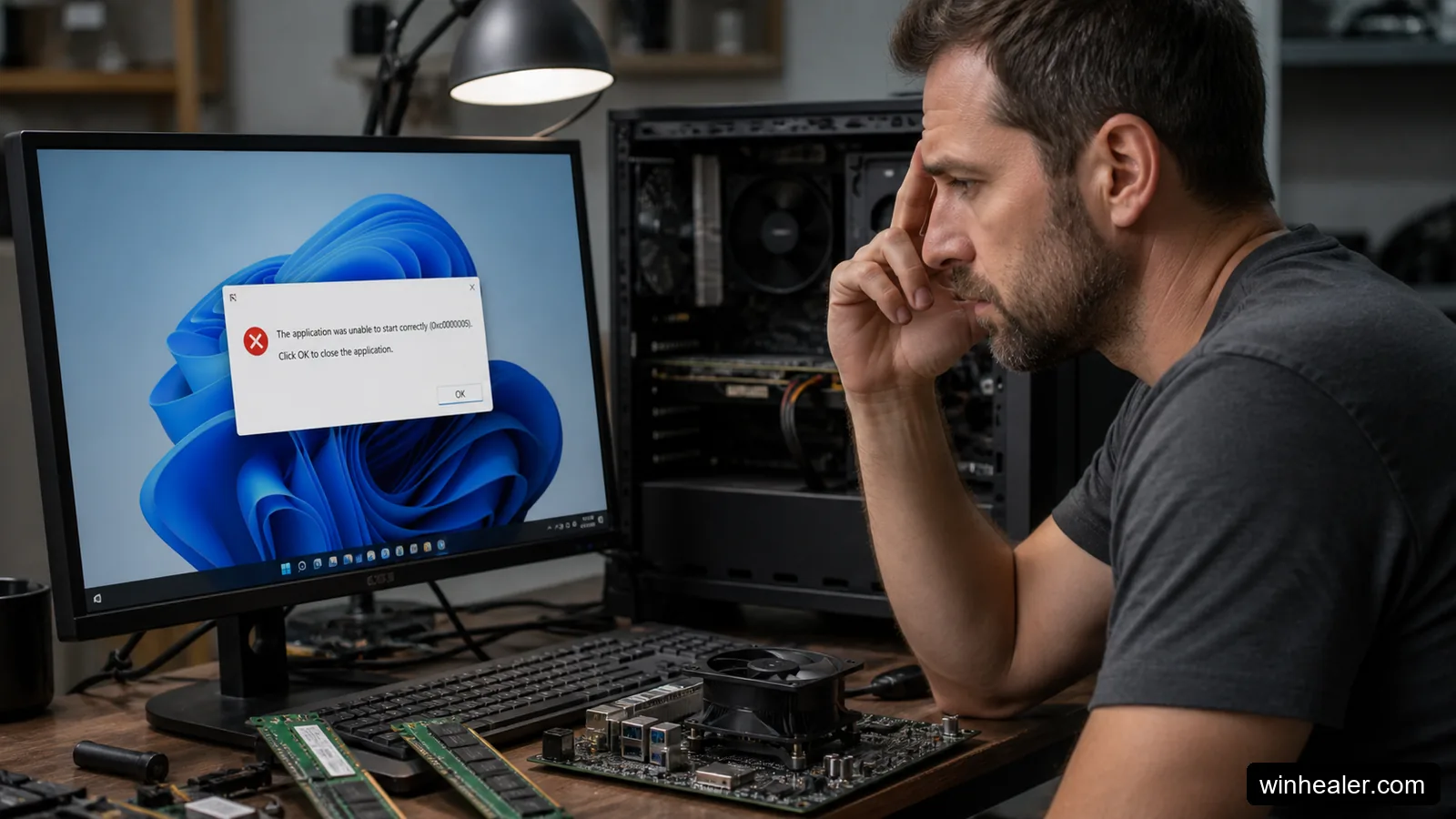
Check the application’s own repair option next. Steam, Epic Games Launcher, and several professional programs can verify installed files. For a normal desktop application, uninstall it from Settings > Apps > Installed apps, restart, and install a fresh current copy. Do not download an individual DLL from a file-sharing website; a random DLL may be the wrong version and can introduce malware.
Install Windows and driver updates deliberately
Open Settings > Windows Update, install the normal quality updates, and restart. For a crash in a 3D game or editor, obtain the display driver from NVIDIA, AMD, Intel, or the PC manufacturer. For a laptop, the manufacturer’s driver can be the safer first choice because it may include device-specific power settings.
If the problem began immediately after one driver update, rolling back that single driver is a better experiment than updating everything at once. Change one variable, test the same workload, and keep a brief note of the result.
Repair protected Windows files
Open Terminal as administrator. Run DISM /Online /Cleanup-Image /RestoreHealth. After it completes, run sfc /scannow. DISM repairs the Windows component store; System File Checker then checks protected operating-system files against that source. Restart even if the tools report a successful repair.
These commands do not repair every third-party application and they do not prove that RAM is healthy. They simply remove damaged Windows files from the list of likely causes.
Return the hardware to a known-stable state
Temporarily disable CPU overclocking, undervolting, GPU tuning, and memory overclocking such as XMP or EXPO. Loading BIOS defaults is a clean test, provided you first note any settings required for storage or work devices. A memory profile can pass light desktop use yet fail during a specific game, compilation job, or video render.
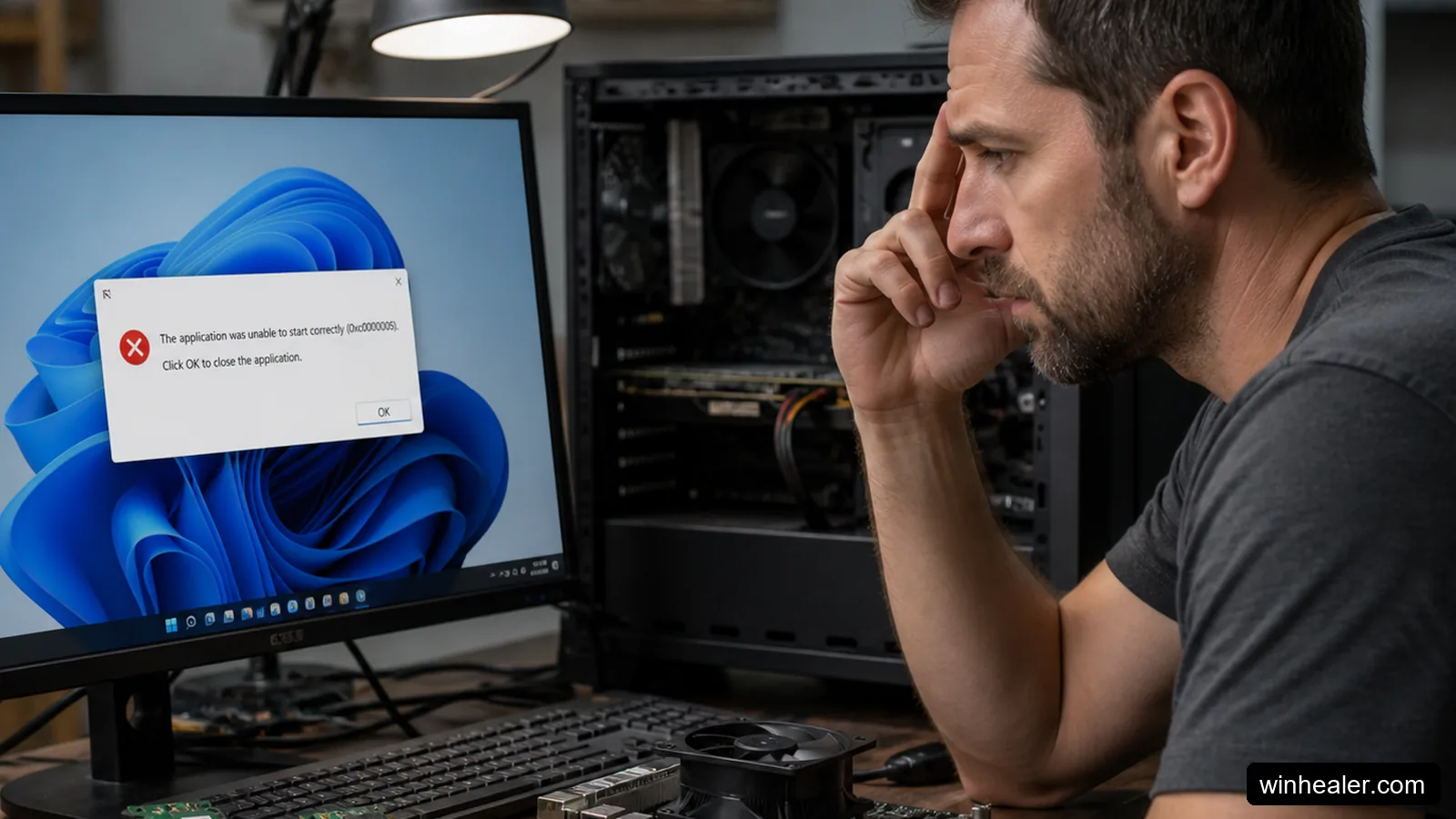
Run Windows Memory Diagnostic by searching for it from Start, choosing the restart option, and letting the test finish. It is a useful first screen, not the final word. Repeated errors across unrelated applications justify a longer memory test and, on a desktop, testing one module at a time according to the motherboard manual. Power off and unplug the PC before touching memory.
Look for the pattern in Reliability Monitor
Search Start for View reliability history. Select the day of the crash and open the failed application entry. A recurring faulting module can point toward an overlay, graphics driver, audio component, or the program itself. One isolated entry is less meaningful than the same module appearing after several controlled tests.
When the error needs deeper attention
Back up important files promptly if crashes spread across many programs, Windows produces blue screens, files become corrupted, or memory tests report errors. Test storage health and temperatures as well as RAM; an unstable CPU memory controller or failing storage can imitate a memory problem.
The sensible order is application repair, updates, Windows file repair, stock hardware settings, and then hardware testing. That order protects your data and usually finds the cause without the risky shortcuts that surround this error online.
Common questions
Does this message prove that the RAM is bad?
No. It says that a process attempted an invalid memory operation. Faulty RAM can cause it, but damaged application files, drivers, plug-ins, and unstable tuning are common alternatives. Test the software path before buying memory.
Should I increase virtual memory?
Leave the paging file system-managed for the first tests. An unusually small or disabled paging file can cause other failures, but increasing it does not repair an application that is using an invalid address.
Can antivirus cause the error?
A security tool or its application-integration component can conflict with software, but do not disable protection permanently. Update both products and use a clean boot or the vendor’s documented troubleshooting method to test the theory safely.

