AMD Ryzen 9 processors already boost aggressively, so the best daily-use tuning strategy is usually not a fixed all-core overclock. For most Ryzen 5000, 7000 and 9000 systems, Precision Boost Overdrive (PBO) plus a carefully tested Curve Optimizer setting can improve sustained performance while preserving light-load boost behavior.
Important: overclocking operates the processor outside its default specification. AMD states that damage caused by overclocking is not covered by its product warranty. Every chip, motherboard and cooling system behaves differently, so copy-and-paste voltage settings are never genuinely safe.
Before You Change Anything
- Confirm the exact Ryzen 9 model, motherboard chipset and current BIOS support.
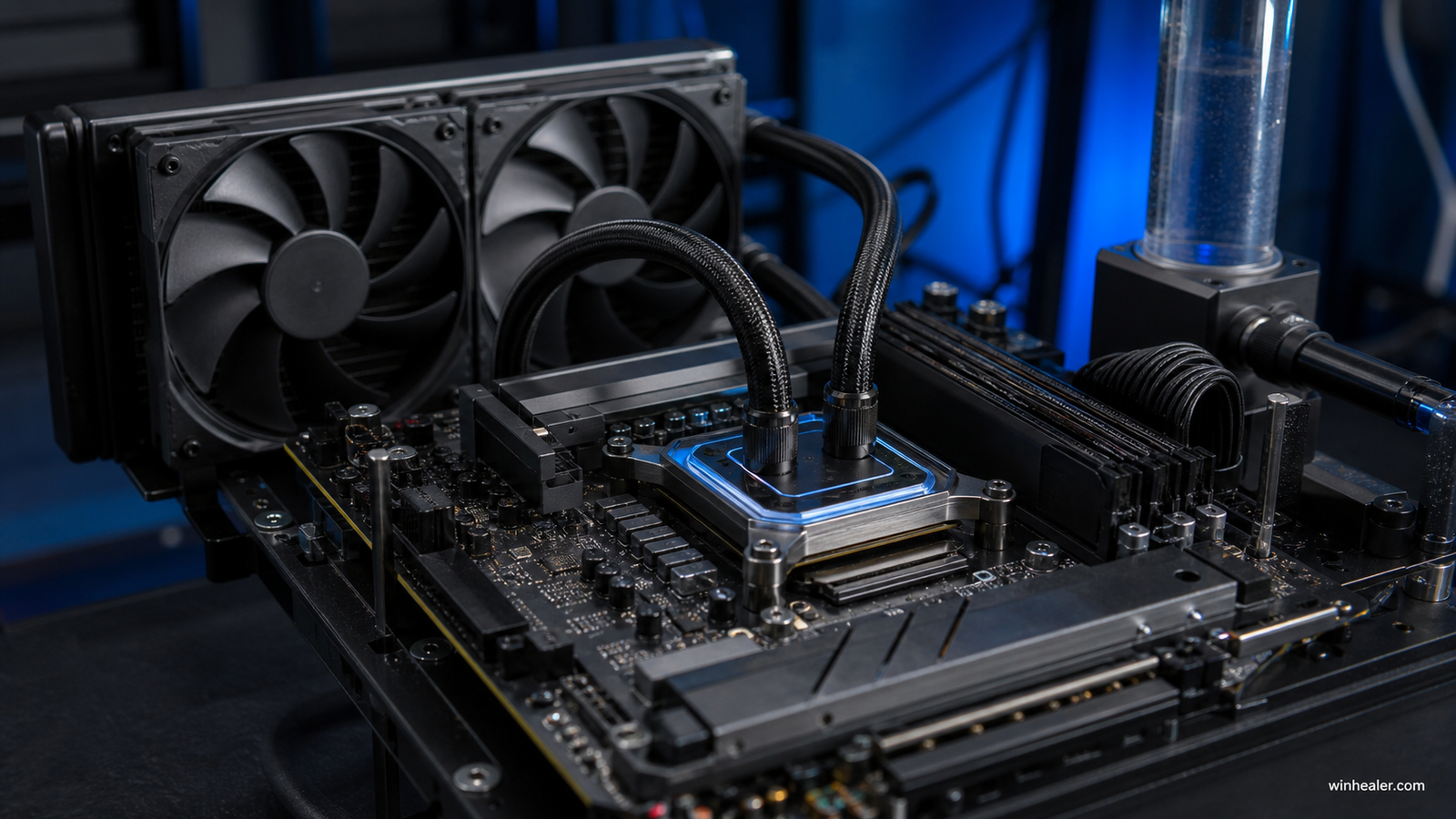
- Use a capable tower cooler or liquid cooler and verify mounting pressure and thermal paste.
- Update the motherboard BIOS and AMD chipset driver before tuning.
- Back up important files and know how to clear CMOS or load BIOS defaults.
- Record idle and full-load temperatures, clock speeds, power and benchmark scores at stock settings.
Recommended Method: PBO and Curve Optimizer
- Open BIOS/UEFI and locate AMD Overclocking or Precision Boost Overdrive. Menu names vary by motherboard.
- Set PBO to Enabled or Advanced. Begin with motherboard defaults rather than immediately raising PPT, TDC and EDC limits.
- Use Curve Optimizer with a small negative value. Start conservatively, such as a modest all-core negative offset, then test. Per-core tuning can produce better results but requires much more validation.
- If supported, test a small boost-clock override only after Curve Optimizer is stable. Higher is not automatically faster if heat or clock stretching appears.
- Save the profile, restart Windows and repeat the same benchmarks used for the stock baseline.
How to Test Stability Properly
A system that completes one benchmark is not necessarily stable. Test a mixture of single-core, multi-core, memory-heavy and real gaming workloads. Watch for application crashes, WHEA hardware errors, sudden reboots, corrupted archives and idle crashes. Curve Optimizer instability often appears during light or changing loads rather than only during an all-core stress test.
Temperature and Voltage Guidance
Use the maximum operating temperature published for your exact processor as the hard reference. Do not treat a generic internet voltage as universally safe. Ryzen firmware dynamically manages voltage, current and boost; manual fixed voltage can sacrifice single-core boost and increase degradation risk. The practical goal is the lowest heat and power that delivers repeatable performance.
Ryzen Master or BIOS?
AMD Ryzen Master is useful for monitoring and testing supported controls in Windows. Once you have a proven configuration, BIOS settings are usually easier to maintain across restarts. Avoid running multiple tuning utilities that compete for the same controls.
When to Stop
- Stop if temperatures approach the processor limit or cooling becomes unreasonably loud.
- Stop if benchmark scores fall despite higher reported clocks; this can indicate thermal limits or clock stretching.
- Revert the last change after any WHEA error, freeze or unexplained reboot.
- Prefer a small, stable improvement over a headline frequency that fails long sessions.
Final Recommendation
For a modern Ryzen 9 gaming and productivity PC, begin with stock settings, enable memory EXPO only after confirming compatibility, then tune PBO and Curve Optimizer gradually. A stable, cooler processor that boosts intelligently is usually better than a hot fixed all-core overclock.