
If you’ve noticed that your games suddenly feel slower after a Windows update, you’re definitely not alone. Over the past few months, I’ve seen many PC gamers report lower FPS, random stuttering, longer loading times, and increased input lag after installing Windows 11 updates or updating graphics drivers.
I decided to investigate the most common causes and test the solutions that actually make a difference. In this guide, I’ll share the methods I recommend to fix gaming performance drops and get your PC running smoothly again.
Whether you play competitive games like Valorant, Counter-Strike 2, Fortnite, or story-driven titles such as Cyberpunk 2077 and GTA V, these tips can help improve performance.
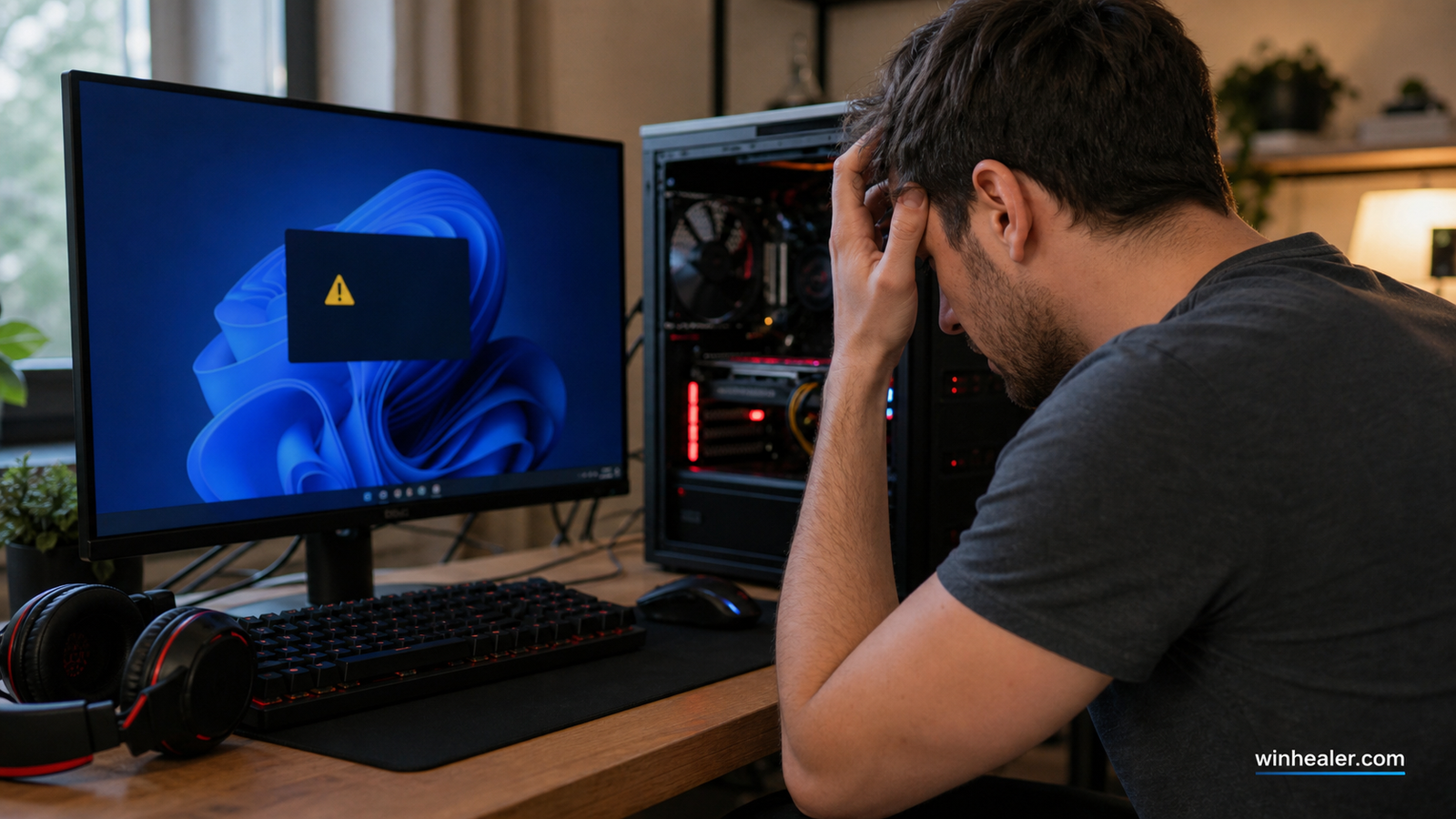
Why Does Gaming Performance Drop?
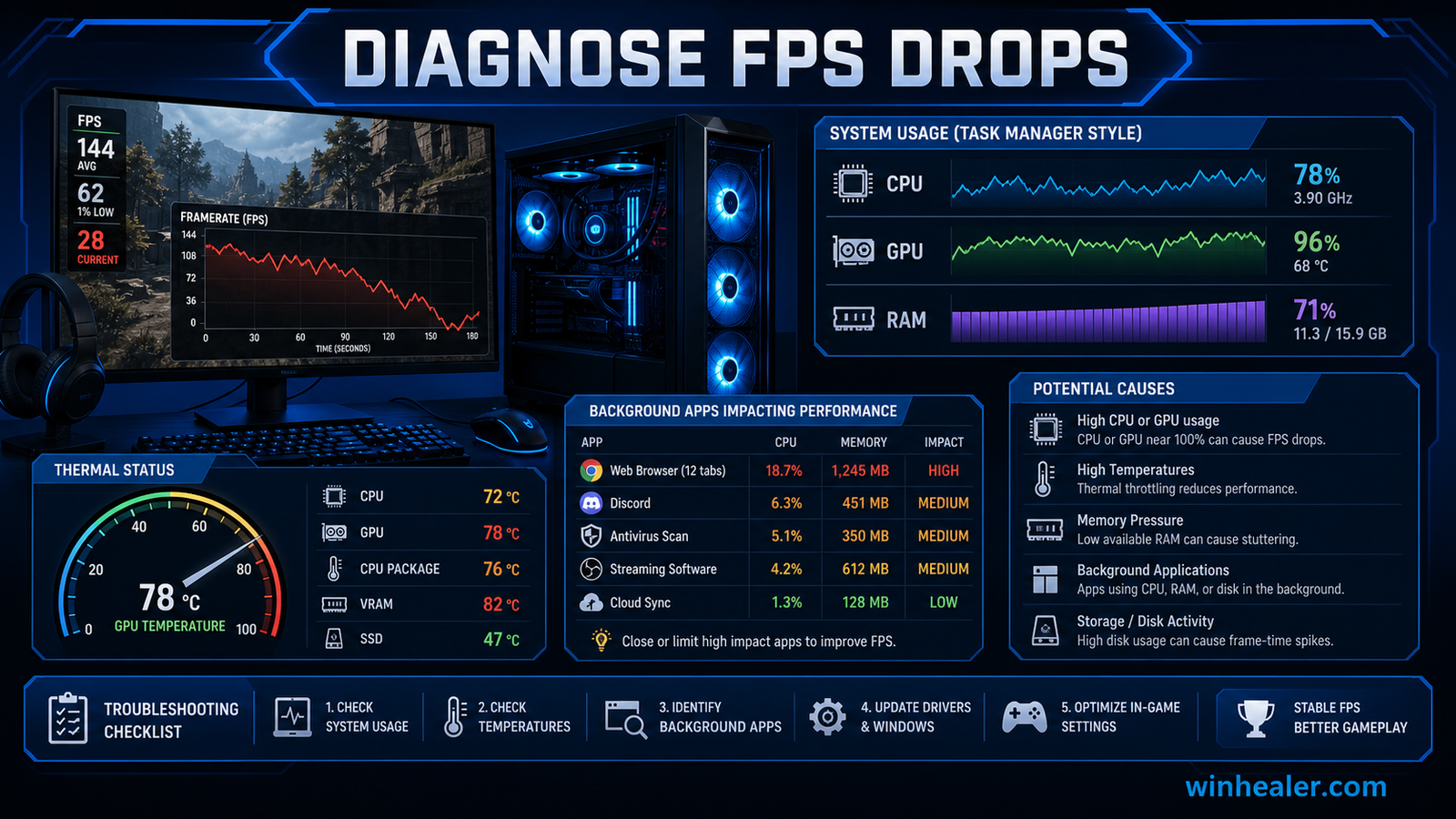
Gaming performance can decrease for several reasons, including:
- Recent Windows updates
- Outdated or buggy graphics drivers
- Background applications consuming CPU or RAM
- High GPU or CPU temperatures
- Incorrect Windows power settings
- Full storage drives
- Corrupted game files
- Outdated motherboard chipset drivers
The good news is that most performance issues can be fixed without replacing your hardware.
Method 1: Restart Your Computer
Before making any changes, restart your PC.
A fresh restart clears temporary background processes and memory usage that may be affecting game performance.
Method 2: Update Your Graphics Driver
Graphics drivers have a huge impact on gaming performance.
Download the latest driver for your graphics card from the official website:
- NVIDIA GeForce
- AMD Radeon
- Intel Arc or Intel Graphics
If the problem started after updating the driver, try rolling back to the previous stable version.
Method 3: Enable Game Mode
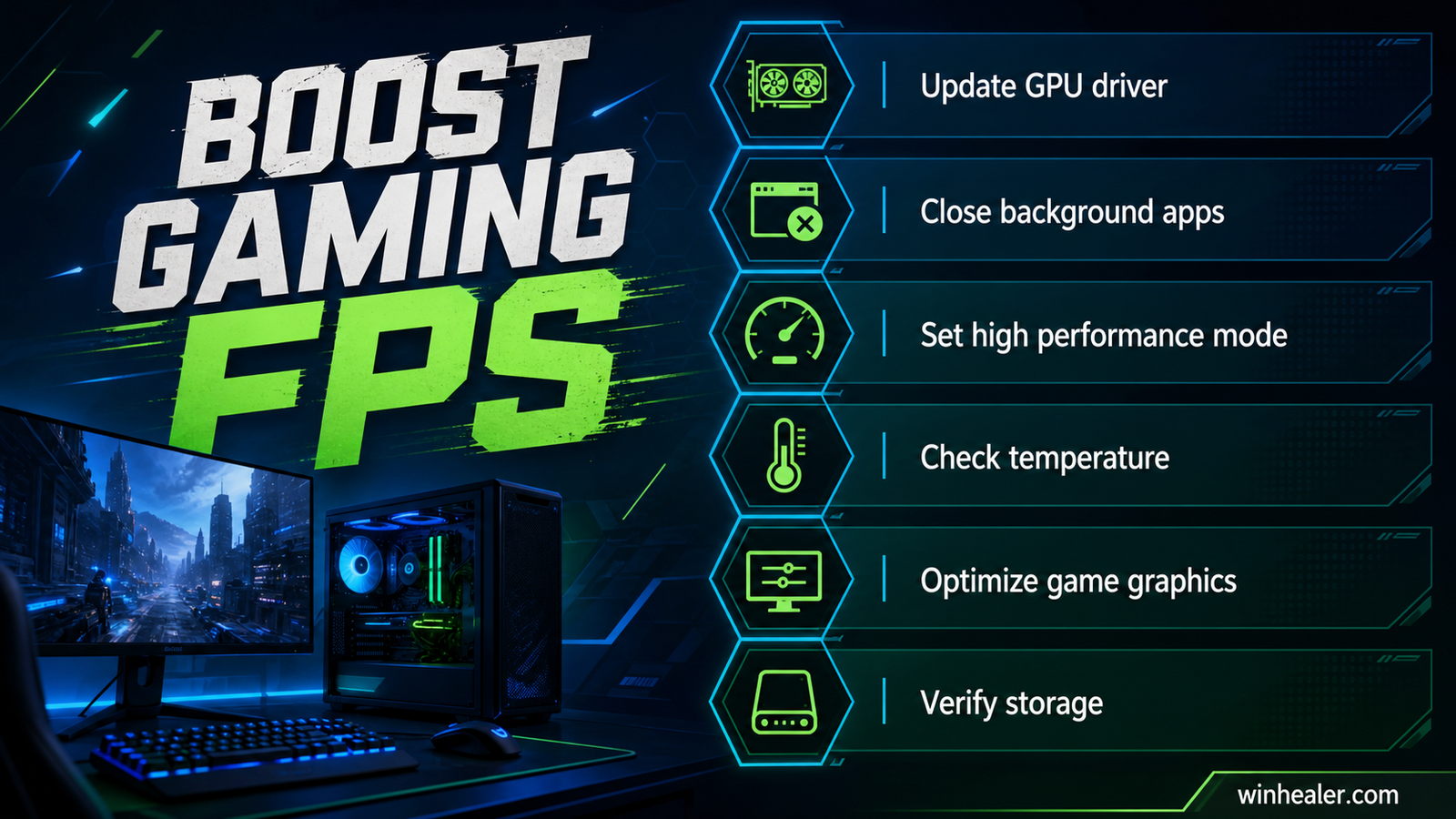
Windows 11 includes a built-in Game Mode.
Go to:
Settings → Gaming → Game Mode
Turn Game Mode ON.
This helps Windows prioritize your game and reduce unnecessary background activity.
Method 4: Close Background Applications
Many apps continue running even when you’re not using them.
Before gaming:
- Close web browsers
- Exit RGB software you don’t need
- Close launchers that aren’t required
- End unnecessary programs from Task Manager
This frees CPU and RAM resources for your game.
Method 5: Choose the High Performance Power Plan
Open:
Control Panel → Power Options
Select:
- High Performance
- Ultimate Performance (if available)
This prevents Windows from aggressively reducing CPU performance while gaming.
Method 6: Monitor CPU and GPU Temperatures
Overheating causes your hardware to reduce its speed automatically.
Clean dust from your PC, improve airflow, and check that your fans are working correctly.
Keeping temperatures under control helps maintain stable FPS during long gaming sessions.
Method 7: Install the Latest Windows Updates
Although some updates can introduce issues, Microsoft also releases fixes for gaming performance.
Go to:
Settings → Windows Update
Install all available updates and restart your PC.
Method 8: Verify Game Files
Corrupted game files can cause crashes, stuttering, and FPS drops.
If you use Steam:
- Open your Library
- Right-click the game
- Select Properties
- Open Installed Files
- Click Verify integrity of game files
Other launchers offer similar repair options.
Method 9: Disable Unnecessary Startup Apps
Too many startup programs reduce available system resources.
Open:
Task Manager → Startup Apps
Disable applications that you don’t need running automatically when Windows starts.
Method 10: Free Up Storage Space
A nearly full SSD or HDD can slow game loading and Windows performance.
I recommend keeping at least 15–20% of your main drive free for optimal performance.
Delete temporary files, uninstall unused software, and use Storage Sense to clean up space.
Method 11: Update Motherboard Chipset Drivers
Chipset drivers improve communication between Windows and your processor.
Download the latest chipset drivers from your motherboard manufacturer’s website or directly from AMD or Intel if applicable.
Method 12: Scan for Malware
Hidden malware can consume CPU, RAM, and disk resources.
Run a full scan using Microsoft Defender or another trusted antivirus solution to rule out unwanted software.
Frequently Asked Questions
Why did my FPS drop after a Windows update?
A Windows update may introduce compatibility issues, install a new driver, or change system settings. Updating drivers or waiting for a follow-up patch often resolves the problem.
Can background programs reduce gaming performance?
Yes. Applications running in the background can use CPU time, RAM, storage, and internet bandwidth, which may lead to lower FPS or stuttering.
Does Game Mode increase FPS?
Game Mode doesn’t guarantee higher FPS, but it can improve overall gaming performance by reducing background activity and prioritizing your game.
Final Thoughts
Gaming performance drops can be frustrating, especially if your PC was running games smoothly before. In my experience, updating graphics drivers, enabling Game Mode, closing unnecessary background applications, using a High Performance power plan, and keeping Windows up to date solve most gaming performance problems.
If you’ve tried all the methods above and your games are still underperforming, it may be worth checking your hardware for overheating, failing storage, or other component issues.
I hope this guide helps you enjoy smoother gameplay again. I’ll continue publishing practical Windows optimization, gaming, and PC troubleshooting guides here on Vin Healer to help you get the best performance from your computer.
Official Microsoft reference
For broader performance diagnosis, see Microsoft’s PC performance guidance for Windows. It explains how to monitor resource use and consider power settings without making risky system changes.

