
If you’ve noticed that your Windows 11 PC is using a lot of RAM even when only a few programs are open, you’re not alone. Many users experience high memory usage after Windows updates, installing new software, or simply after months of regular use.
I researched the most common causes of this issue and tested the solutions that make the biggest difference. In this guide, I’ll share the methods I recommend to reduce high RAM usage and improve your PC’s overall performance.
Whether you have 8 GB, 16 GB, 32 GB, or more memory, these tips can help your computer run more smoothly.
Why Is Windows 11 Using So Much RAM?
High RAM usage can happen for several reasons, including:
- Too many startup applications
- Background programs consuming memory
- Memory leaks in software
- Malware or unwanted programs
- Outdated drivers
- Windows updates
- Browser tabs using excessive memory
- Virtual machine software running in the background
Fortunately, most memory issues can be resolved without upgrading your RAM.
Method 1: Restart Your Computer
Restarting your PC clears temporary memory usage and closes background processes that may be consuming RAM.
If you haven’t restarted your computer in several days, this simple step may noticeably improve performance.
Method 2: Check Task Manager
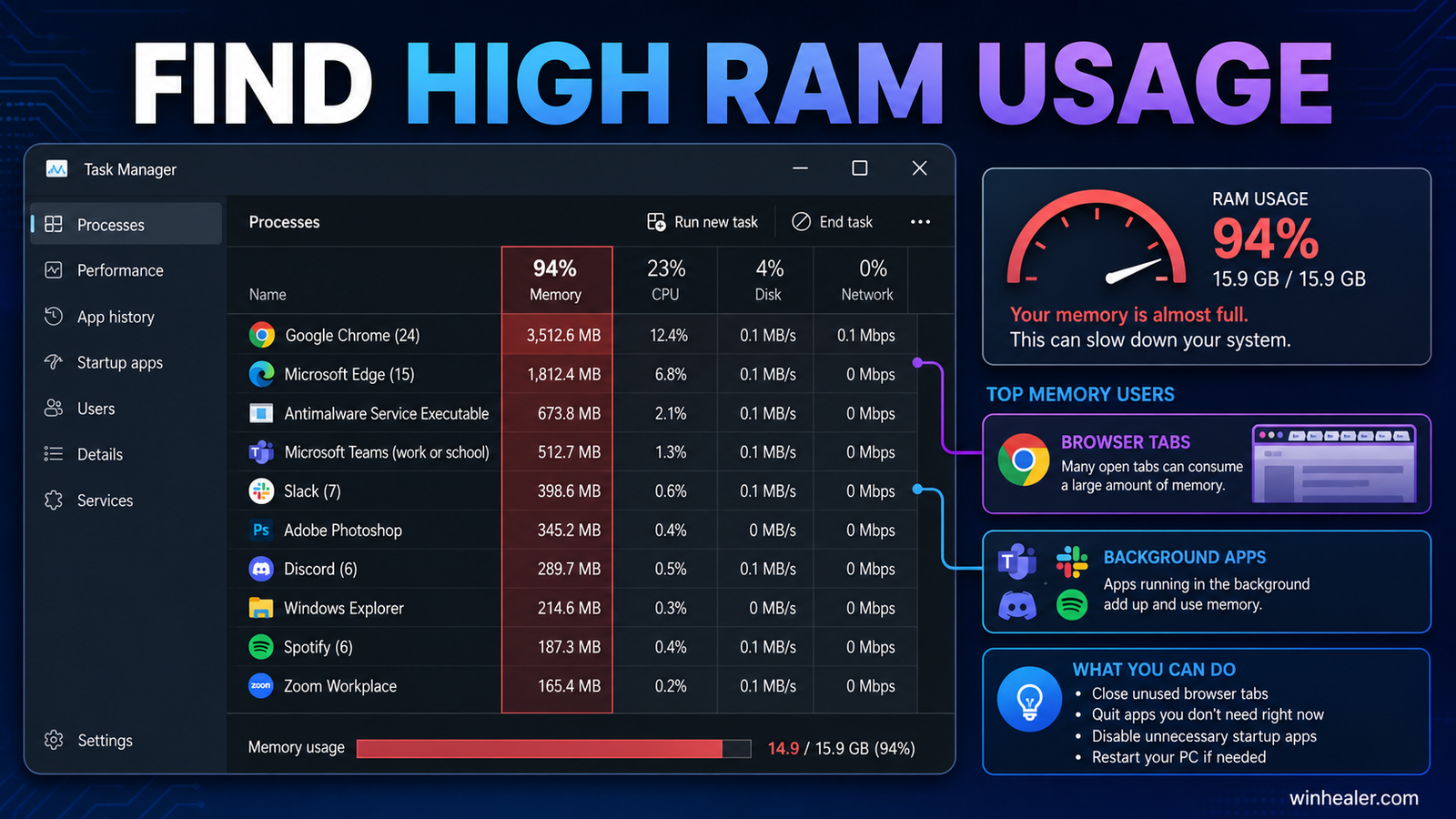
Press:
Ctrl + Shift + Esc
Open the Processes tab.
Sort by Memory usage.
Identify programs using unusually large amounts of RAM and close the ones you don’t currently need.
Method 3: Disable Startup Applications
Many applications start automatically when Windows boots.
Open:
Task Manager → Startup Apps
Disable unnecessary startup programs such as:
- Game launchers
- Chat applications
- RGB software
- Auto-updaters
- Utilities you rarely use
This reduces RAM usage immediately after startup.
Method 4: Close Unused Browser Tabs
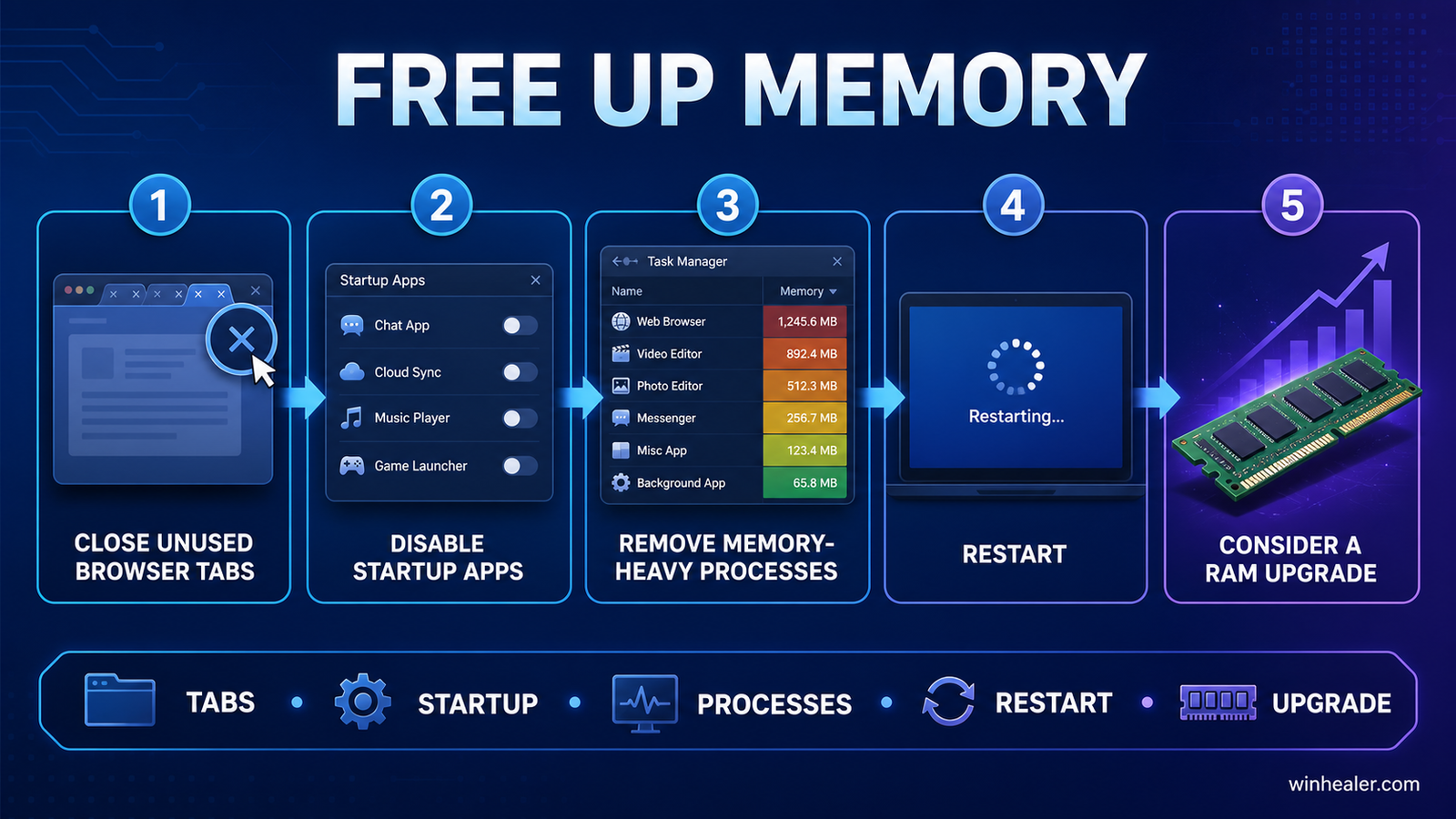
Modern browsers can consume several gigabytes of RAM.
Close tabs you’re not using and remove unnecessary browser extensions.
Many browsers also include a memory-saving mode that automatically puts inactive tabs to sleep.
Method 5: Update Windows
Microsoft regularly fixes memory-related bugs through Windows Update.
Go to:
Settings → Windows Update
Install all available updates and restart your computer.
Method 6: Update Device Drivers
Old or faulty drivers can create memory leaks.
Update:
- Graphics drivers
- Chipset drivers
- Network drivers
- Audio drivers
Download drivers only from your hardware manufacturer’s official website.
Method 7: Scan for Malware
Some malware continuously runs in the background and consumes system memory.
Run a full system scan using Microsoft Defender or another trusted antivirus program.
Remove any threats that are detected.
Method 8: Repair Windows System Files
Open Command Prompt as Administrator.
Run:
sfc /scannow
After it completes, run:
DISM /Online /Cleanup-Image /RestoreHealth
Restart your computer once both commands have finished.
These tools repair corrupted Windows files that can contribute to excessive memory usage.
Method 9: Increase Virtual Memory
If your PC regularly runs out of RAM, increasing the paging file can improve stability.
Go to:
System Properties → Advanced → Performance → Settings → Advanced → Virtual Memory
Enable Automatically manage paging file size or configure an appropriate custom size if you understand the implications.
Method 10: Remove Unused Applications
Unused software can continue running background services.
Open:
Settings → Apps → Installed Apps
Uninstall programs you no longer use.
This frees storage space and reduces unnecessary memory consumption.
Method 11: Check for Memory Leaks
If one application’s RAM usage keeps increasing over time without stopping, it may have a memory leak.
Close the application and install the latest version, or contact the developer if the issue persists.
Method 12: Upgrade Your RAM (If Necessary)
If you frequently multitask, edit videos, or play modern games, your current RAM capacity may simply be insufficient.
General recommendations:
- 8 GB – Basic everyday use
- 16 GB – Gaming and multitasking
- 32 GB – Content creation and professional workloads
- 64 GB or more – Advanced editing, virtual machines, and heavy productivity
Frequently Asked Questions
Is high RAM usage normal in Windows 11?
Windows 11 uses available memory to improve performance through caching. However, consistently high RAM usage while your PC is idle may indicate a software or configuration problem.
Will adding more RAM fix the issue?
Adding RAM can improve performance if you’re genuinely running out of memory. If the cause is a memory leak or faulty software, fixing that issue should come first.
Can browsers use several gigabytes of RAM?
Yes. Browsers with many open tabs, extensions, or web applications can consume a significant amount of memory.
Final Thoughts
High RAM usage doesn’t always mean your computer needs a hardware upgrade. In many cases, restarting your PC, disabling unnecessary startup applications, updating Windows and drivers, repairing system files, and removing unused software can greatly reduce memory usage.
If the issue continues after trying these methods, monitor Task Manager to identify which application is consuming excessive memory and investigate it further.
I hope this guide helps you reduce RAM usage and improve your PC’s performance. I’ll continue publishing Windows troubleshooting, optimization, and PC performance guides here on Vin Healer to help you get the most out of your computer.
Official Microsoft reference
Microsoft explains how RAM affects PC performance. Use Task Manager to identify the actual process using memory before closing apps or changing settings.

