Windows 11 Feature flags are Microsoft’s new answer to a familiar Insider question: “The blog says the feature exists, so why is my PC pretending it has never heard of it?” Instead of waiting for a controlled rollout to reach your particular laptop, Experimental-channel Insiders can now switch selected preview features on or off themselves.
That sounds wonderfully straightforward. It mostly is. Just remember that the word Experimental is doing real work here. A feature flag is a test switch, not a promise, warranty, or tiny blue button that turns an ordinary Tuesday into Windows 12.
What are Windows 11 Feature flags?
A feature flag is a control that lets Microsoft make a specific preview feature available without permanently enabling it for every tester. On supported Windows Insider Experimental builds, you can find the list under Settings > Windows Update > Windows Insider Program > Feature flags.
Microsoft says the page allows Experimental-channel Insiders to manually turn selected visible features on or off, even while a Controlled Feature Rollout is being used. A Controlled Feature Rollout—mercifully shortened to CFR—is Microsoft’s system for introducing a feature to a small group first and expanding it after checking reliability and feedback.
Feature flags give testers more control over that process. They do not unlock every unfinished idea hiding in Windows, and they are not the same thing as unsupported third-party tools that manipulate internal feature IDs.
Who can use Feature flags?
According to Microsoft’s current documentation, Feature flags are intended for devices enrolled in the Experimental experience of the Windows Insider Program. They are not a standard control for ordinary retail Windows 11 installations.
| Your Windows setup | Should Feature flags appear? |
|---|---|
| Experimental Insider channel on a current supported build | Yes, although the redesigned settings experience itself may roll out in stages |
| Beta Insider channel | Normally no; Beta previews features closer to release and Microsoft has ended gradual feature rollouts there |
| Release Preview | No |
| Normal retail Windows 11 | No; this is not a general Settings feature |
Experimental replaced the old Dev experience and also contains advanced core-version choices for certain devices. If your PC is on Beta or normal retail Windows, do not switch channels merely because one screenshot on the internet has a shiny toggle. Your stable PC has done nothing to deserve that.
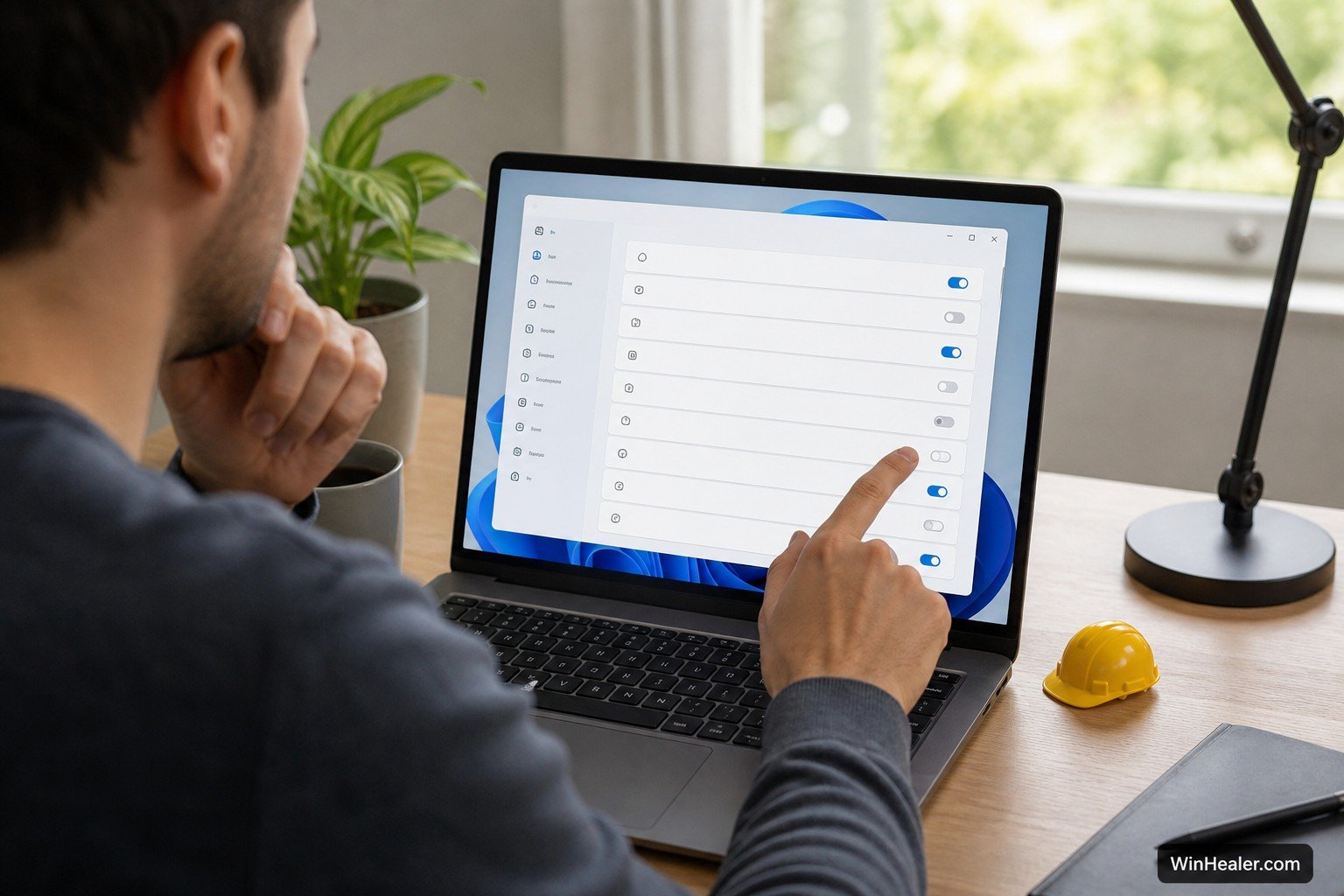
How to enable a Windows 11 experimental feature
- Save open work and install the latest Insider update available under Settings > Windows Update.
- Open Settings.
- Select Windows Update.
- Open Windows Insider Program.
- Select Feature flags.
- Find the feature you want to test and change its switch to On.
- Select the option to apply the changes if Windows displays one.
- Restart when requested. If no restart is requested, sign out and back in if the feature’s release notes recommend it.
After restarting, check the place where the new feature should appear. The relevant Microsoft release notes usually explain its location and any known limitations. Do not judge the result by the toggle alone; an early 2026 build briefly showed an incorrect current state even though applying the change still worked.
How to disable an experimental feature
If the feature causes trouble—or simply turns out to be less exciting than its release-note paragraph—return to the same Feature flags page, switch it off, apply the change, and restart if prompted.
Disabling the flag is the clean first troubleshooting step. It is one reason Microsoft created the page: you can test an announced feature and step back without performing an interpretive dance involving the Registry Editor.
However, switching a flag off might not undo data or settings you created while using the feature. Back up important files before testing anything that changes storage, account behavior, File Explorer, recovery, or device settings.
Why is the Feature flags page missing?
1. Your PC is not in Experimental
Open Settings > Windows Update > Windows Insider Program and check the selected experience. Feature flags are documented for Experimental, not ordinary retail Windows or Release Preview.
2. The new Insider interface has not reached the device
Microsoft introduced the redesigned Insider interface in stages during 2026. On transitional builds, Microsoft documented a flag that enabled the new experience itself. Update first, restart, and check again before assuming Settings has hidden the page behind the sofa.
3. The Insider build is outdated
Microsoft recommends keeping preview devices on the latest build. Old builds can lose eligibility for future flights when their flight certificates expire. Install pending updates before changing channels or flags.
4. No selectable features are available
Microsoft starts by exposing visible features announced through the Windows Insider Program. Background fixes, small platform changes, and every experiment under development will not necessarily appear. An empty or short list does not automatically indicate a fault.
5. The device is managed
A work or school administrator may restrict Insider settings. Do not bypass organizational policy; ask the administrator whether Experimental builds are permitted on that device.
Feature flags versus “get the latest updates”
The Windows Update option to receive the latest updates as soon as they are available expresses a broad preference for earlier rollouts. The Feature flags page is more specific: it lists individual visible experiments you can control.
Think of the first option as telling the restaurant, “Bring me the specials early.” Feature flags are where you can say, “Yes to the new taskbar; no to whatever happened to that menu animation.” This metaphor should not be used when contacting Microsoft Support.
Feature flags versus third-party unlock tools
Microsoft’s Feature flags page is a supported Insider control. Community tools that activate internal IDs work differently. They may expose code that is incomplete, unsupported on your build, or deliberately disabled because of a known problem.
For a reliable guide, use only flags Microsoft exposes in Settings and features documented for your exact build. A command copied from a social post may be correct for one build and entirely wrong after the next cumulative update.
A safer way to test experimental features
- Use a secondary PC or virtual machine. Your primary work computer is a poor laboratory because it contains both your files and your patience.
- Enable one feature at a time. If five things change simultaneously, troubleshooting becomes a guessing competition.
- Read the exact build notes. Check the feature’s required build, rollout channel, known issues, and restart instructions.
- Record the original setting. A quick note or screenshot makes reversing the experiment easier.
- Back up important data. Preview software can fail in ways that have not yet earned a friendly error message.
- Send useful feedback. Reproduce the problem, describe the steps, and include the build number in Feedback Hub.

What Feature flags cannot guarantee
Turning on a flag does not mean the feature will ship to retail Windows. Microsoft explicitly warns that Experimental features can change, disappear, be replaced, or never release outside the Insider Program.
A flag also cannot make incompatible hardware compatible, move a device to another Windows core, or override a safeguard that Microsoft has not exposed through Settings. It controls the feature listed beside the switch—nothing more magical than that.
Should you use Feature flags?
Use them if you deliberately joined Experimental, enjoy testing unfinished Windows features, and can tolerate the occasional rough edge. They provide a much cleaner method than waiting blindly for every controlled rollout.
Skip them on a computer that must be dependable every day. Beta is the more sensible Insider option for features closer to shipping, while retail Windows is still the best choice if “the PC turned on and behaved normally” is your favorite feature.
Bottom line
Windows 11 Feature flags give Experimental Insiders welcome control over selected preview features. The correct path is Settings > Windows Update > Windows Insider Program > Feature flags. Enable one documented feature at a time, apply the change, restart when required, and use the same page to turn it off if testing goes badly.
The page is useful precisely because it is limited. It is not a secret control panel for every hidden Windows experiment. Treat it as a proper testing tool, keep your build updated, and let someone else discover whether enabling fourteen experiments at once summons a second taskbar.
Sources and further reading
- Microsoft Learn: Running Windows Insider Preview builds and Feature flags
- Windows Insider Blog: Improving the Insider experience
- Microsoft Learn: Experimental Preview Build 26300.8289
- Microsoft Learn: Experimental Preview Build 26300.8346
Editorial note: Feature flags and Insider channels can change between builds. This guide reflects Microsoft’s documentation available on August 10, 2026.