Windows 11’s taskbar has spent years behaving like apartment furniture: useful, always present, and apparently convinced it deserves more floor space than everything else. Microsoft is finally testing an official way to make it smaller—without registry edits, third-party utilities, or asking the taskbar nicely.
The new taskbar-size experience is currently a Windows Insider Experimental feature. It is not yet guaranteed on every retail PC, and its exact controls have evolved across preview builds. Here is what Microsoft has announced, how to use it when available, and what to check when the option is missing.
Quick answer
On a supported Experimental build, open Settings > Personalization > Taskbar > Taskbar behaviors. Look for Show smaller taskbar buttons or the newer dedicated Taskbar Size control. Choose the compact option and Windows applies it without requiring a sign-out or restart.
Microsoft’s earlier control offered When taskbar is full, Never, and Always. In June 2026, Microsoft announced a clearer dedicated Taskbar Size setting, so wording can differ by build.
Who can use the new taskbar-size setting?
| Windows setup | Current expectation |
|---|---|
| Experimental Insider channel | The official preview is rolling out here |
| Beta or Release Preview | May not have it unless Microsoft advances the feature |
| Normal retail Windows 11 | Do not expect the new control yet |
| Unsupported registry modification | Not required and not recommended for this guide |
Preview availability can be staged. Two PCs on similar builds may briefly show different controls because Microsoft monitors feedback before expanding a rollout.
How to make the Windows 11 taskbar smaller
- Install the latest update offered under Settings > Windows Update.
- Right-click an empty part of the taskbar.
- Select Taskbar settings.
- Expand Taskbar behaviors.
- Open Show smaller taskbar buttons or Taskbar Size.
- Select Always or the compact/small choice.
The change should apply immediately. If Windows demands a restart, it is probably for the preview update rather than because the taskbar needs time to think about becoming shorter.
What the three older options mean
- When taskbar is full: icons shrink automatically when many applications are open. This was the default behavior in earlier testing.
- Never: icons stay at their normal size, even when the taskbar becomes crowded.
- Always: Windows uses smaller buttons continuously. On supported newer builds, this also reduces taskbar height.
Calling these choices small, medium, and large is convenient shorthand, but Microsoft’s documented menu may use different wording. The official preview primarily distinguishes the normal layout, automatic icon scaling, and the always-compact layout.
Does the smaller setting reduce taskbar height?
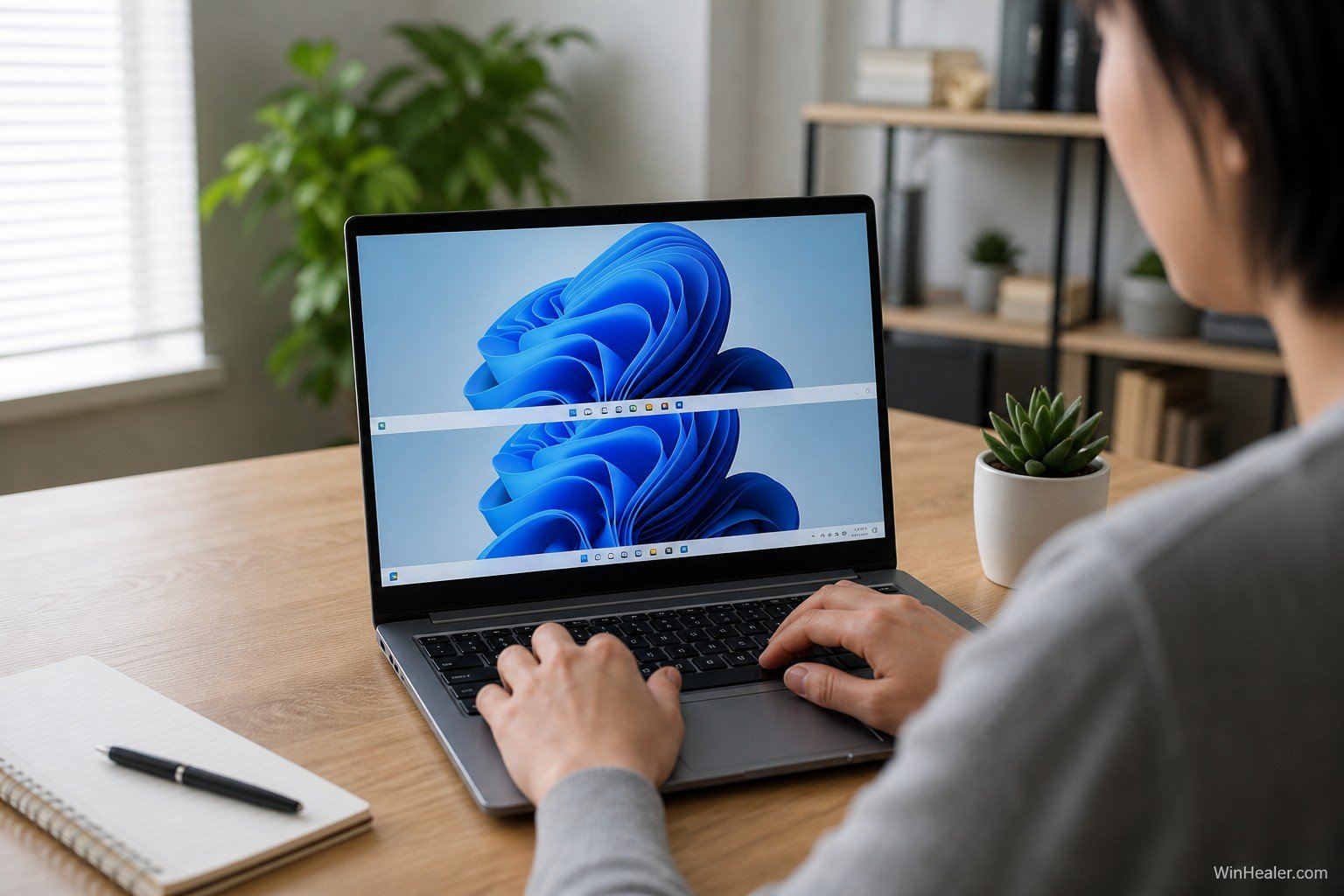
Yes, on the Experimental implementation Microsoft described in May 2026. When the compact mode is set to Always, both the icons and taskbar height become smaller. Core elements such as Start, Search, and the system tray scale to remain aligned.
This matters because older registry methods sometimes reduced icon size without properly resizing the surrounding taskbar. The official design treats the bar as one interface instead of leaving tiny icons stranded in a normal-height corridor.
Which size should you choose?
Choose compact or Always when:
- You use a 13- or 14-inch laptop.
- You keep many applications open.
- You prefer more vertical room for documents, browsers, or code.
- Your display scaling still keeps the smaller icons comfortable.
Keep the normal size when:
- You use touch input frequently.
- Small targets are difficult to select.
- You prefer easier icon recognition.
- The taskbar is rarely crowded.
Smaller is not automatically better. A taskbar that saves twelve pixels but requires binoculars has not improved productivity; it has merely introduced a new hobby.
Why is the Taskbar Size option missing?
- You are not in Experimental. The feature was announced for that channel, not all retail installations.
- Your build is older. Install the newest available Insider build and restart.
- The rollout has not reached the device. Microsoft may expand preview features gradually.
- The control has a different name. Look for Show smaller taskbar buttons under Taskbar behaviors.
- Feature flags are available. Experimental users can check Settings > Windows Update > Windows Insider Program > Feature flags for announced selectable features.
Avoid downloading random “taskbar fix” executables. Waiting for the official setting is safer than giving an unknown utility permission to redesign the part of Windows you click all day.
Does it work with a vertical or top taskbar?
Microsoft says most taskbar customizations, including small taskbar and Never combine, work with the Experimental top, left, and right positions. However, alternate-position support remains unfinished: auto-hide, tablet optimization, certain touch gestures, and the full Search box have had limitations.
Bottom line
The new Windows 11 taskbar-size setting is the cleanest official solution Microsoft has offered for compact layouts. Experimental Insiders can check Taskbar behaviors, choose automatic scaling or an always-small layout, and reverse the choice instantly.
Retail users should wait for Microsoft to move the feature forward. Until then, your taskbar may continue occupying its preferred amount of territory, but at least the eviction notice has been drafted.
Sources and further reading
- Microsoft: Making Taskbar and Start more personal
- Microsoft: New dedicated Taskbar Size setting
- Microsoft Learn: Experimental Build 26300.8493
Editorial note: This guide reflects Microsoft’s preview documentation available on August 10, 2026. Experimental features can change before retail release.