
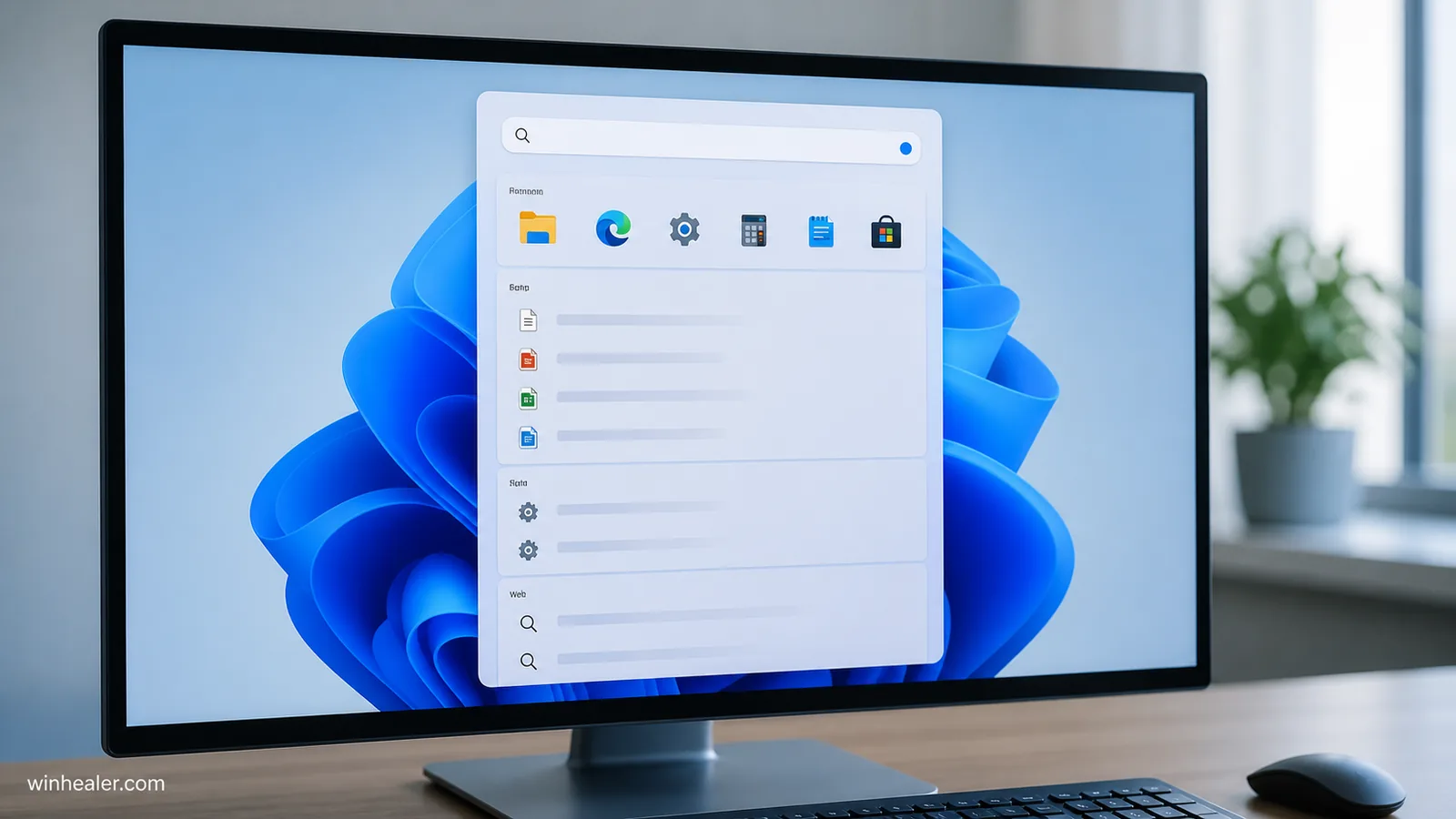
Windows Search has spent years trying to be several things at once: an app launcher, a file finder, a Settings shortcut and a doorway to the web. The result can feel busy when all you wanted was Calculator or a document from Downloads. Microsoft is testing a quieter version of the Search box in Windows 11 that changes that balance and, importantly, adds a switch for web and Microsoft Store suggestions.
This is not a universal retail feature yet. Microsoft announced the changes on July 13, 2026 for Windows Insiders in the Experimental channel, with a gradual Controlled Feature Rollout. That distinction matters: installing an update does not guarantee that the new interface will appear immediately. This guide explains what is changing, how to check for it safely and how to tune the current Search experience while you wait.
What is actually new?
The redesign is less about a dramatic new screen and more about removing friction. Microsoft says the Search home page has less visual clutter, while result cards make their source clearer. An app, local file, Windows setting, web result and Store suggestion should be easier to distinguish before you click.
The most useful change is a new control under Settings > Privacy & security > Search. On supported preview builds, it lets you decide whether web and Microsoft Store suggestions appear beside local results. Microsoft also says promotional content has been removed from web results and that strong local matches should rank above online suggestions more reliably.
Other work is happening behind the scenes. Search is becoming more forgiving when an app name contains a typo or missing letter. Two-character file searches are supported more effectively, Settings matches are being retuned, and cloud or connected files can appear when they are the better result. Microsoft also lists reliability improvements intended to reduce crashes and loading failures.
Can you use the new switch today?
First check which Windows channel the PC is using. Open Settings > Windows Update > Windows Insider Program. If the device is on a normal retail build, do not join an experimental channel only for a Search toggle. Preview builds can contain unfinished behavior and are best kept off a PC you depend on for work, school or accessibility.
If you are already in the Experimental channel, install available updates, restart once and look under Settings > Privacy & security > Search. The wording can move while the feature is being tested. Microsoft explicitly says the rollout is controlled, so two PCs on the same build may not receive it on the same day.
A missing control is not an error by itself. Avoid registry scripts that claim to force unpublished feature IDs. They can enable incomplete combinations that Microsoft has not assigned to your device, and a later build may change or remove those IDs.
A five-minute Search setup that works on regular Windows 11
You do not need the preview redesign to make Search calmer. Start with the taskbar presentation. Right-click the taskbar, open Taskbar settings, expand Taskbar items and choose a Search box, icon and label, icon only, or Hide. Hiding the button does not disable Search; Windows + S still opens it.
Next, open Settings > Privacy & security > Searching Windows. Windows offers two indexing approaches:
- Classic focuses on common locations such as Documents, Pictures, Music and the desktop. It is a sensible low-maintenance choice for many laptops.
- Enhanced searches the whole PC, excluding any folders you specify. Initial indexing can use additional CPU time and battery power, so connect a laptop to power and let the first pass finish.
Use the exclusion list for source-code folders, virtual machines, game libraries or archives that produce noisy matches. Excluding a folder removes its contents from indexed results; it does not delete or hide the files in File Explorer.
Local, cloud and web results are different
Windows Search can draw from the device, personal Microsoft-account content and work or school services. A file found through OneDrive is not necessarily stored fully offline, while a web suggestion opens information outside the PC. The new source labels are designed to make this boundary easier to see.
On current retail builds, review Search permissions and Searching Windows for SafeSearch, cloud-content and history controls. Menu names vary slightly by build. If the new combined web-and-Store switch appears, turn it off when you want a local-first launcher; leave it on if quick online answers and Store discovery are useful to you.
How to test whether your changes helped
Do not judge Search with one convenient query. Try a small repeatable set:
- Type the exact name of an installed app.
- Type a slightly misspelled version of that name.
- Search for a recently saved document by part of its filename.
- Search for a Windows setting, such as “night light.”
- Search for a common web term and note whether online suggestions appear.
Check both ranking and labeling. A useful result should not only appear; you should be able to tell whether it will open an app, file, setting, Store page or website. If a local file is missing, confirm that its folder is included in indexing and give Windows time to complete the index.
If Search is broken rather than cluttered
A redesigned interface will not repair a damaged index or a stalled Search process. Start by restarting the PC and installing supported Windows updates. Then open the Search and Indexing troubleshooter if it is available on your build, or use Advanced indexing options to check indexed locations and rebuild the index.
Rebuilding can temporarily make results incomplete and increase background activity. Let it finish before deciding that it failed. If only one folder is affected, confirm its permissions and whether it is excluded before rebuilding everything.
Privacy points worth knowing
Microsoft says improved semantic Search on supported Copilot+ PCs uses a local semantic index, stored on the device, alongside traditional indexing. That feature can find conceptually related files and images rather than relying only on exact words. It is not the same as the new visual cleanup, and availability depends on hardware, Windows build and supported file types.
For any Search mode, keep the practical boundary clear: local indexing catalogs information so it can be found quickly, while cloud and web features may query connected services. Choose settings based on the accounts and content used on that PC, not on a one-size-fits-all privacy checklist.
Verdict: a small change with a useful switch
The 2026 Search work is promising precisely because it is not trying to reinvent how people launch an app. Clearer source labels, better typo handling and stronger local ranking address everyday annoyances. The option to remove web and Store suggestions gives users a choice that should have been straightforward from the start.
For now, treat it as an Experimental-channel preview, not a guaranteed retail feature. Keep a production PC on a stable build, tune indexing and taskbar settings that already exist, and wait for Microsoft to widen the rollout instead of forcing hidden feature flags.

