
The WHEA_UNCORRECTABLE_ERROR blue screen means Windows received a serious hardware-error report through the Windows Hardware Error Architecture. It can appear during gaming, startup, rendering or even while the PC is idle. The stop code does not identify one guaranteed faulty part: unstable CPU or RAM settings, overheating, storage problems, firmware, power delivery and failing hardware can all produce it.
Because this error can involve hardware, protect important files first. If Windows still starts, back up documents before stress testing or changing firmware.
Start with the recent change
Think about what changed immediately before the crashes: a BIOS update, new RAM, EXPO/XMP, CPU undervolt, graphics card, Windows update, driver or physical move. Reversing one recent change is more useful than applying ten unrelated fixes.
1. Return the PC to stock settings
Enter the BIOS or UEFI and load optimized defaults. Disable CPU overclocking, undervolting, Precision Boost Overdrive tuning, Intel voltage changes and GPU tuning. Temporarily disable XMP or EXPO so memory runs at its standard supported setting. Save and test.
If the blue screen stops at stock settings, do not immediately assume the component is defective. The previous tuning, memory-controller load or voltage may simply have been unstable.
2. Check WHEA events in Windows
Open Event Viewer and go to Windows Logs > System. Filter for sources containing WHEA-Logger. Note the event ID, reported component and time. A cache hierarchy, memory, PCI Express or storage-related report can guide the next test, but one event should not be treated as a final diagnosis.
3. Update Windows, chipset drivers and BIOS carefully
Install normal Windows servicing updates and the correct chipset driver from AMD, Intel or the computer manufacturer. Check the motherboard support page for BIOS notes that specifically mention stability, memory compatibility or CPU support.
Do not flash firmware during unstable power, and do not use a BIOS meant for a different board revision. If the problem began immediately after a BIOS update, load defaults first and consult the manufacturer’s rollback policy.
4. Test the memory
Run Windows Memory Diagnostic for an initial check. For recurring errors, use a longer bootable memory test recommended by the memory or motherboard vendor. Test at default speed first.
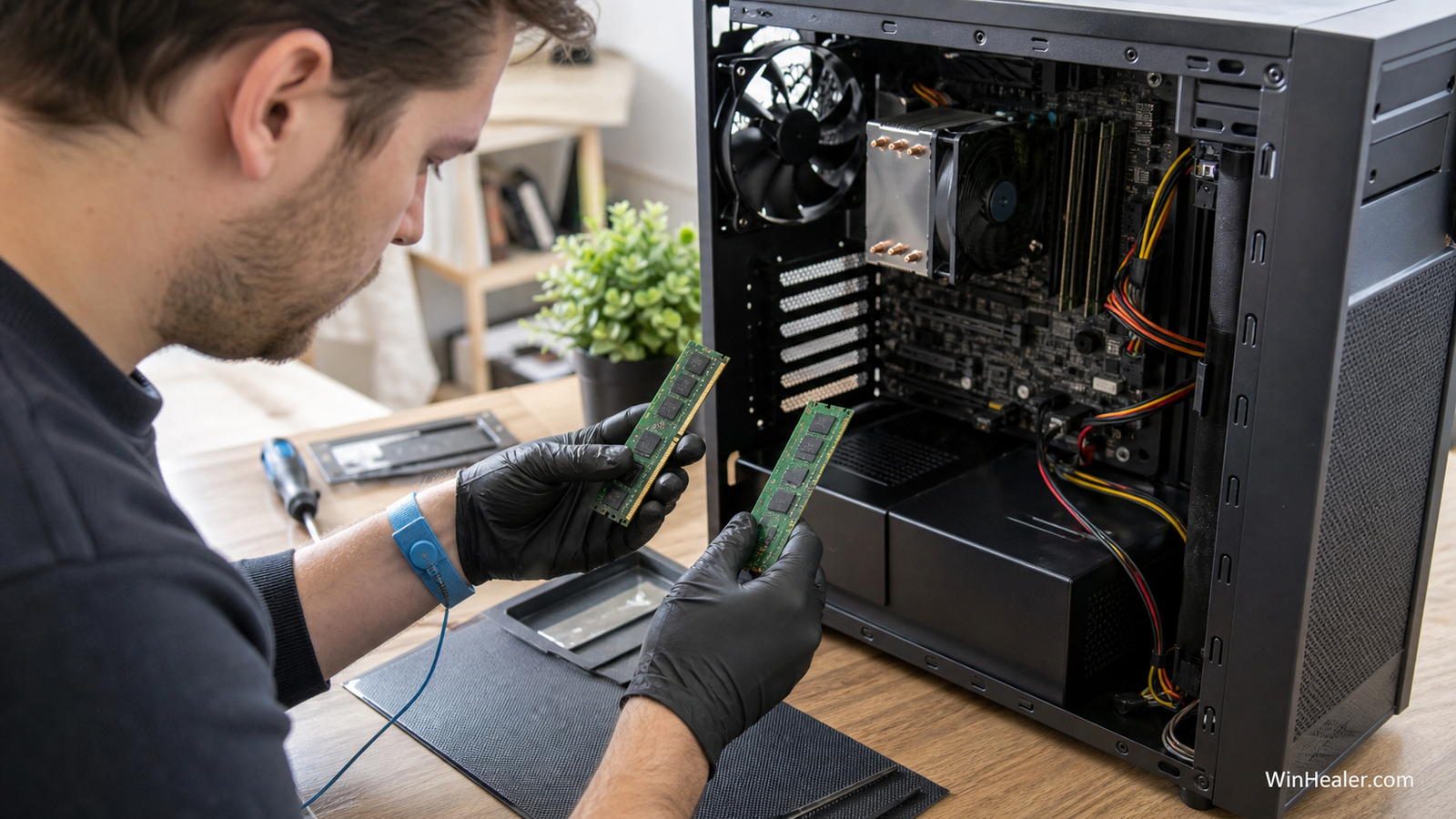
If errors appear, shut down, unplug the system and test one module at a time in the motherboard’s recommended slot. A module that fails in several slots is more suspicious; one slot that fails with known-good memory may point toward the board or CPU memory controller.
5. Monitor CPU and GPU temperatures
Record idle temperature and temperature under the workload that normally crashes. Confirm that fans and the pump, if present, are working. Inspect dust buildup and make sure the CPU cooler is firmly mounted. Compare readings with the specifications for the exact processor and graphics card.
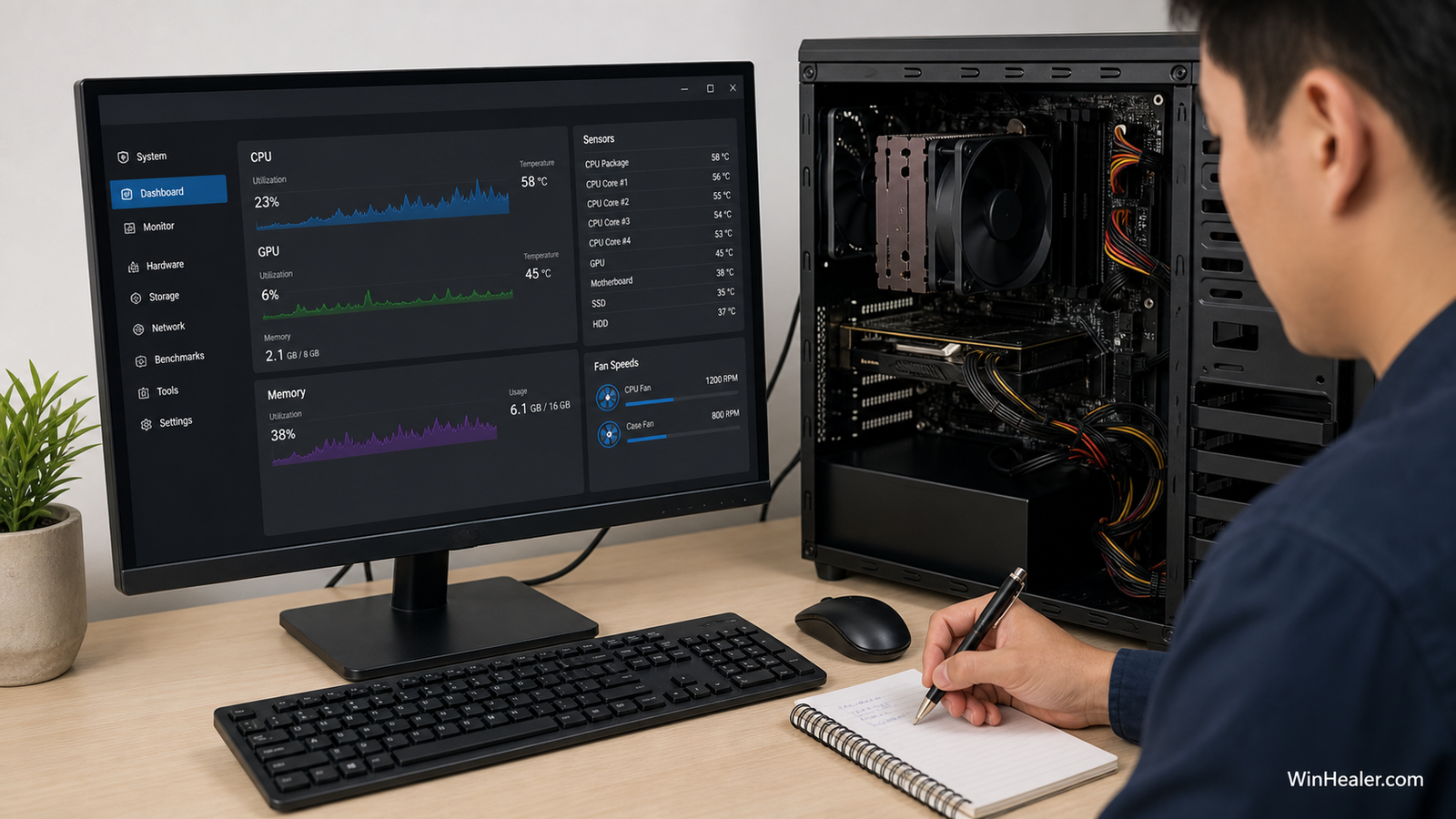
Do not run prolonged stress tests when temperature rises uncontrollably, the cooler is not working, or the PC smells hot. Stop and correct cooling first.
6. Check the system drive
Review the SSD or hard drive’s health with the manufacturer’s diagnostic tool. Open Terminal as administrator and run:
chkdsk C: /scanAlso repair Windows files:
sfc /scannow
DISM /Online /Cleanup-Image /RestoreHealth
Storage errors do not explain every WHEA event, but corrupt system files and unstable drives can make diagnosis confusing.
7. Check power and internal connections
Shut down, switch off the power supply and unplug the PC. Confirm that motherboard, CPU and graphics-card power connectors are fully seated. Inspect for a cable partly dislodged during a hardware change. Never open the power-supply enclosure; internal capacitors can remain dangerous.
A PC that instantly powers off under load, restarts when GPU power rises or becomes unstable after a graphics-card upgrade may need power-supply testing. Use a known-good suitable unit or professional testing rather than guessing from wattage alone.
8. Isolate expansion devices
Disconnect nonessential USB devices and recently added PCIe cards. Test one display and a basic keyboard and mouse. For PCIe-related WHEA events, update the relevant device firmware and driver, reseat the card with power disconnected, and test another supported slot when the motherboard manual allows it.
9. Use clean boot and Safe Mode correctly
A clean boot can reveal conflicts from monitoring, RGB or tuning software. Safe Mode is useful when normal Windows will not remain stable, but a hardware fault may still occur there. If the PC also crashes in firmware setup or a bootable diagnostic, Windows software becomes less likely.
10. When to seek hardware service
Stop repeated testing when memory reports persistent errors at stock speed, storage diagnostics fail, WHEA events repeatedly identify the same component, or the system crashes outside Windows. If the machine is under warranty, preserve screenshots and error logs and contact the manufacturer before disassembling more than permitted.
What not to do
- Do not raise voltages without understanding safe limits.
- Do not edit WHEA registry settings to hide events.
- Do not flash random or unofficial firmware.
- Do not replace several components at once.
- Do not keep stress testing a system that overheats or loses power.
Final recommendation
Return every component to stock, read the WHEA events, and test memory, temperatures, storage and power in that order. Change one variable at a time. The goal is not merely to stop the blue screen once; it is to identify a configuration that remains stable under the same repeatable workload.
Official references
- Microsoft Learn: Windows Hardware Error Architecture
- Microsoft: Repair Windows files with SFC and DISM
- AMD: Troubleshooting system stability issues
Editorial note: WHEA data identifies the class of reported error, not always the final failed part. Confirm conclusions with repeated testing at stock settings.

