
An AMD driver-timeout message means Windows stopped receiving a timely response from the graphics driver and reset it. The result may be a frozen game, black screen, application crash or a notification that AMD Software detected a driver timeout. The message identifies the failure point, but it does not prove that the graphics card itself is defective.
Timeouts can come from a damaged driver, unstable overclock, overheating, unsupported memory settings, a game bug, background software or unreliable power. Work through the checks in order so that each change tells you something useful.
Before you begin
- Save important work and restart the PC once.
- Write down the game, driver version and activity that triggered the timeout.
- Return CPU, GPU and RAM settings to stock for testing.
- Do not flash the graphics-card BIOS or edit registry timeout values as a first step.
1. Check whether one game or the whole PC is affected
If only one game crashes, update that game and verify its files in the launcher. Temporarily disable mods, reshade tools and overlays. Test a second demanding game. A repeatable crash in one title points toward that title or its settings; timeouts across games, browsers and video tools suggest a wider driver or stability problem.
Open Reliability Monitor by searching for View reliability history. Look for the application name, Windows Hardware Error Architecture entries or display-driver failures at the same time as the crash. This timeline is more useful than guessing from a single pop-up.
2. Reset the graphics driver
When the screen freezes but Windows still responds, press Win + Ctrl + Shift + B. The display may blink while Windows reinitializes the graphics driver. Close the affected program and restart normally afterward. This is a recovery step, not a permanent repair.
3. Install the appropriate AMD driver
Download AMD Software only from AMD’s official support page. Check the exact Radeon model and Windows edition. AMD distinguishes between Recommended drivers, which emphasize broader stability and certification, and Optional drivers, which may add newer game support sooner. If an Optional release introduced the problem, testing the latest Recommended release is reasonable.
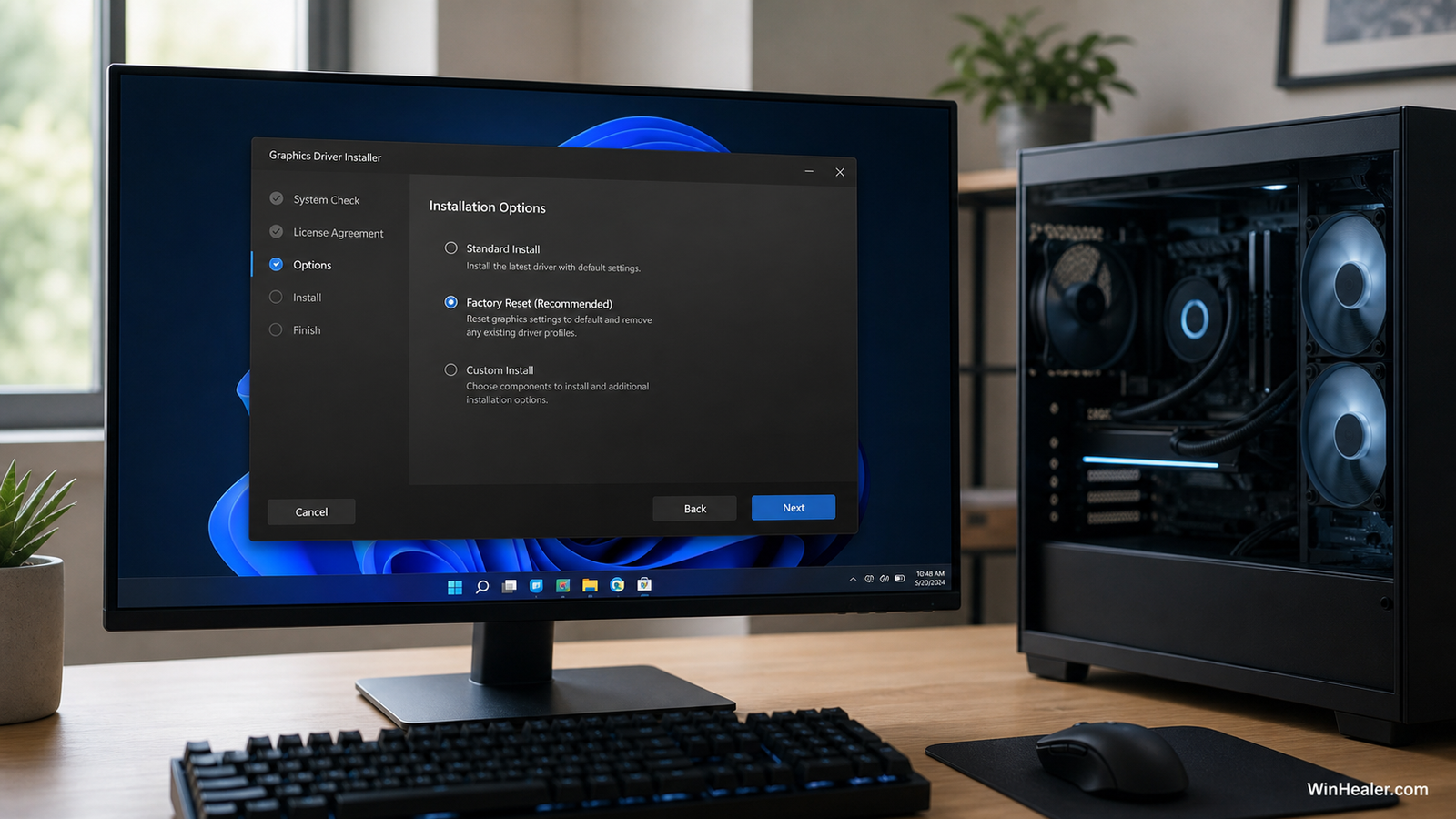
Close games, recording tools and hardware-monitoring utilities before installation. Restart when prompted even if the desktop appears to work.
4. Perform a clean driver installation
A normal update may retain a damaged setting or conflicting component. AMD’s installer can offer a Factory Reset or clean-install option depending on the package and system. Use it when normal installation repeatedly fails or timeouts began after several driver upgrades.
Before a clean installation, download the replacement package, disconnect unnecessary displays and create a restore point. The display will flicker and may temporarily use a low resolution. Do not interrupt the installer during that stage.
If AMD Software reports Error 1603, AMD lists possible causes including driver conflicts, missing Windows updates, antivirus interference, damaged Visual C++ components and corrupted system files. Update Windows and repair the operating system before repeating the installer indefinitely.
5. Disable overlays and background utilities
Turn off the AMD overlay and recording features temporarily. Also test without Discord overlay, browser hardware acceleration, RGB control applications and third-party GPU monitoring. Do not uninstall everything at once; disable one group, repeat the same workload and record whether the crash returns.
Some timeout reports occur during hardware video encoding rather than gaming. If the problem happens only while recording or streaming, change the encoder temporarily and check AMD’s release notes for a documented issue affecting your GPU generation.
6. Return all tuning to stock
Reset GPU frequency, voltage, power limit and VRAM timing in AMD Software. Disable CPU overclocking and undervolting. If EXPO or XMP is enabled, test temporarily at the motherboard’s default memory setting. This does not mean those features are inherently unsafe; it removes variables while you diagnose instability.
An undervolt can pass a short benchmark yet fail during a game transition, shader compilation or video playback. The only useful stability result is one reproduced under the workload that previously failed.
7. Check temperature and power behavior
Watch GPU temperature, hotspot temperature, fan speed and power during a repeatable workload. Compare the values with specifications for your exact card rather than relying on a single universal limit. A rapid temperature rise, fan failure or crash when power demand increases deserves hardware attention.
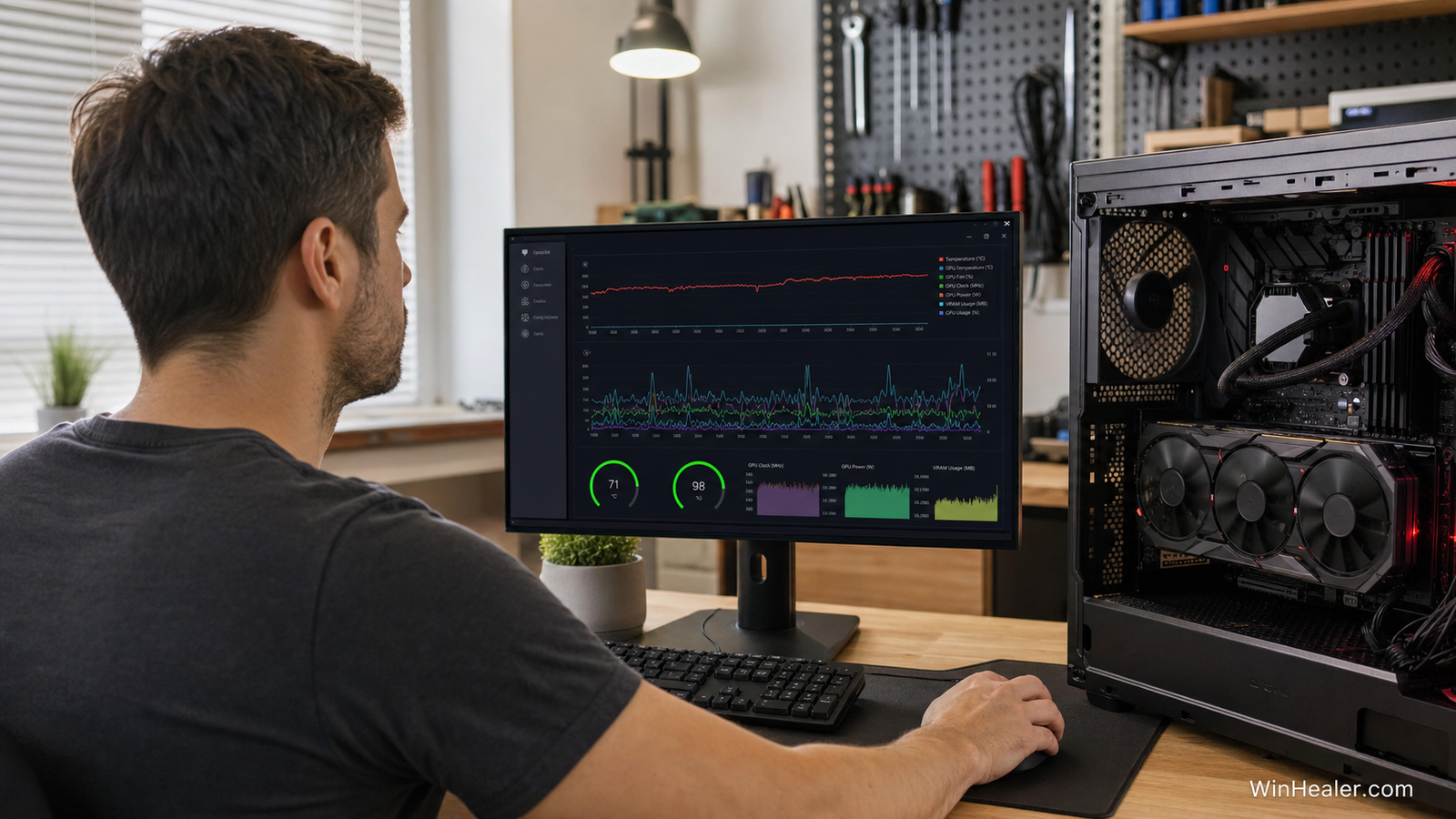
Shut the computer down and unplug it before touching internal hardware. Confirm that the graphics card is seated properly and that every required PCIe power connector is secure. Avoid daisy-chained connections when the card or power-supply manufacturer requires separate cables. Never open the power-supply enclosure.
8. Repair Windows system files
Open Terminal as administrator and run:
sfc /scannowIf Windows cannot repair all files, run:
DISM /Online /Cleanup-Image /RestoreHealthRestart, then run SFC again. Also install current chipset drivers from AMD or the motherboard manufacturer, because platform-driver problems can contribute to system instability.
9. Test RAM and system stability
Driver timeouts can be a symptom of memory or CPU instability. Run Windows Memory Diagnostic for a basic check, but use a longer reputable memory test when crashes remain unexplained. Check Event Viewer for WHEA errors. Repeated hardware errors at stock settings justify testing individual components or seeking professional support.
10. Roll back when the problem began after an update
If the system was stable on the previous driver, install that known-good version temporarily. Pause automatic driver replacement long enough to test it. A successful rollback does not prove the new driver is universally broken, but it gives you a repeatable configuration while you wait for a fix or investigate a game-specific conflict.
Do not increase TDR delay first
Registry guides sometimes recommend increasing Timeout Detection and Recovery values. This can make Windows wait longer before resetting a stalled driver, but it does not fix overheating, bad power, unstable tuning or corrupted software. It may simply leave the screen frozen longer. Use Microsoft or vendor-directed registry changes only for a documented application requirement and after creating a backup.
When the graphics card may need service
Suspect hardware when artifacts appear before Windows loads, the card disappears from Device Manager, crashes occur under several clean operating-system installations, or the PC loses power as soon as GPU load rises. Test another cable, display and known-good power supply where practical. Warranty support may be safer than repeated disassembly.
Final recommendation
Start by determining whether the timeout belongs to one game or the entire system. Then test a Recommended driver at stock settings without overlays. Monitor temperatures and power, repair Windows, and only then investigate RAM or hardware. A documented, one-change-at-a-time approach is faster than applying several registry and driver “fixes” together.
Official references
- AMD: Troubleshooting system stability issues
- AMD: Software installation Error 1603
- AMD: Driver information and updates
- Microsoft: Use SFC and DISM
Editorial note: Driver behavior varies by GPU model, game build, BIOS, power supply and Windows version. Record each change and repeat the same test before drawing a conclusion.

