
Have you ever been working, gaming, or watching videos on your Windows 11 PC and suddenly your Wi-Fi disconnects?
A random internet disconnect can be extremely frustrating, especially when you are in the middle of an important task or online gaming session.
Many Windows 11 users experience Wi-Fi problems because of outdated drivers, power settings, router issues, or Windows configuration problems.
In this guide, I will share the most effective solutions to fix Windows 11 Wi-Fi keeps disconnecting problems.
Why Does Windows 11 Wi-Fi Keep Disconnecting?
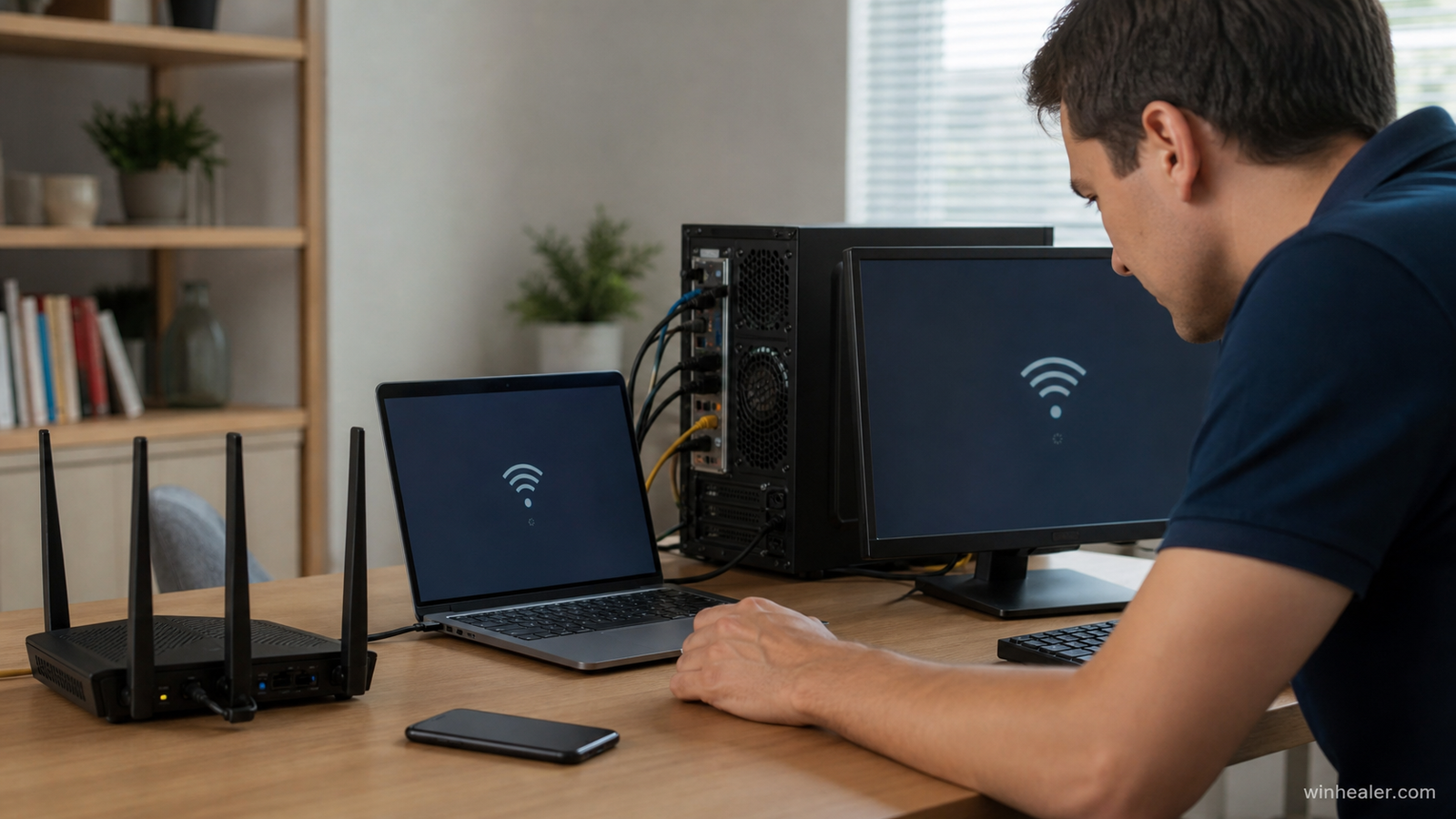
There are several reasons why your Wi-Fi connection may drop frequently:
- Outdated Wi-Fi drivers
- Incorrect network settings
- Power-saving features turning off Wi-Fi adapter
- Router problems
- Windows update compatibility issues
- Weak Wi-Fi signal
- Driver conflicts
- Network adapter errors
Finding the exact reason helps you apply the correct fix.
Method 1: Restart Your PC and Router
Before trying advanced solutions, restart your network devices.
Follow these steps:
- Turn off your PC
- Unplug your router for 30 seconds
- Turn the router back on
- Connect your PC again
This clears temporary network problems.
Method 2: Forget and Reconnect Your Wi-Fi Network
Sometimes saved network settings become corrupted.
Steps:
- Open:
Settings → Network & Internet → Wi-Fi
- Select:
Manage Known Networks
- Choose your Wi-Fi network
- Click:
Forget
- Connect again by entering your Wi-Fi password
Method 3: Update Your Wi-Fi Driver
Outdated drivers are one of the most common causes of Wi-Fi disconnecting.
Steps:
- Right-click Start Menu
- Open:
Device Manager
- Expand:
Network Adapters
- Right-click your Wi-Fi adapter
- Select:
Update Driver
You can also download the latest driver from your laptop or motherboard manufacturer’s website.
Method 4: Disable Wi-Fi Power Saving Mode
Windows may turn off your Wi-Fi adapter to save power.
Steps:
- Open:
Device Manager
- Expand:
Network Adapters
- Right-click your Wi-Fi adapter
- Select:
Properties
- Open:
Power Management
- Disable:
“Allow the computer to turn off this device to save power”
Restart your PC.
Method 5: Reset Network Settings
If Windows network settings are corrupted, resetting them can help.
Steps:
Go to:
Settings → Network & Internet → Advanced Network Settings
Select:
Network Reset
Then restart your computer.
Note:
You will need to reconnect to Wi-Fi networks after this.
Method 6: Change Wi-Fi Frequency Band
Modern routers usually support:
- 2.4 GHz
- 5 GHz
Sometimes your device may disconnect because of band switching.
Try connecting manually:
- Use 5 GHz for faster speeds and shorter distances
- Use 2.4 GHz for better range
Method 7: Restart Network Services
Windows network services can sometimes stop working correctly.
Press:
Windows Key + R
Type:
services.mscRestart these services:
- WLAN AutoConfig
- Network Connections
- Network List Service
Method 8: Run Windows Network Troubleshooter
Windows includes a built-in repair tool.
Steps:
- Open:
Settings
- Go to:
System → Troubleshoot
- Select:
Other Troubleshooters
- Run:
Network and Internet Troubleshooter
Method 9: Check Router Settings
Sometimes the problem is not your PC.
Check:
- Router firmware updates
- Number of connected devices
- Wi-Fi signal strength
- Router overheating
Try placing your router in an open location for better signal.
Method 10: Disable VPN or Third-Party Network Software
Some VPN applications and security tools can interfere with Wi-Fi.
Temporarily disable:
- VPN software
- Third-party firewall
- Network optimization tools
Check if the connection becomes stable.
Extra Tips for Gamers
If you play online games, try these:
✔ Use Ethernet cable for competitive gaming
✔ Connect to 5 GHz Wi-Fi
✔ Update router firmware
✔ Close background downloads
✔ Keep network drivers updated
A stable connection is more important than just high internet speed.
My Personal Recommendation
From my experience, most Windows 11 Wi-Fi problems are caused by:
- Old network drivers
- Power-saving settings
- Router configuration issues
Before reinstalling Windows, always try updating drivers and resetting network settings first.
These simple fixes solve the majority of Wi-Fi disconnect problems.
Final Thoughts
A constantly disconnecting Wi-Fi connection can make your Windows 11 experience frustrating, but you usually don’t need complicated solutions.
Start with simple fixes:
✔ Restart your router
✔ Update Wi-Fi drivers
✔ Disable power saving
✔ Reset network settings
✔ Check router performance
With proper settings and updated drivers, Windows 11 can provide a stable and fast internet connection.
For more Windows troubleshooting guides, PC fixes, gaming optimization tips, and hardware updates, follow WinHealer.

