
In this guide, you’ll learn how to install Windows 11 on unsupported hardware, including systems without TPM 2.0 or Secure Boot. This method is intended for personal use and should be used only if you understand the potential limitations.
Important: Installing Windows 11 on unsupported hardware means Microsoft may not guarantee future updates, and some features may not work as expected. Always back up your important files before making major changes to your PC.
Check If Your PC Is Unsupported
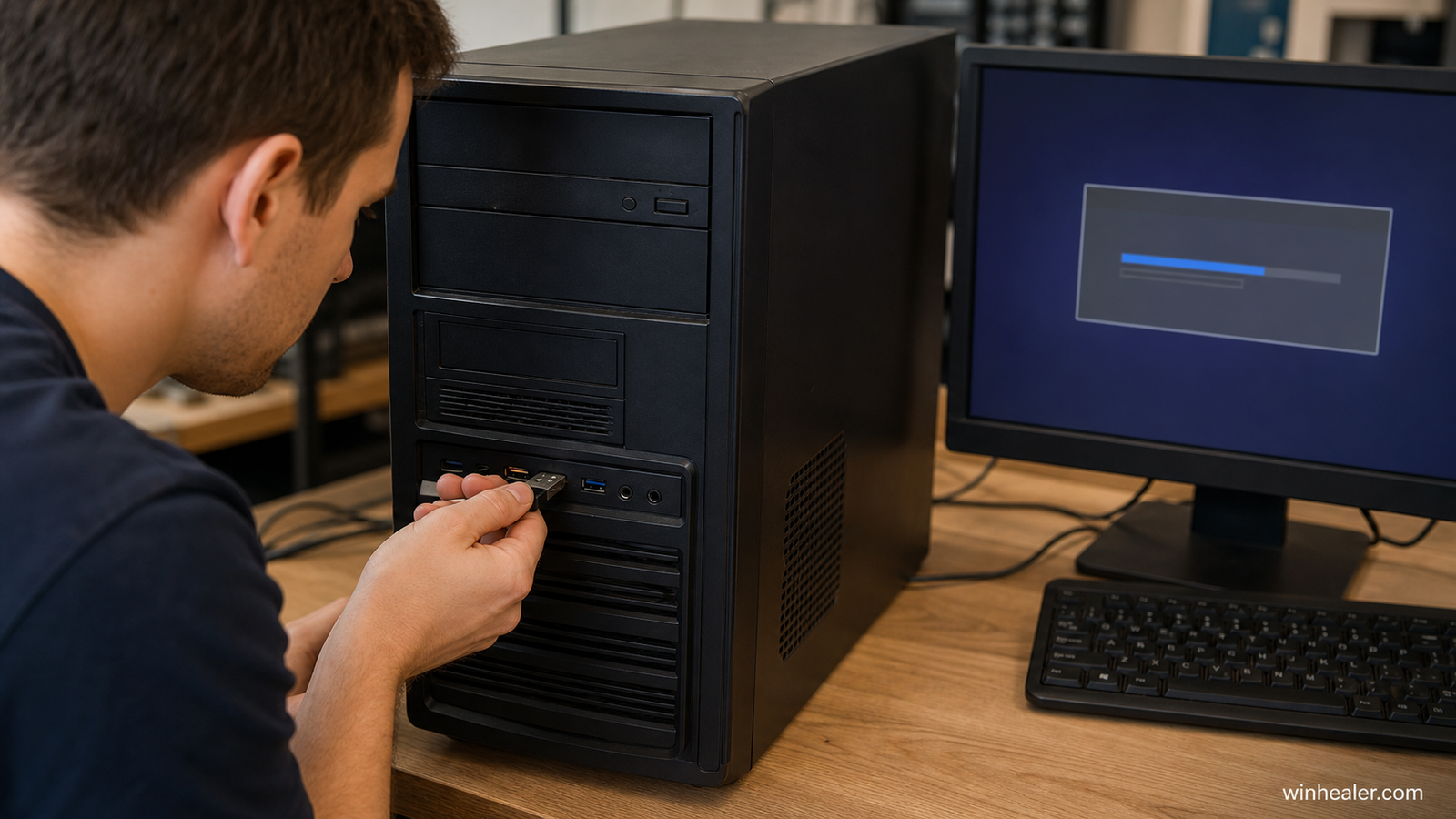
Your computer is considered unsupported if it has one or more of the following:
- No TPM 2.0
- Secure Boot is disabled or unavailable
- An older Intel or AMD processor not on Microsoft’s supported list
- Less than the recommended hardware requirements
If your PC runs Windows 10 smoothly, there’s a good chance it can also run Windows 11 for everyday tasks.
What You’ll Need
Before you begin, prepare the following:
- A USB flash drive (8 GB or larger)
- A Windows 11 ISO file
- A reliable internet connection (optional during installation)
- A full backup of your important files
Method 1: Use Rufus (Recommended)
One of the easiest ways to install Windows 11 on unsupported hardware is by creating a customized bootable USB with Rufus.
Steps
- Download the latest Windows 11 ISO from Microsoft.
- Download the latest version of Rufus.
- Insert your USB drive.
- Open Rufus.
- Select the Windows 11 ISO.
- When prompted, enable the options to:
- Remove the TPM 2.0 requirement
- Remove the Secure Boot requirement
- Remove the RAM requirement (if necessary)
- Create the bootable USB.
- Boot your PC from the USB drive.
- Follow the Windows installation wizard.
Rufus automatically applies the compatibility bypasses, making this the simplest method for most users.
Method 2: Registry Bypass During Setup
If you’re installing directly from Microsoft’s installer and receive the message:
“This PC can’t run Windows 11.”
You can bypass the hardware check.
Steps
- Press Shift + F10 during the installation screen.
- Type:
regedit
- Navigate to:
HKEY_LOCAL_MACHINE\SYSTEM\Setup
- Create a new key named:
LabConfig
- Inside LabConfig, create these DWORD (32-bit) values and set each to 1:
- BypassTPMCheck
- BypassSecureBootCheck
- BypassRAMCheck
- Close Registry Editor.
- Continue the installation.
Windows Setup should now proceed without the hardware compatibility checks.
Method 3: Upgrade from Windows 10
If you’re already running Windows 10:
- Download the Windows 11 ISO.
- Mount the ISO by double-clicking it.
- Run setup.exe.
- Choose whether to keep your files and apps.
- Complete the installation.
Depending on your hardware, additional compatibility bypasses may still be required.
What Happens After Installation?
Most unsupported PCs work surprisingly well with Windows 11. You can typically:
- Browse the web
- Use Microsoft Office
- Watch videos
- Attend online meetings
- Play many games (depending on your hardware)
However, you may encounter:
- Compatibility warnings
- Limited support from Microsoft
- Driver issues on older hardware
- Possible delays in receiving future updates
Tips Before Installing
- Back up your important files.
- Ensure your laptop is plugged into power during installation.
- Update your drivers after installation.
- Install the latest Windows updates once setup is complete.
- Create a system restore point after everything is working.
Frequently Asked Questions
Is it safe to install Windows 11 without TPM 2.0?
Many users successfully run Windows 11 without TPM 2.0, but Microsoft does not officially support these installations. Be aware of the risks before proceeding.
Will Windows Update still work?
Many unsupported systems continue to receive updates, but Microsoft does not guarantee updates for unsupported hardware.
Can I go back to Windows 10?
Yes. If you upgrade from Windows 10, you can usually roll back within the allowed recovery period. You can also perform a clean installation of Windows 10 at any time if needed.
Final Thoughts
If your older laptop or desktop still performs well, installing Windows 11 can extend its useful life without buying a new computer. By following the methods above and backing up your data first, you can install Windows 11 on many unsupported systems with minimal hassle.
Keep in mind that running Windows 11 on unsupported hardware comes with trade-offs. If stability and guaranteed support are your top priorities, staying on a supported version of Windows may be the better choice.
At WinHealer, our goal is to make Windows troubleshooting simple and accessible. Explore our other guides for practical solutions to common Windows issues, performance tips, and step-by-step tutorials.

