
A MEMORY_MANAGEMENT (0x1A) Blue Screen of Death (BSOD) can be frustrating, especially if it starts appearing after installing a Windows update. Your computer may restart unexpectedly, freeze during startup, or display the blue screen while you’re using applications.
Although the error mentions “memory,” it doesn’t always mean your RAM is faulty. It can also be triggered by corrupted system files, outdated drivers, disk errors, or software conflicts introduced after an update.
This guide explains the most common causes and the best ways to fix the problem.
What Is the MEMORY_MANAGEMENT (0x1A) Error?
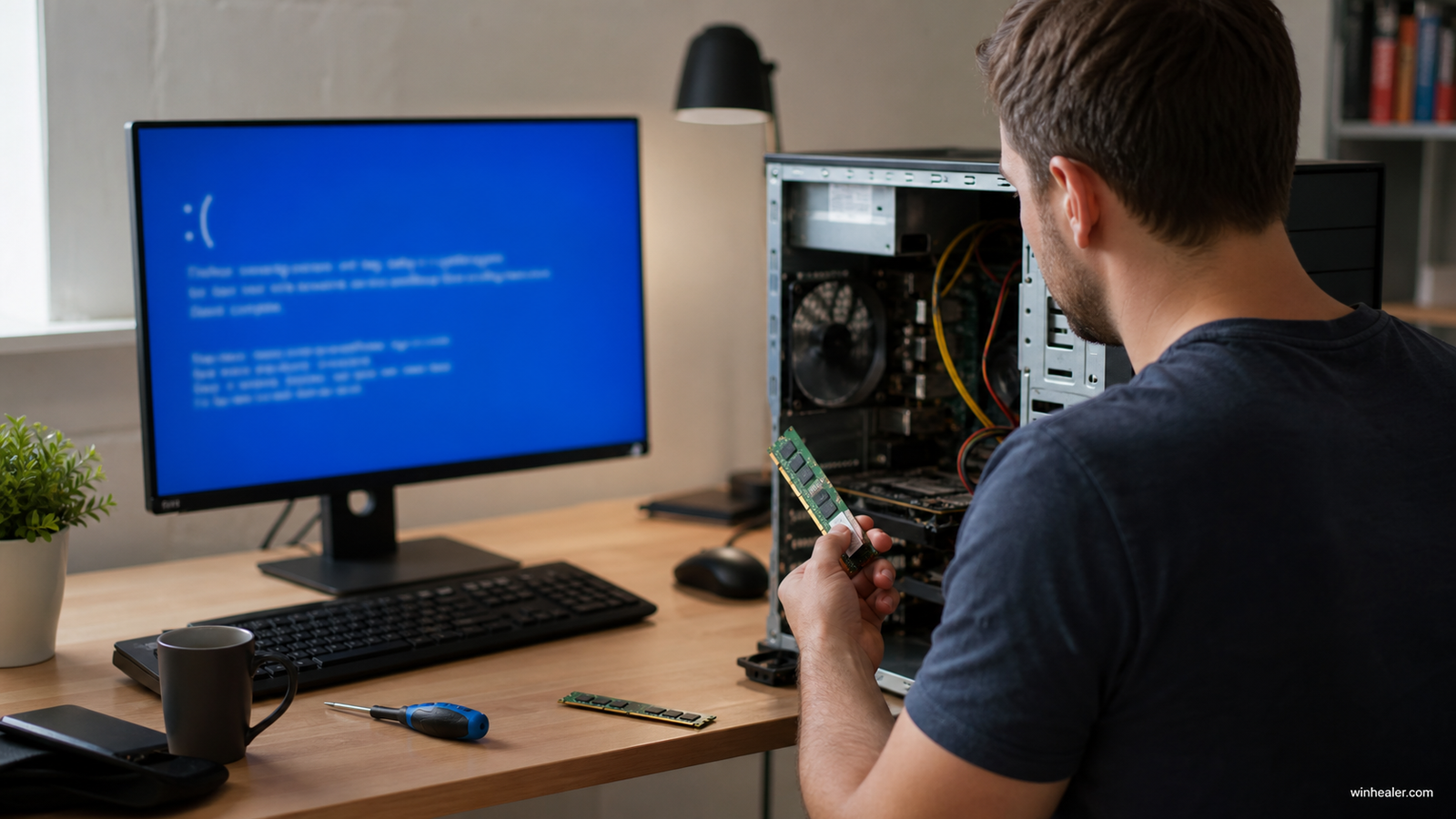
The MEMORY_MANAGEMENT stop code indicates that Windows detected a serious problem while managing system memory. To prevent data corruption, Windows automatically stops the system and displays a Blue Screen.
Common symptoms include:
- Random Blue Screen crashes.
- Restart loops after logging in.
- Freezing during startup.
- Crashes while gaming or running demanding applications.
- Boot failures after installing Windows updates.
What Causes This Error?
Several issues can trigger the MEMORY_MANAGEMENT stop code, including:
- Corrupted Windows system files.
- Faulty or unstable RAM.
- Outdated or incompatible device drivers.
- Corrupted Windows updates.
- Hard drive or SSD file system errors.
- Overclocking or unstable BIOS settings.
Solution 1: Restart Your Computer
If the Blue Screen appeared only once after a Windows update, restart your PC and check whether the issue returns. Temporary installation problems sometimes resolve themselves after a reboot.
Solution 2: Run Windows Memory Diagnostic
Since the error is related to memory management, testing your RAM is a good first step.
- Press Windows + R.
- Type mdsched.exe and press Enter.
- Choose Restart now and check for problems.
- Allow Windows to complete the memory test.
If memory errors are detected, one of your RAM modules may need to be replaced.
Solution 3: Repair Corrupted System Files
Open Command Prompt as Administrator and run:
sfc /scannow
After the scan finishes, run:
DISM /Online /Cleanup-Image /RestoreHealth
Restart your computer once both commands have completed successfully.
Solution 4: Update Device Drivers
Drivers that are incompatible with a recent Windows update can trigger Blue Screen errors.
Check for updates to:
- Graphics drivers
- Chipset drivers
- Storage controller drivers
- Network adapters
Download drivers from your computer or motherboard manufacturer’s support page whenever possible.
Solution 5: Check Your Drive for Errors
Disk corruption can also lead to memory management crashes.
Run the following command in an elevated Command Prompt:
chkdsk C: /f /r
Restart your computer if Windows schedules the scan for the next boot.
Solution 6: Remove Recent Software or Drivers
If the problem started immediately after installing a new program, antivirus application, or hardware driver, uninstall it temporarily and check whether the crashes stop.
Solution 7: Uninstall the Recent Windows Update
If the Blue Screen began shortly after a Windows update, removing that update may solve the issue.
- Open Settings.
- Go to Windows Update > Update history.
- Select Uninstall updates.
- Remove the most recent update.
- Restart your PC.
If Microsoft later releases a corrected version, you can install it again.
Solution 8: Disable Overclocking
If your CPU or RAM is overclocked, restore the BIOS settings to their default values. Unstable overclocking can cause memory-related stop codes.
Frequently Asked Questions
Does MEMORY_MANAGEMENT (0x1A) always mean bad RAM?
No. While faulty memory is one possible cause, corrupted drivers, damaged system files, storage errors, or Windows update issues can also trigger this stop code.
Can Windows updates cause this error?
Yes. Occasionally, a Windows update may expose an existing driver or hardware compatibility problem, leading to Blue Screen crashes.
Will reinstalling Windows fix the problem?
A clean Windows installation can resolve software-related causes, but it will not fix defective RAM or failing hardware. It’s best to test your memory and storage before considering a reinstall.
Final Thoughts
The MEMORY_MANAGEMENT (0x1A) Blue Screen can have several causes, but it is often fixable without replacing your computer. Start by testing your memory, repairing system files, checking your storage drive, and updating your drivers. If the issue began after a Windows update, uninstalling the latest update or waiting for a patched release may resolve the problem.
By following these troubleshooting steps, you can usually identify the root cause and restore your Windows PC to stable operation.

