
If you recently bought an NVIDIA RTX 5060 or are planning to upgrade, one of the first things you should do is optimize your settings. The default configuration works well, but with a few adjustments you can get better FPS, lower input lag, and a smoother gaming experience without sacrificing much image quality.
In this personal guide, I’ll show you the settings I recommend for the RTX 5060 in 2026.
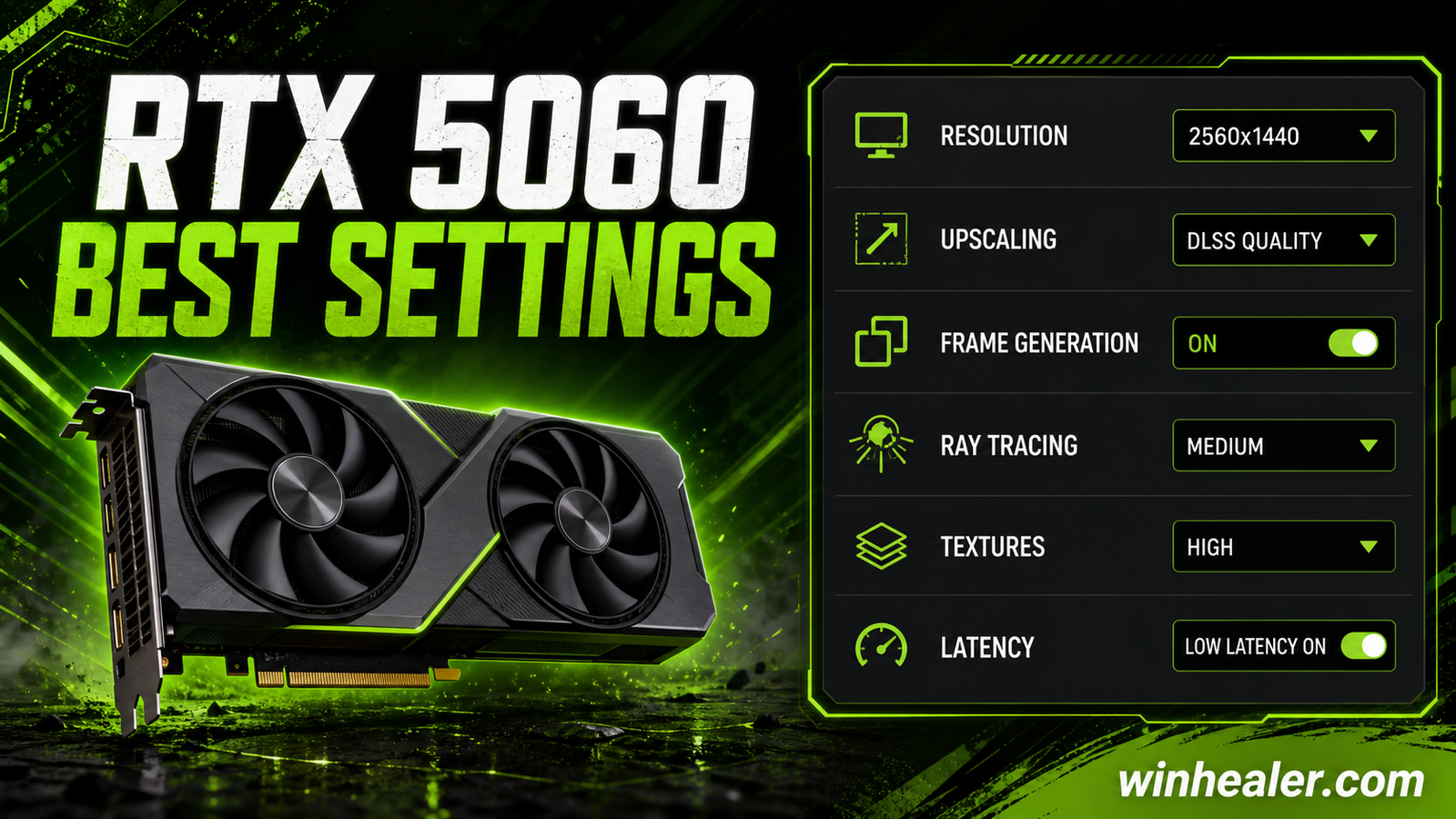
My Recommended RTX 5060 Settings
1. Keep Your Graphics Driver Updated
Always install the latest Game Ready Driver before playing newly released games. Driver updates often improve performance, fix bugs, and optimize support for new titles.
NVIDIA Control Panel Settings
Open NVIDIA Control Panel → Manage 3D Settings and use these settings:
- Image Scaling: Off (enable only if needed)
- Anisotropic Filtering: Application Controlled
- Antialiasing FXAA: Off
- Antialiasing Mode: Application Controlled
- CUDA – GPUs: All
- Low Latency Mode: Ultra
- Max Frame Rate: Off
- Monitor Technology: G-SYNC (if supported)
- Multi-Frame Sampled AA (MFAA): Off
- OpenGL Rendering GPU: RTX 5060
- Power Management Mode: Prefer Maximum Performance
- Preferred Refresh Rate: Highest Available
- Shader Cache Size: Driver Default
- Texture Filtering – Quality: High Performance
- Texture Filtering – Negative LOD Bias: Allow
- Texture Filtering – Trilinear Optimization: On
- Threaded Optimization: Auto
- Triple Buffering: Off
- Vertical Sync (V-Sync): Off (or On if you experience screen tearing)
- Virtual Reality Pre-rendered Frames: 1
Windows 11 Settings
For the best gaming performance:
- Turn on Game Mode.
- Enable Hardware-Accelerated GPU Scheduling (HAGS).
- Enable Variable Refresh Rate (if your monitor supports it).
- Set your Windows Power Plan to High Performance or Ultimate Performance.
- Close unnecessary background applications before gaming.
DLSS 4 Settings
If a game supports DLSS 4:
- DLSS Quality for 1440p gaming
- DLSS Balanced for demanding AAA games
- DLSS Performance for 4K gaming
- Enable Frame Generation if supported
- Enable NVIDIA Reflex for the lowest possible latency
Recommended Graphics Settings
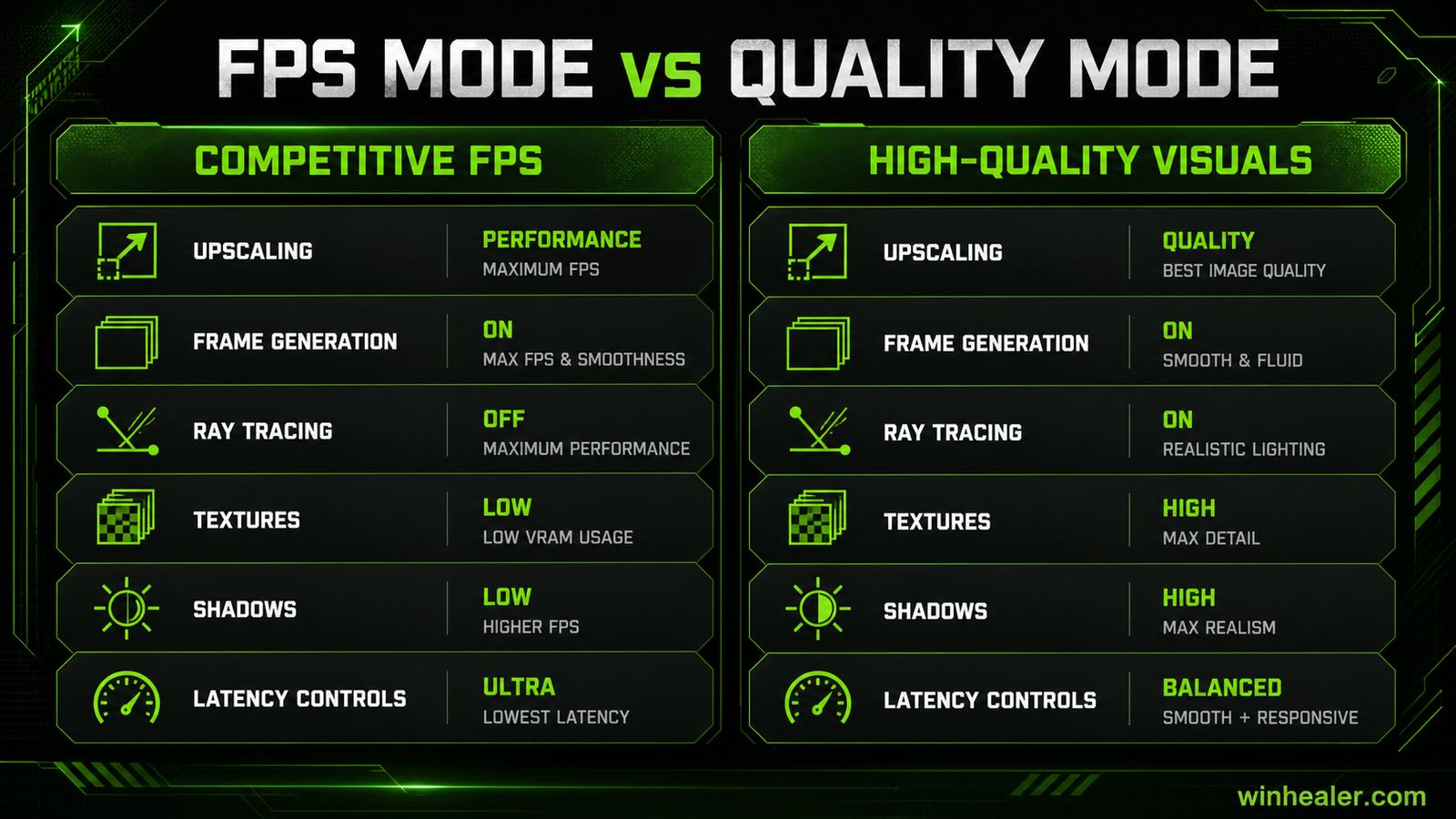
Competitive Games
- Resolution: Native
- Texture Quality: Medium-High
- Shadows: Low
- Reflections: Low
- Motion Blur: Off
- Ambient Occlusion: Low
- Ray Tracing: Off
- DLSS: Quality
- NVIDIA Reflex: On + Boost
AAA Story Games
- Resolution: Native
- Texture Quality: Ultra
- Shadows: High
- Ambient Occlusion: High
- Ray Tracing: Medium (if FPS remains acceptable)
- DLSS: Quality
- Frame Generation: On
- Reflex: On
Best Settings by Resolution
1080p Gaming
- Ultra settings in most games
- High refresh rate (144–240 Hz)
- DLSS usually not required
1440p Gaming
- High or Ultra settings
- DLSS Quality recommended
- Frame Generation enabled when available
4K Gaming
- Medium to High settings
- DLSS Performance or Balanced
- Frame Generation recommended
Tips for More FPS
- Update Windows regularly.
- Install games on an SSD.
- Keep at least 20% free storage space.
- Disable unnecessary startup programs.
- Keep GPU temperatures below 75°C for sustained performance.
- Restart your PC before long gaming sessions.
Final Thoughts
The RTX 5060 is an excellent graphics card for modern gaming. With the right NVIDIA Control Panel settings, Windows optimizations, and in-game graphics configuration, you can enjoy smoother gameplay, lower input lag, and better overall performance.
These are the settings I personally recommend for anyone using an RTX 5060 in 2026. Remember that every game is different, so don’t be afraid to make small adjustments to find the perfect balance between visual quality and FPS.
Happy gaming!

