
Quick answer: OBS Studio is the best flexible free recorder for most creators. NVIDIA App or AMD Software is convenient for low-overhead gameplay capture, while Xbox Game Bar is the fastest built-in option. Record a short test before every important session.
This WinHealer guide was reviewed for July 2026. Availability, software features and street prices can change, so use the decision process below and confirm current details before buying or installing.
What matters most
Use a hardware encoder when available to reduce CPU load. Modern NVIDIA, AMD and Intel GPUs can encode H.264 or HEVC, while AV1 offers efficiency when the editor and destination support it.
Bitrate is not a universal quality setting. Resolution, frame rate, motion, encoder and recording format all matter. Quality-based rate control is often better for local recording.
Separate microphone, game and chat audio tracks when your workflow supports it. This makes corrections possible without affecting the entire mix.
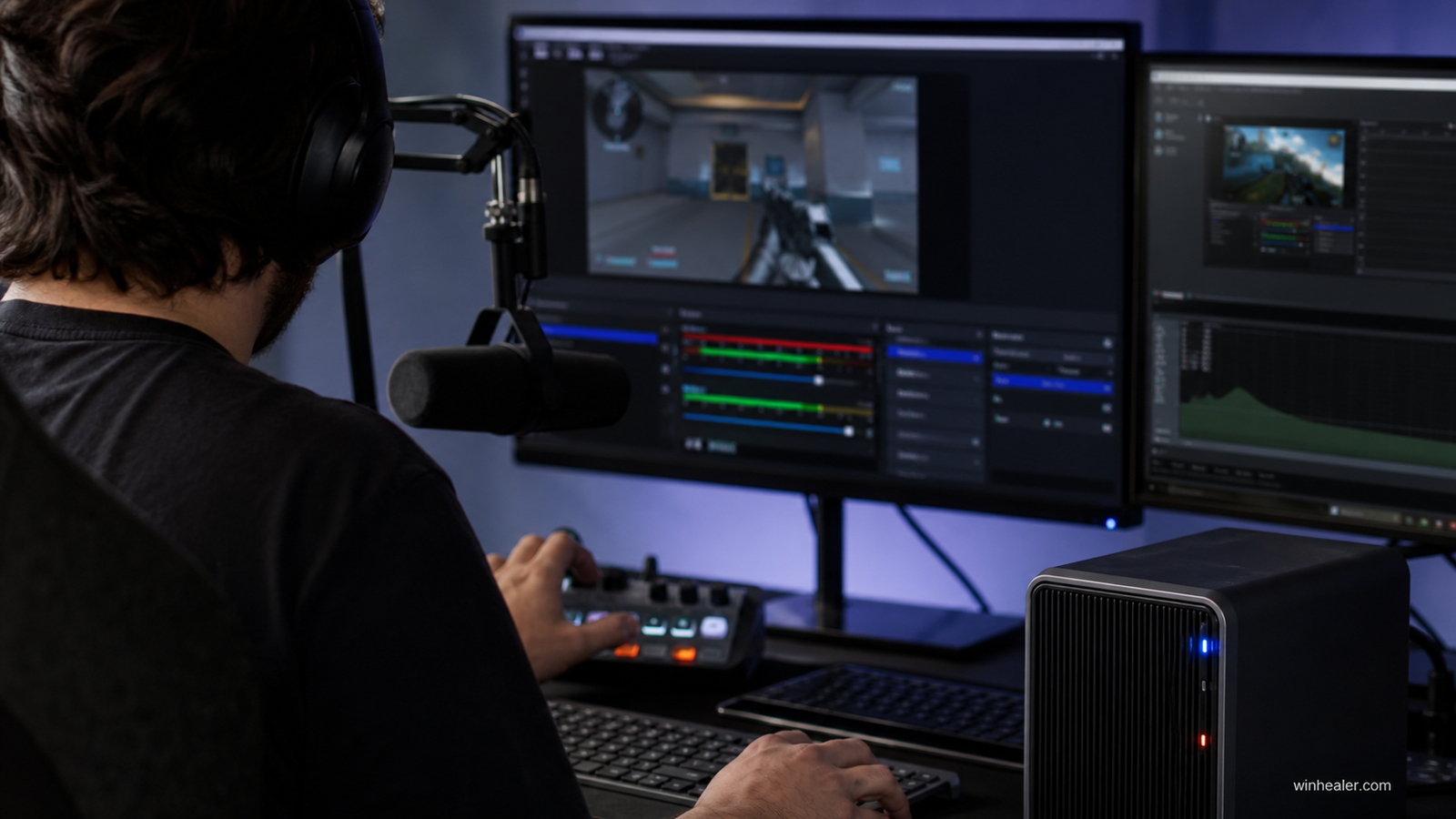
Best video-recording tools compared
The numbered list is organized for readability, not as a universal score. Select a recorder according to what you capture, the editing control you need and the encoder available on your PC.
1. OBS Studio
Best overall for scenes, multiple audio tracks, plugins, local recording and streaming. Its flexibility requires an initial setup and test process.
Best for: Streamers and creators who need flexible scenes, audio sources and recording control.
What to know before choosing: OBS is free and open source, but its flexibility means setup takes time. Run a short test recording and monitor audio tracks, encoder load and dropped frames before a long session.
2. NVIDIA App capture
Convenient for supported GeForce systems when you want quick gameplay recording with minimal scene configuration.
Best for: PC gamers with a supported NVIDIA GPU who want convenient gameplay capture.
What to know before choosing: GPU-assisted capture can reduce CPU pressure and is easy to access from NVIDIA’s software. Confirm that your GPU, driver and selected game support the current capture features.
3. AMD Software recording
The comparable built-in route for supported Radeon systems, with hardware encoding and direct gameplay capture.
Best for: PC gamers with a supported AMD Radeon GPU.
What to know before choosing: AMD’s built-in recording tools are convenient for gameplay clips and can use the GPU’s media engine. Feature names and availability vary by hardware and software version, so check the current AMD documentation.
4. Xbox Game Bar
Useful for simple application and game clips already built into Windows, but less flexible for complex scenes.
Best for: Windows users who need quick clips without a complex setup.
What to know before choosing: Game Bar is built into Windows and suits straightforward app or game capture. It offers fewer production controls than OBS, so it is better for quick recordings than multi-source tutorials.
5. Camtasia
A paid choice for tutorials that combines screen capture with approachable editing, callouts and cursor-focused presentation.
Best for: Teachers, trainers and business users who want recording and editing together.
What to know before choosing: Camtasia combines screen capture with a friendly editor, annotations and callouts. Its paid license makes the most sense when the time saved on tutorial production justifies the cost.
6. Bandicam
A focused paid recorder for users who prefer a simple capture interface and predictable local files.
Best for: Users who prefer a simple dedicated Windows recorder.
What to know before choosing: Bandicam focuses on straightforward screen, game and device capture. Test the trial and confirm its current format, watermark and licensing limits before purchasing.
Practical checklist
- Choose hardware encoder
- Record to MKV when crash recovery matters, then remux
- Separate audio tracks
- Keep recordings on a fast drive with free space
- Run a five-minute motion and microphone test
Frequently asked questions
What bitrate should I use?
There is no single best number. Start with the software’s quality preset, test fast motion and inspect the file size before a long session.
Should I record 4K?
Only if the source, storage, editor and final delivery benefit. Clean 1440p or 1080p is often more practical.
Why is my recording choppy?
Check GPU overload, encoder settings, disk speed, background apps and whether the game is using all available GPU resources.
Final verdict
Start with your real use case, confirm compatibility and test the option that best fits your budget and workflow. Avoid paying for specifications you cannot use, and favor products or software with clear support, updates and return terms.
Official references
Editorial note: WinHealer does not guarantee future pricing or availability. Recommendations are based on documented features and practical suitability, not sponsored placement.

