
Have you ever noticed your Windows 11 PC becoming slow, fans running loudly, or games starting to lag even when you are not doing anything heavy? One of the most common reasons behind this problem is high CPU usage.
Many Windows users experience 100% CPU usage, slow performance, overheating, and random freezes after Windows updates, installing new applications, or running too many background processes.
I researched the most common causes of high CPU usage and tested the solutions that can actually help. In this guide, I’ll share the methods I recommend to reduce CPU load and improve your PC’s performance.
Whether you use your PC for gaming, work, video editing, or everyday tasks, these fixes can help.
Why Is Windows 11 CPU Usage So High?
High CPU usage can happen because of several reasons:
- Too many background applications
- Windows Update running in the background
- Malware or unwanted programs
- Browser tabs using too much processing power
- Outdated drivers
- High system service usage
- Antivirus scans
- Faulty applications causing CPU spikes
- Overheating and thermal throttling
Before upgrading your hardware, it is important to find what is actually using your CPU.
Method 1: Restart Your PC
A simple restart can fix temporary CPU spikes.
Restarting:
- Closes stuck applications
- Clears temporary processes
- Refreshes Windows services
If your PC has been running for several days, restart it and check CPU usage again.
Method 2: Check CPU Usage in Task Manager
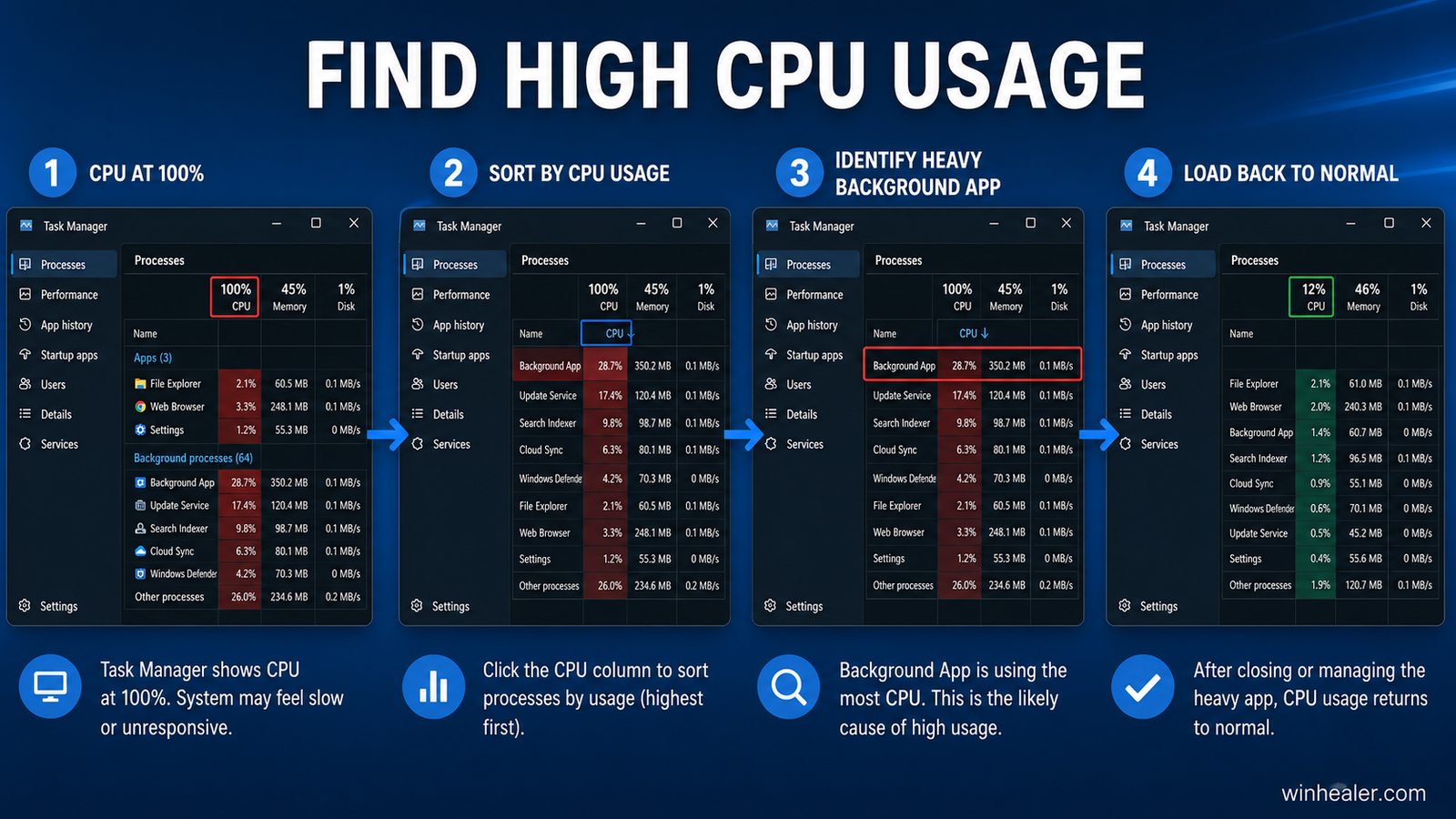
Press:
Ctrl + Shift + Esc
Open Task Manager.
Click the CPU column to sort programs by CPU usage.
Look for applications using a large percentage of your processor.
Common CPU-heavy programs include:
- Browsers
- Game launchers
- Video editors
- Background updaters
- Unnecessary applications
Close programs you don’t need.
Method 3: Disable Unnecessary Startup Programs
Many applications automatically start with Windows and use CPU resources.
Open:
Task Manager → Startup Apps
Disable programs you don’t need when Windows starts.
Examples:
- Game launchers
- Chat applications
- Cloud syncing tools
- Update assistants
This can improve startup speed and reduce background CPU usage.
Method 4: Check Windows Update Activity
Sometimes Windows Update uses high CPU while downloading or installing updates.
Go to:
Settings → Windows Update
Check if Windows is installing updates.
After the update process finishes, CPU usage should return to normal.
Method 5: Scan for Malware
Some malicious programs secretly run in the background and consume CPU power.
Run a full scan using:
- Microsoft Defender
- A trusted antivirus program
Remove any detected threats and restart your PC.
Method 6: Close Heavy Browser Processes
Browsers can sometimes consume a large amount of CPU.
Try these steps:
- Close unused tabs
- Remove unnecessary extensions
- Enable browser memory-saving features
- Restart your browser regularly
Large numbers of open tabs can increase CPU usage significantly.
Method 7: Update CPU and Chipset Drivers
Outdated chipset drivers can affect processor performance.
Update:
- Motherboard chipset drivers
- BIOS (if required)
- Intel or AMD platform drivers
Updated drivers help Windows communicate better with your hardware.
Method 8: Disable Background Applications
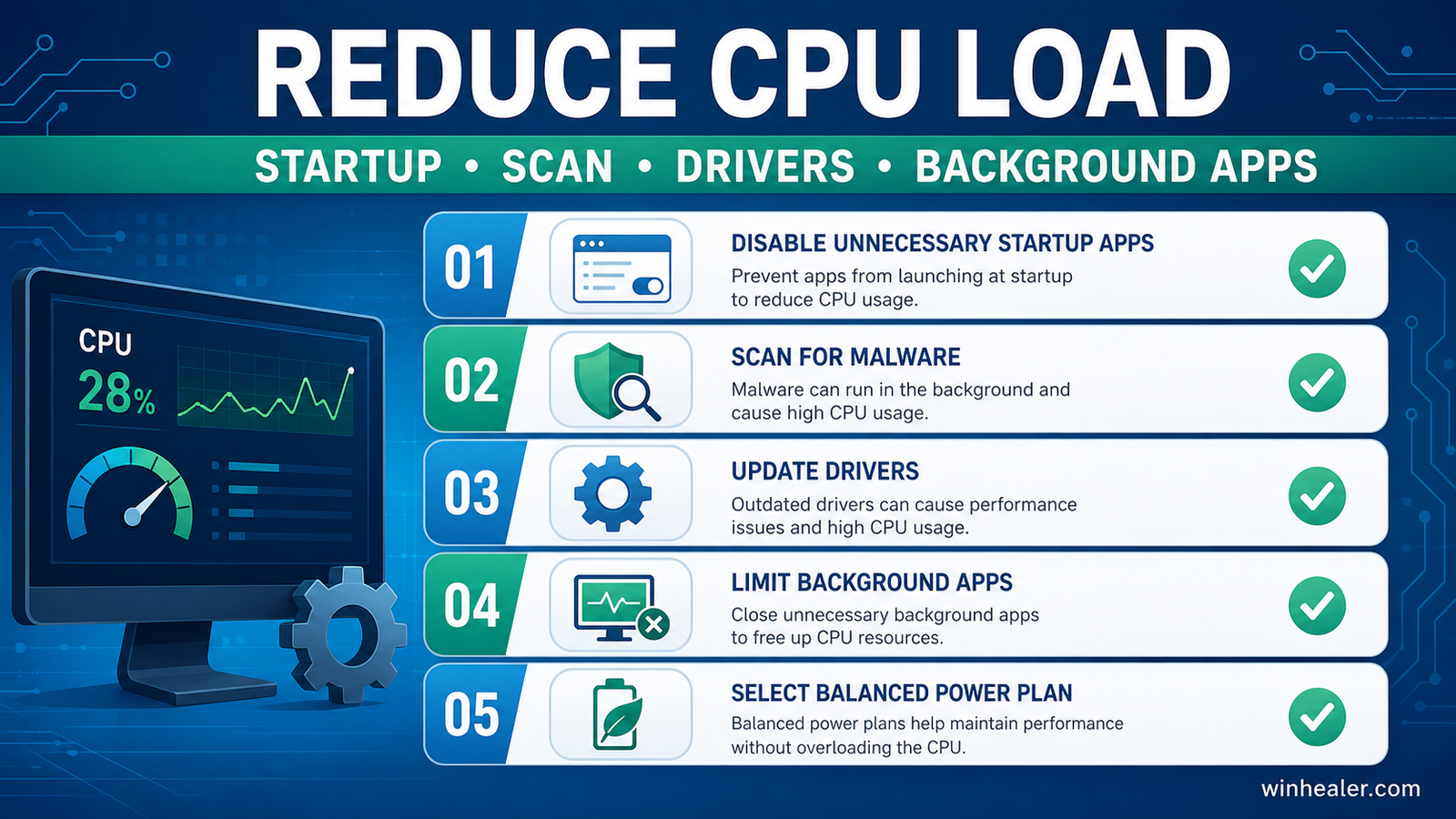
Windows allows many apps to run in the background.
Go to:
Settings → Apps → Installed Apps
Remove applications you don’t use.
Also check:
Settings → Apps → Startup
Disable unnecessary background permissions.
Method 9: Check CPU Temperature
High temperatures can cause your processor to slow down.
Common causes:
- Dust buildup
- Poor airflow
- Old thermal paste
- Fan problems
Keep your PC clean and make sure cooling fans are working properly.
Method 10: Repair Windows System Files
Corrupted Windows files can sometimes cause abnormal CPU usage.
Open Command Prompt as Administrator.
Run:
sfc /scannow
After completion, run:
DISM /Online /Cleanup-Image /RestoreHealth
Restart your PC.
These tools repair damaged Windows components.
Method 11: Adjust Power Settings
Windows power settings can affect processor behavior.
Go to:
Control Panel → Power Options
Select:
- Balanced for normal use
- High Performance for gaming and heavy workloads
This allows your CPU to operate correctly depending on your needs.
Method 12: Perform a Clean Boot
A clean boot starts Windows with only essential services.
This helps identify if a third-party application is causing high CPU usage.
Steps:
- Press Windows + R.
- Type:
msconfig
- Open Services.
- Hide Microsoft services.
- Disable unnecessary services.
- Restart your PC.
Frequently Asked Questions
Is 100% CPU usage dangerous?
Short periods of 100% CPU usage are normal during gaming, rendering, or updates. However, constant 100% usage while idle may indicate a problem.
Why is my CPU usage high when nothing is open?
Background services, Windows updates, antivirus scans, drivers, or unwanted software may be using your processor.
Can high CPU usage damage my processor?
Modern CPUs have safety protections. They automatically reduce speed when temperatures become too high. However, constant overheating can reduce performance and system stability.
Final Thoughts
High CPU usage can make your PC feel slow and frustrating, but most cases can be fixed with software optimization. In my experience, checking Task Manager, disabling unnecessary startup apps, updating drivers, scanning for malware, repairing Windows files, and maintaining good cooling solve most CPU problems.
Before spending money on new hardware, always check what is actually causing the CPU load.
I hope this guide helps you reduce CPU usage and improve your Windows 11 experience. I’ll continue publishing Windows troubleshooting, PC optimization, and gaming performance guides here on WinHealer to help you get the best performance from your computer.
Official Microsoft reference
Microsoft’s PC performance guide covers Task Manager, startup apps, Windows updates, and power settings—useful checks before making larger changes.

