
Graphics cards from brands like MSI, ASUS, Gigabyte, Zotac, Sapphire, PowerColor, EVGA, and others are designed with extra performance headroom. With proper settings, you can increase GPU performance and get higher FPS in games without buying a new graphics card.
However, GPU overclocking should always be done carefully. Every graphics card is different, and aggressive settings can cause crashes, overheating, or instability.
In this guide, I will explain the best overclocking tools and methods for different GPU brands.
Before Starting GPU Overclocking
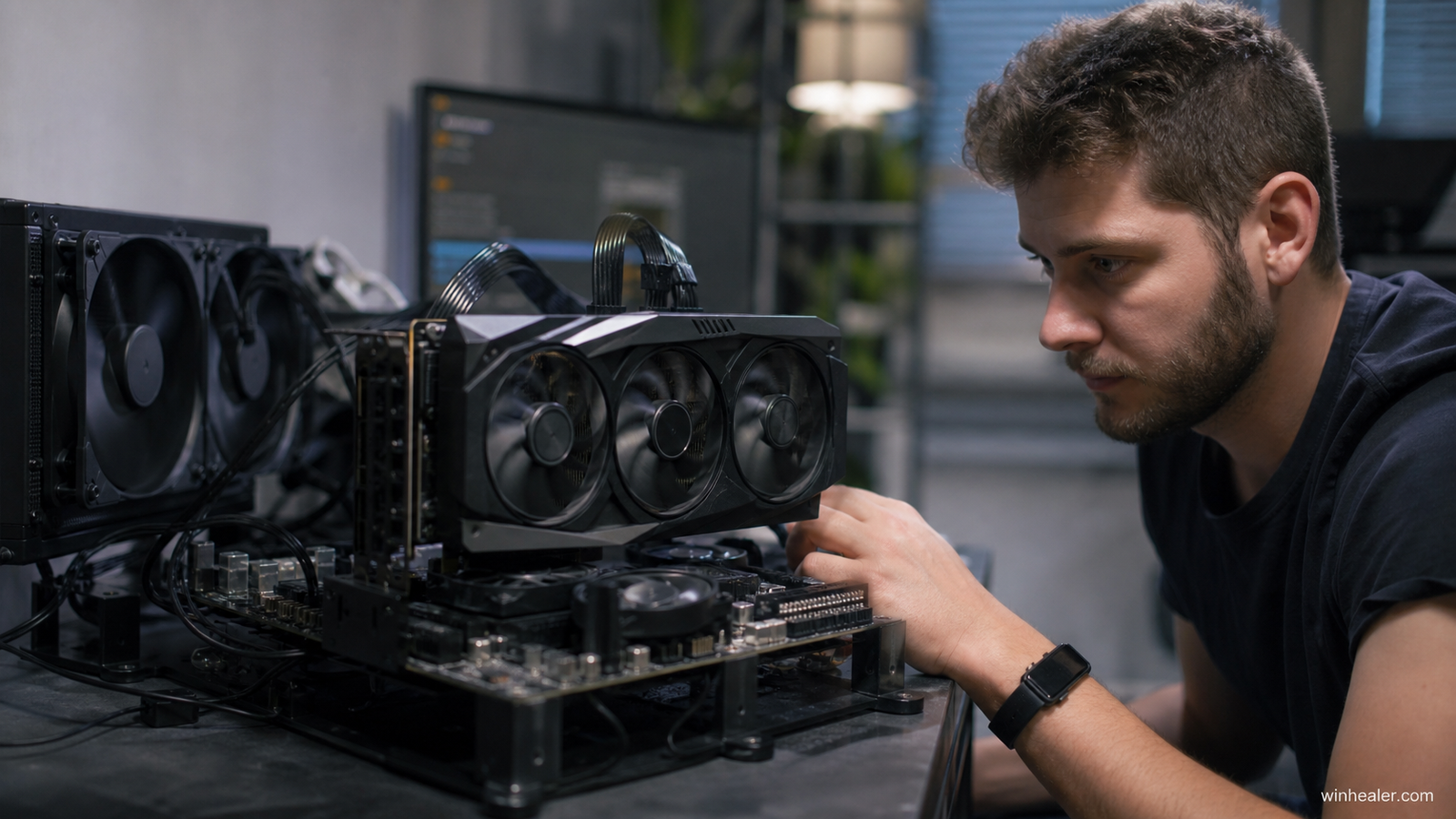
Before changing any settings, check your GPU condition.
Requirements:
✅ Good airflow inside your PC
✅ Updated graphics drivers
✅ Latest Windows updates
✅ Stable power supply
✅ GPU temperature monitoring software
Recommended temperatures:
- Idle: 30°C – 50°C
- Gaming: 60°C – 80°C
- Avoid continuous operation above 85°C
Best GPU Overclocking Tools
1. MSI Graphics Cards
Recommended Tool:
MSI Afterburner
MSI Afterburner is one of the most popular GPU overclocking tools and works with almost every NVIDIA and AMD graphics card.
Best settings to adjust:
- Core Clock
- Memory Clock
- Power Limit
- Fan Speed
- Voltage (advanced users)
Recommended approach:
- Increase Power Limit to maximum allowed.
- Increase Core Clock by +25 MHz steps.
- Test stability after every change.
- Increase Memory Clock slowly.
MSI cards with better cooling like Gaming X, Suprim, and Ventus models usually have more overclocking potential.
2. ASUS Graphics Cards
Recommended Tool:
ASUS GPU Tweak III
ASUS provides its own software designed specifically for ASUS GPUs.
Features:
- GPU Boost control
- Fan tuning
- Voltage adjustment
- Gaming profiles
Best for ASUS models:
- ROG Strix
- TUF Gaming
- Dual series
ASUS cards with large coolers usually handle higher temperatures better.
3. Gigabyte Graphics Cards
Recommended Tool:
Gigabyte Control Center
Gigabyte users can use their official software for easy tuning.
Best features:
- Performance profiles
- Fan control
- Temperature monitoring
Models with better cooling:
- AORUS
- Gaming OC
Gigabyte cards often have strong cooling systems, making them suitable for higher clock speeds.
4. Zotac Graphics Cards
Recommended Tool:
FireStorm Utility
Zotac’s official software allows:
- GPU clock adjustment
- Memory overclocking
- Fan speed control
Best for:
- AMP Extreme models
- Trinity models
Because some Zotac cards have smaller coolers, temperature monitoring is important.
5. EVGA Graphics Cards
Recommended Tool:
EVGA Precision X1
EVGA cards are popular among enthusiasts because of their strong tuning options.
Features:
- Advanced voltage control
- GPU frequency curve
- Fan curve customization
Best models:
- FTW series
- XC series
6. AMD Radeon Graphics Cards
Recommended Tool:
AMD Software: Adrenalin Edition
AMD provides built-in overclocking tools.
Supported adjustments:
- GPU Frequency
- VRAM Frequency
- Power Limit
- Fan Curve
- Undervolting
Recommended AMD brands:
Sapphire
Tool:
AMD Adrenalin
Sapphire Nitro+ cards usually have excellent cooling.
PowerColor
Tool:
AMD Adrenalin
Red Devil models are built for higher performance tuning.
XFX
Tool:
AMD Adrenalin
Merc series cards have strong cooling solutions.
Universal Method: MSI Afterburner
Even if you have:
- ASUS GPU
- Gigabyte GPU
- Zotac GPU
- Palit GPU
- Gainward GPU
- Inno3D GPU
MSI Afterburner usually works.
Basic safe overclock:
Step 1:
Increase Power Limit.
Step 2:
Increase Core Clock:
Example:
+50 MHz → Test
+75 MHz → Test
+100 MHz → Test
Step 3:
Increase Memory Clock:
Example:
+100 MHz → Test
+200 MHz → Test
Step 4:
Run a benchmark.
Recommended testing software:
- 3DMark
- Unigine Heaven
- FurMark
- Real gaming tests
How to Know Your Overclock Is Unstable
Reduce your settings if you see:
❌ Game crashes
❌ Driver stopped responding
❌ Screen flickering
❌ Artifacts (strange colors/shapes)
❌ PC restart
A stable overclock is better than a maximum overclock.
GPU Undervolting: Better Performance With Less Heat
Modern GPUs often run cooler and faster with undervolting.
Benefits:
✅ Lower temperature
✅ Lower power consumption
✅ Less fan noise
✅ More consistent FPS
Tools:
- MSI Afterburner
- AMD Adrenalin
- ASUS GPU Tweak
My Recommended Overclocking Settings
For beginners:
- Power Limit: Maximum
- Core Clock: +50 to +100 MHz
- Memory Clock: +200 to +500 MHz (depends on GPU)
- Fan Curve: Custom
- Voltage: Leave default
Every GPU is different, so never copy another person’s exact settings.
Final Thoughts
GPU overclocking is a free way to get extra performance from your graphics card. Whether you use MSI, ASUS, Gigabyte, Zotac, EVGA, Sapphire, or another brand, the correct tool and careful testing are the keys to a safe overclock.
Always remember:
More speed is good, but stability is better.

