
If your Windows PC suddenly stops working properly, there’s a good chance a driver is the cause. Driver issues can lead to Wi-Fi not working, no sound, graphics problems, USB devices not being detected, Bluetooth failures, and even Blue Screen (BSOD) errors.
The good news is that most Windows driver problems are easy to fix if you know where to look. This guide explains what drivers are, how to identify driver issues, and the safest ways to update or reinstall them.
What Is a Driver?
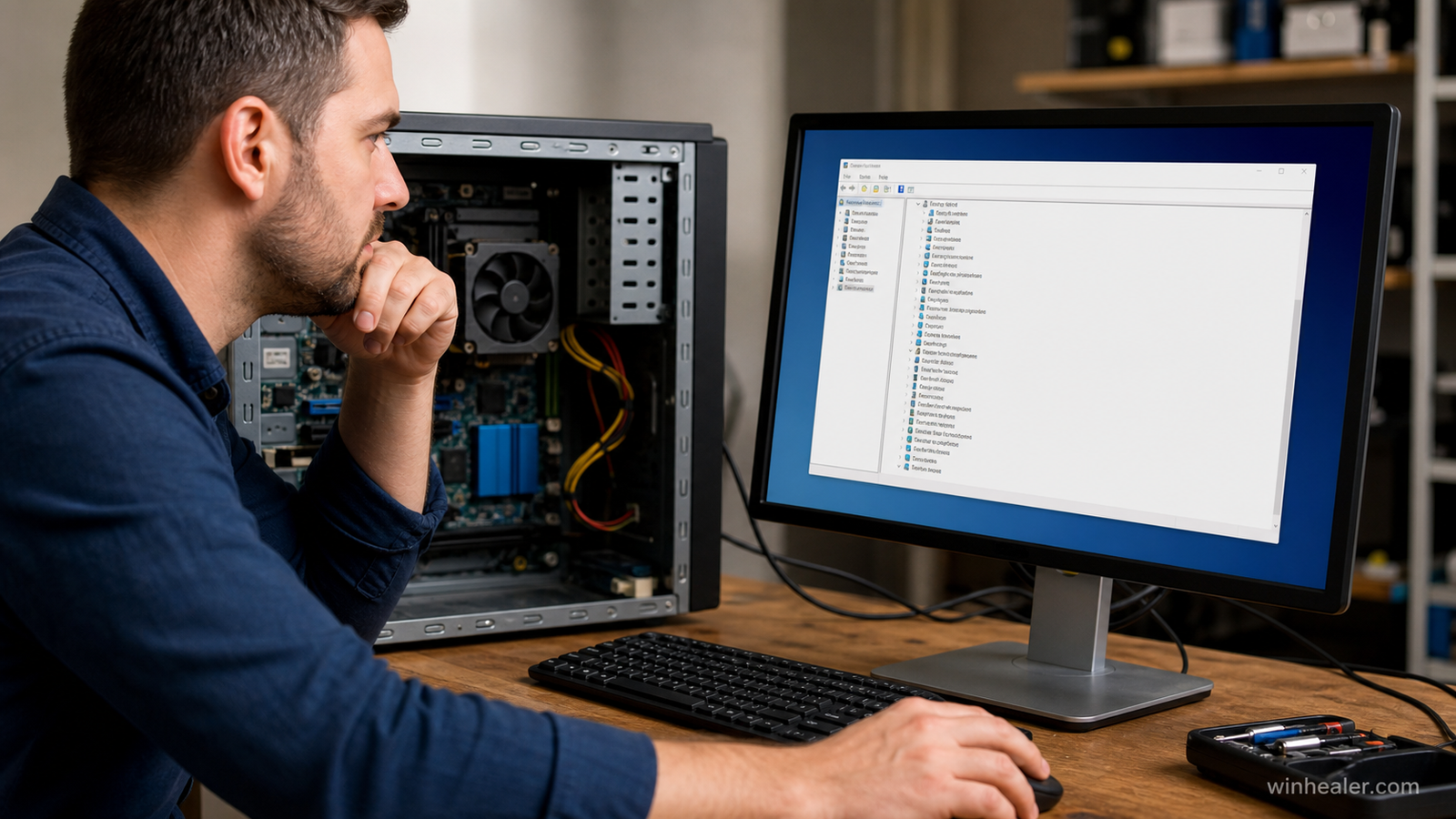
A driver is software that allows Windows to communicate with your computer’s hardware, such as:
- Graphics card (NVIDIA, AMD, Intel)
- Sound card
- Wi-Fi and Ethernet adapters
- Bluetooth devices
- USB controllers
- Printer and scanner
- Webcam
- Chipset and motherboard components
Without the correct driver, Windows cannot properly use the hardware.
Common Signs of Driver Problems
You may have a driver issue if you notice:
- No sound from speakers or headphones
- Wi-Fi or Bluetooth missing
- USB devices not detected
- Graphics glitches or poor performance
- Screen flickering
- Printer not working
- Device Manager shows a yellow warning icon
- Random system crashes or Blue Screen errors
Method 1: Update Drivers Using Windows Update
Windows Update automatically installs many trusted drivers.
- Open Settings.
- Go to Windows Update.
- Click Check for updates.
- Install all available updates.
- Restart your PC.
This is the safest method for most users.
Method 2: Update Drivers with Device Manager
- Right-click the Start button.
- Select Device Manager.
- Find the device with the problem.
- Right-click it.
- Choose Update driver.
- Select Search automatically for drivers.
If Windows finds a newer driver, install it and restart your computer.
Method 3: Download Drivers from the Manufacturer
For the best performance, download drivers directly from your PC or hardware manufacturer’s official support website.
Examples include:
- Laptop manufacturers (Dell, HP, Lenovo, ASUS, Acer, MSI)
- Graphics card manufacturers (NVIDIA, AMD, Intel)
- Motherboard manufacturers (ASUS, MSI, Gigabyte, ASRock)
Download drivers that exactly match:
- Your Windows version (Windows 11 or Windows 10)
- 64-bit operating system
- Your hardware model
Avoid downloading drivers from unknown websites, as they may contain outdated or unsafe software.
Method 4: Reinstall a Corrupted Driver
If a driver has become corrupted:
- Open Device Manager.
- Right-click the affected device.
- Select Uninstall device.
- Restart your computer.
Windows will often reinstall the correct driver automatically during startup.
Method 5: Roll Back a Driver
If a problem started after updating a driver:
- Open Device Manager.
- Right-click the device.
- Select Properties.
- Open the Driver tab.
- Click Roll Back Driver (if available).
This restores the previous working version.
Fix Corrupted Windows Files
Sometimes the problem isn’t the driver itself but damaged Windows system files.
Open Command Prompt (Administrator) and run:
sfc /scannow
After it finishes, restart your PC.
If problems continue, run:
DISM /Online /Cleanup-Image /RestoreHealth
Tips to Avoid Driver Problems
- Keep Windows updated.
- Download drivers only from official manufacturer websites.
- Create a restore point before installing new drivers.
- Avoid driver download websites that promise “one-click updates.”
- Restart your PC after installing important drivers.
Frequently Asked Questions
Can Windows install drivers automatically?
Yes. Windows Update installs drivers for most common hardware automatically.
Is Device Manager enough to update drivers?
For most devices, yes. However, graphics cards and some motherboard components often perform best with the latest drivers from the manufacturer’s official website.
Should I update every driver?
No. If your computer is working normally, you don’t need to update every driver. Update drivers when fixing a problem, improving compatibility, or installing new hardware.
Final Thoughts
Driver issues are one of the most common causes of Windows problems, but they’re also among the easiest to fix. By using Windows Update, Device Manager, or official manufacturer downloads, you can safely keep your computer running smoothly.
At WinHealer, we publish simple, beginner-friendly Windows troubleshooting guides to help you solve common PC problems without unnecessary complexity. Check back regularly for more tips, tutorials, and step-by-step fixes.

