Quick answer: DDR5 running at 4800 MT/s is usually using its safe JEDEC fallback profile, not failing. Enable the correct XMP or EXPO profile in UEFI, save and allow memory training to finish. If the system will not boot or returns to 4800, check the DIMM slots, update the motherboard BIOS, reset old tuning, test the modules separately, and—if necessary—run the profile one speed step lower.
Why a DDR5-6000 kit can start at 4800 MT/s
A DDR5 module stores more than one set of settings. The conservative JEDEC profile is designed to boot on a wide range of systems. The faster advertised setting—such as DDR5-6000 CL30—is normally stored as an Intel XMP or AMD EXPO overclocking profile. Until the motherboard loads that profile, 4800 MT/s can be perfectly normal.
This distinction matters: the memory kit may be validated for 6000 MT/s, but the complete path also includes the CPU’s memory controller, motherboard layout, BIOS and number of DIMMs. Intel and AMD both describe XMP/EXPO as memory overclocking. A printed speed is therefore a target profile, not a promise that every CPU-and-board combination will hold it.
One more source of confusion is monitoring software. DDR means “double data rate.” A tool that reports an actual memory clock near 2400 MHz is describing the same transfer rate that marketing and Windows may show as 4800 MT/s. Near 3000 MHz corresponds to roughly 6000 MT/s.
XMP, EXPO, A-XMP and DOCP in plain English
- XMP is Intel’s profile system. It stores tested frequency, primary timings and voltage values on the module.
- EXPO is AMD’s DDR5 profile system for Ryzen platforms.
- A-XMP, DOCP or similar names are motherboard-vendor labels used to load a memory profile.
Use the option your board exposes and supports. Do not combine a profile with copied internet voltages or unrelated manual timings on the first attempt. Start from optimized defaults and change one thing at a time.
How to enable the profile correctly
- Restart the PC and enter UEFI/BIOS—usually with Delete or F2 during startup.
- Open the overclocking, tweaker or memory section. The exact name differs by brand.
- Select the appropriate XMP or EXPO profile. If the BIOS offers Profile 1 and Profile 2, begin with the board’s normal recommended profile.
- Save changes and restart.
- Give the first boot time. DDR5 memory training can produce a black screen or more than one restart. Interrupting it too quickly can make a working configuration look broken.
- Verify the effective rate in Task Manager, BIOS or a hardware-information utility.
If it reaches Windows at the advertised speed, do not assume the job is finished. Run stability checks before trusting the machine with work or long gaming sessions.
If XMP or EXPO refuses to work, follow this order
1. Confirm the recommended slots
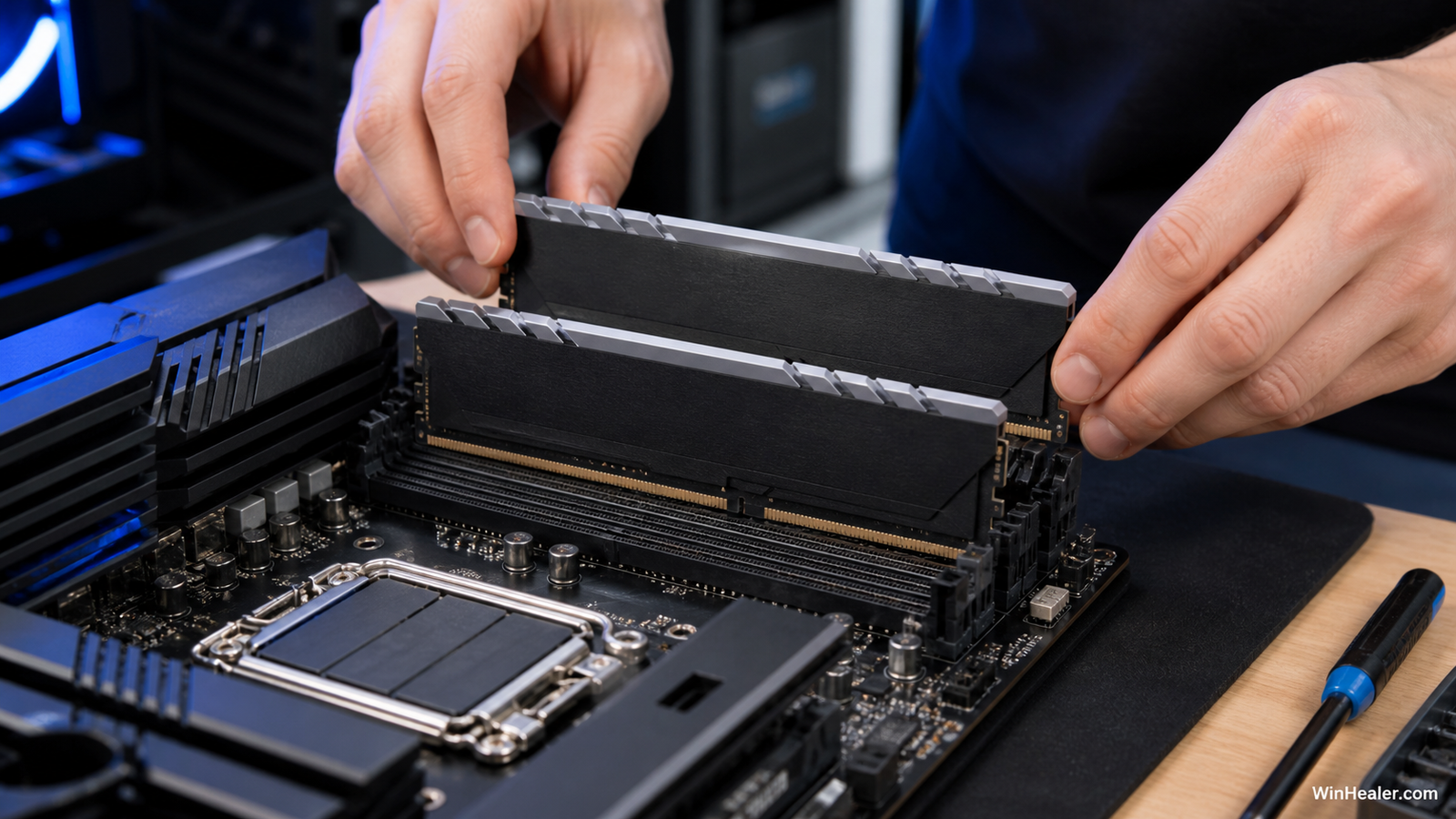
For two modules, many four-slot motherboards prefer A2 and B2—the second and fourth slots from the CPU—but layouts vary. Read the board manual. Power the computer off, switch off the PSU, discharge residual power, and reseat both modules until their latches are fully engaged.
2. Update the motherboard BIOS
Early DDR5 firmware often receives memory-compatibility and training improvements. Download only the BIOS intended for the exact board model and revision, then follow the manufacturer’s flashing instructions. Keep power stable and never interrupt a flash.
3. Remove old tuning
Load optimized defaults or clear CMOS according to the manual. Boot once at defaults, then enable only XMP or EXPO. Old CPU undervolts, manual memory voltages, timing experiments or “memory try it” presets can conflict with a valid profile.
4. Test one module at a time
Install one stick in the manual’s recommended single-DIMM slot and test it at default speed. Repeat with the other stick in the same slot. If both work separately but fail together, the likely problem shifts toward training, slot choice, controller load or profile frequency. If one stick repeatedly fails in the same conditions, investigate that module before adding voltage.
5. Check whether the kit is actually matched
Two boxes with the same advertised speed are not automatically one validated four-stick kit. Revisions can use different memory chips or subtimings. Mixing kits increases the chance that the motherboard falls back to 4800 or becomes unstable. A single matched two-DIMM kit is usually the easiest route to high DDR5 speeds.
6. Consider capacity and four-DIMM load
High-capacity modules and four populated slots place more electrical load on the memory controller. A system that runs two sticks at 6000 may need a lower setting with four. This is not proof of faulty RAM. It can simply be the practical limit of that CPU, board and BIOS combination.
7. Keep the profile, but lower the frequency one step
If the profile almost works, enable it so its intended timings and voltage are loaded, then select the next lower memory speed available—for example, 5800 or 5600 instead of 6000. This is generally a cleaner diagnostic than choosing a frequency alone while leaving unsuitable automatic values. Avoid increasing voltages unless you understand the platform’s safe ranges; there is no universal voltage that is right for every DDR5 IC and CPU.
Match the symptom to the likely cause
| What you see | Likely explanation | Best first move |
|---|---|---|
| Profile saves, but BIOS returns to 4800 | Failed training or automatic recovery | Update BIOS, reset defaults, verify slots |
| Long black screen after enabling | Normal training or repeated failed training | Wait several minutes; check board debug LEDs |
| Windows boots, games crash | Marginal memory stability | Test thoroughly; lower one speed step |
| Only one module works | Module, slot, contact or channel issue | Cross-test one module in one known slot |
| No profile option appears | OEM/laptop firmware lock or unsupported kit/profile | Check system and board documentation |
How to prove the RAM is stable
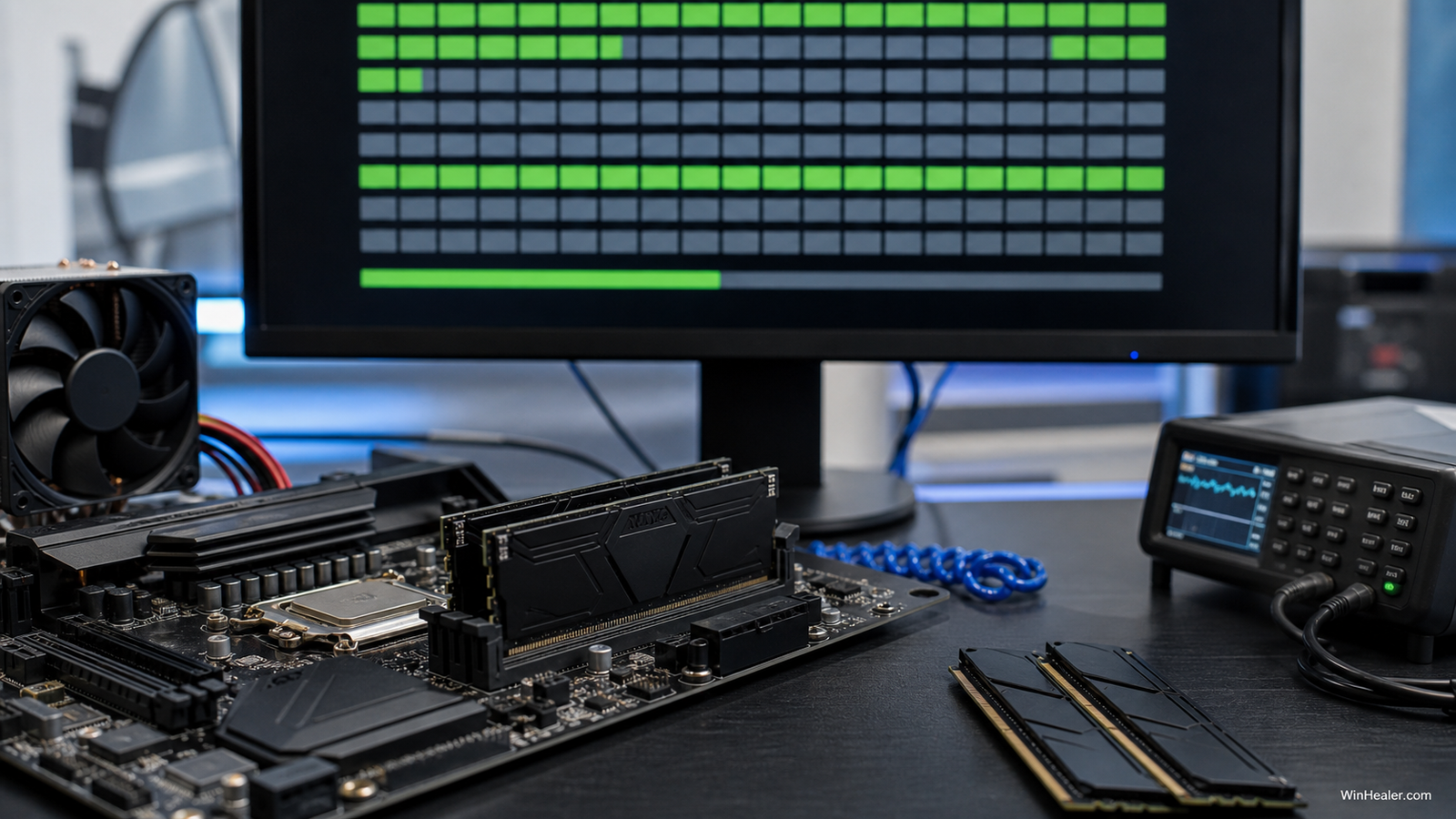
Begin with a reputable bootable memory test and let it complete multiple passes. Then test inside Windows with workloads that use a large amount of memory: a demanding game, file compression, a long compile or a dedicated memory stress test. Also check sleep and wake, because marginal settings sometimes fail only after a power-state change.
Any memory error is too many. Watch for application crashes, unexplained restarts, corrupted archives, blue screens and WHEA hardware errors. Windows Memory Diagnostic is useful as a quick screen, but passing one short test does not prove a heavily tuned DDR5 profile is stable.
Compatibility lists help, but they are not the whole story
A motherboard QVL shows kits the vendor tested on a particular platform. It is a useful confidence signal, especially for high capacities or aggressive speeds. Absence from the list does not automatically mean incompatibility—the vendor cannot test every kit—but matching the exact part number removes one unknown. AMD also maintains a list of Ryzen-compatible memory, while board vendors publish model-specific QVLs.
What about laptops and prebuilt PCs?
Many laptops and OEM desktops do not expose XMP or EXPO at all. Their firmware may intentionally run only supported JEDEC speeds for power, thermals and validation. Installing a faster retail kit cannot unlock a menu the manufacturer removed. Check the system’s maximum supported capacity and speed before buying memory for an OEM machine.
Is running at 4800 MT/s harmful?
No. It is slower than a stable tuned profile, but it is a safe baseline. In fact, returning to 4800 is a sensible recovery step when diagnosing crashes. The size of the performance difference depends on the CPU and workload; some games respond to memory latency and bandwidth, while many everyday tasks barely change.
For a deeper explanation of the numbers, read our guide to DDR5 speed, latency and 4800 vs 6000 vs 9000 MT/s.
Frequently asked questions
Why does CPU-Z show 3000 MHz for DDR5-6000?
Because it reports the underlying clock. DDR transfers data twice per clock, so about 3000 MHz equals about 6000 MT/s.
Can four DDR5 sticks run at 6000 MT/s?
Sometimes, but it is harder on the memory controller than two sticks. Stability depends on the CPU, board, BIOS, capacity and exact kit.
Does a QVL guarantee the speed?
No. It documents a tested combination, which improves confidence, but CPU-controller variation and later firmware or module revisions still matter.
Will enabling XMP or EXPO damage the PC?
The profile applies values validated for the module, but it remains overclocking from the platform maker’s perspective. Use supported hardware, keep cooling and firmware in order, and understand the warranty terms for your components.
Bottom line
If a DDR5 kit is stuck at 4800 MT/s, start with the simple explanation: the performance profile is not active. Enable the correct profile, allow training, and verify the displayed rate correctly. If it fails, work methodically—slots, BIOS, defaults, individual modules, matched kits, then a modest frequency reduction. Stable DDR5-5600 is better than DDR5-6000 that quietly corrupts data.
Verification note: Technical details were checked on August 13, 2026 against official documentation from Intel XMP, Intel’s XMP setup guide, AMD EXPO, AMD memory compatibility, ASUS memory QVL guidance, and Kingston memory support.