
Quick answer: Microsoft’s older Windows Insider flight certificates expired on August 11, 2026. If your PC did not install a renewal build in time, you may see expiration notices and stop receiving newer preview builds. The correct fix is to install an official Insider build that contains the renewed certificate—not to download a certificate from a random website or change the system clock.
This sounds dramatic, but it is planned maintenance rather than evidence that Windows has been hacked. Microsoft renews flight certificates periodically so that Insider devices remain on supported preview builds. This year, the renewal applies beyond the old Canary arrangement and affects Experimental and Beta configurations too.
What exactly expired on August 11?
A flight certificate is part of the signing system Microsoft uses for Windows Insider Preview builds. It helps Windows verify that a preview build is authentic and belongs to the supported testing path. It is not your Windows activation key, Microsoft account password, or personal security certificate.
Microsoft announced that the existing certificates would expire on August 11, 2026 and issued renewal builds carrying refreshed certificates. The company described this as a routine, planned change—not a response to a security incident. Installing an eligible renewal build moves the PC onto the new certificate and normal preview servicing continues.
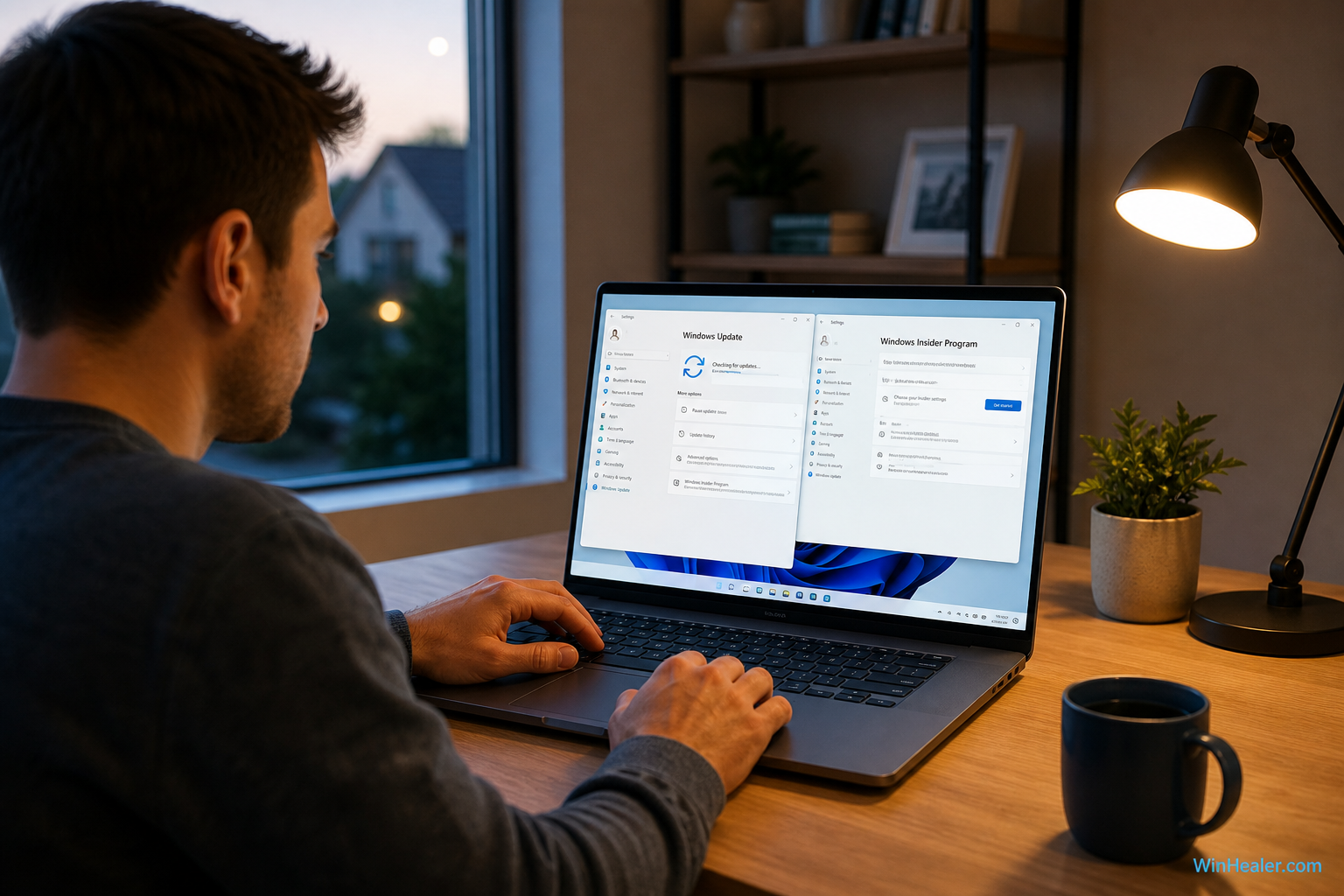
Signs that your Insider PC may be affected
Microsoft says devices left on the old certificate can show expiration notifications and stop being offered newer builds. That is the most useful clue. Do not assume every Windows Update problem is caused by the certificate; ordinary network, storage, account, and servicing issues can look similar.
- You see a Windows Insider build-expiration notification.
- Your device remains on an older preview build while a newer build is available for the same channel and Windows core.
- Windows Update no longer offers expected Insider builds.
- winver shows that you are running a preview build from before the renewal.
An expired flight certificate does not cancel your Windows licence. Microsoft explicitly says the renewal does not affect activation.
Step 1: Check your build and Insider channel
- Press Windows + R.
- Type winver and press Enter.
- Write down the version and complete OS build number.
- Open Settings > Windows Update > Windows Insider Program.
- Note whether the PC uses Beta, Experimental, or Experimental (Future Platforms), plus the selected Windows core when shown.
The channel and core matter because there is not one universal build number for every Insider device. For example, Microsoft confirmed that Experimental (Future Platforms) Build 29634.1000 contains the renewed flight certificate. Other channels and cores receive their own eligible builds. Compare your PC with the newest official release listed for that exact channel rather than borrowing a build number from a different branch.
Step 2: Install the newest offered Insider build
- Connect the PC to power and a stable internet connection.
- Go to Settings > Windows Update.
- Select Check for updates.
- Download and install the newest build offered for your current configuration.
- Restart when Windows asks.
- Run winver again and confirm that the build number changed.
This update should preserve applications, settings, and personal files in normal circumstances. A backup is still sensible before any major preview update because “preview” is Windows’ polite way of reminding us that we volunteered for the interesting lane.
What to do when no renewal build appears
Confirm the date, time, and internet connection
Open Settings > Time & language > Date & time and enable automatic time and time-zone settings. Then test the connection without a VPN or restrictive proxy. Do not set the clock back to August 10; that does not install a valid renewal build and can break websites, sign-ins, and update validation.
Check the registered Insider account
Open the Windows Insider Program page and confirm that the expected Microsoft or work account is connected. Also ensure that required diagnostic-data settings have not been disabled, as Microsoft lists diagnostic-data configuration among the reasons a device may stop receiving preview builds.
Install ordinary pending updates first
Restart the PC, return to Windows Update, and install any servicing-stack, cumulative, or prerequisite update already waiting. Check again afterward. Avoid third-party “update unlockers,” registry packages, and downloadable certificate files. Microsoft’s supported repair is an official renewal build.
Repair Windows Update without deleting your files
If the update service itself appears damaged, Windows 11 may offer Fix problems using Windows Update under Settings > System > Recovery. Microsoft says this option reinstalls the current Windows version, repairs system files and components, and preserves apps, files, and settings.
Keep the device connected to power and the internet throughout the repair. After it finishes, restart, check Windows Update again, and confirm the current Insider channel.
When an Insider ISO may be necessary
If Windows Update cannot deliver a compatible build, Microsoft documents an in-place upgrade using an official Windows Insider ISO. Mount the ISO, run setup.exe, and choose the option to keep Windows settings, personal files, and apps when that option is available.
A clean installation is different: it erases applications, settings, and local files. Back up first. Microsoft notes that leaving Experimental (Future Platforms), changing to an incompatible Windows core, or recovering from certain serious problems may require a clean installation. Do not assume a retail ISO can perform an unsupported downgrade while keeping everything.
Things you should not do
- Do not download a “renewed flight certificate” from an unofficial website.
- Do not disable Secure Boot merely to force an unknown image to install.
- Do not delete Insider registry keys unless current Microsoft instructions for your exact path require it.
- Do not change the clock to hide the expiration date.
- Do not install a build intended for another core or channel.
Frequently asked questions
Will the expired certificate deactivate Windows?
No. Microsoft says the flight-certificate renewal does not affect Windows activation or licensing.
Will installing the renewal build delete my files?
A normal Windows Update should not require a clean installation and should retain your data. Back up important files anyway, especially on preview software.
Is Build 29634.1000 correct for every Insider?
No. Microsoft specifically identified it as a renewal build for Experimental (Future Platforms). Use the newest official build for your own channel and Windows core.
Can I manually import the new certificate?
Microsoft’s published route is to install an eligible renewal build. Manually importing files from unofficial sources is unnecessary and unsafe.
What if the PC still boots normally?
That is possible. The important question is whether it receives supported preview builds. Check the build number and Windows Update instead of waiting for the machine to become unusable.
Bottom line
If your Windows Insider certificate expired, first identify the channel, core, and current build. Install the newest official renewal build through Windows Update, restart, and verify with winver. If updates are damaged, use Windows’ built-in repair option or a compatible official Insider ISO. Treat a clean installation as the final route, not the opening move.
Official sources
- Microsoft: Build 29634.1000 and renewed flight certificate
- Microsoft Q&A: Windows Insider Preview certificate renewal FAQ
- Microsoft Learn: Using Windows Insider ISOs
- Microsoft Support: Repair Windows using Windows Update
WinHealer editorial note: This guide was checked against Microsoft’s documentation on August 12, 2026. Insider build availability changes frequently, so always confirm the newest build for your channel before installing an ISO.

