
Bluetooth problems are rarely dramatic. The headphones play normally for twenty minutes, the mouse freezes for a second, or a controller disappears when the game becomes busy. That intermittent behavior is exactly why random driver reinstalling can waste an evening.
Work through this guide in order. Stop as soon as the connection remains stable.
1. Decide whether the PC or the accessory is responsible
Charge the accessory, move it within one metre of the computer, and test it with another phone or PC. Then test a different Bluetooth device on the Windows computer. If every accessory disconnects from the PC, focus on Windows, its radio, and interference. If only one accessory fails everywhere, reset or update that accessory.
2. Remove the common radio problems
Bluetooth shares the crowded 2.4 GHz range with Wi-Fi and many USB 3 devices. Move a small USB Bluetooth adapter away from the rear I/O cluster with a short extension cable. Keep it away from external drives, hubs, and a metal desk wall. If practical, connect Wi-Fi on 5 GHz or 6 GHz rather than 2.4 GHz.
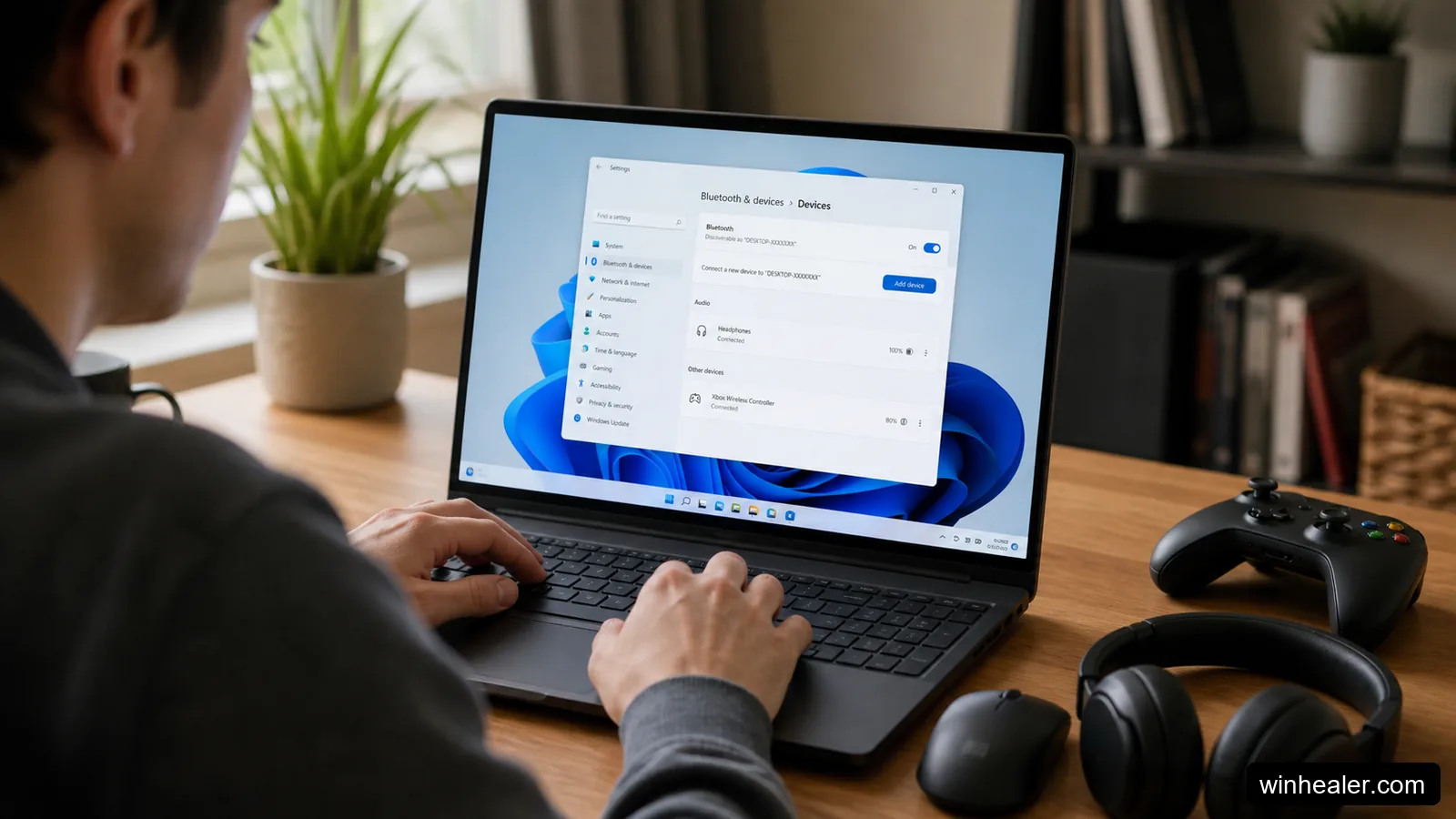
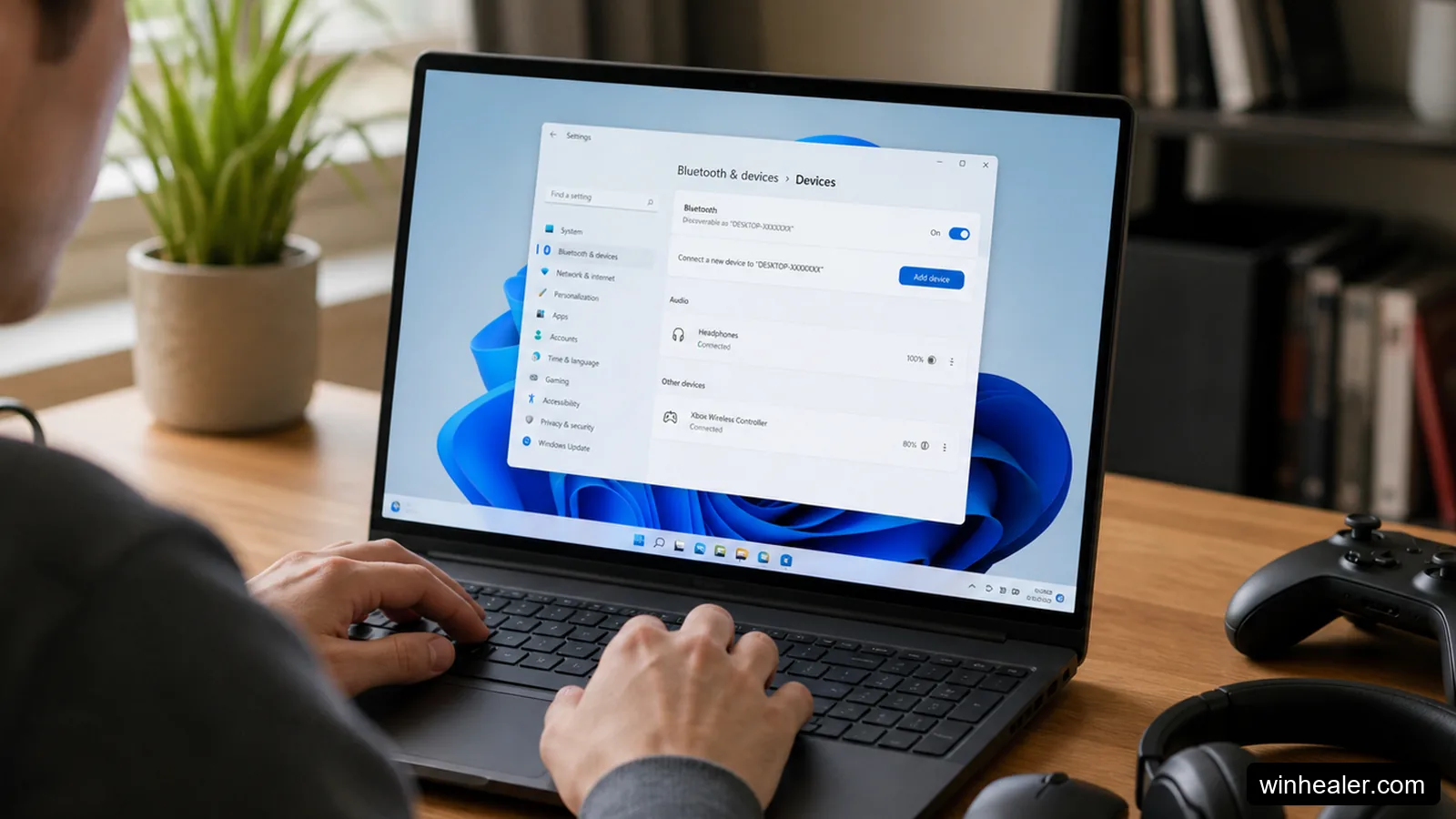
Turn Bluetooth off in Settings > Bluetooth & devices, wait ten seconds, and turn it on again. For headphones that switch between a phone and PC, temporarily disable Bluetooth on the phone. Multipoint behavior can look like a Windows disconnect when another device is actually taking the connection.
3. Forget the device and pair it cleanly
Open Settings > Bluetooth & devices > Devices, select the three-dot menu beside the accessory, and choose Remove device. Restart both devices, put the accessory into its real pairing mode, and add it again. Removing and pairing is more useful than repeatedly pressing Connect because it rebuilds the stored relationship.
4. Check power management
Open Device Manager and expand Bluetooth. Open the properties for the Bluetooth adapter. If a Power Management tab exists, clear “Allow the computer to turn off this device to save power,” then restart. The tab is not available for every adapter, so do not treat its absence as another fault.
On a laptop, test once while connected to power and once with Battery Saver off. If disconnects occur only on battery, install the laptop maker’s chipset, Bluetooth, and power-management packages.
5. Use the correct driver source
First check Settings > Windows Update > Advanced options > Optional updates. If the issue continues, use the support page for the laptop, motherboard, or Bluetooth adapter. Avoid third-party driver-updater programs; they can identify the radio incorrectly and make rollback harder.
If a new driver caused the problem, Device Manager may offer Roll Back Driver. If rollback is unavailable, uninstalling the adapter and restarting lets Windows rediscover it, but download the correct installer beforehand so you are not left without connectivity.
6. Restart the Bluetooth service only when needed
Press Win + R, enter services.msc, and find Bluetooth Support Service. Restart it. Its startup configuration normally should not be changed without a specific reason. If the service repeatedly stops, repair Windows files with DISM and SFC and check Reliability Monitor for a recurring driver crash.
A note about Bluetooth audio quality
A drop in sound quality when an app activates the headset microphone is not always a disconnect. Traditional Bluetooth headsets may switch to a communications profile with lower playback quality. Select the intended microphone in the meeting or game settings, or use a separate microphone if high-quality stereo playback matters.
When hardware is the likely answer
If the internal radio fails with several accessories after a clean driver installation, an inexpensive reputable USB adapter can be a useful diagnostic test. Desktop users should also confirm that the motherboard’s external Wi-Fi/Bluetooth antenna is attached; Bluetooth can become extremely weak without it.
Stable Bluetooth is mostly about isolating one layer at a time: accessory, distance, interference, pairing, power, and driver. That method is slower than clicking every fix at once, but it tells you which change genuinely solved the problem.
Three questions readers often ask
Why does Bluetooth fail only while gaming?
A busy 2.4 GHz environment, a controller plus headset, an active headset microphone, and heavy USB traffic can expose a marginal radio setup. Move the adapter, test 5 GHz Wi-Fi, and disable extra wireless devices one at a time.
Will resetting Windows fix Bluetooth?
It might, but it is far too disruptive as an early step. Cross-testing the accessory, reinstalling the correct radio driver, and trying a known-good USB adapter provide better evidence first.
Why is Bluetooth missing completely?
Check Device Manager, airplane mode, BIOS wireless settings, and the laptop maker’s support page. If the adapter disappears even after a cold restart, the cause may be firmware or hardware rather than pairing.


Dear Sir/Madam
Include winhealer.com in Google’s Search Index and have it be visible in web search results!
Register winhealer.com today:
indexhelp.pro