DLSS 4.5 is not one switch and it is not limited to one generation of GeForce card. That is the first thing to understand before changing settings in the NVIDIA app. The name covers a newer Super Resolution model available across GeForce RTX GPUs, plus Dynamic Multi Frame Generation and a 6X mode intended for RTX 50 Series hardware. Mixing those features together is how a simple update turns into confusing advice.
This guide works from the menu outward. It explains what each DLSS 4.5 component does, which GPUs can use it, how to enable the recommended model and when an older RTX 20 or 30 Series owner may prefer the DLSS 4 Model K instead.
DLSS 4.5 in one table
| Feature | Supported hardware | What it changes |
|---|---|---|
| DLSS 4.5 Super Resolution | GeForce RTX 20, 30, 40 and 50 Series | Uses a second-generation transformer model to reconstruct a higher-resolution image |
| Frame Generation | Hardware and game dependent | Inserts generated frames between traditionally rendered frames |
| Multi Frame Generation | GeForce RTX 50 Series | Generates multiple additional frames per rendered frame |
| Dynamic Multi Frame Generation and 6X mode | GeForce RTX 50 Series | Adjusts the multiplier toward the display refresh target, up to five generated frames per rendered frame |
NVIDIA says the new Super Resolution model can be applied through the NVIDIA app to more than 400 compatible games and apps. Native game support and driver overrides are not identical, so a title may expose some options inside its own menu while other compatible titles can be upgraded through an override.
Models K, L and M are not quality presets
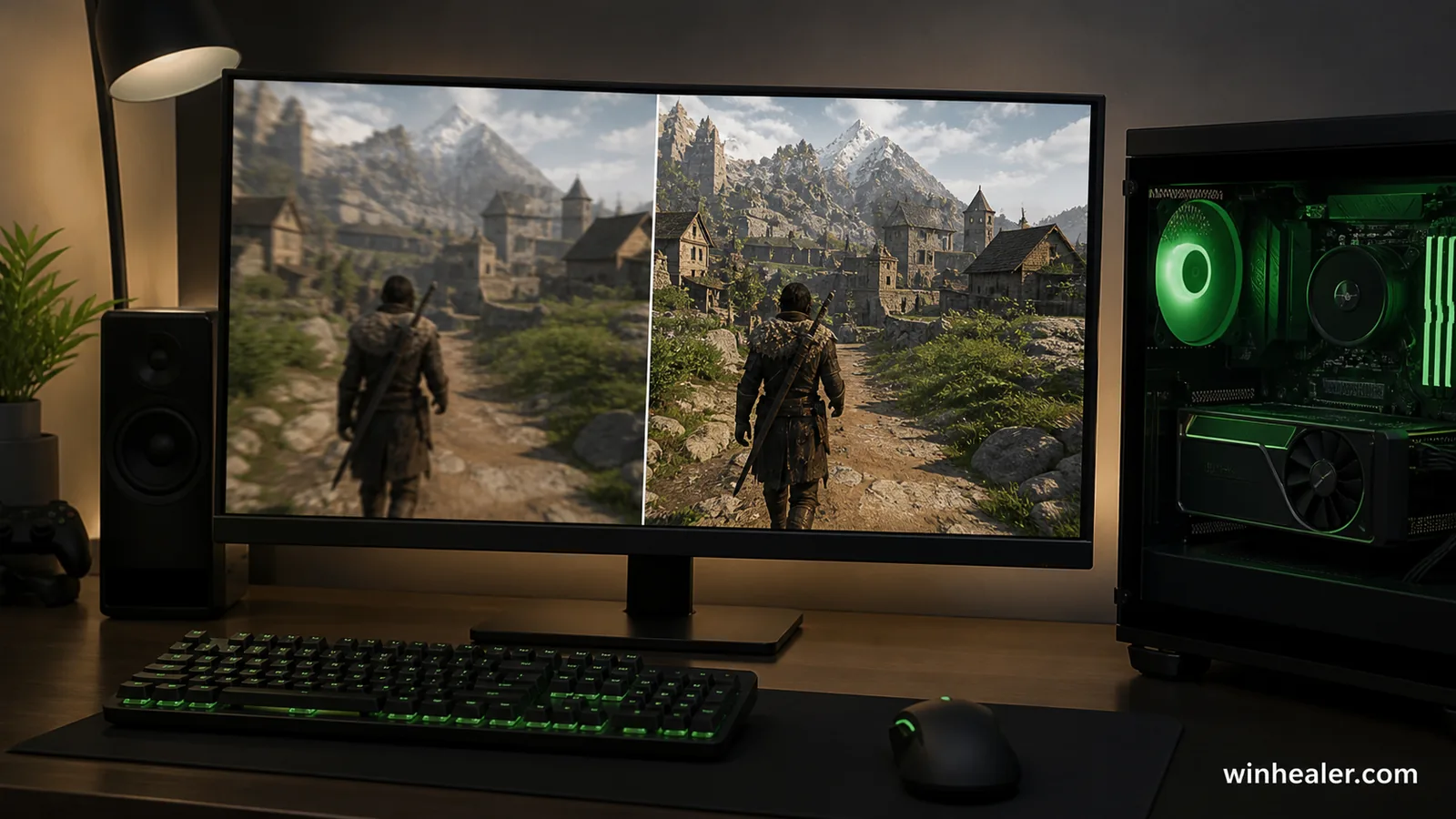
The letters identify AI model presets, not the familiar Quality, Balanced and Performance render modes. NVIDIA’s Recommended selection assigns Model M to Performance mode, Model L to Ultra Performance at 4K, and Model K to the remaining modes. Model K is the first-generation transformer associated with DLSS 4, while L and M are the heavier second-generation DLSS 4.5 models.
This arrangement is deliberate. NVIDIA says the largest 4.5 benefit appears where the reconstruction has fewer native pixels to work with—particularly Performance and Ultra Performance. Quality, Balanced and DLAA can remain on K under the Recommended profile.
How to enable DLSS 4.5 Super Resolution
- Install a current Game Ready or Studio driver from NVIDIA and update the NVIDIA app.
- Open the NVIDIA app and choose Graphics.
- Select the individual game or use global settings only if you understand the effect on every compatible title.
- Find DLSS Override – Model Presets.
- Choose Recommended, apply the setting and restart the game if it was open.
- Enable DLSS in the game itself and select Quality, Balanced, Performance or another supported mode.
Per-game settings are safer than a global override during testing. One title may look better with the newer model while another may have a game-specific integration that you do not want to override. Change one variable at a time and keep a note of the original setting.
Verify the model instead of guessing
NVIDIA provides a direct check. Open the overlay with Alt + Z, go to Statistics > Statistics View and enable the DLSS information. The overlay can show which model is active. This is more reliable than judging from a still screenshot or assuming that an app toggle applied correctly.
If the expected model does not appear, confirm that the game is on NVIDIA’s supported override list, the driver and app are current and no game update has reset its graphics configuration. Remove the override, launch the game once, then apply it again rather than stacking random changes.
RTX 20 and 30 Series owners should test the cost
All RTX owners can use the newer Super Resolution model, but support does not mean identical efficiency. NVIDIA states that RTX 20 and 30 Series GPUs lack native FP8 support, so Models L and M have a heavier performance impact on those cards. The company specifically notes that these users may prefer Model K for the best balance of image quality and performance.
Run a repeatable section of a game with the same resolution, preset and camera path. Compare Model K with Recommended, watching both frame rate and motion. Fine edges, foliage, particles, reflections and thin geometry are more revealing than a paused character portrait. Keep K if the newer model’s improvement is too small for its cost on your card.
What 6X Multi Frame Generation actually means
In 6X mode, DLSS can produce five generated frames for every traditionally rendered frame, creating a maximum six-times display-frame multiplier. Dynamic Multi Frame Generation can change the multiplier as the workload changes, aiming toward the monitor’s refresh rate rather than using one fixed value all the time.
The displayed frame rate is not the same as the simulation and input rate. Generated frames can improve visual smoothness, but they do not replace the need for a healthy base frame rate. Start by getting the game responsive with sensible settings and Super Resolution. Add frame generation afterward.
When DLSS 4.5 is a good fit
- 4K path-traced games: reconstruction and frame generation can make an otherwise extreme workload more practical.
- High-refresh single-player play: Dynamic Multi Frame Generation can use extra monitor headroom when the base experience is already responsive.
- Performance-mode reconstruction: NVIDIA targets the new M model at this demanding mode, where image stability has historically been difficult.
- Older RTX cards: Super Resolution remains available, but Model K may be the more efficient choice after testing.
When to leave it alone
Do not force an override because the number is newer. A game with a stable native image, strong performance and a carefully tuned developer preset may not need intervention. Competitive players may prefer a lower-latency configuration with a high traditionally rendered frame rate. A laptop may trade battery life or fan noise for a visual improvement that is hard to notice on its screen.
Also separate image artifacts from general game problems. Stutter can come from shader compilation, storage, CPU limits or background software. Frame generation does not repair those causes. Update the game and driver, use a known-good baseline and troubleshoot the actual limit.
A sensible testing routine
- Record the original game and NVIDIA app settings.
- Test native rendering or the current DLSS model first.
- Enable the Recommended model override and verify it in the overlay.
- Compare the same scene in motion, including the frame-time graph if available.
- Add Frame Generation only after choosing the Super Resolution mode.
- Keep the setting that improves the complete experience, not the largest FPS counter.
Bottom line
DLSS 4.5 is best understood as a menu of related technologies. The second-generation Super Resolution models extend across the RTX family, while Dynamic Multi Frame Generation and 6X mode are RTX 50 Series features. NVIDIA’s Recommended override is a sensible starting point, not an instruction to ignore testing.
Verify the active model, protect a healthy base frame rate and compare motion rather than screenshots alone. On RTX 20 and 30 Series, Model K remains a valid choice when the heavier 4.5 models cost more performance than their image improvement is worth.