Microsoft changed the Windows Insider Program in 2026, and the two names that now matter most are Experimental and Beta. The labels sound simple, but they represent very different levels of risk. Experimental is for early work that may change or never ship. Beta is meant to preview features Microsoft expects to release in the coming weeks.
For most people who want to test Windows without turning their main computer into a troubleshooting project, Beta is the sensible choice. Experimental is useful for enthusiasts, developers, and testers who have a spare PC and genuinely want the earliest access.
Experimental vs Beta at a glance
| Area | Experimental | Beta |
|---|---|---|
| Purpose | Features under active development | Features expected to reach retail soon |
| Stability | Lower; regressions are more likely | Higher, though still pre-release |
| Feature certainty | A feature may change, be delayed, or never ship | Closer to the planned public experience |
| Best device | Spare test PC or virtual machine | Secondary PC; cautious users may use a well-backed-up main PC |
| Best for | Developers and advanced testers | Early adopters who value usability |
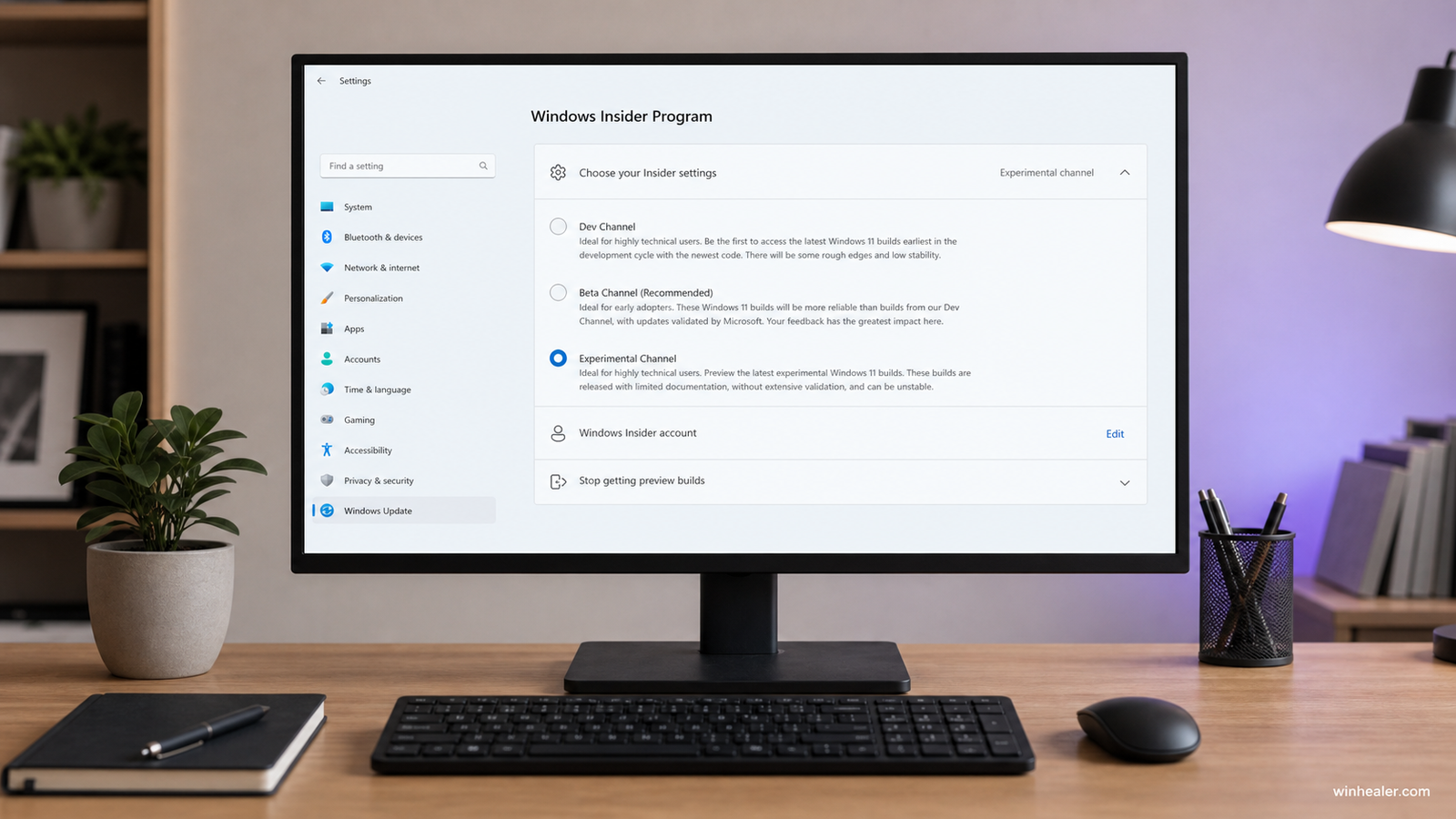
What the Experimental channel really means
Microsoft describes Experimental as the place for features in active development. It replaces the role previously split between Dev and Canary. Some builds can target different Windows core versions, including future-platform work, so two Experimental users do not necessarily receive an identical path.
This channel can deliver interface changes and platform work sooner, but early does not mean finished. A feature may be incomplete, removed later, or held back from the public release. Bugs can affect ordinary tasks such as File Explorer, sleep, networking, games, or accessibility tools.
In the updated program, Experimental also gains feature controls that let testers enable or disable certain announced experiences. That makes focused testing easier, but it does not turn the underlying build into a stable release.
What the refreshed Beta channel means
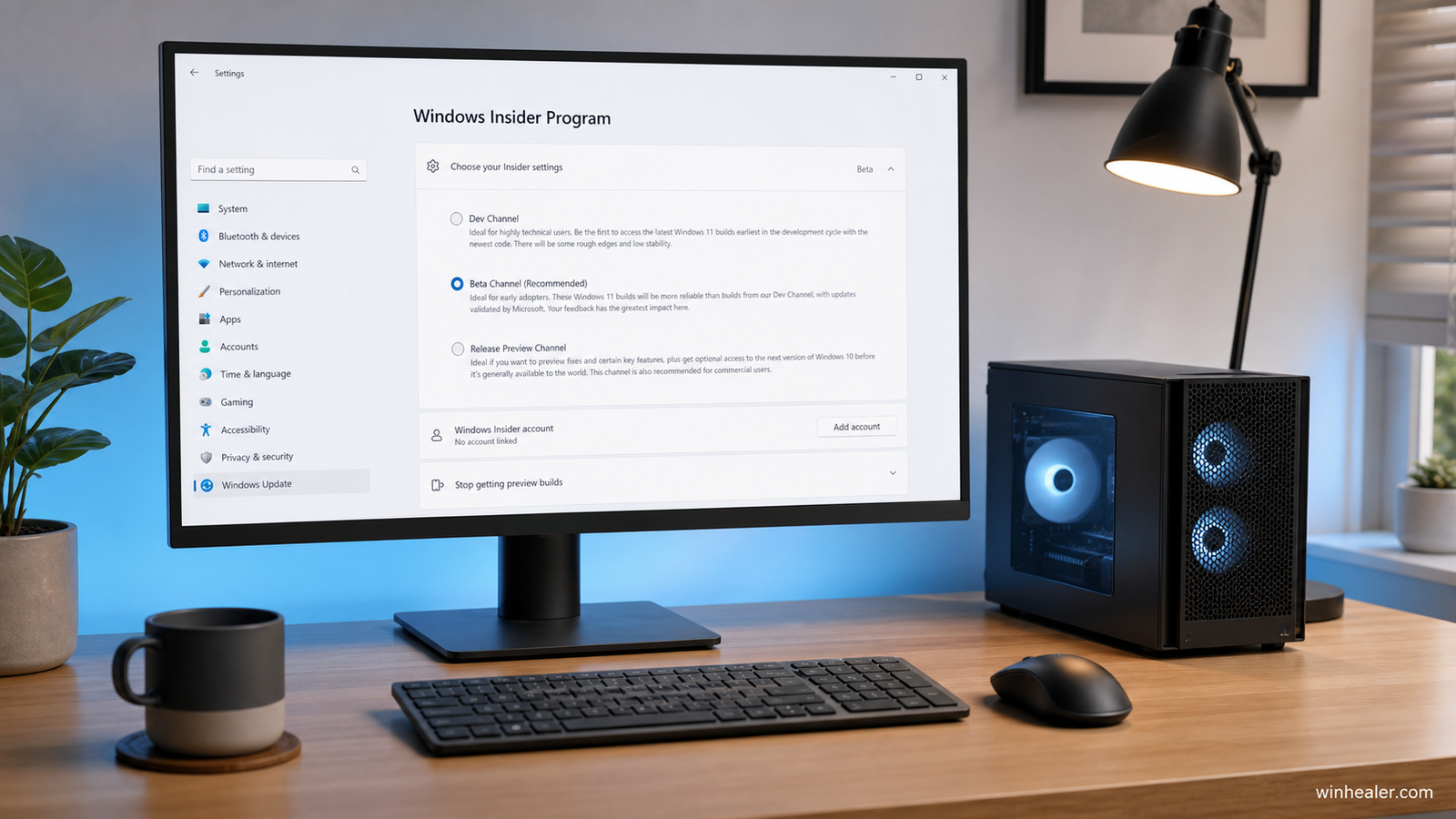
Beta is now more clearly tied to changes Microsoft intends to ship in the coming weeks. Microsoft also says it is ending gradual feature rollouts for this channel: when a feature is announced for a Beta update and you install that update, the feature should be present. Small design variations may still be tested.
That predictability is the main reason Beta suits more people. You still receive pre-release software and can encounter defects, but the channel is closer to the product that ordinary Windows users will see.
Which channel should you choose?
Choose Beta if:
- You want a preview of changes likely to ship soon.
- You use the PC regularly and cannot tolerate frequent regressions.
- You are new to the Insider Program.
- You want to report bugs but do not need the earliest possible build.
- You have a complete backup and understand that Beta is still unsupported pre-release software.
Choose Experimental if:
- You have a spare computer or a test virtual machine.
- You are comfortable recovering Windows or reinstalling it.
- You test software against upcoming platform changes.
- You accept that a demonstrated feature may never reach the public release.
- You actively submit detailed feedback rather than joining only to obtain new visuals.
Do not join either channel for one feature
A common mistake is switching a daily-use PC to an Insider build because a screenshot shows one attractive feature. Insider features can be restricted by build branch, region, hardware, or a feature flag. Even after installing the advertised build, your device may not behave exactly like the demonstration.
If one feature is the only reason you are considering the program, waiting for the public release is usually the better decision.
How to change your Insider setting
- Back up personal files and create recovery media.
- Open Settings > Windows Update > Windows Insider Program.
- Open Choose your Insider settings.
- Select the channel that is offered for your device and current build.
- Return to Windows Update and check for the appropriate preview build.
The available choices depend on the build already installed. Moving to a channel with a higher build number is normally easier than moving back. When branches separate, leaving Experimental for Beta may require waiting for a matching build window or performing a clean Windows installation. Read the current build announcement before switching.
Preparation that saves headaches
- Use a secondary device. Important work should not depend on a preview build.
- Make a real backup. Cloud sync alone may not preserve application settings or every local folder.
- Keep recovery media nearby. A bootable Windows USB is valuable when a build will not start.
- Check essential software. VPN clients, anti-cheat systems, audio interfaces, and specialist drivers can lag behind preview builds.
- Read every release note. Microsoft lists known issues and fixes for each build.
How to leave the Insider Program
Open Settings > Windows Update > Windows Insider Program > Stop getting preview builds. The option to unenroll when the next public version arrives is the least disruptive route. An immediate return to stable Windows can require a clean installation, particularly after the installed build has moved beyond the public branch.
Back up first and do not assume the short “Go back” recovery window will always be available.
Bottom line
Pick Beta unless you have a clear testing reason to choose Experimental. Beta offers a more predictable look at near-term Windows changes. Experimental is valuable, but its value comes with more instability, less certainty, and a greater chance that recovery work becomes part of the experience.