
There are perfectly ordinary reasons to restart a Windows 11 PC without installing an update. You may be about to join a meeting, render a video, or travel with a laptop and simply cannot risk a long update cycle. Windows provides a supported way to pause updates, but there is an important catch: pausing prevents new update activity; it does not always remove an update that has already reached the pending-install stage.
This guide shows the safest route, explains what the buttons actually mean, and avoids the risky “tricks” that can damage Windows Update.
Quick answer
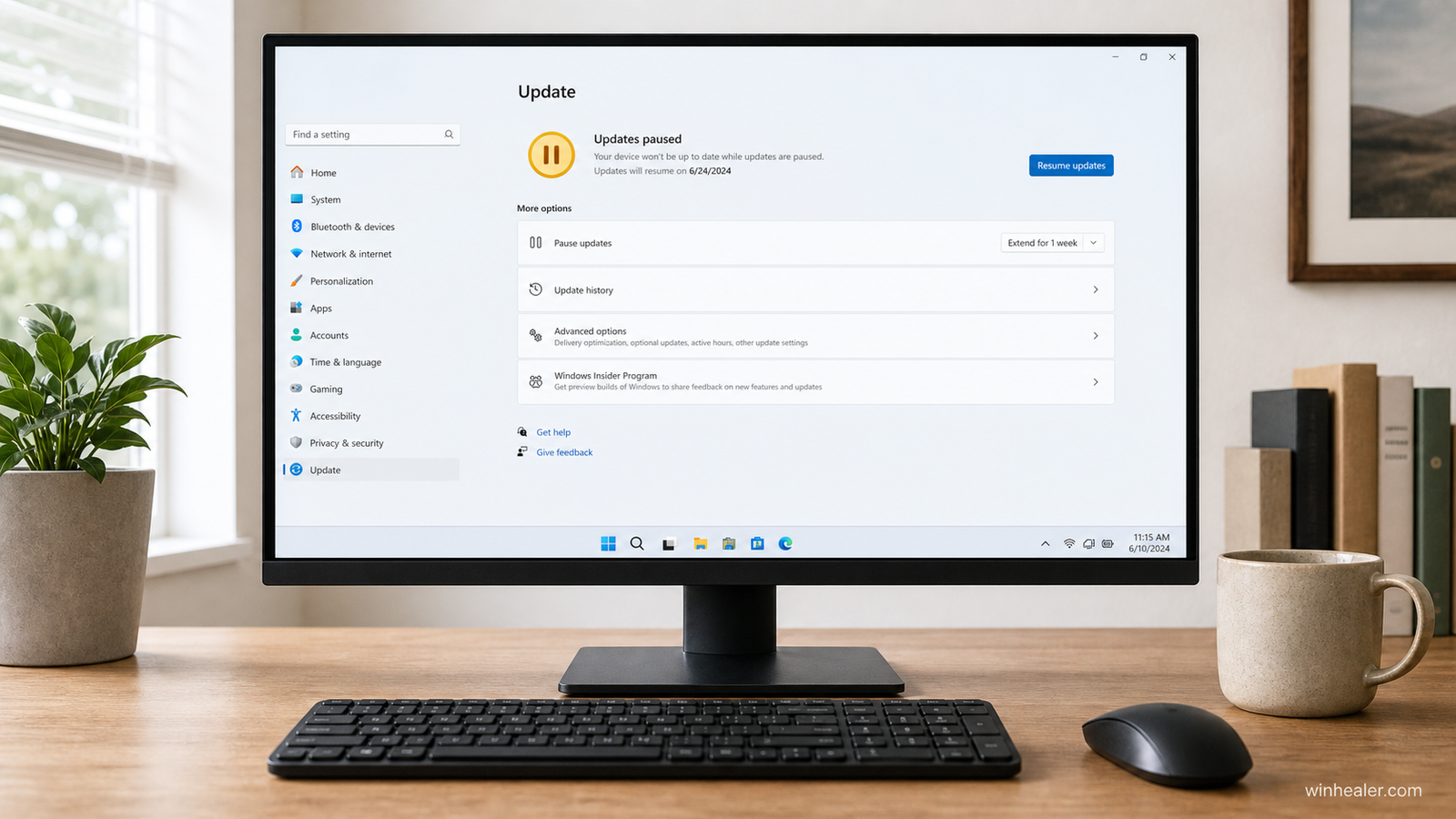
Open Settings > Windows Update, choose a period beside Pause updates, and wait until the page confirms that updates are paused. If the power menu now offers a normal Restart option, you can use it. If it only shows Update and restart, Windows has probably already staged an update; use the scheduling options described below instead of deleting system files or forcing the PC off.
Before you start: check the update state
Save open work, then select Start > Settings > Windows Update. Look at the status shown near the top of the page.
- Updates available or checking for updates: pausing now should stop Windows from downloading and installing newly offered updates.
- Downloading: a pause can cancel update activity that is still in progress, according to Microsoft’s current Windows 11 guidance.
- Pending restart: the update has already progressed much further. Pausing may not turn an “Update and restart” button back into a normal restart.
- You’re up to date: a normal restart should not begin a Windows quality update, although driver or app maintenance can still occur in the background.
That distinction matters. Many online guides treat every update state as identical, which is why their instructions sometimes fail.
Method 1: pause Windows 11 updates in Settings
- Press Windows + I to open Settings.
- Select Windows Update in the left-hand menu.
- Find Pause updates.
- Open the drop-down menu and select the available pause period or date.
- Wait for the status at the top of the page to confirm that updates are paused.
- Open Start > Power and inspect the available restart option.
Microsoft currently says Windows 11 can pause updates to a specific date, up to 35 days from the current date. The limit and exact controls can vary on managed work or school computers because an administrator may apply update policies.
How to restart after pausing
If the power menu shows the ordinary Restart command, select it. You can also right-click Start, point to Shut down or sign out, and choose Restart. Both routes request a standard Windows restart.

Watch the wording carefully. A normal Restart command and an Update and restart command are not interchangeable. If Windows presents both, choose the plain restart. If it presents only the update version, move to the next section.
What to do when an update is already pending
A pause is not an “undo” button for every update stage. When Windows says a restart is required, the safest approach is to control when the restart happens.
- Return to Settings > Windows Update.
- If available, choose Schedule the restart.
- Select a date and time when the PC can remain connected to power and you will not need it.
- Open Advanced options and check your Active hours. Set them to the period when you normally use the computer.
- Save your work and back up anything important before the scheduled installation.
On some systems, a pending update can be completed only by restarting. That may be inconvenient, but interrupting a staged servicing operation is a much worse gamble. If the machine is a laptop, connect its charger before proceeding.
Why you should avoid common “restart without updating” hacks
You may find instructions telling you to stop Windows Update services, rename system folders, delete files from SoftwareDistribution, or hold the power button. Those steps are not appropriate for an ordinary pause.
- Stopping services can leave the update system in an inconsistent state.
- Deleting cached files may trigger a full download later and can complicate troubleshooting.
- Forcing the computer off while Windows is servicing system files can cause boot problems or file corruption.
- Registry changes copied from old Windows versions may no longer work and can be reversed by policy or later updates.
These techniques sometimes belong in a carefully diagnosed repair procedure, with a backup and a clear recovery plan. They should not be the first response when all you need is a few quiet hours.
Can you pause updates permanently?
No. The built-in pause control is temporary. When the pause limit is reached, Windows needs to resume and obtain current updates before the pause option becomes available again. Security updates close known vulnerabilities, so leaving a PC unpatched for long periods creates a real trade-off.
A better habit is to pause only around important work, then resume updates when the machine can stay powered and connected. Select Resume updates on the Windows Update page when you are ready.
If the pause option is unavailable
First check whether the PC is managed. A message such as “Some settings are managed by your organization” can mean a workplace, school, or management tool controls the update policy. Ask the administrator rather than trying to bypass it.
On a personal computer, finish any update that Windows says is required, restart, and check the page again. Also confirm the date and time are correct and that the device has enough free storage. A nearly full system drive can make update behavior slower and less predictable.
A practical routine before important work
Do this the evening before a presentation, trip, tournament, or long render: open Windows Update, install anything you actually want, restart once, and then pause updates for the required period. This is more reliable than discovering a pending restart five minutes before you need the PC.
Keep a current backup of irreplaceable files as well. Pausing an update changes its timing; it does not replace a backup or fix an already unstable computer.
Frequently asked questions
Will a normal restart always avoid an update after I pause?
Only when the update has not already been staged for restart. Confirm the paused status and check that the power menu offers the plain Restart command.
Does shutting down work differently?
Windows can apply update work during either shutdown or restart. Do not assume shutdown is a guaranteed bypass; read the command shown in the power menu.
Will pausing stop Microsoft Store app updates?
The Windows Update pause control is aimed at Windows updates. Store apps have their own update settings in Microsoft Store.
Is it safe to use Sleep instead?
Sleep can postpone a restart for a short period, but it is not a substitute for saving work or managing the pending update. A laptop battery can also drain while sleeping.
Bottom line
Pause updates from the Windows Update page, confirm the pause, and use the plain Restart command when it is available. If an update is already pending, schedule it for a sensible time rather than forcing a bypass. That is the least dramatic route—and, in practice, the one least likely to create another problem.

