Resizable BAR can be enabled in the BIOS and still show as unavailable in Windows. That usually means one link in the chain is missing: UEFI boot, Above 4G Decoding, compatible firmware, a supported graphics card or the correct driver.
The good news is that this is rarely fixed by replacing hardware at random. Check the system in a deliberate order and you can normally identify the missing requirement in ten minutes.
What Resizable BAR actually does
Traditionally, the CPU accesses graphics memory through relatively small windows. Resizable BAR, a PCI Express capability, allows the processor to map a much larger portion of VRAM at once. AMD markets its implementation as Smart Access Memory. Intel and NVIDIA generally use the Resizable BAR name.
It is not a magic “more FPS” switch. Gains vary by game, platform and driver profile; some titles barely change. The reason to enable it is that supported modern systems are designed to use it and certain GPUs—particularly Intel Arc models—can depend heavily on it for expected performance.
Requirements checklist
- A CPU and motherboard platform whose firmware supports Resizable BAR.
- A compatible GPU and suitable GPU firmware/VBIOS.
- Current graphics drivers.
- UEFI boot mode with Compatibility Support Module (CSM) disabled.
- Above 4G Decoding enabled.
- Resizable BAR, Re-Size BAR or Smart Access Memory enabled.
- A GPT system disk when switching an existing Windows installation from legacy BIOS to UEFI.
Step 1: Verify before changing anything
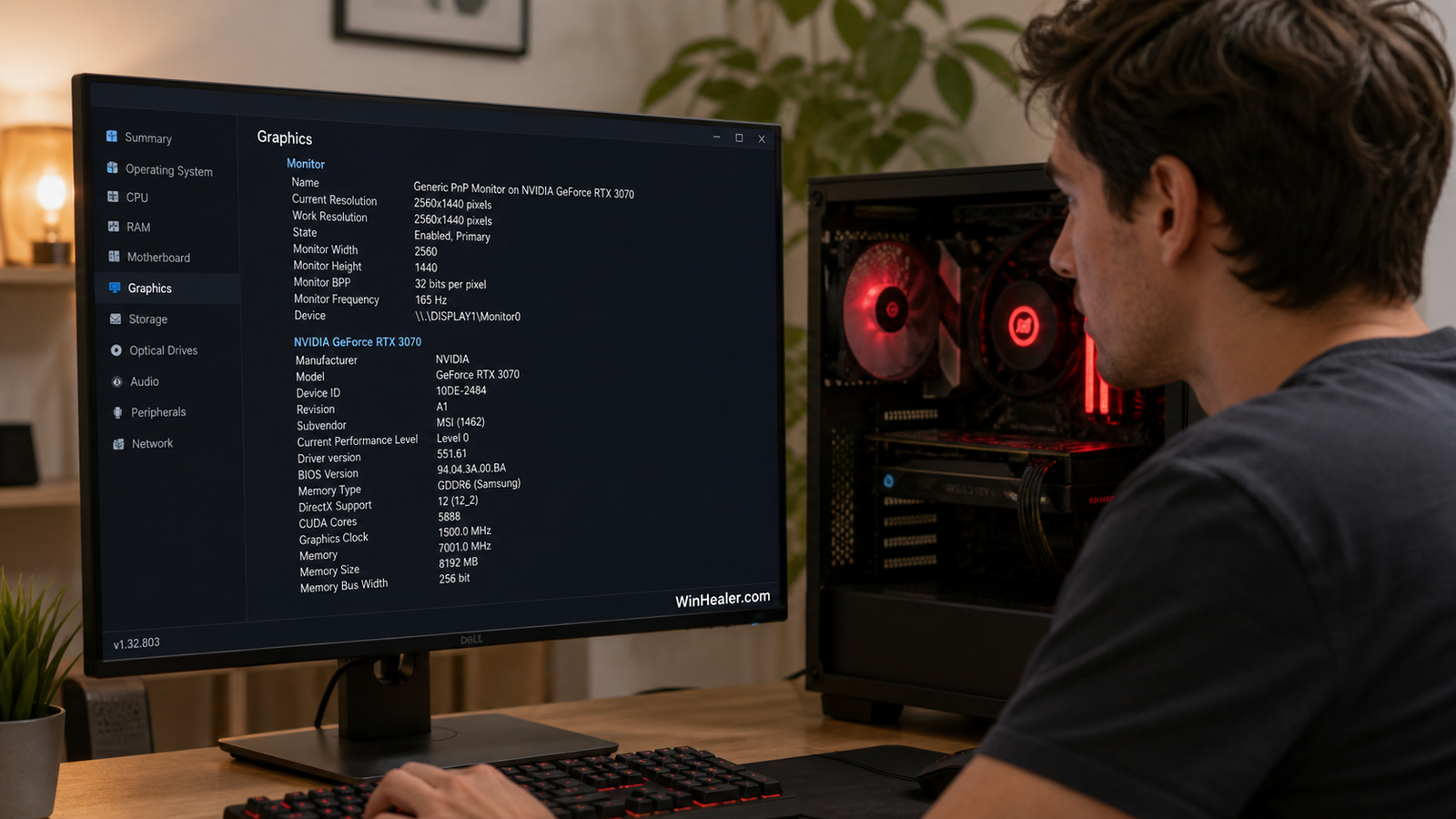
For NVIDIA, open NVIDIA Control Panel, choose System Information and look for “Resizable BAR.” AMD Software can report Smart Access Memory status, while Intel Graphics Software provides its own hardware details. You can also check Windows System Information: BIOS Mode should say UEFI.
If Windows reports Legacy, do not simply disable CSM and hope. A legacy MBR installation may stop booting. Back up important files and verify whether the system disk is GPT before converting or changing boot mode.
Step 2: Update in the safest order
Install the current motherboard BIOS for the exact model and hardware revision, following the manufacturer’s instructions. Then install the latest chipset and graphics drivers. Some older graphics cards also required a vendor-provided VBIOS update before Resizable BAR became available.
Never flash a BIOS or VBIOS meant for a “similar” model. Keep power stable, remove unstable overclocks first and do not interrupt a firmware update.
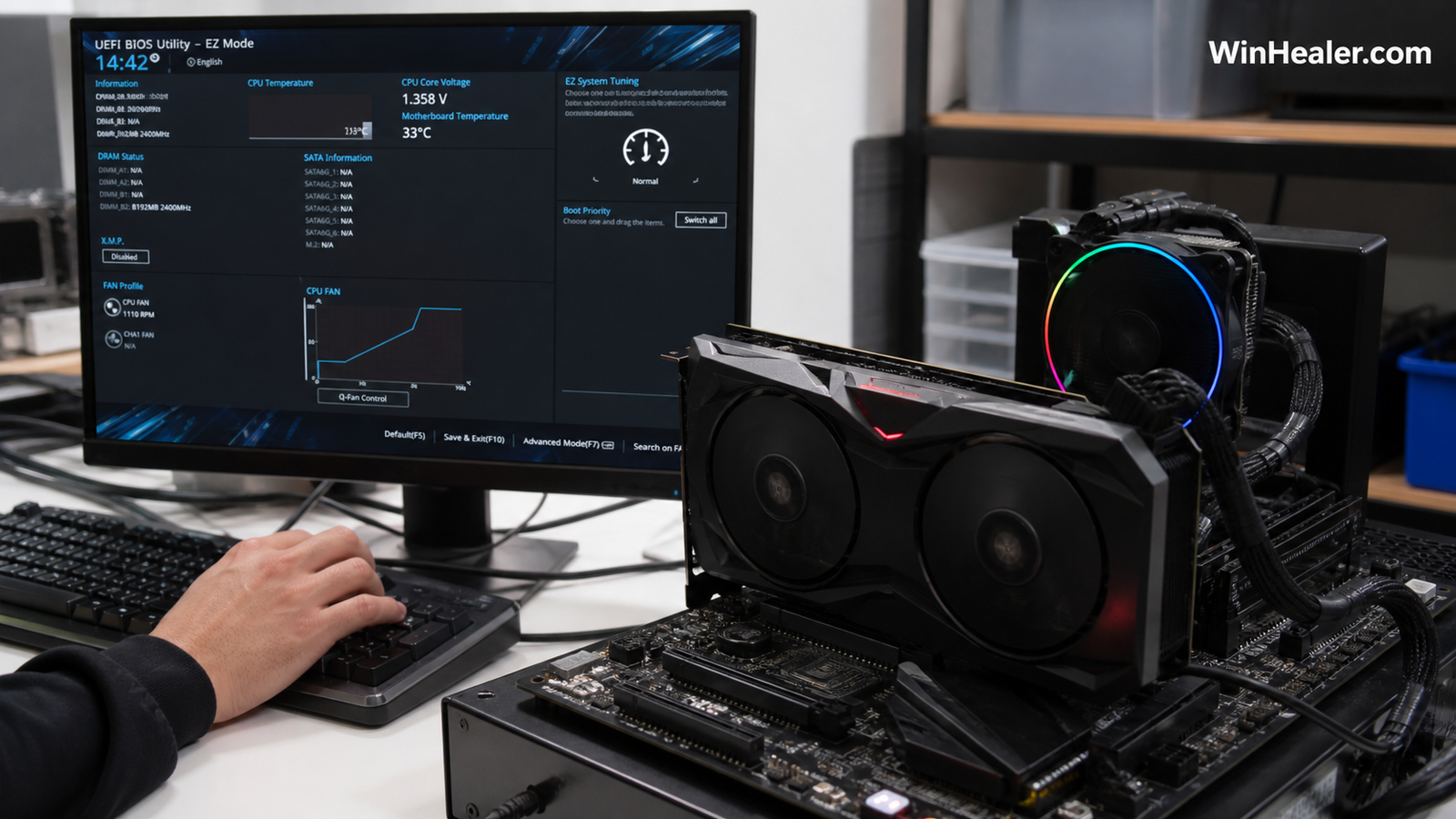
Step 3: Change the BIOS settings
- Enter UEFI setup with Delete or F2 during startup.
- Load optimized defaults if the system carries years of old tuning.
- Disable CSM or legacy boot.
- Enable Above 4G Decoding.
- Enable Resizable BAR Support. Some boards label the option Auto rather than Enabled.
- Save and restart.
Menu locations vary. Common homes include PCI Subsystem Settings, Advanced, Boot or IO settings. Use your board manual instead of copying screenshots from another brand.
If Windows will not boot after disabling CSM
Return to firmware and re-enable the previous boot mode. The likely problem is a legacy-partitioned Windows installation, not Resizable BAR itself. Windows includes MBR2GPT for supported conversions, but validate the disk and create a backup before using it. Encryption such as BitLocker also deserves attention: have the recovery key available before firmware changes.
Enabled in BIOS but disabled in the driver
This frustrating state normally points to GPU firmware, driver support or an incomplete UEFI configuration. Recheck all of these:
- CSM is really disabled after saving.
- Windows boots in UEFI mode.
- Above 4G Decoding remained enabled.
- The graphics card has a compatible VBIOS.
- The card is installed in the primary CPU-connected PCIe slot.
- Chipset and display drivers are current.
- The platform appears on the vendor’s supported list.
Common special cases
Older NVIDIA RTX 30-series cards
Early cards sometimes needed both motherboard support and a graphics-card VBIOS update. Use the card manufacturer’s exact tool and instructions.
AMD Smart Access Memory
SAM is AMD’s branding around Resizable BAR. The same UEFI foundations matter, although supported combinations and driver behavior change over time.
Intel Arc graphics
Resizable BAR is especially important for Arc performance. If an Arc system lacks the feature, check motherboard support and firmware before judging the GPU.
Virtual machines and laptops
Many laptops hide the relevant firmware controls, and virtual machines expose only what the hypervisor supports. An absent menu is not necessarily a fault.
Will it improve every game?
No. Driver vendors can use game-specific profiles because larger mappings do not help every workload. Benchmark the games you actually play, using the same scene and settings. Do not confuse a normal two-percent run-to-run variation with a feature gain.
When to leave it alone
If the computer is stable, the GPU vendor reports Resizable BAR active and games behave normally, stop tuning. Do not raise voltages or force unsupported firmware. The feature changes address mapping, not the GPU’s power limit, clocks or VRAM capacity.
Bottom line
The reliable recipe is UEFI boot, GPT where required, CSM off, Above 4G Decoding on, Resizable BAR on, and compatible motherboard and GPU firmware. Verify in the driver afterward. If one requirement is missing, fix that requirement rather than cycling random BIOS options.
Verification note: Checked August 16, 2026 against official guidance from NVIDIA, AMD Smart Access Memory, and Intel Arc Resizable BAR support. Consult your motherboard and GPU vendor for model-specific firmware.