
Quick answer: Start with a normal restart, confirm that the system drive has free space, disconnect unnecessary USB hardware, and run the built-in Windows Update troubleshooter. If the same update still fails, repair the Windows component store with DISM, run System File Checker, and only then reset the update cache or use Windows’ recovery options.
Reviewed July 27, 2026. This guide follows Microsoft’s documented recovery order and avoids third-party “repair” downloads.
Before you change anything
Write down the update name and error code shown in Settings > Windows Update > Update history. An error such as 0x80070070 points toward insufficient storage, while driver-related codes require a different path. Back up important files, keep a laptop connected to power, and do not force a shutdown while Windows says it is actively installing an update.
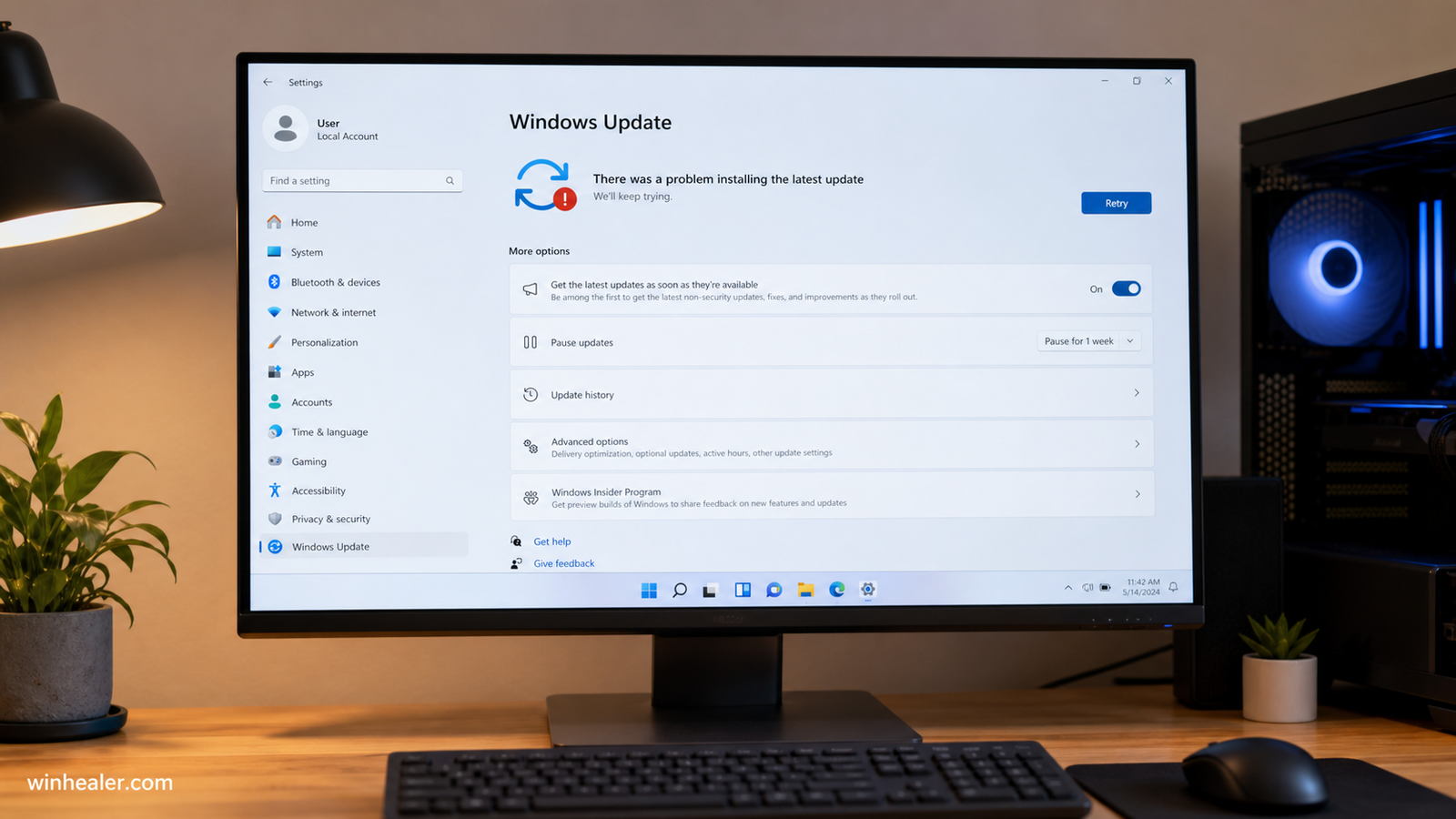
1. Rule out a temporary download or device problem
- Restart the computer from the Start menu—not by holding the power button.
- Open Settings > Windows Update and select Check for updates.
- Temporarily disconnect docks, external drives, printers, game controllers, and other nonessential USB devices.
- Turn off VPN software and make sure date, time, and time zone are correct.
- Confirm that drive C: has comfortable free space. A feature update needs more working room than its download size because Windows keeps rollback files during installation.
If the download percentage has not moved, check whether the network is marked as metered and whether another installation is pending. Leave the PC connected to a stable network for a reasonable period before declaring it frozen.
2. Run the Windows Update troubleshooter
Go to Settings > System > Troubleshoot > Other troubleshooters, then run Windows Update. Apply any recommended correction, restart, and try the update once more. The troubleshooter can repair common service and registration problems without manually deleting system folders.
3. Repair Windows files in the correct order
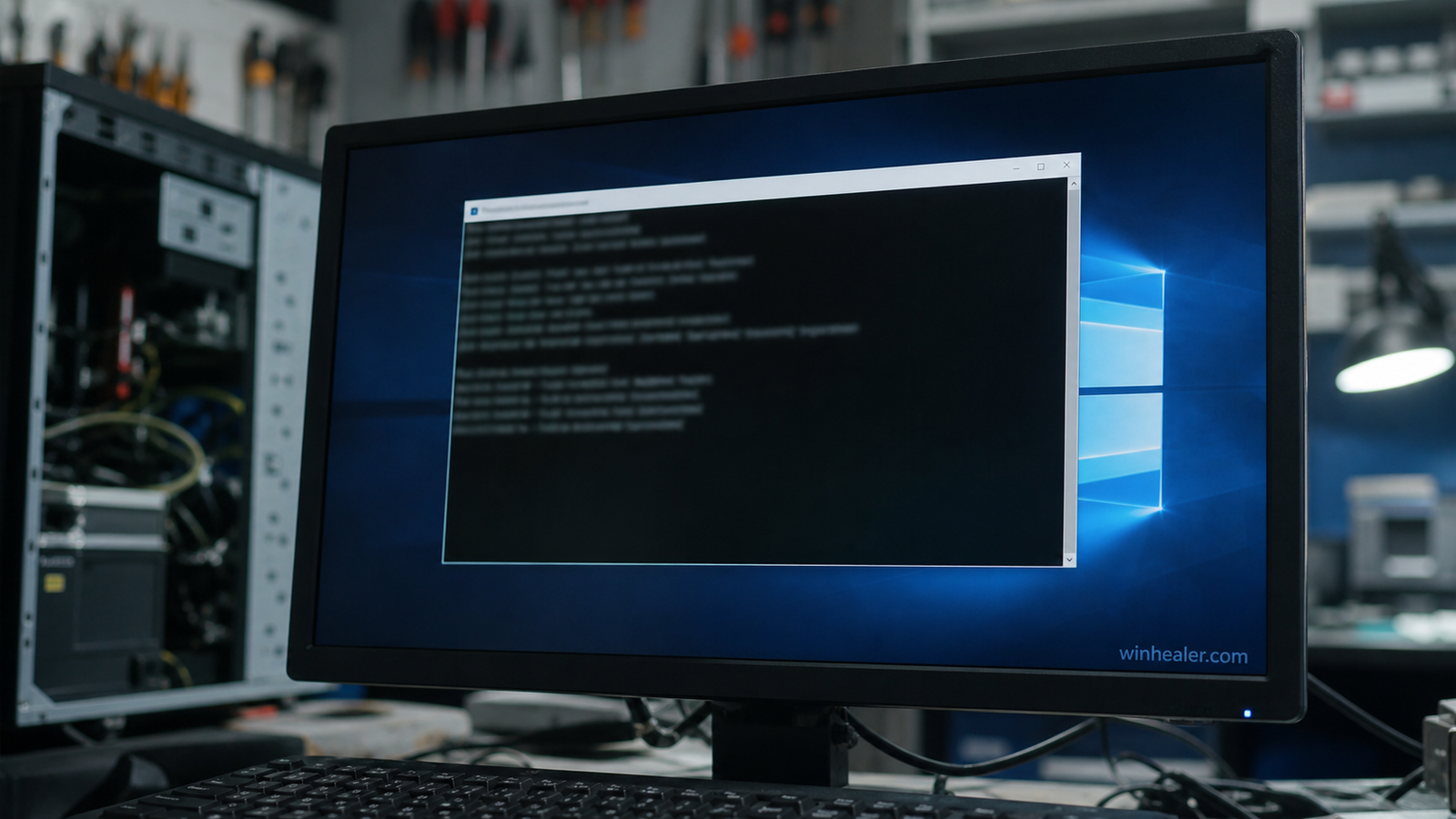
Microsoft recommends repairing the component store with Deployment Image Servicing and Management before using System File Checker. Open Terminal or Command Prompt as administrator and run:
DISM.exe /Online /Cleanup-Image /RestoreHealthLet DISM finish even if the percentage appears to pause. Then run:
sfc /scannowRestart after the scan. If SFC reports that it repaired files, try Windows Update again. If DISM cannot obtain source files, verify internet access and consult Microsoft’s DISM documentation rather than downloading system files from an unofficial website.
4. Check drivers, security software, and clean boot conflicts
Open Device Manager and look for devices with a warning icon. Obtain BIOS, chipset, storage, graphics, and network drivers from the PC or component manufacturer. Avoid generic driver-download utilities. Third-party antivirus or disk-encryption software can sometimes block an upgrade; consult its vendor before temporarily disabling or uninstalling it, and make sure you know any recovery key first.
A clean boot can identify a background service conflict. Use Microsoft’s clean-boot procedure, retry the update, and restore normal startup afterward. A clean boot is a diagnostic state, not a permanent performance setting.
5. Reset the update cache only when earlier steps fail
A damaged download cache can cause one update to fail repeatedly. Stop the Windows Update and Background Intelligent Transfer services, rename the SoftwareDistribution download folder, restart the services, and check again. This removes downloaded update files, not personal documents, but it also clears some displayed update-history details. Because commands and service names can change, follow Microsoft’s current support instructions for your Windows build instead of copying an old script.
6. If Windows keeps restarting
If the computer reaches the sign-in screen between restarts, review Update history to see whether the update installed and another item is now pending. If it never reaches Windows, allow automatic repair to open Windows Recovery Environment. Try Startup Repair first. If the problem began immediately after an update, the recovery menu may offer Uninstall Updates. System Restore is useful only when an appropriate restore point exists.
For a Windows installation that still boots, “Fix problems using Windows Update” can reinstall the current Windows version while preserving apps, files, and settings on supported systems. A repair install from official Windows media is another option. Reset this PC or a clean installation should be later choices, after a verified backup.
What not to do
- Do not download DLL files, “registry cleaners,” or unofficial update packages from random sites.
- Do not repeatedly cut power during the installation phase.
- Do not delete recovery partitions to gain a small amount of space.
- Do not flash a BIOS merely because Windows Update failed; use a BIOS update only when the manufacturer identifies a relevant fix.
A practical decision checklist
- One update fails: note its KB number and error, restart, troubleshoot, then repair system files.
- Many updates fail: check storage, network, time, update services, and component-store health.
- Feature update rolls back: investigate drivers, security software, disk space, and Setup error logs.
- PC cannot boot: use Windows Recovery Environment and protect your backup before reset or reinstall.
Frequently asked questions
How long should a Windows update sit at one percentage?
There is no universal limit. Slow storage, a large component cleanup, or an older CPU can make a percentage appear unchanged. Check for disk activity and wait longer during the installation stage. If the machine is completely unresponsive for hours, use Microsoft’s recovery guidance for the exact screen you see.
Will DISM or SFC delete my files?
These tools inspect and repair Windows components; they are not designed to delete personal files. A current backup is still sensible before any system repair.
Should I install an update manually?
Only use the Microsoft Update Catalog when you know the exact KB and architecture and Microsoft recommends manual installation. Manual installation will not solve an underlying servicing or compatibility problem.
Official references
- Microsoft: Use DISM and System File Checker
- Microsoft: Windows upgrade and installation errors
- Microsoft: Recovery options in Windows
Editorial note: WinHealer independently organized official Microsoft guidance into this troubleshooting sequence. Results depend on the error and system condition; no single fix is guaranteed.
Choose the recovery path that matches the symptom
If the update is visibly frozen at a specific percentage but Windows still boots normally, start with the least invasive fixes in this article and give the installer enough time to finish. If the PC repeatedly restarts, rolls back every boot or cannot reach the desktop, the problem is no longer just a slow progress counter: prioritize recovery options, Startup Repair and safe rollback. Keeping those two situations separate prevents unnecessary resets and makes it easier to identify which step actually solved the failure.

