
One of the most annoying problems in Windows 11 is when a system update fails with the error code 0x800F081F. You start downloading an update, but during installation, Windows suddenly stops and shows that it couldn’t complete the update.
I researched this issue because many Windows users face this error while installing cumulative updates, feature updates, or repairing Windows components. In this guide, I’ll share the solutions I recommend to fix Windows Update Error 0x800F081F without reinstalling Windows.
Whether you use a gaming PC, laptop, or work computer, these methods can help you get Windows updates working again.
What Is Windows Update Error 0x800F081F?
The error 0x800F081F usually means Windows cannot find the required files to complete an update or system repair.
This error commonly appears when using:
- Windows Update
- DISM repair commands
- .NET Framework installation
- Windows feature installation
The main reasons behind this error include:
- Corrupted Windows system files
- Missing repair source files
- Damaged Windows Update components
- Incorrect update cache
- Disabled Windows services
- Previous failed updates
Method 1: Restart Your Computer
Before trying advanced solutions, restart your PC.
A restart can:
- Clear temporary update files
- Restart Windows services
- Fix small system errors
After restarting, go to:
Settings → Windows Update → Check for Updates
Method 2: Run Windows Update Troubleshooter
Windows includes a built-in tool to detect update problems.
Follow these steps:
- Open Settings.
- Go to System → Troubleshoot.
- Select Other troubleshooters.
- Find Windows Update.
- Click Run.
Allow Windows to detect and repair common update issues.
Method 3: Repair Windows System Files Using SFC
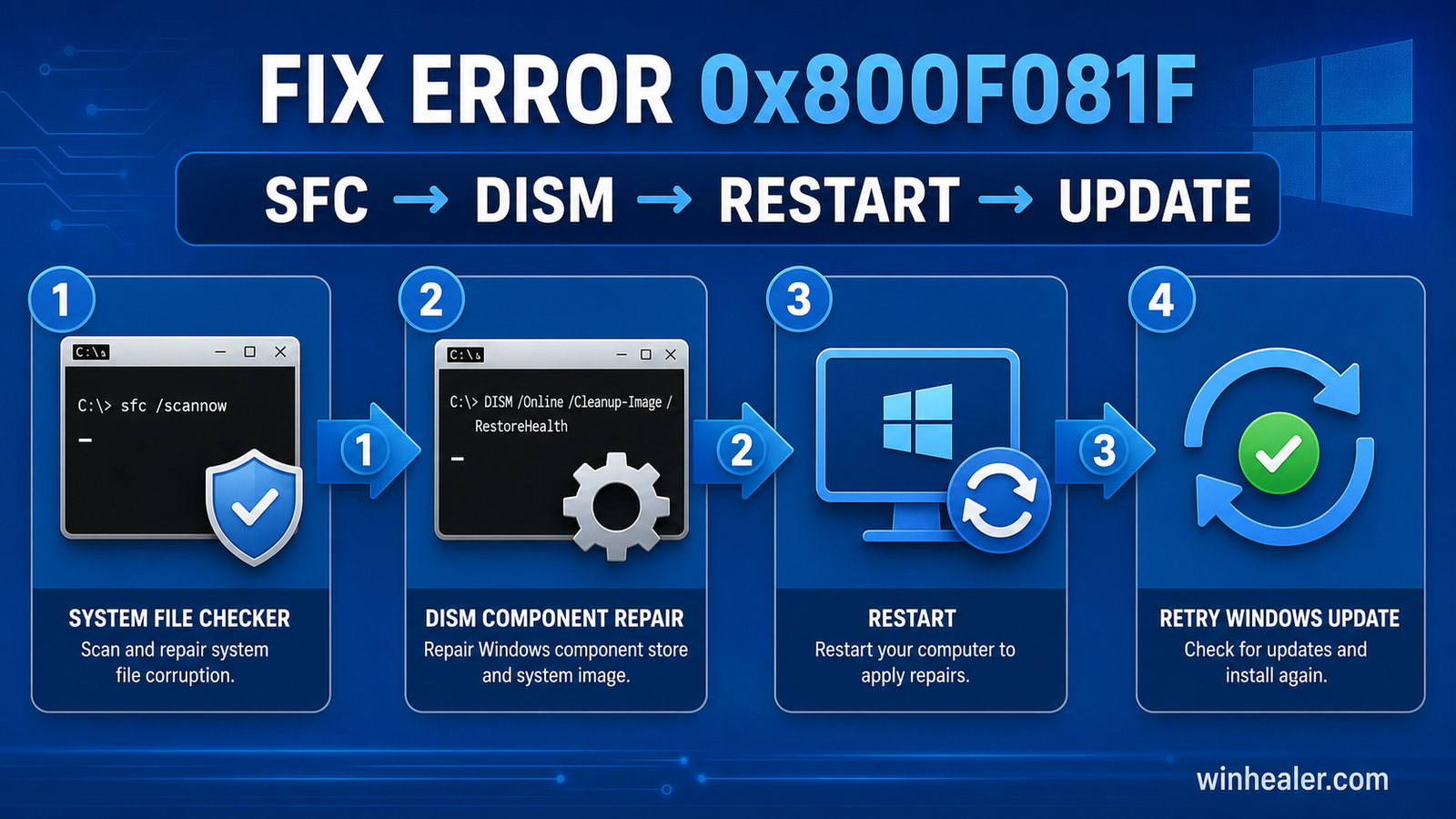
Corrupted system files are one of the most common causes of error 0x800F081F.
Open:
Command Prompt as Administrator
Run:
sfc /scannow
Wait until the scan completes.
If Windows finds damaged files, it will automatically attempt to repair them.
Restart your PC after the process finishes.
Method 4: Use DISM to Repair Windows Image
If SFC cannot fix the problem, use DISM.
Open Command Prompt as Administrator and run:
DISM /Online /Cleanup-Image /RestoreHealth
This command downloads and replaces damaged Windows component files.
After completion:
- Restart your computer.
- Run Windows Update again.
Method 5: Reset Windows Update Components
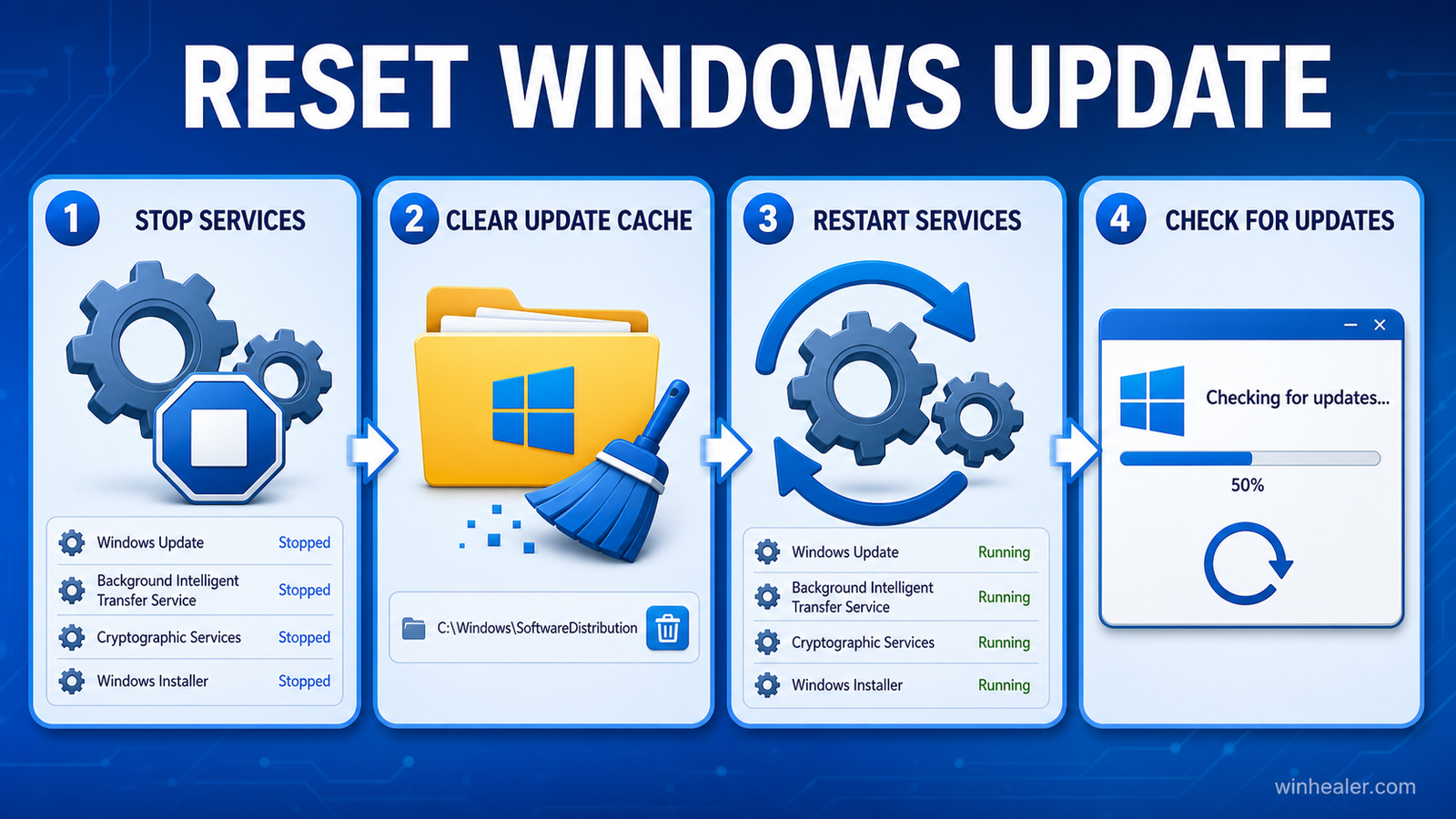
Sometimes Windows Update cache becomes corrupted.
Open:
Command Prompt as Administrator
Stop Windows Update services:
net stop wuauserv
net stop bits
net stop cryptSvc
net stop msiserver
Rename update folders:
ren C:\Windows\SoftwareDistribution SoftwareDistribution.old
ren C:\Windows\System32\catroot2 catroot2.old
Restart services:
net start wuauserv
net start bits
net start cryptSvc
net start msiserver
Restart your PC and try updating again.
Method 6: Check Windows Services
Some required services must be running correctly.
Press:
Windows + R
Type:
services.msc
Check these services:
- Windows Update
- Background Intelligent Transfer Service (BITS)
- Cryptographic Services
- Windows Installer
Make sure they are running and set to automatic startup.
Method 7: Install the Update Manually
If Windows Update keeps failing, install the update manually.
Steps:
- Open Windows Update history.
- Find the failed update KB number.
- Search for that KB number on Microsoft’s Update Catalog.
- Download the correct version.
- Install it manually.
This can bypass problems with the Windows Update system.
Method 8: Enable .NET Framework Features
Sometimes error 0x800F081F happens because Windows cannot install required .NET components.
Open:
Control Panel → Programs → Turn Windows features on or off
Enable:
- .NET Framework 3.5
- .NET Framework 4.x
Click OK and restart your PC.
Method 9: Check Available Storage Space
Windows updates need free storage to download and install files.
I recommend keeping at least:
- 15–20 GB free space on the Windows drive
Remove:
- Temporary files
- Old downloads
- Unused applications
Method 10: Perform an In-Place Repair Upgrade
If nothing works, an in-place repair upgrade can repair Windows while keeping your files.
It keeps:
- Personal files
- Installed applications
- Games
- Settings
This is usually better than a complete Windows reinstall.
Frequently Asked Questions
Does Windows Update Error 0x800F081F delete my files?
No. This error only prevents updates from installing. Your personal files remain safe.
Can corrupted Windows files cause this error?
Yes. Damaged system files are one of the most common reasons behind this update problem.
Should I reinstall Windows to fix error 0x800F081F?
Usually not. Try SFC, DISM, resetting Windows Update components, and manual installation first.
Final Thoughts
Windows Update Error 0x800F081F can be frustrating, especially when you need important security updates or new features. In my experience, repairing Windows files with SFC and DISM, resetting update components, checking services, and installing updates manually solves this issue for most users.
Before reinstalling Windows, try these troubleshooting steps because they can save you time and protect your data.
I hope this guide helps you fix Windows Update Error 0x800F081F. I’ll continue sharing Windows repair guides, PC optimization tips, and troubleshooting solutions here on WinHealer to help you keep your computer running smoothly.
Official Microsoft references
If the issue persists, use Microsoft’s current instructions before trying any advanced repair command.

