
Windows updates are important because they bring security improvements, bug fixes, and new features. However, sometimes a new update can create unexpected problems.
After installing a Windows update, some users may experience:
- Slow PC performance
- Driver problems
- Software crashes
- Blue Screen errors
- Gaming performance drops
- Hardware compatibility issues
The good news is that you don’t always need to reinstall Windows. Microsoft provides options to roll back a Windows update without deleting your personal files.
In this guide, I will explain the safest ways to uninstall or roll back a Windows update while keeping your important data safe.
Why Should You Roll Back a Windows Update?
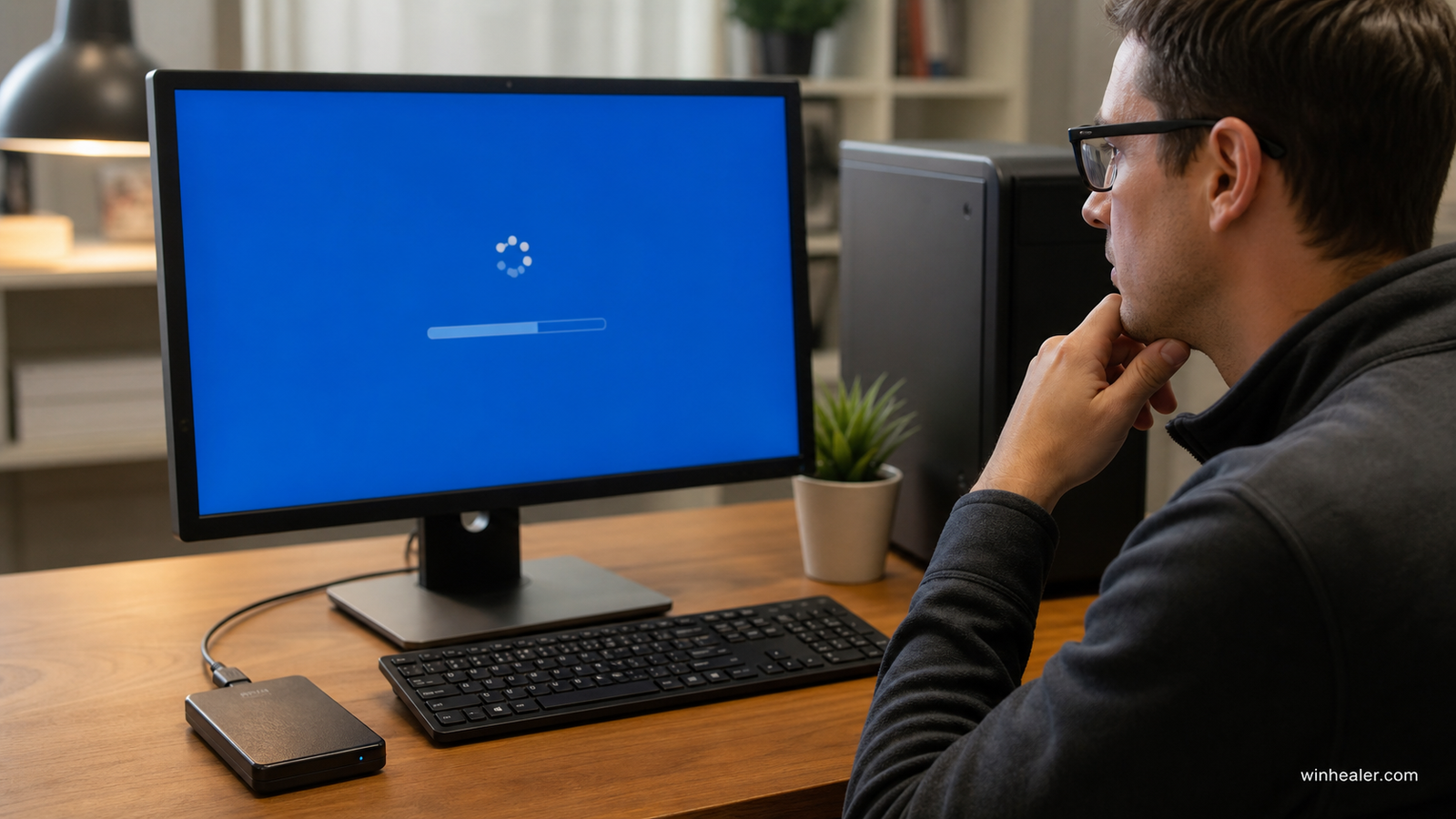
A Windows update rollback may be needed if your PC starts having problems after an update.
Common reasons include:
- New update causing system crashes
- Applications not working correctly
- Drivers becoming incompatible
- FPS drops in games
- Battery drain on laptops
- Slow startup times
Before making major changes, I always recommend creating a backup or restore point.
Method 1: Uninstall the Latest Windows Update
This is the easiest method if a recent update caused problems.
Steps:
- Open Settings
- Go to:
Windows Update → Update History
- Scroll down and select:
Uninstall Updates
- Choose the latest update
- Click:
Uninstall
- Restart your PC
Windows will remove the update while keeping your personal files.
Method 2: Use Windows Recovery to Go Back
If you upgraded to a new Windows version recently, you can return to the previous version.
Steps:
- Open:
Settings
- Go to:
System → Recovery
- Select:
Go Back
- Follow the instructions
This option keeps your personal files but may remove:
- Recently installed apps
- Driver changes
- Settings changes
Important Note About “Go Back”
The Go Back option is usually available only for a limited time after a major Windows upgrade.
If the option disappears, Windows may have automatically removed the old installation files.
Method 3: Use System Restore
System Restore can return your PC settings to an earlier working condition.
It can restore:
- System files
- Drivers
- Registry settings
- Installed software changes
Steps:
- Press:
Windows Key + R
- Type:
rstrui- Press Enter
- Select a restore point
- Click:
Finish
Your personal files such as photos and documents will not be deleted.
Method 4: Remove Update Using Advanced Startup
If Windows does not start properly after an update, use Recovery Mode.
Steps:
- Hold the Shift key
- Click Restart
- Select:
Troubleshoot → Advanced Options
- Choose:
Uninstall Updates
- Select:
- Uninstall latest quality update
or - Uninstall latest feature update
Follow the instructions.
What Happens to Your Files After Rollback?
Many users worry:
“Will I lose my photos, videos, and documents?”
Normally, rolling back a Windows update does not delete personal files.
Your:
✔ Photos
✔ Videos
✔ Documents
✔ Downloads
✔ Personal folders
should remain safe.
However, some apps and drivers installed after the update may be removed.
Things to Do Before Rolling Back
Before uninstalling an update, I recommend:
1. Create a Backup
Save important files to:
- External drive
- Cloud storage
- Another partition
2. Check If the Problem Is Driver Related
Sometimes the update is not the problem. A driver update may be causing issues.
Check:
- Graphics driver
- Wi-Fi driver
- Chipset driver
3. Note Installed Updates
Check:
Settings → Windows Update → Update History
This helps identify which update caused the issue.
Common Problems After Rollback
Sometimes users may experience:
- Missing drivers
- Windows Update trying to reinstall the same update
- Settings returning to previous values
To avoid this:
- Install updated drivers
- Pause Windows updates temporarily
- Monitor system performance
My Personal Recommendation
From my experience, you should not immediately remove every Windows update when you face a problem.
First try:
- Restart your PC
- Update drivers
- Repair Windows files
- Check background programs
If the problem started immediately after an update and normal troubleshooting does not work, then rolling back is a good option.
Final Thoughts
Windows updates improve security and performance, but sometimes they can introduce unexpected problems. Fortunately, Microsoft provides safe recovery options that allow you to roll back updates without losing your personal files.
Before making changes, always keep a backup and follow the correct steps.
With proper troubleshooting, you can fix Windows problems without reinstalling your entire operating system.
For more Windows guides, PC troubleshooting tips, hardware updates, and gaming optimization tutorials, follow WinHealer.

