
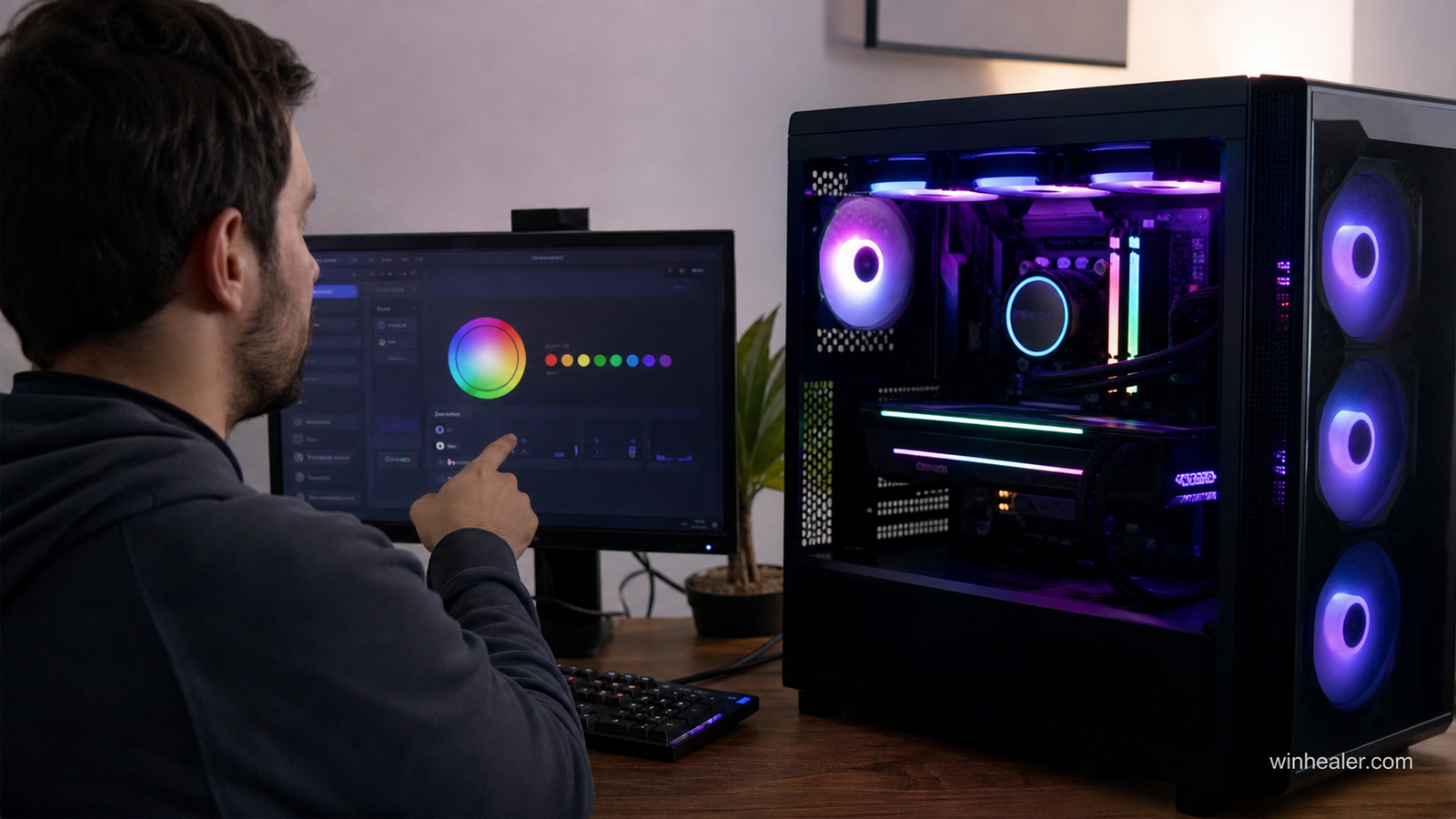
RGB lighting has become one of the most popular features in modern gaming PCs. From RGB fans and RAM to motherboards, graphics cards, and liquid coolers, almost every component now supports customizable lighting.
However, controlling RGB can be confusing because every hardware brand uses different software.
In this guide, I will explain how to control RGB lights for different PC brands and also share one universal RGB control software that works with many devices.
Before Controlling RGB Lights
First, check your RGB connection.
There are two main RGB types:
1. RGB (12V 4-pin)
- One color at a time
- Older RGB standard
- Usually 12V header
2. ARGB (5V 3-pin)
- Individual LED control
- Rainbow effects
- More customization
- Common in modern gaming PCs
⚠️ Never connect a 5V ARGB device to a 12V RGB header. It can damage the lighting device.
1. ASUS RGB Control
Recommended Tool:
ASUS Armoury Crate + Aura Sync
ASUS uses Aura Sync technology for RGB control.
Supported products:
- ASUS motherboards
- ROG graphics cards
- TUF Gaming products
- RGB RAM
- Compatible third-party devices
How to use:
- Download ASUS Armoury Crate.
- Install Aura Sync components.
- Open Aura Sync.
- Select your devices.
- Choose lighting effects.
Available effects:
- Static color
- Rainbow
- Breathing
- Color cycle
- Music effects
- Temperature-based lighting
2. MSI RGB Control
Recommended Tool:
MSI Center + Mystic Light
MSI uses Mystic Light for RGB customization.
Supported:
- MPG series
- MAG series
- MEG series
- MSI graphics cards
- MSI gaming peripherals
Steps:
- Install MSI Center.
- Add Mystic Light module.
- Select your RGB device.
- Choose effects.
Effects:
- Gaming mode
- Rainbow
- Flashing
- Smart lighting
MSI Mystic Light also supports many third-party RGB components.
3. Gigabyte RGB Control
Recommended Tool:
Gigabyte Control Center + RGB Fusion
Gigabyte uses RGB Fusion technology.
Supported:
- AORUS motherboards
- Gigabyte GPUs
- RGB memory
- Gaming accessories
Steps:
- Install Gigabyte Control Center.
- Open RGB Fusion.
- Select components.
- Customize colors and effects.
Features:
- Multiple lighting zones
- Sync mode
- Custom profiles
4. ASRock RGB Control
Recommended Tool:
ASRock Polychrome RGB
Supported:
- ASRock motherboards
- RGB RAM
- Fans
- Compatible accessories
Steps:
- Install ASRock Polychrome RGB.
- Detect RGB devices.
- Select colors and effects.
Features:
- Static colors
- Rainbow effects
- LED customization
5. ASUS, MSI, Gigabyte GPU RGB Control
Many graphics cards have their own RGB software.
Examples:
ASUS GPU
Tool:
Aura Sync
MSI GPU
Tool:
Mystic Light
Gigabyte GPU
Tool:
RGB Fusion
Zotac GPU
Tool:
FireStorm
Sapphire GPU
Tool:
TriXX
6. Corsair RGB Control
Recommended Tool:
Corsair iCUE
Corsair is one of the biggest RGB ecosystem brands.
Supports:
- RGB fans
- RAM
- Coolers
- Keyboards
- Mice
- Controllers
Features:
- Advanced effects
- Game integration
- Temperature-based lighting
- Custom profiles
7. Cooler Master RGB Control
Recommended Tool:
MasterPlus+
Supports:
- Cooler Master fans
- AIO coolers
- RGB accessories
Features:
- Lighting effects
- Fan controller support
- Device synchronization
8. NZXT RGB Control
Recommended Tool:
NZXT CAM
Supports:
- NZXT RGB fans
- Kraken coolers
- Cases
Features:
- RGB control
- Temperature monitoring
- Fan control
Universal RGB Control Software (Many Brands Together)
If your PC has components from different brands, installing many RGB programs can create conflicts.
A better solution is:
OpenRGB
OpenRGB is a free, open-source RGB controller.
Supports many brands:
✅ ASUS
✅ MSI
✅ Gigabyte
✅ ASRock
✅ Corsair
✅ G.Skill
✅ Cooler Master
✅ HyperX
✅ Many RGB controllers
Benefits:
- One application for multiple brands
- Lightweight
- No unnecessary background services
- Custom RGB profiles
SignalRGB: Another All-in-One RGB Solution
SignalRGB is another popular universal RGB platform.
Features:
- Controls multiple brands together
- Gaming lighting effects
- Screen synchronization
- Music effects
Useful for people with mixed setups.
Example:
- ASUS motherboard
- Corsair RAM
- MSI GPU
- Cooler Master fans
All can be controlled together.
Fix Common RGB Problems
RGB Not Detected
Try:
✅ Check cable connection
✅ Check ARGB/RGB header type
✅ Update motherboard BIOS
✅ Restart RGB software
Multiple RGB Software Conflict
Example:
Installing:
- Armoury Crate
- MSI Center
- RGB Fusion
at the same time may cause conflicts.
Solution:
Use one main RGB controller whenever possible.
Best RGB Setup Recommendation
For a clean gaming PC:
ASUS PC:
→ Armoury Crate Aura Sync
MSI PC:
→ MSI Center Mystic Light
Gigabyte PC:
→ Gigabyte Control Center RGB Fusion
Mixed Brand PC:
→ OpenRGB or SignalRGB
Final Thoughts
RGB lighting is not only about making your PC look beautiful. With the right software, you can create a complete gaming setup with synchronized colors and effects.
Whether you use ASUS, MSI, Gigabyte, ASRock, Corsair, or another brand, there is a solution to control your RGB lights.
A well-organized RGB setup can transform a normal PC into a professional gaming machine.

