
Windows 11 looks modern and powerful, but many users with older or low-end PCs experience slow performance, lag, slow startup, and high RAM usage. The good news is that you don’t always need expensive hardware upgrades. With some simple settings and optimizations, you can make Windows 11 run faster and smoother.
In this guide, I will share some practical methods to improve Windows 11 performance on a low-end PC.
1. Disable Unnecessary Startup Programs
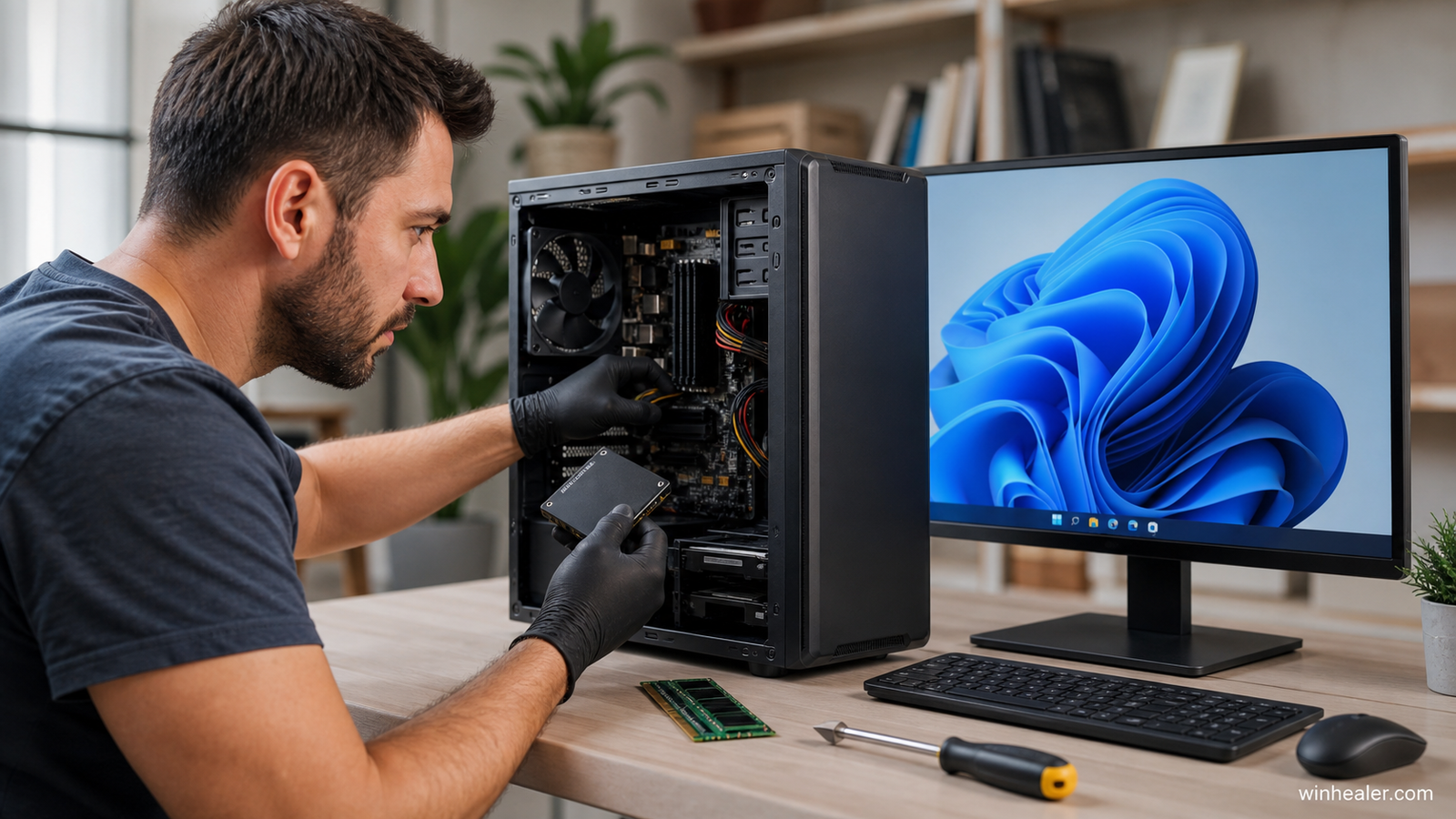
Many applications automatically start when you turn on your computer. These programs use RAM and CPU power, making Windows boot slower.
How to disable startup apps:
- Press Ctrl + Shift + Esc to open Task Manager.
- Click Startup Apps.
- Disable apps that you don’t need during startup.
Keep important programs like antivirus and hardware drivers enabled.
2. Turn Off Visual Effects for Better Performance
Windows 11 uses animations and effects that look good but consume system resources.
Steps:
- Press Windows + R.
- Type:
sysdm.cpl- Open the Advanced tab.
- Under Performance, click Settings.
- Select:
Adjust for best performance
- Click Apply.
This can make animations faster, especially on older CPUs and integrated graphics.
3. Remove Unnecessary Background Apps
Some apps keep running in the background even when you are not using them.
Steps:
- Open Settings.
- Go to Apps → Installed Apps.
- Remove apps you don’t use.
You can also check Task Manager to find programs using too much CPU or RAM.
4. Clean Temporary Files
Temporary files can take storage space and slow down your system.
Use Windows Cleanup:
- Press Windows + I.
- Go to:
System → Storage
- Enable Storage Sense.
You can also manually delete temporary files:
Press:
Windows + RType:
%temp%Delete unnecessary files.
5. Enable High Performance Power Mode
Windows may limit performance to save battery or power.
Steps:
- Open Control Panel.
- Go to:
Hardware and Sound → Power Options
- Select:
High Performance
This helps improve CPU performance.
6. Disable Unnecessary Windows Services
Some Windows services run in the background and are not needed for every user.
Press:
Windows + RType:
services.mscCheck services you don’t need.
Examples:
- Xbox services (if you don’t use Xbox features)
- Print Spooler (if you never print)
- Remote Registry
Be careful when disabling services. Some Windows services are required.
7. Keep Windows and Drivers Updated
Old drivers can cause:
- Slow performance
- Crashes
- Hardware problems
Update:
- Graphics drivers
- Chipset drivers
- Network drivers
Always download drivers from official manufacturer websites.
8. Upgrade Your Hardware (If Possible)
Software optimization helps, but hardware upgrades give the biggest improvement.
For a low-end PC, the best upgrades are:
Replace HDD with SSD
An SSD can make Windows boot much faster and applications open quickly.
Increase RAM
Windows 11 works better with:
- Minimum: 8GB RAM
- Recommended: 16GB RAM
9. Scan Your PC for Malware
Viruses and unwanted programs can slow down your computer.
Use:
- Windows Security
- Trusted antivirus software
Run a full system scan regularly.
10. Restart Your PC Regularly
Many users keep their computers running for weeks. Restarting clears memory and refreshes Windows processes.
A simple restart can sometimes fix:
- Slow performance
- High RAM usage
- Temporary bugs
Bonus Tips for Very Low-End PCs
If your PC has:
- Intel Pentium/Celeron processor
- 4GB RAM
- HDD storage
Try these:
✅ Use Microsoft Edge with fewer extensions
✅ Remove unnecessary browser tabs
✅ Avoid heavy background applications
✅ Keep at least 15-20% storage free
✅ Use lightweight software alternatives
Final Thoughts
Windows 11 can run smoothly even on older computers if you optimize the system correctly. Disabling unnecessary startup programs, reducing visual effects, cleaning storage, and upgrading to an SSD can make a huge difference.
Before buying a new PC, try these methods first. A few small changes can bring new life to your old computer.
Have you tried these Windows 11 speed tricks? Share your experience in the comments.

