
Warnings about expiring Windows Secure Boot certificates sound more dramatic than they usually are. Microsoft says a device without the replacement certificates can continue to start, run Windows, and install ordinary updates. The real problem is that it may no longer accept future protections for the part of the computer that runs before Windows loads.
For most home users, the update arrives automatically through Windows Update. A smaller group of PCs may need a firmware update or help from the manufacturer. Here is how to check the status without changing sensitive UEFI settings or following risky registry instructions.
What is actually expiring?
Secure Boot is a UEFI firmware feature that checks digital signatures before allowing boot software to run. That chain includes firmware components, EFI applications, and the Windows boot loader. Its purpose is to stop untrusted code—such as a bootkit—from taking control before the operating system and antivirus protection are active.
The Microsoft certificates that have supported this trust chain since 2011 reached the end of their planned life in 2026. Microsoft lists different dates for different certificates: two 2011 certificates reached expiration in June, while the certificate used to sign the Windows boot loader reaches expiration in October. Their replacements were issued in 2023 and are stored in the firmware’s Secure Boot databases.
This is not a browser certificate. It changes trust information used during startup, so the rollout is staged. Newer PCs often already contain the replacements; older supported systems may receive them after Microsoft confirms that their model and firmware are ready.

What happens if a PC is not updated?
Microsoft’s guidance makes an important distinction: an affected PC does not normally become unusable the moment an old certificate expires. Windows can continue to boot, existing software can continue to work, and standard Windows updates can continue to install.
The weakness appears over time. A PC still using the old trust configuration may be unable to receive a newer Windows Boot Manager, Secure Boot database changes, revocation-list updates, or mitigations for newly discovered boot-level vulnerabilities. That leaves the earliest stage of startup on an older security foundation. Microsoft also warns that future operating systems, firmware, hardware, or Secure Boot-dependent software could eventually have compatibility problems with an outdated configuration.
That is why the correct response is to check and update—not to panic, disable Secure Boot, or replace a working computer without evidence.
How to check the certificate status in Windows Security
Microsoft began adding consumer-facing certificate information to the Windows Security app in April 2026. The enhanced display rolls out through Windows and service updates, so install current updates before assuming the option is missing.
- Open Start, type Windows Security, and open the matching app.
- Select Device security.
- Open the Secure Boot section.
- Read the full sentence below the status icon. Do not judge the result only by the badge color.
These are the main states Microsoft documents:
- Fully updated: The text says Secure Boot is on, all required certificate updates have been applied, and no further certificate changes are needed. No action is required.
- Not yet updated: Windows reports an older boot trust configuration. Install the latest Windows updates, stay connected to the internet, and restart when prompted. The automatic rollout may still be in progress.
- Temporarily paused: Microsoft has identified a compatibility concern for that configuration. The guidance says the rollout should resume automatically after the issue is resolved; forcing the update is not the safe shortcut.
- More validation needed: Microsoft does not yet have enough information to classify the device for automatic delivery. Follow the link presented by Windows Security for current guidance.
- Hardware or firmware limitation: The automated update cannot be delivered to the present configuration. Contact the PC or motherboard manufacturer.
- Action required: A red state means a required boot security update cannot be serviced with the current trust configuration. Follow Microsoft’s displayed guidance rather than dismissing the warning.
Microsoft specifically notes that a green checkmark alone does not prove the replacement certificates are installed, because the badge can also represent the general Secure Boot state. Look for the explicit “all required certificate updates” wording.
The safe update sequence for a home PC
1. Finish Windows Update first
Go to Settings > Windows Update, select Check for updates, install available security and cumulative updates, and restart when requested. Check again after the restart. Microsoft is delivering the replacement certificates automatically to most supported consumer PCs, so this ordinary route should be your first choice.
2. Check the manufacturer’s firmware support
If Windows Security mentions a firmware limitation, visit the official support page for the exact laptop, desktop, or motherboard model. Compare the model number carefully and read the release notes before installing UEFI or BIOS firmware. Keep a laptop connected to power and do not interrupt a firmware update.
Before changing firmware, make sure you can access your BitLocker recovery key if device encryption is enabled. A firmware or boot-configuration change can sometimes trigger a recovery prompt. Microsoft cannot recreate a lost BitLocker key, so locate it before maintenance rather than after a prompt appears.
3. Recheck the full status message
After Windows and any manufacturer-approved firmware are current, return to Windows Security > Device security > Secure Boot. The goal is the explicit fully updated message, not merely the absence of a pop-up.
4. Let an administrator handle managed PCs
Business and school devices may use managed deployment rules, staged testing, or a deliberate pause. Do not apply consumer workarounds to a managed computer. Contact the organization’s IT team, which can check deployment and event data across its device fleet.
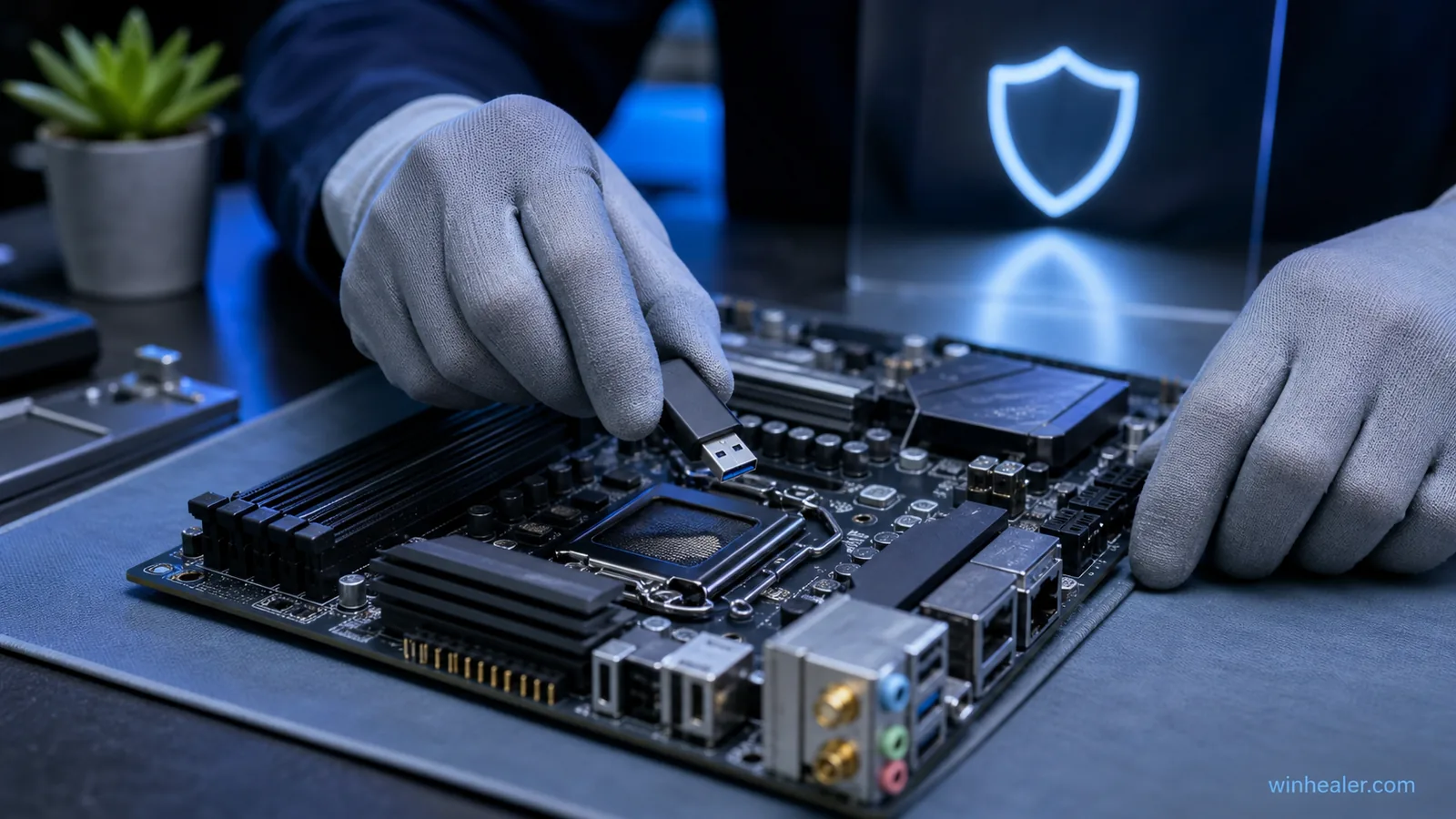
What you should not change casually
Avoid clearing Secure Boot databases, resetting keys, disabling Secure Boot, or importing certificates manually to remove a warning. An incorrect firmware change can produce a Secure Boot violation, interfere with another boot loader, or trigger BitLocker recovery.
Microsoft publishes registry, Group Policy, Intune, and Windows Configuration System deployment methods for administrators. Their existence does not make them the preferred path for a single home PC. They are designed for managed rollouts with inventory, compatibility testing, monitoring, and recovery planning.
Also resist downloading a “certificate fix” from a forum or file-sharing site. Use Windows Update, the official device manufacturer, and Microsoft’s Secure Boot guidance. The trust chain is exactly the wrong place to install an unverified package.
If the warning does not go away
First, copy the exact status text shown by Windows Security and record the PC model, Windows version, and firmware version. If the message says the update is paused for a known issue, waiting for the supported resolution is safer than forcing it. If it identifies a hardware or firmware limitation, contact the manufacturer and provide those details.
On organization-managed systems, Microsoft documents Event IDs 1795 and 1801 and the UEFICA2023Status registry value as possible diagnostic signals. These are useful to trained administrators, but consumers do not need to edit the registry. A status value is evidence, not an instruction to create or modify keys.
Common questions
Does expiration mean Windows will stop booting?
Microsoft says devices without the new certificates continue to start and operate normally, at least initially. The concern is their reduced ability to receive future protections for the Windows startup process.
Should I turn Secure Boot off?
No. Turning off a security control does not update its certificates and removes the protection Secure Boot is meant to provide. Follow the Windows Security status guidance instead.
Do all PCs need a manual BIOS update?
No. Microsoft says the majority of consumer devices receive the certificate update automatically. Firmware assistance is relevant when Windows Security or the manufacturer identifies a limitation or prerequisite.
Bottom line
The 2026 certificate transition is real security maintenance, but it is not a reason to experiment in UEFI. For most people, the sensible routine is short: keep Windows updated, install firmware only from the correct manufacturer, verify the complete Windows Security message, and respond to a yellow or red warning using the supplied official guidance. That preserves the chain of trust without turning a manageable update into a startup problem.
Official sources
- Microsoft Support: Windows Secure Boot certificate expiration and CA updates
- Microsoft Support: Secure Boot certificate update status in the Windows Security app
- Microsoft Learn: Update Secure Boot certificates for Windows devices
- Windows Experience Blog: Refreshing the root of trust
- Microsoft Support: Find your BitLocker recovery key

