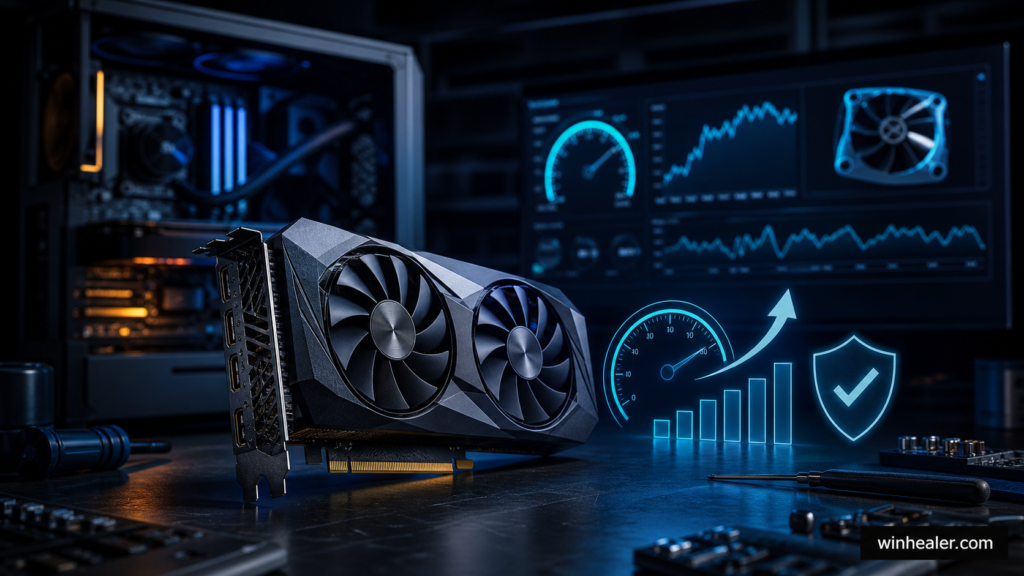
There is no single “safe gaming temperature” that fits every processor. A compact laptop chip, a modern Ryzen desktop CPU, and a high-power Intel desktop processor can all behave differently while remaining inside their designed operating limits. The better question is whether your CPU is sustaining expected performance without reaching its specified thermal limit.
The practical temperature guide
For many desktop gaming systems, temperatures in roughly the 60–80°C range under a real game are ordinary. Brief movement into the 80s can also be normal, particularly with high-boost processors, small cases, warm rooms, or games that compile shaders. A persistent reading near the processor’s maximum junction temperature deserves investigation, especially if clock speeds fall or the PC becomes unstable.
Those numbers are observations, not universal guarantees. Consult the specification page for your exact CPU. AMD commonly publishes a Max. Operating Temperature (Tjmax); Intel publishes thermal specifications such as Tjunction. The limit belongs to the individual model.
Measure the right workload
Record room temperature, idle temperature after several quiet minutes, and a 20–30 minute session in a game you actually play. Watch CPU temperature, package power, fan speed, clock speed, and utilization together. A synthetic stress test is useful for checking cooling capacity, but it can draw more power than a normal game and should not be treated as the only result.
Use one reputable monitoring application at a time. Two utilities polling the same sensors can make diagnosis messy. Laptop manufacturer control software may be the best source for its own thermal modes.
What thermal throttling looks like
Modern processors protect themselves by reducing clocks or power when they approach a control limit. A momentary high temperature is therefore less informative than a repeated pattern of temperature hitting the limit, clock speed dropping, fan speed peaking, and frame-time performance worsening.
A CPU at 85°C while holding its expected clocks may be behaving normally. Another CPU at 75°C but running far below its normal power and frequency may have a cooler mounting, power-plan, or firmware problem. Context wins.
My order for correcting high temperatures
- Check the room and airflow. A hotter room directly reduces cooling headroom. Confirm that intake and exhaust paths are open.
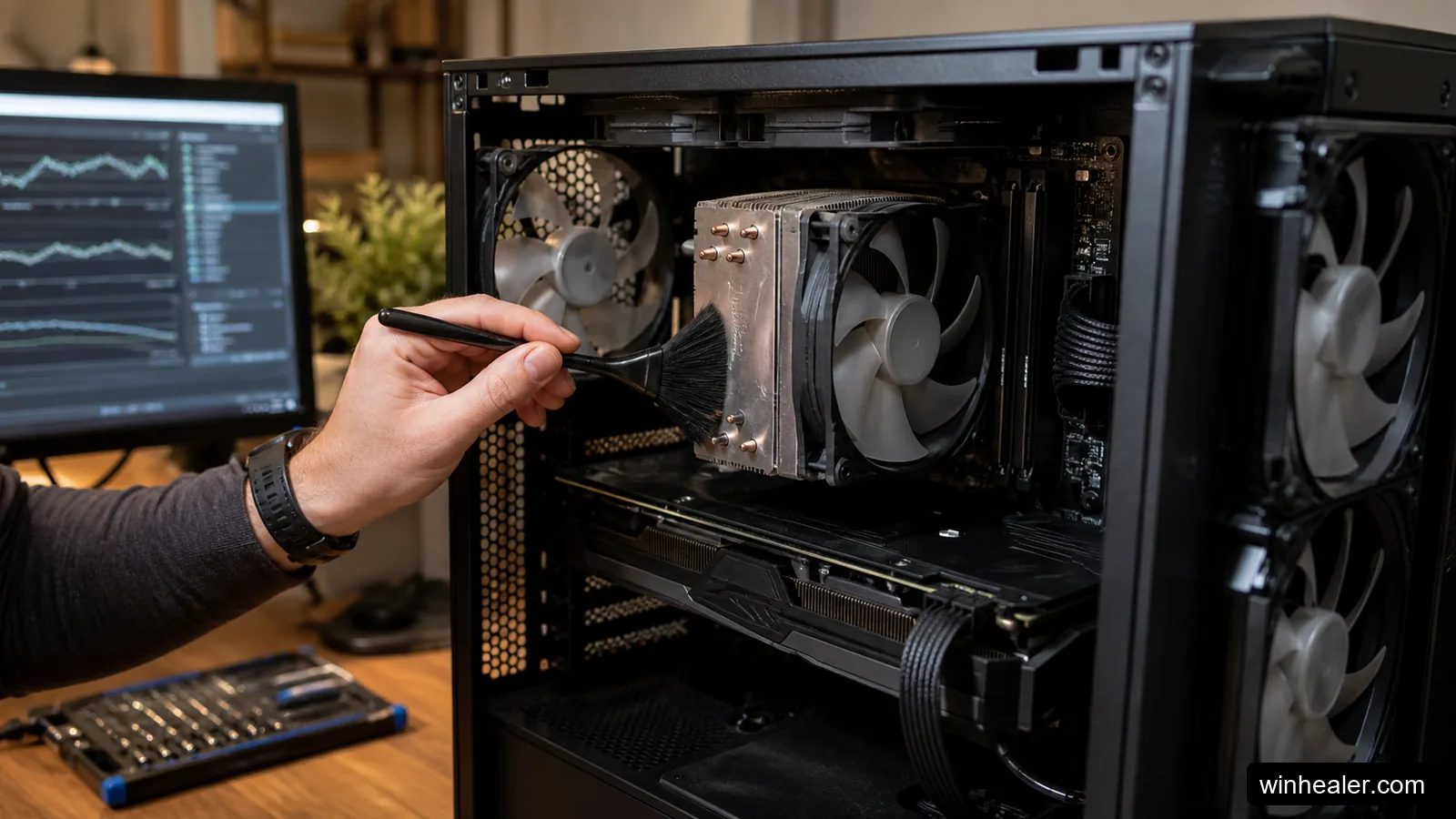
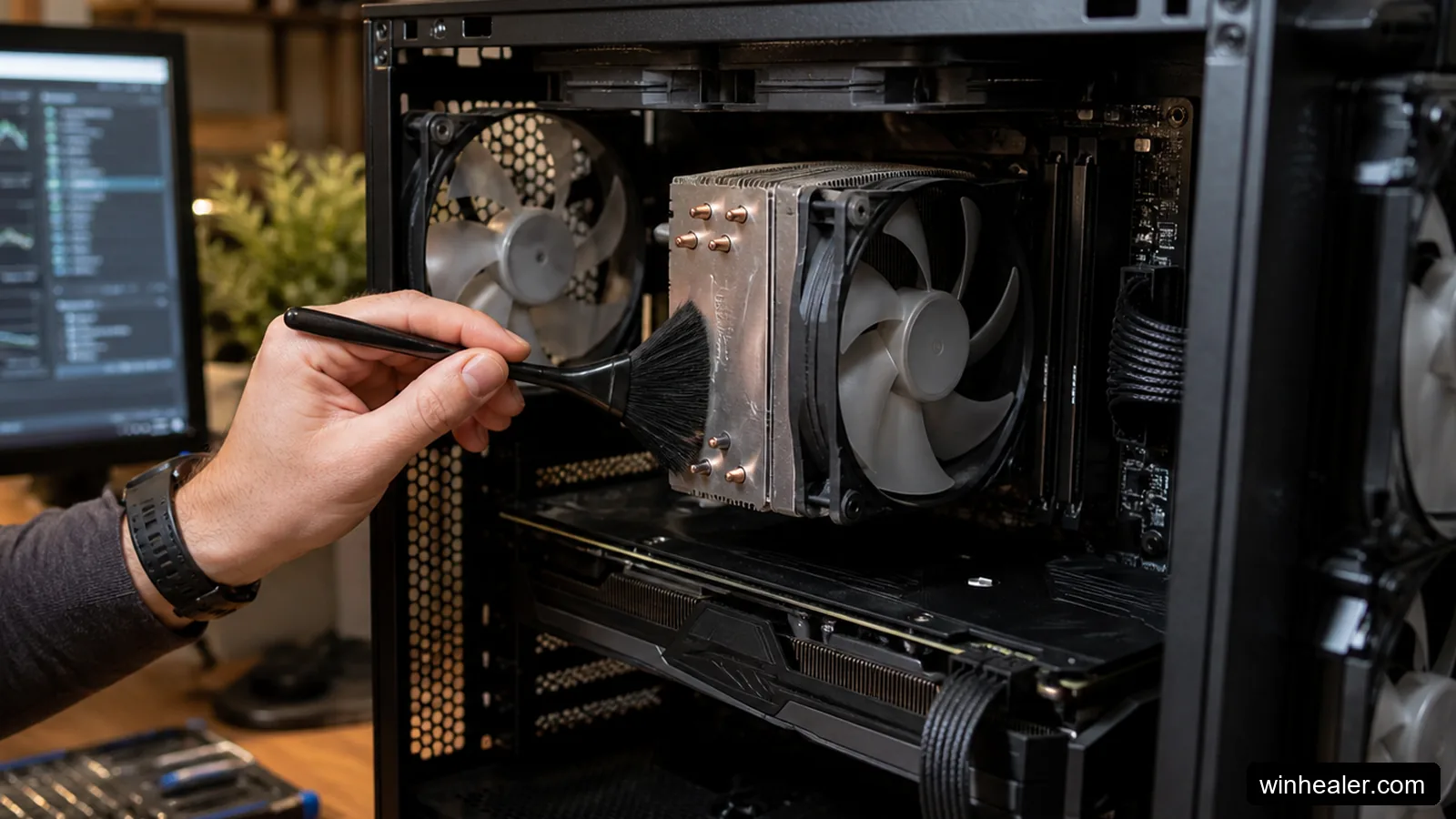
- Remove dust safely. Shut down, unplug the desktop, hold fan blades still, and use controlled air. Do not spin a fan wildly with compressed air.
- Check fan and pump operation. Confirm CPU fan speed in BIOS or the board utility. For a liquid cooler, listen for unusual pump noise and check its reported speed.
- Return tuning to stock. Remove manual voltage, overclocking, or poorly tested motherboard presets before judging the cooler.
- Inspect cooler mounting. Only after simpler checks, verify even mounting pressure and appropriate thermal-paste coverage.
Do not chase the lowest possible number
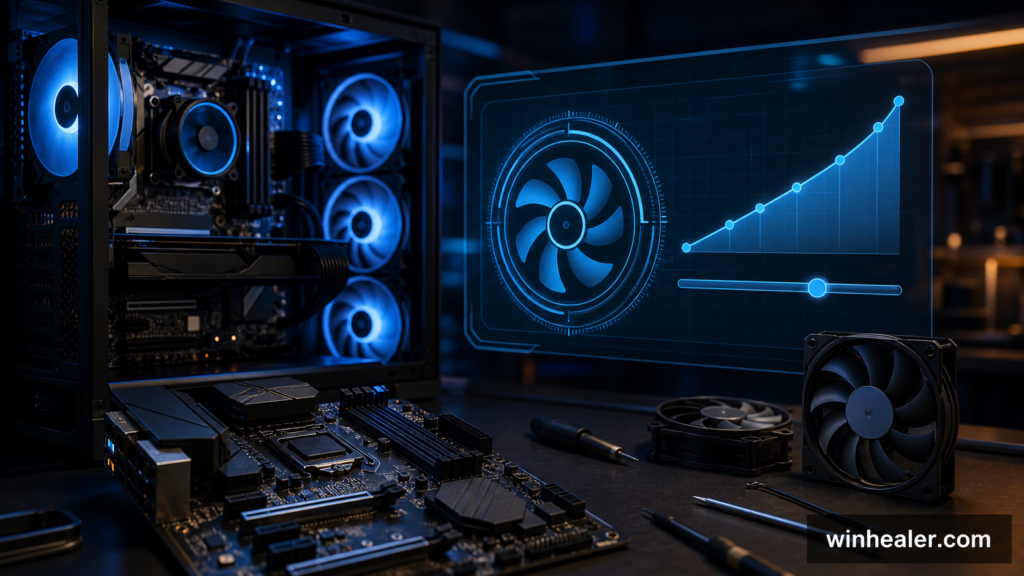
An unnecessarily aggressive fan curve can make the computer irritating without improving gaming performance. Set a gradual curve that reacts to sustained heat rather than every one-second spike. Modern CPUs change frequency and temperature quickly; fan hysteresis or smoothing prevents constant surging.
Laptop temperatures need different expectations
Gaming laptops share limited cooling space between the CPU and GPU. Higher temperatures and short boosts are common. Use the maker’s balanced or performance mode, keep vents clear on a hard surface, and compare performance with reviews of the same laptop model—not a desktop tower. A cooling pad can improve airflow on some designs, but it cannot repair a blocked heatsink or failing fan.
When to stop gaming and inspect the PC
Stop the workload if the system shuts down, smells hot, shows a failed-fan warning, leaks coolant, or becomes unstable. Back up important files if crashes recur. A new sudden temperature increase is often more meaningful than a stable high reading that the system has always shown.
The honest target is not a magic number. It is stable performance, reasonable noise, and temperature behavior that matches the published limits and normal characteristics of your exact CPU and computer.
Quick temperature questions
Is 90°C automatically dangerous?
Not automatically. Some modern CPUs are designed to boost toward a thermal target, but sustained operation near the model’s limit, throttling, instability, or a sudden change still deserves investigation. Check the exact specification rather than relying on a universal chart.
How hot is too hot at idle?
Idle readings vary with room temperature, background work, fan-stop modes, and the cooler. A rising idle temperature paired with high background CPU usage is a software clue; a rise with low usage suggests airflow, mounting, or cooler operation.
Does better thermal paste fix everything?
No. Correct mounting and reasonable paste coverage matter more than chasing a premium compound. A failed pump, blocked airflow, protective film left on a cooler, or excessive voltage will not be solved by paste alone.